iMessage Is Signed Out on iPhone: How to Fix It

Fix the iMessage Is Signed Out error on iPhone by checking Apple Account sign-in, activation, connectivity, and settings—without erasing your messages.
To fight a Gym in Pokémon GO, get close to a Gym controlled by another team, tap it, choose Battle, and select up to six Pokémon. During the fight, tap for Fast Attacks, tap the Charged Attack button when it is ready, and swipe left or right to dodge. Keep defeating defenders until the Gym becomes empty, then place one of your Pokémon inside to claim it for your team.
Gym Battles are different from Trainer Battles and Raids.
Open the map and look for a Gym marked in a team color. Mystic is blue, Valor is red, and Instinct is yellow. You can join a team after reaching Trainer Level 5 and visiting a Gym. Walk within interaction range, then tap the Gym to inspect it. A rival team's Gym is one you can attack; a friendly Gym is one you can help defend.

Look at the defending Pokémon and their CP (Combat Power). Each Gym can hold up to six defenders. Their motivation drops over time and after losses, temporarily lowering CP. Defenders fight in the order they were placed.
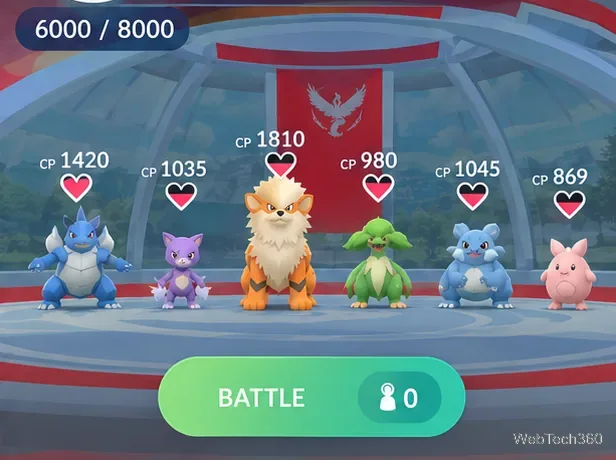
Tap Battle to view the suggested team. Pokémon GO recommends six attackers, but you can replace them or use a saved battle party. High CP and HP help, but type effectiveness matters too.
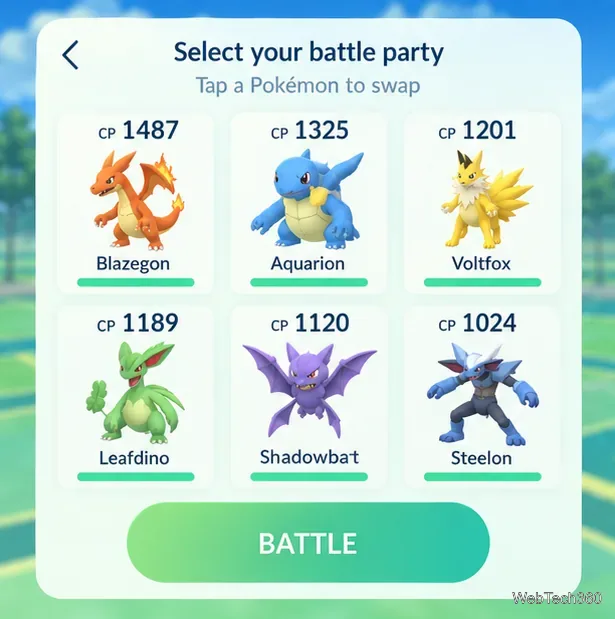
For example, Water-type attacks are strong against Fire-type defenders, while Electric-type attacks work well against Water types. Fighting-type attacks are effective against Normal-type defenders. Check the type of each move, not only the Pokémon's species: a Pokémon may know a move that does not match its own type. Dual-type defenders have additional matchups.
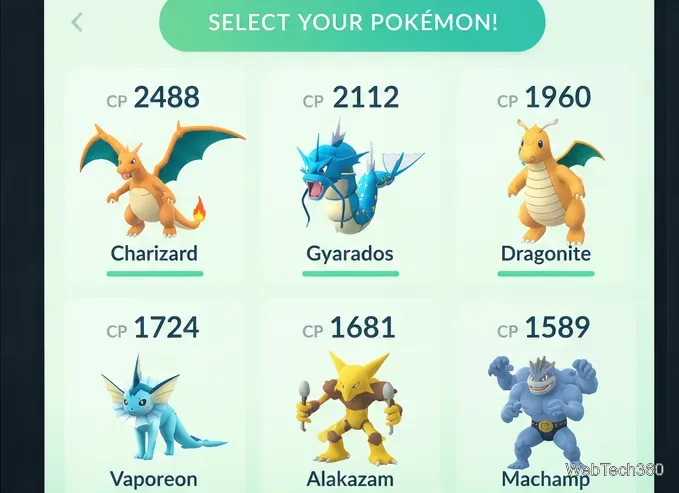
Use the official Pokémon GO type-effectiveness guide to check unfamiliar matchups. A Pokémon also gets a damage boost when it uses an attack matching its own type, so inspect both its Fast Attack and Charged Attack before you commit.
When your team is ready, tap GO Battle. The first defender enters the arena. Tap the screen repeatedly for Fast Attacks. These deal damage and generate energy for a Charged Attack. Watch both HP bars.
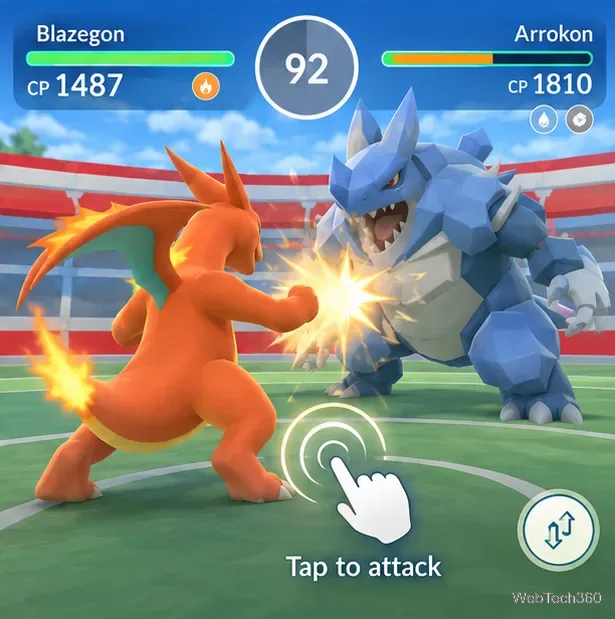
Once enough energy has built up, the Charged Attack button becomes available. Tap that button to use the move. It deals substantial damage, and energy costs vary by move. There is no need to double-tap the middle of the screen; that advice comes from older versions of the game.
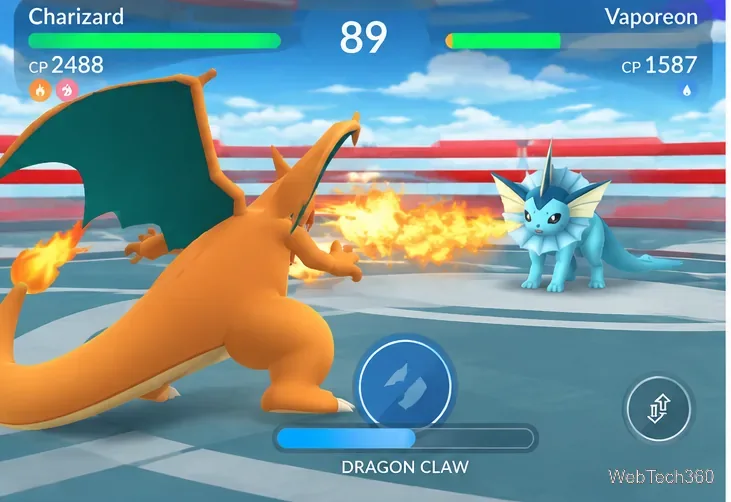
If you have two Charged Attacks unlocked, pay attention to which move provides the better matchup. The official Fast and Charged Attacks guide explains how their energy requirements work.
Swipe left or right to dodge an incoming attack. Time your dodge for incoming attacks, especially strong ones. Continuous swiping sacrifices opportunities to deal damage.
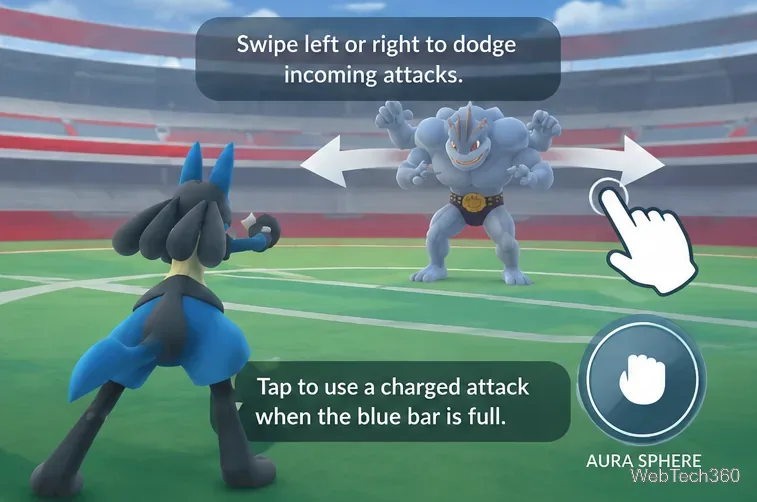
Each defeated defender loses motivation. A Pokémon does not necessarily leave the Gym after a single defeat: you may need several rounds, especially if its motivation is high or a defending Trainer feeds it Berries. Once all defenders are removed, the Gym turns gray and becomes available to claim. Control may change quickly.
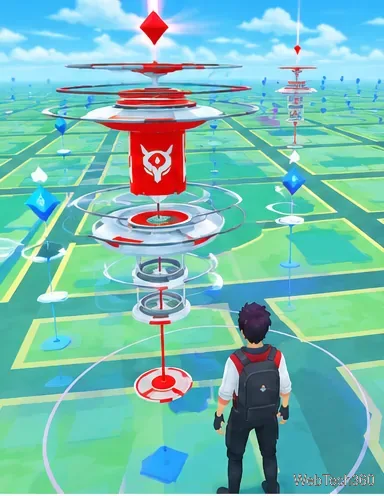
To take an empty Gym, tap the gray Gym, select Add Pokémon, and choose one defender. Each Trainer can place only one Pokémon, and a Gym cannot contain duplicate species. You cannot battle a friendly Gym to become its leader; instead, feed its defenders Berries to restore motivation. A Golden Razz Berry fully restores a defender’s motivation.
If one of your Pokémon faints, open Main Menu → Items and use a Revive before a Potion. A Potion restores missing HP but cannot revive a fainted Pokémon. Max Revives restore a fainted Pokémon to full HP. The official healing instructions also describe Heal All and Revive All.
Gym activity contributes to Gym Badges, and feeding Berries to friendly defenders earns XP and Stardust. Leaving a Pokémon to defend a Gym can earn PokéCoins, which arrive when it returns; the daily defender limit is 50 PokéCoins under the current official Defender Bonus rules. Do not rely on old claims that every Gym victory awards exactly 100 XP.
Friendly Gyms are for placing Pokémon and feeding Berries, not attacking. If a Raid Boss has taken over, the Gym is hosting a different type of battle. Also make sure you are close enough to interact with the Gym. For a full explanation of the battle and takeover process, see the official Pokémon GO Gym Battle guide.
Fix the iMessage Is Signed Out error on iPhone by checking Apple Account sign-in, activation, connectivity, and settings—without erasing your messages.
Turn off your iPhone VPN in the app or Settings, confirm it disconnected, and stop automatic reconnections without deleting your account.
Learn how to encrypt your iPhone with a strong passcode, protect iCloud and computer backups, and secure your data if your phone is lost or stolen.
Learn how to clear Safari and Chrome cache on iPhone, manage app storage safely, and understand when clearing cached data actually helps.
Learn how to fight Gym Battles in Pokémon GO, pick effective attackers, use Charged Attacks and dodges, and claim a Gym after defeating its defenders.
Explore classic Cydia tweaks for jailbroken iPads, from SwipeSelection to Quasar, with compatibility warnings and modern alternatives.
Stop Apple Music signup prompts in the Music app. Learn where to find Show Apple Music on iOS and what turning it off does—and does not—change.
Set up a Shortcuts automation to text Mom when your iPhone battery gets low. Follow four steps, plus delivery checks and privacy tips.
Save posts on X in a few taps. Learn where to find the Bookmark button on iPhone, Android, and desktop, plus how to view, remove, and organize saved tweets.
Turn on AR mode in Pokémon GO during a wild encounter, find AR settings, and fix camera or device compatibility issues.







