iMessage Is Signed Out on iPhone: How to Fix It

Fix the iMessage Is Signed Out error on iPhone by checking Apple Account sign-in, activation, connectivity, and settings—without erasing your messages.
To turn off a VPN on your iPhone, open your VPN app and tap Disconnect, or go to Settings > General > VPN & Device Management > VPN and switch the connection off. Both methods disconnect the VPN without automatically deleting your app, account, or subscription.
If the VPN immediately turns itself back on, an automatic connection rule or a managed device policy may be responsible. Here is how to disconnect it, keep it off when possible, and check that the change worked.
This is usually the simplest method if you installed a service's app rather than creating a VPN configuration manually. The exact wording and button design depend on the provider.

You can keep the app installed and reconnect later. If the app displays a temporary pause feature, check whether it pauses only for a set period; a pause is not the same as disabling auto-connect.
This route is particularly helpful for VPN configurations that appear in iOS Settings. Menu placement can vary slightly across iOS versions and VPN providers.
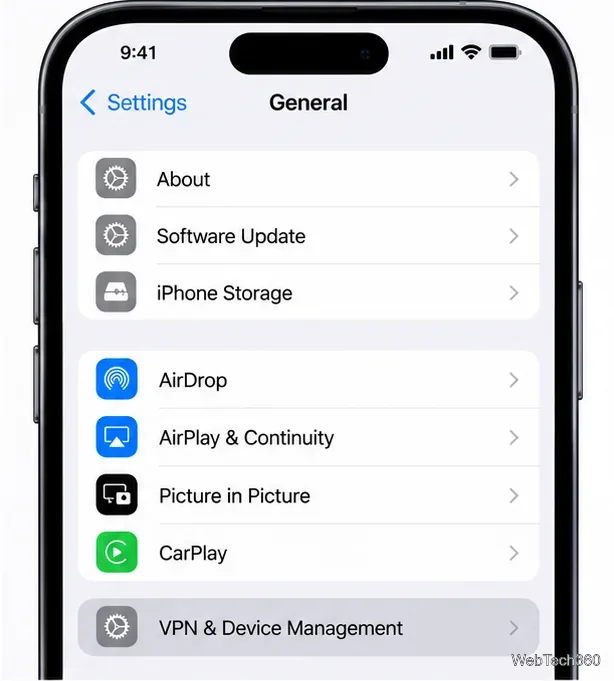
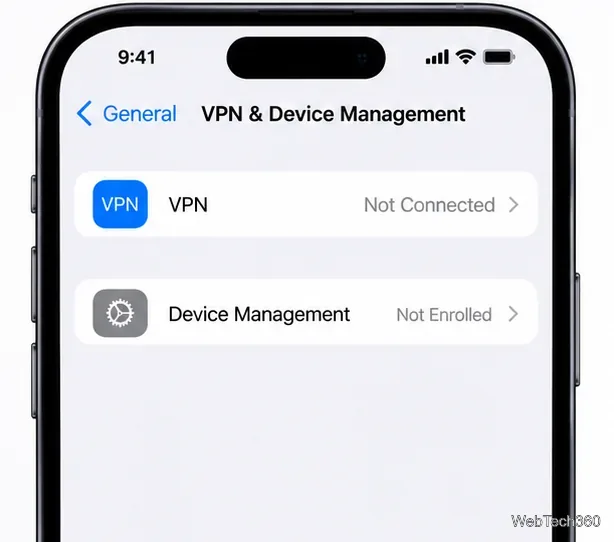
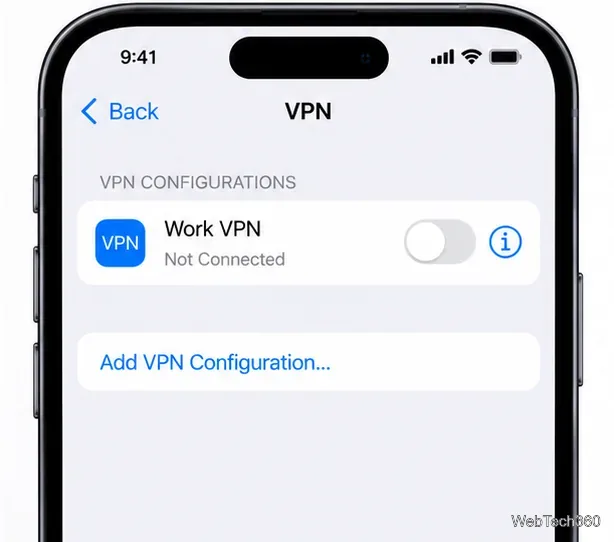
If you cannot find the menu, open Settings, swipe down to reveal its search field, and search for VPN. Apple recommends checking VPN and related settings when troubleshooting connection problems; see its network connectivity guidance.
Reopen the VPN app or the VPN page in Settings and look for Not Connected. On supported iPhone models, the VPN status indicator appears when a VPN is connected; you may need to open Control Center to see it. Apple's iPhone status icon guide explains the indicator. A missing status icon alone is less conclusive than checking the connection state in Settings.
If you disconnect and the VPN reconnects seconds later, check these possibilities in order:
Apple documents managed VPN On Demand and Always On VPN in its VPN security overview.
Temporarily disconnecting can help diagnose a website that will not load, a service that dislikes VPN server locations, or unusual network performance. Try disabling it briefly and then retest the same app or page. This comparison can help identify whether the VPN is involved, but it does not prove that the VPN is the only cause.
When you turn off a VPN, traffic covered by that VPN is no longer carried through its encrypted tunnel, and websites generally see your normal network's public IP address instead of the VPN server's. HTTPS websites can still encrypt their own connections; disabling a VPN does not remove every form of encryption or immediately make your iPhone unsafe. If you rely on a VPN for workplace access, privacy, or particular network protections, reconnect when you finish troubleshooting.
Disconnecting is different from deleting a VPN configuration. To remove a personal configuration, open Settings > General > VPN & Device Management > VPN, tap the information button beside the relevant configuration, and choose Delete VPN if available. Some app-managed VPN entries must be removed through the provider's app or settings.
To uninstall a VPN app, touch and hold its icon, choose Remove App, then Delete App. Afterward, check Settings for any remaining configuration. Uninstalling an app does not automatically cancel a paid subscription.
Be particularly careful with configuration profiles: Apple's profile management instructions explain that deleting a profile can remove other associated settings, apps, and data. Check with your organization before changing a managed iPhone.
Usually not. Your iPhone can stay connected to Wi-Fi or cellular data after the VPN tunnel closes. If a managed VPN or security app requires the tunnel, however, certain network access may stop until it reconnects.
VPN processing can contribute to power use, but the impact varies with the protocol, provider, signal, and your activity. If you're troubleshooting battery drain, compare usage over time rather than assuming the VPN is always the main cause.
Fix the iMessage Is Signed Out error on iPhone by checking Apple Account sign-in, activation, connectivity, and settings—without erasing your messages.
Turn off your iPhone VPN in the app or Settings, confirm it disconnected, and stop automatic reconnections without deleting your account.
Learn how to encrypt your iPhone with a strong passcode, protect iCloud and computer backups, and secure your data if your phone is lost or stolen.
Learn how to clear Safari and Chrome cache on iPhone, manage app storage safely, and understand when clearing cached data actually helps.
Learn how to fight Gym Battles in Pokémon GO, pick effective attackers, use Charged Attacks and dodges, and claim a Gym after defeating its defenders.
Explore classic Cydia tweaks for jailbroken iPads, from SwipeSelection to Quasar, with compatibility warnings and modern alternatives.
Stop Apple Music signup prompts in the Music app. Learn where to find Show Apple Music on iOS and what turning it off does—and does not—change.
Set up a Shortcuts automation to text Mom when your iPhone battery gets low. Follow four steps, plus delivery checks and privacy tips.
Save posts on X in a few taps. Learn where to find the Bookmark button on iPhone, Android, and desktop, plus how to view, remove, and organize saved tweets.
Turn on AR mode in Pokémon GO during a wild encounter, find AR settings, and fix camera or device compatibility issues.







