iMessage Is Signed Out on iPhone: How to Fix It

Fix the iMessage Is Signed Out error on iPhone by checking Apple Account sign-in, activation, connectivity, and settings—without erasing your messages.
To enable AR mode in Pokémon GO, tap a wild Pokémon on the map, then turn on the AR switch in the upper-right corner of the encounter screen. Grant camera access if prompted. On a compatible phone, the Pokémon can appear against your real surroundings instead of the standard catch background. You do not need to catch it just to change the switch.
You can also review AR-related options in the game's Settings menu. The available controls depend on your device and app version, so the encounter switch is the most direct place to check when you want AR during a catch.
Open Pokémon GO while standing somewhere safe, and tap a wild Pokémon that appears nearby. You will enter its catch screen. There is no need to visit a specific PokéStop or nest; an ordinary wild encounter is enough. Stop walking before using the camera, and stay aware of traffic and other people.

Look toward the upper-right corner of the encounter screen for the AR toggle and switch it on. If Pokémon GO asks for access to your phone's camera, allow it. On supported devices, the catch scene should change to a live view from your camera. If you prefer the standard animated background later, return to the same switch and turn AR off.
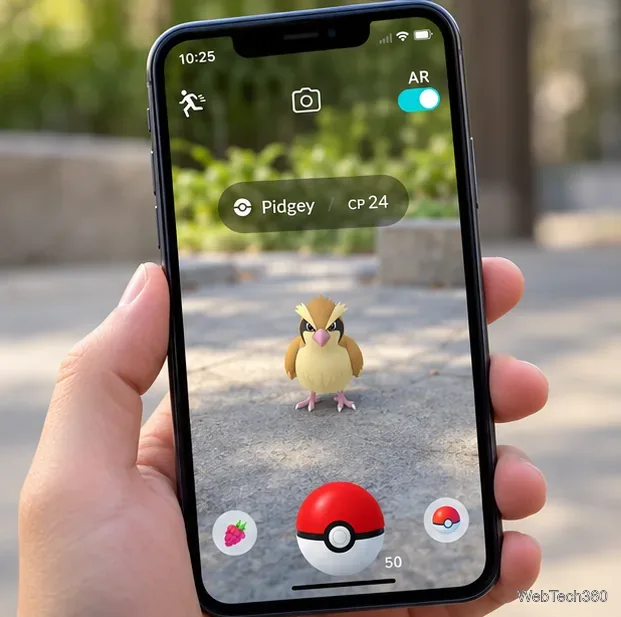
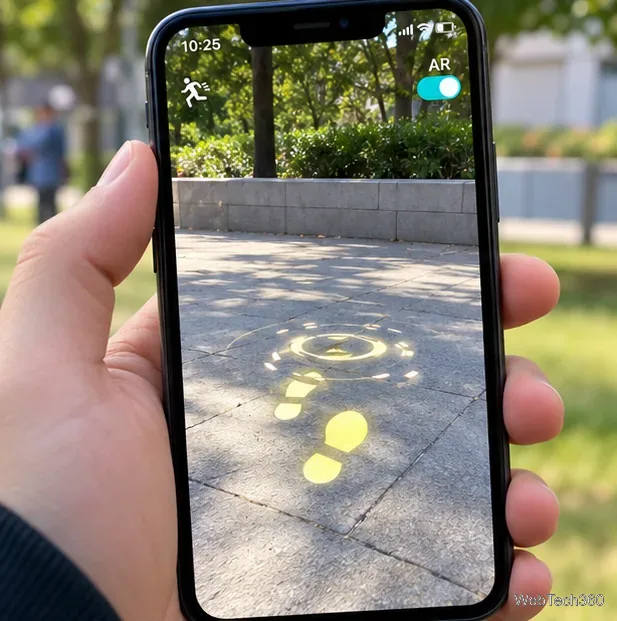
If the game asks you to find a surface, slowly point the phone around a level patch of ground or a tabletop. Give the camera a clear, well-lit view; abrupt movement, darkness, or clutter can prevent surface detection. Depending on the AR experience, you may see grass or placement markers indicating where the Pokémon can appear.
When the Pokémon appears in the camera view, aim your phone toward it. In encounters that use the more interactive AR experience, approach carefully: moving too quickly may startle the Pokémon. Then throw a Poké Ball as usual, or use the encounter camera button if you want a picture. You can leave the encounter without catching the Pokémon if your goal was only to switch AR on.
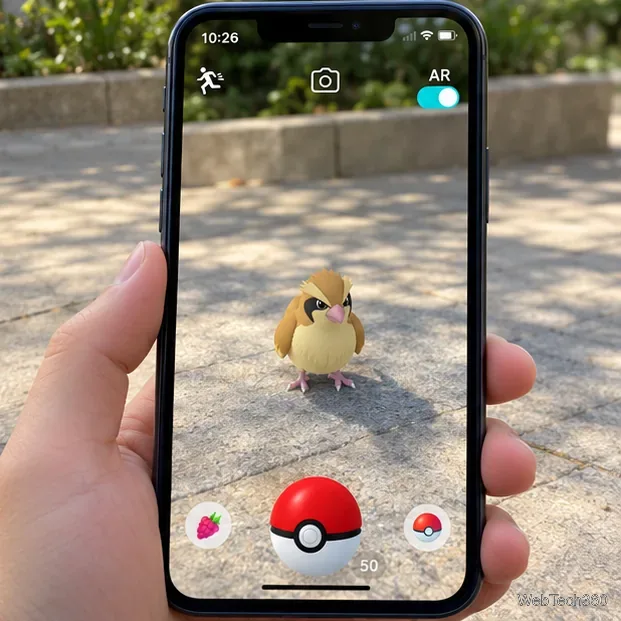
For additional detail on the surface-scanning and catching experience, see the official Pokémon GO AR catching instructions.
Open the Poké Ball menu, select Settings, and look for an AR-related section or switch if one is shown on your phone. Older guides sometimes describe an AR+ checkbox or make it sound as though finding another wild Pokémon is the only way to restore AR. Those instructions are not universal across recent versions. Check the setting's label and what actually appears during an encounter rather than relying on an old menu screenshot.
Remember that turning AR on does not replace the normal Pokémon GO map with a live camera feed. It affects supported camera-based encounters and photography experiences, not the entire map or every type of battle.
Check device support. The official GO Snapshot guidance says AR photography requires an iPhone running iOS 15 or later. On Android, it requires a compatible 64-bit phone with ARCore support and the relevant Google Play services installed. The requirements listed in older AR catching articles differ, so use the newer GO Snapshot compatibility guidance when checking modern photo features.
Check camera permissions. On iPhone, open Settings > Apps > Pokémon GO and check Camera access. On Android, open Settings > Apps > Pokémon GO > Permissions. Menu wording can vary by Android device. Pokémon GO's app permission instructions explain both paths.
Improve the surroundings. Step into a well-lit area, face a flat surface, and move the phone slowly. If AR still fails to initialize, update Pokémon GO and your phone's software through their official stores, then reopen the game. Avoid installing unofficial AR service files from third-party sites.
AR catching and GO Snapshot are related but not identical. GO Snapshot is already available; it is not an upcoming feature. To photograph a Pokémon you own, open Pokémon storage, choose the Pokémon, and tap its camera icon. To photograph your Buddy, open the Buddy page and tap Play!. The game also provides a camera option for wild encounters.
The updated photo experience can let you place up to three Pokémon in a scene, depending on the mode and device. If AR is unsupported or disabled, some photos and Buddy interactions can use a static background rather than a live camera view. These differences are explained in the official AR feature changes.
AR is most useful when you want real-world pictures or a more immersive encounter. For quicker catching, limited battery life, or a poorly lit environment, turning it off may be more convenient. Either way, you can return to the encounter toggle whenever you want to switch views.
Fix the iMessage Is Signed Out error on iPhone by checking Apple Account sign-in, activation, connectivity, and settings—without erasing your messages.
Turn off your iPhone VPN in the app or Settings, confirm it disconnected, and stop automatic reconnections without deleting your account.
Learn how to encrypt your iPhone with a strong passcode, protect iCloud and computer backups, and secure your data if your phone is lost or stolen.
Learn how to clear Safari and Chrome cache on iPhone, manage app storage safely, and understand when clearing cached data actually helps.
Learn how to fight Gym Battles in Pokémon GO, pick effective attackers, use Charged Attacks and dodges, and claim a Gym after defeating its defenders.
Explore classic Cydia tweaks for jailbroken iPads, from SwipeSelection to Quasar, with compatibility warnings and modern alternatives.
Stop Apple Music signup prompts in the Music app. Learn where to find Show Apple Music on iOS and what turning it off does—and does not—change.
Set up a Shortcuts automation to text Mom when your iPhone battery gets low. Follow four steps, plus delivery checks and privacy tips.
Save posts on X in a few taps. Learn where to find the Bookmark button on iPhone, Android, and desktop, plus how to view, remove, and organize saved tweets.
Turn on AR mode in Pokémon GO during a wild encounter, find AR settings, and fix camera or device compatibility issues.







