iMessage Is Signed Out on iPhone: How to Fix It

Fix the iMessage Is Signed Out error on iPhone by checking Apple Account sign-in, activation, connectivity, and settings—without erasing your messages.
To encrypt an iPhone, turn on a device passcode. Open Settings > Face ID & Passcode (or Touch ID & Passcode), choose Turn Passcode On, and create a strong code. Apple confirms that a passcode activates Data Protection, which encrypts supported iPhone data using 256-bit AES encryption. There is no separate whole-phone encryption switch to install or enable.
iPhone Data Protection helps safeguard information stored on the device when it is locked, particularly if it is lost or stolen. Hardware-backed keys and the passcode work together to control access. Protection varies by the data category and app; Apple notes that some apps can opt out of Data Protection. A passcode also cannot stop someone who already knows your code from attempting to unlock your phone.
Encryption on the device is different from an encrypted computer backup, encryption in iCloud, and protection for internet connections. Each needs its own settings or precautions.

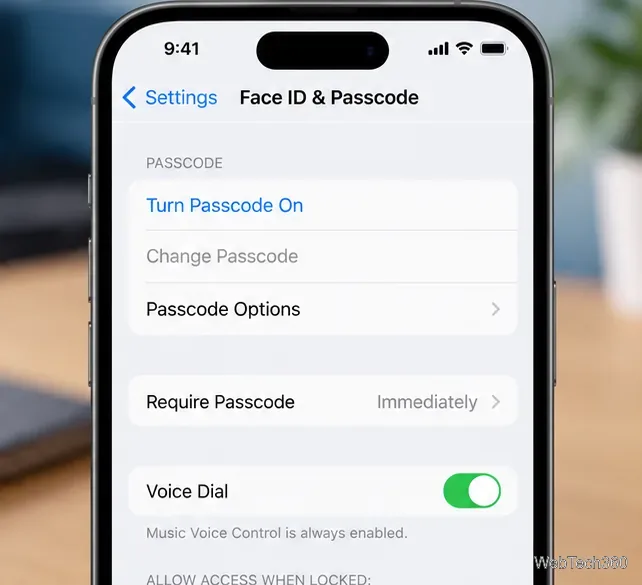
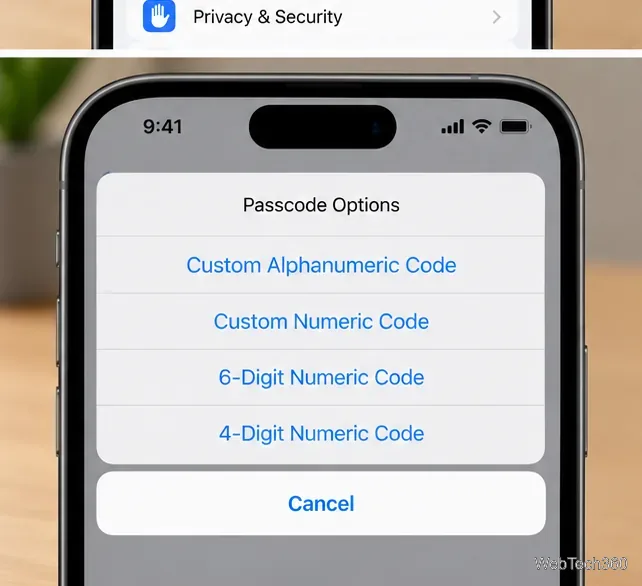
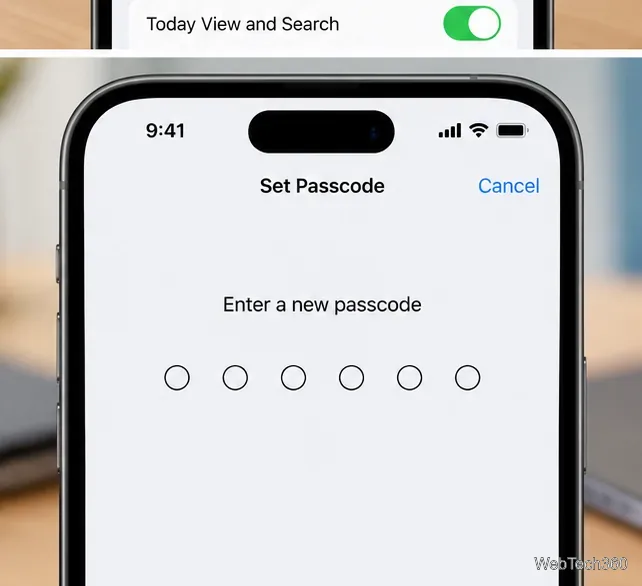
For precise menus and supported-model details, see Apple’s passcode instructions. To reduce the time your phone stays unattended and unlocked, adjust Settings > Display & Brightness > Auto-Lock.
Go to Settings > Face ID & Passcode > Stolen Device Protection (or the corresponding Touch ID menu) and turn it on. On supported versions of iOS, this feature requires Face ID or Touch ID for certain sensitive actions, without a passcode fallback. Some account changes may also require a security delay. Choose Always if you want its extra safeguards even in familiar locations. See Apple’s Stolen Device Protection guide. 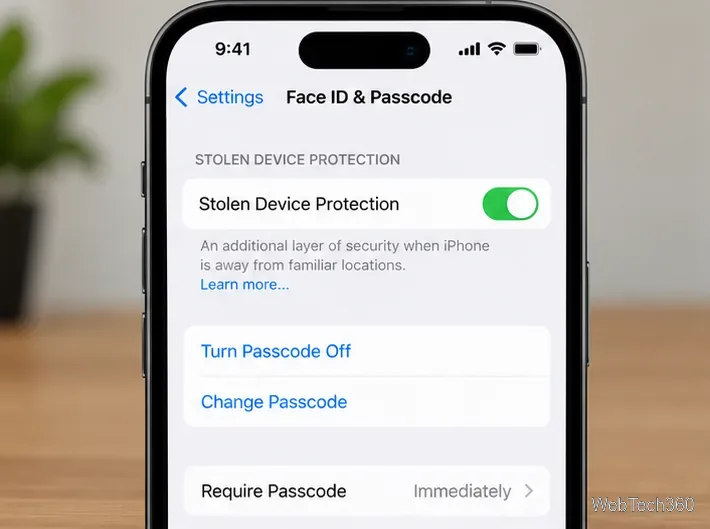
Open Settings > [your name] > Find My > Find My iPhone and enable it. Turn on Find My network and Send Last Location where available. If your iPhone disappears, use the Find My app or iCloud Find Devices to mark it as lost. Lost Mode locks the phone and suspends Apple Pay cards; remote erase is a later option if recovery appears unlikely. Find My must have been enabled beforehand. 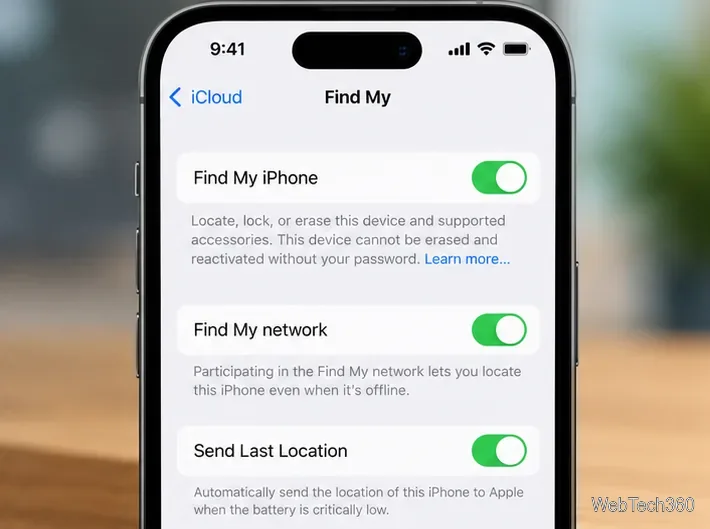
Device encryption does not automatically mean every iCloud category is end-to-end encrypted. For eligible accounts and devices, go to Settings > [your name] > iCloud > Advanced Data Protection and follow the setup prompts. This extends end-to-end encryption to categories including iCloud Backup, Photos, Notes, and iCloud Drive. Set up and safeguard your recovery contact or recovery key first: Apple cannot recover end-to-end encrypted data for you if you lose access. See Apple’s Advanced Data Protection requirements. 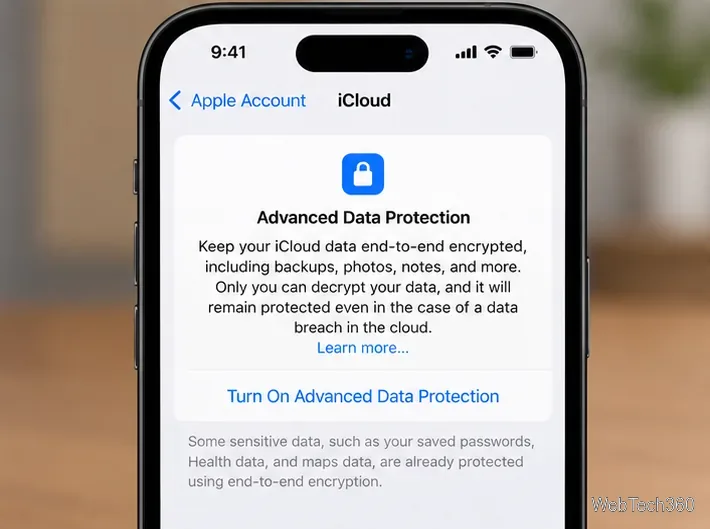
On a Mac, connect your iPhone, select it in Finder, open General, and select Encrypt local backup before backing up. On Windows, use the Apple Devices app, or iTunes where applicable, and select the equivalent option. Create a separate backup password and store it safely; a forgotten backup password can prevent you from restoring that backup. Apple explains the Mac and Windows procedures in its computer backup instructions. 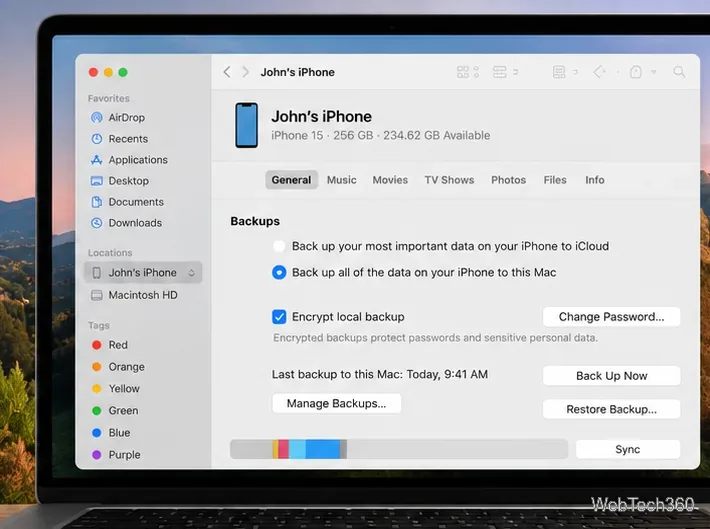
Under Settings > Face ID & Passcode or Touch ID & Passcode, the optional Erase Data setting erases the iPhone after 10 consecutive failed passcode attempts. It may help in a theft scenario but can also cause irreversible loss of information not backed up. Consider your risk and backup habits before turning it on.
Back up or transfer the information you need, then open Settings > General > Transfer or Reset iPhone > Erase All Content and Settings. Follow the on-screen prompts and make an appropriate choice about your eSIM. Erasing a phone is different from merely turning off its passcode. Apple's factory-reset instructions explain what the process removes.
Not by itself. Device encryption protects stored information; online traffic relies on protections such as HTTPS and encryption built into messaging services. A reputable VPN can encrypt traffic between your iPhone and its VPN provider, but it does not make all apps, accounts, or websites private and requires trusting the provider. Keep iOS updated, review app permissions, and use two-factor authentication for your Apple Account as additional layers of security.
Fix the iMessage Is Signed Out error on iPhone by checking Apple Account sign-in, activation, connectivity, and settings—without erasing your messages.
Turn off your iPhone VPN in the app or Settings, confirm it disconnected, and stop automatic reconnections without deleting your account.
Learn how to encrypt your iPhone with a strong passcode, protect iCloud and computer backups, and secure your data if your phone is lost or stolen.
Learn how to clear Safari and Chrome cache on iPhone, manage app storage safely, and understand when clearing cached data actually helps.
Learn how to fight Gym Battles in Pokémon GO, pick effective attackers, use Charged Attacks and dodges, and claim a Gym after defeating its defenders.
Explore classic Cydia tweaks for jailbroken iPads, from SwipeSelection to Quasar, with compatibility warnings and modern alternatives.
Stop Apple Music signup prompts in the Music app. Learn where to find Show Apple Music on iOS and what turning it off does—and does not—change.
Set up a Shortcuts automation to text Mom when your iPhone battery gets low. Follow four steps, plus delivery checks and privacy tips.
Save posts on X in a few taps. Learn where to find the Bookmark button on iPhone, Android, and desktop, plus how to view, remove, and organize saved tweets.
Turn on AR mode in Pokémon GO during a wild encounter, find AR settings, and fix camera or device compatibility issues.







