How to Uninstall Kodi Repositories the Right Way

Learn how to uninstall a Kodi repository safely, remove its saved source URL separately, and check which installed add-ons or dependencies you still need.
Want a cleaner Kodi home screen without giving up your media library? A minimalist skin changes the menus, typography, artwork placement, and navigation while leaving your movies, music, and installed add-ons in place. These eight Kodi skins offer different takes on a modern, less cluttered interface, from simple lists to artwork-forward panels.
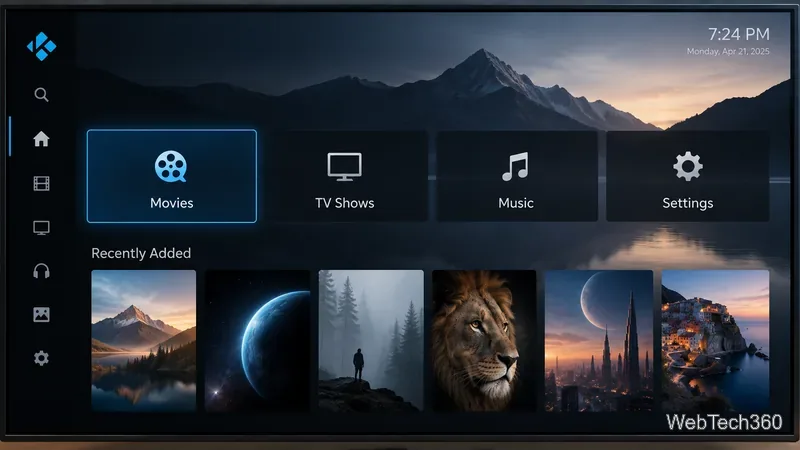
The choices below appear in the official Kodi 21 (Omega) skin catalog. Availability depends on your Kodi version; check the list inside your own installation rather than assuming a skin works with every release. For a no-fuss starting point, try Amber or Quartz. Choose Arctic: Zephyr - Reloaded if you prefer a more polished, artwork-led appearance.
Amber puts straightforward navigation ahead of elaborate effects. Its menus are designed to keep your media within reach, making it a sensible first alternative to the default look. You can explore its settings without turning the home screen into a maze of shortcuts. See the official Amber listing.
Arctic: Zephyr - Reloaded continues the Arctic Zephyr design family with an emphasis on clean spacing and prominent artwork. It suits a television setup where you want movies and shows to look inviting without covering the screen with controls. This is the Reloaded version listed for Omega, not the older original skin. Kodi skin details.
Confluence brings back Kodi’s older, more traditional navigation style. Rather than chasing the latest streaming-app look, it favors obvious categories and a familiar home layout. It is a useful option for anyone who preferred Kodi’s pre-Estuary interface. Official Confluence page.
Copacetic is explicitly designed to reduce interface clutter and give your curated artwork more impact. If you spend time organizing posters and fanart, its visual priorities may feel especially satisfying. The result is minimalist in its controls, not necessarily bare or image-free. Copacetic in the Kodi repository.
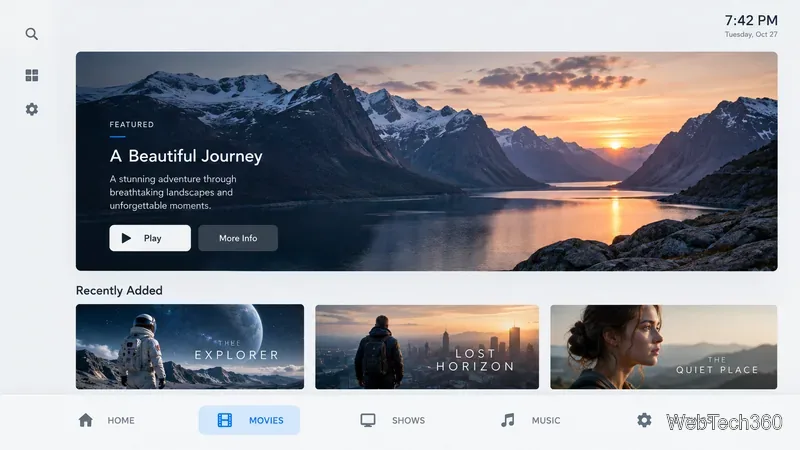
Quartz describes itself as a lightweight skin with an intuitive interface and a customizable home screen. It is a strong candidate if you want to remove unused sections but still display attractive fanart. Start with its default layout, then adjust the home categories you actually use. Quartz add-on page.
Xperience1080 uses a distinctive panel-based layout, with an emphasis on visual quality and smooth navigation. It is worth considering if you like console-style interfaces and typically control Kodi from a couch. It can feel more visually active than Amber, so choose it for its structure rather than expecting an entirely stripped-down screen. Official Xperience1080 listing.
Inspired by the original Fire TV interface, fTV organizes content for quick access through a remote-friendly design. This familiar approach may make Kodi easier for household members who already use television streaming devices. The official listing also names optional integrations, but individual features can depend on other add-ons. fTV details.
Aeon Nox: SiLVO refreshes the longstanding Aeon look with modern styling and extensive presentation options. It is the most customizable-feeling option in this selection, rather than the strictest minimalist choice. Keep its configuration restrained if your goal is fewer visual distractions. Aeon Nox: SiLVO page.
Kodi’s official skin-changing instructions describe the built-in method; there is usually no reason to download a ZIP from an unknown site.
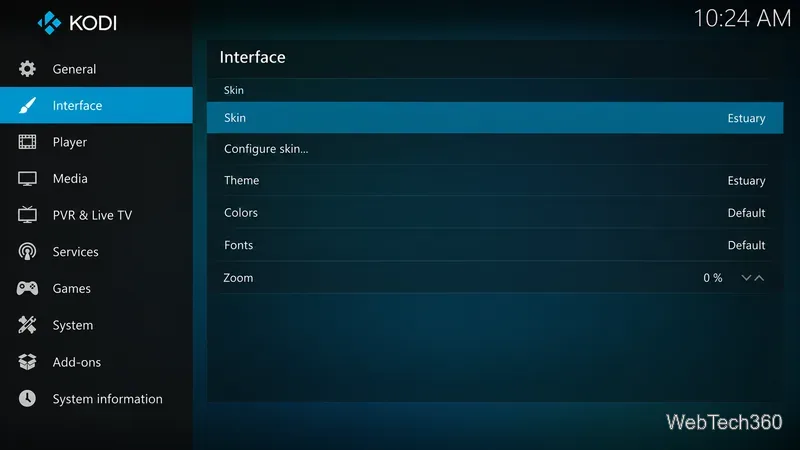
Tip: If you cannot find a skin, it may not support your installed Kodi version. If the new layout is awkward to navigate, switch back to the default Estuary skin. Touchscreen users should avoid choosing the touch-focused Estouchy skin on a device without touch input.
Older lists often recommend Omni, Chroma, or Eminence 2.0. Those names do not appear in Kodi’s official Omega skin category, so it would be misleading to promise they can be installed from the current built-in catalog. For a similar clean look on Kodi 21, compare Copacetic, Quartz, and Arctic: Zephyr - Reloaded instead. The Kodi skin catalog is the best place to confirm version-specific availability.
Ultimately, the most useful minimalist skin is the one that makes your everyday actions—opening a movie, finding a show, changing subtitles, or reaching settings—feel effortless. Install two or three from the official repository and keep the layout you can navigate most comfortably.
Learn how to uninstall a Kodi repository safely, remove its saved source URL separately, and check which installed add-ons or dependencies you still need.
Find the safest way to watch live tennis with Kodi: learn what iPlayer WWW can stream, how to find licensed coverage, and which add-ons to avoid.
Learn how to watch movies on Kodi from your computer, USB drive, or NAS, add online video services, and fix missing titles with clear setup steps.
Set a Kodi Master Lock PIN, protect selected menus, and create a separate kids’ profile with media sources you choose.
Find the authorized stream for your country, check whether its provider supports Kodi, and watch a boxing PPV on your TV without relying on outdated add-ons.
Compare five Kodi skins in the official Omega catalog, then follow the current Settings path to install one, customize it, or switch back.
Looking for the 1Channel Kodi add-on? Learn why old PrimeWire installation guides are unreliable and how to install a supported video add-on safely.
Enable Kodi’s Chorus2 web interface, control your media from any browser, and learn how to connect remotely without exposing Kodi to the Internet.
Follow the original Nemesis Kodi installation process, learn what changed with Stream Army, and avoid outdated repository and PIN instructions.
Download Kodi safely on Windows using the official installer or Microsoft Store, then add your media library and set up trusted add-ons.








