How to Uninstall Kodi Repositories the Right Way

Learn how to uninstall a Kodi repository safely, remove its saved source URL separately, and check which installed add-ons or dependencies you still need.
The best replacement for TVAddons’ Fusion is Kodi’s built-in official add-on repository, not another enormous third-party collection. If you relied on Fusion for online video, start with currently listed add-ons such as YouTube, Vimeo, Twitch, Internet Archive, or Pluto.tv PVR. Kodi also offers Plex integration for people who maintain their own media libraries.
Fusion and TVAddons.ag were prominent parts of Kodi’s older third-party ecosystem. Their original outage dates back to 2017, so archived instructions that promise to restore the old setup should not be treated as current installation guides. There is no need to revive Fusion just to add legitimate streaming sources to Kodi.
Kodi includes its own repository and can install compatible add-ons without a separate ZIP download or enabling Unknown sources. The official Kodi add-on directory lets you check available packages for your version. These examples have listings for Kodi 21 Omega; availability and playback can still vary by device, country, provider account, and provider-side changes.
| Alternative | Best for | Important limitation |
|---|---|---|
| YouTube | Channels, tutorials, and creator videos | Some features may require account or API setup. |
| Vimeo | Independent and creative video | Only videos made available through Vimeo can play. |
| Twitch | Live gaming and creator streams | Playback depends on Twitch and the add-on remaining compatible. |
| Internet Archive | Publicly accessible archived video and audio | Availability and reuse rights vary by item. |
| Pluto.tv PVR Client | Live channels through Kodi’s TV interface | An independently developed client; regional access can vary. |
| Plex for Kodi | Personal media hosted on a Plex server | Requires a usable Plex setup and access to its library. |
You can verify each add-on in Kodi’s own catalog: YouTube, Vimeo, Twitch, Internet Archive, Pluto.tv PVR Client, and Plex. Being listed in Kodi’s repository does not guarantee that a third-party streaming service will always work.
The following four steps use the official repository and a video add-on as an example. Menu names follow Kodi’s official add-on manager instructions; small layout differences are normal between skins and versions.
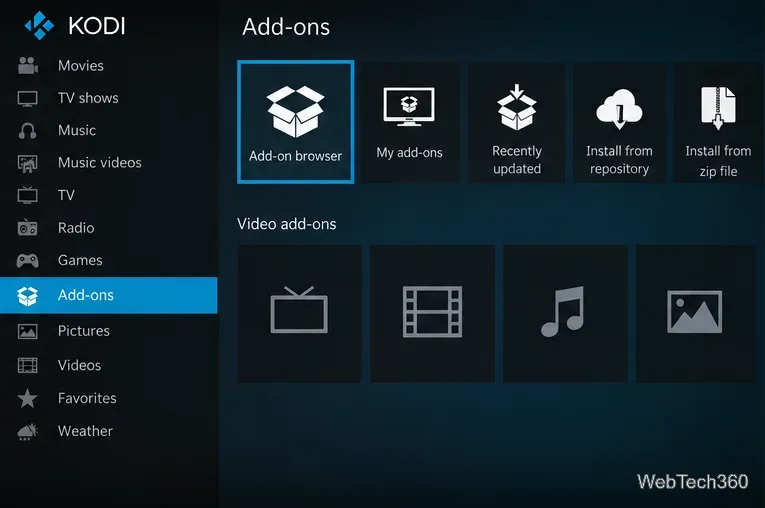
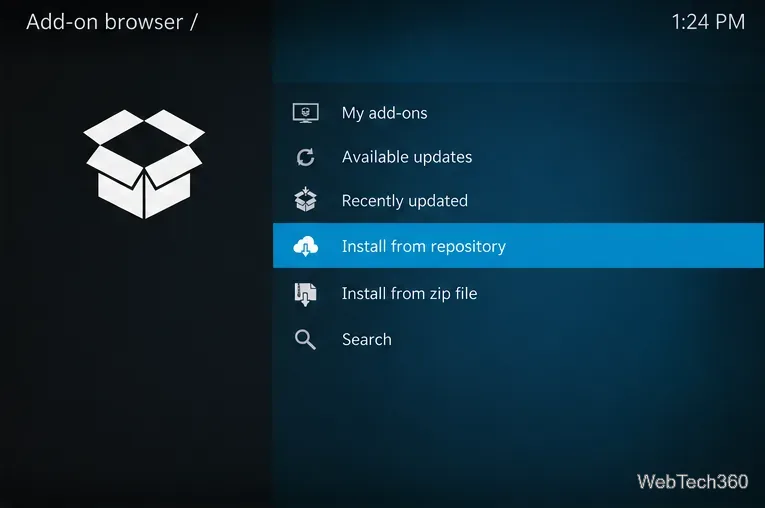
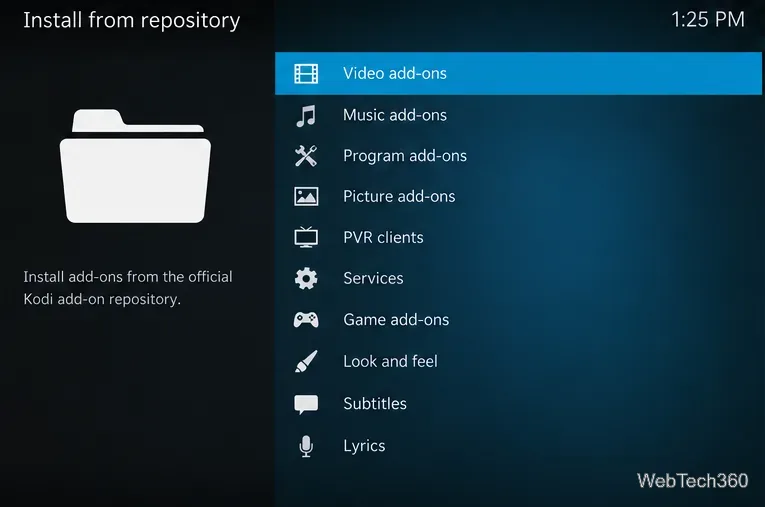
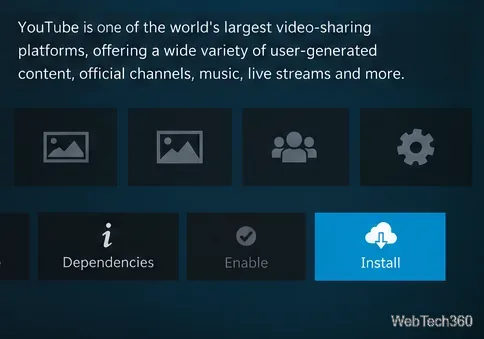
Older Fusion-alternative roundups commonly listed SuperRepo, Noobs and Nerds, and Simply Caz, along with individual add-ons such as SALTS and Exodus. Those names are part of Kodi history, but the installation URLs and ZIP filenames circulating in older tutorials are not evidence of a presently maintained, compatible repository. We could not verify current official maintenance and compatibility for those historical sources, so this guide does not provide their legacy ZIP installation steps.
If a developer still distributes a third-party repository, verify the project’s active source code, publisher, release history, Kodi version support, and HTTPS download address independently. Kodi warns that enabling Unknown sources permits third-party packages that may access personal data. The setting is not required for the official repository. See Kodi’s add-on security settings for the exact security behavior.
A “Failed to install dependency” message does not automatically mean Kodi itself is broken. A retired repository, unsupported add-on version, unavailable download server, or missing dependency can all be involved. Try the following before downloading replacement ZIP files from an unknown site:
Kodi documents this workflow in its debug-log troubleshooting guide. On Windows, its log is commonly found at %APPDATA%\Kodi\kodi.log; other operating systems use different paths.
No. A VPN is not a prerequisite for Kodi or its official repository. It can encrypt traffic between your device and a VPN provider, which may be useful on untrusted networks, but it does not make unlicensed streams legal, fix outdated add-ons, or guarantee anonymity. Streaming rights and service availability still depend on the content provider and your location. For a dependable setup, prioritize supported add-ons, valid access rights, and regular updates over promises of unlimited free content.
Learn how to uninstall a Kodi repository safely, remove its saved source URL separately, and check which installed add-ons or dependencies you still need.
Find the safest way to watch live tennis with Kodi: learn what iPlayer WWW can stream, how to find licensed coverage, and which add-ons to avoid.
Learn how to watch movies on Kodi from your computer, USB drive, or NAS, add online video services, and fix missing titles with clear setup steps.
Set a Kodi Master Lock PIN, protect selected menus, and create a separate kids’ profile with media sources you choose.
Find the authorized stream for your country, check whether its provider supports Kodi, and watch a boxing PPV on your TV without relying on outdated add-ons.
Compare five Kodi skins in the official Omega catalog, then follow the current Settings path to install one, customize it, or switch back.
Looking for the 1Channel Kodi add-on? Learn why old PrimeWire installation guides are unreliable and how to install a supported video add-on safely.
Enable Kodi’s Chorus2 web interface, control your media from any browser, and learn how to connect remotely without exposing Kodi to the Internet.
Follow the original Nemesis Kodi installation process, learn what changed with Stream Army, and avoid outdated repository and PIN instructions.
Download Kodi safely on Windows using the official installer or Microsoft Store, then add your media library and set up trusted add-ons.








