How to Uninstall Kodi Repositories the Right Way

Learn how to uninstall a Kodi repository safely, remove its saved source URL separately, and check which installed add-ons or dependencies you still need.
The most dependable way to watch live football through Kodi is to pair the PVR IPTV Simple Client with a playlist supplied by a TV provider that is authorized to carry the matches. The add-on organizes compatible live-TV channels and an optional program guide inside Kodi; it does not include football channels, match links, or a subscription. If your broadcaster only supports its own app or website, use that official app on your device instead.
Football broadcast rights vary by league and country, so there is no single Kodi add-on that reliably and lawfully carries every match worldwide. Start with the league’s official broadcast information or the broadcaster’s own service page, then confirm that your plan includes the competition and the device you want to use.
For example, the Premier League lists Sky Sports and TNT Sports as live television partners in the UK for 2026/27, with BBC Sport as its free-to-air highlights partner. Outside the UK, it points viewers to regional broadcast partners. Its official broadcast FAQ explains how to find the current listings. Other leagues publish their own partner lists; availability and match selection can differ even within one country.
Before setting up Kodi, ask the provider whether it offers an M3U playlist or compatible IPTV access for use in third-party players. Some services do; many streaming subscriptions work only in their branded app. A browser page, login, or ordinary video URL is not necessarily a compatible playlist. Use only access details the provider gives you for this purpose.
The PVR IPTV Simple Client is available through Kodi’s built-in add-on repository. Install it from inside Kodi so the app can select a compatible version for your installation. The menu wording can vary slightly by platform or skin; the route below follows Kodi’s documented add-on browser.
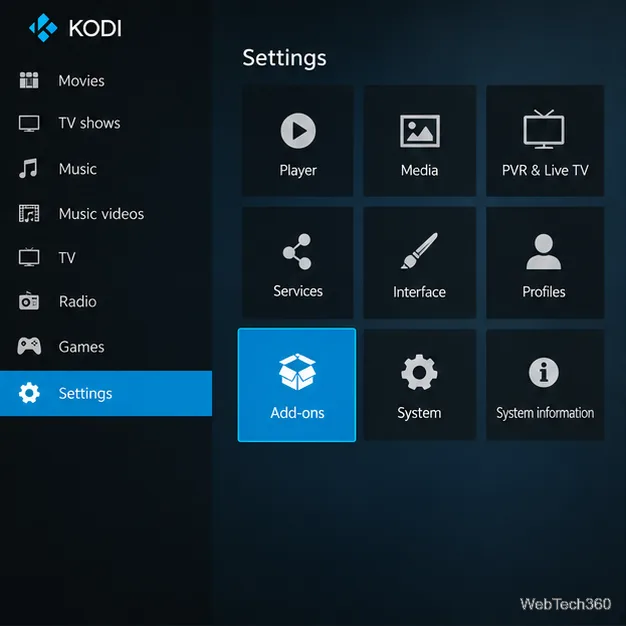
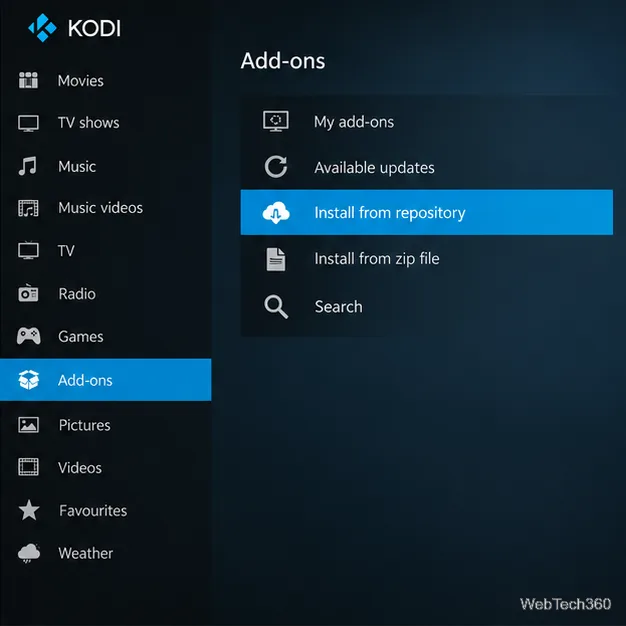
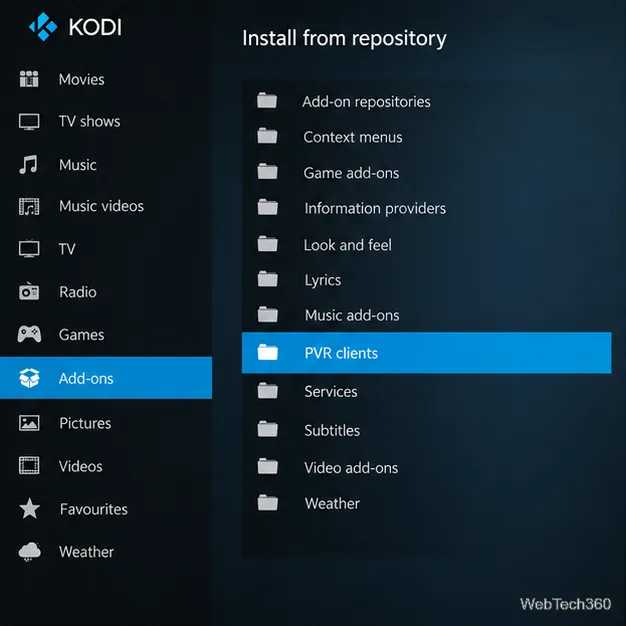
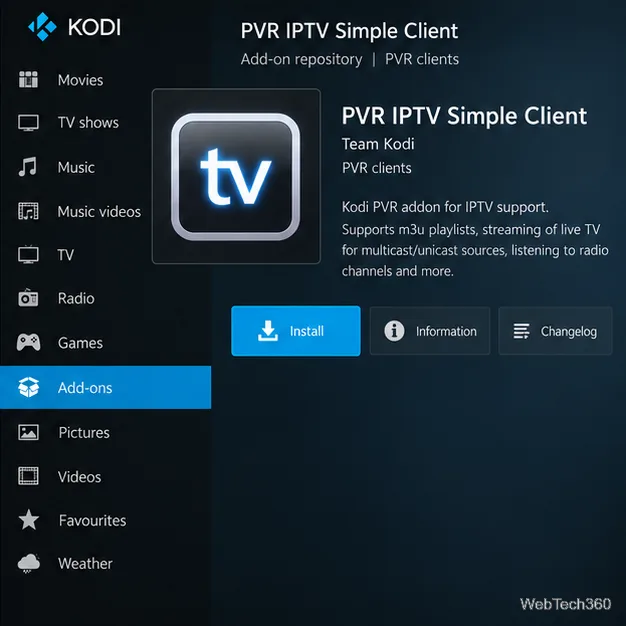
Kodi’s IPTV Simple Client documentation describes support for M3U playlists and XMLTV program guides. The official repository guide explains that Kodi includes its maintained repositories by default. You do not need to enable Unknown sources for this installation; that setting is for add-ons installed from outside Kodi’s repository.
If the provider does not offer an M3U playlist or support for Kodi, this add-on cannot turn its app-only service into a Kodi stream. Install the broadcaster’s official app on your TV, streaming box, phone, or tablet instead. You can still use Kodi for your own media library.
For football in Kodi, use IPTV Simple Client as a player for a compatible playlist from a licensed provider. It is a practical option when your broadcaster supports M3U access, but it is not a free sports service or a universal match finder. Check rights and device support with the broadcaster first; when Kodi is not supported, the broadcaster’s official app is the more reliable route.
Learn how to uninstall a Kodi repository safely, remove its saved source URL separately, and check which installed add-ons or dependencies you still need.
Find the safest way to watch live tennis with Kodi: learn what iPlayer WWW can stream, how to find licensed coverage, and which add-ons to avoid.
Learn how to watch movies on Kodi from your computer, USB drive, or NAS, add online video services, and fix missing titles with clear setup steps.
Set a Kodi Master Lock PIN, protect selected menus, and create a separate kids’ profile with media sources you choose.
Find the authorized stream for your country, check whether its provider supports Kodi, and watch a boxing PPV on your TV without relying on outdated add-ons.
Compare five Kodi skins in the official Omega catalog, then follow the current Settings path to install one, customize it, or switch back.
Looking for the 1Channel Kodi add-on? Learn why old PrimeWire installation guides are unreliable and how to install a supported video add-on safely.
Enable Kodi’s Chorus2 web interface, control your media from any browser, and learn how to connect remotely without exposing Kodi to the Internet.
Follow the original Nemesis Kodi installation process, learn what changed with Stream Army, and avoid outdated repository and PIN instructions.
Download Kodi safely on Windows using the official installer or Microsoft Store, then add your media library and set up trusted add-ons.








