How to Uninstall Kodi Repositories the Right Way

Learn how to uninstall a Kodi repository safely, remove its saved source URL separately, and check which installed add-ons or dependencies you still need.
The best Kodi add-on installer for most people is Kodi’s built-in Add-on browser. It installs add-ons from the official repository, handles required dependencies, and supports updates without a separate wizard. If you want to save an entire setup, the official Backup add-on is a useful companion. Older all-in-one installers such as Ares Wizard, Simply Caz Wizard, and KodiUKTV Community Portal are not good default recommendations without a verifiable, maintained source.
There is an important distinction: a repository distributes add-ons and their updates; an installer helps select and install them; and a build wizard may replace settings, skins, and entire collections of extensions. Installing more components at once is not automatically better.
| Tool | What it does | Recommendation |
|---|---|---|
| Kodi Add-on browser | Finds, installs, updates, disables, and removes add-ons from installed repositories. | Best overall for routine add-on management. |
| Kodi's Install from ZIP file | Installs a repository or add-on package obtained separately. | Use only when the developer and package are trustworthy. |
| Backup add-on | Backs up and restores Kodi databases, configuration, and selected add-on data. | Best companion utility, not a bulk installer. |
| OpenWizard | Historically offered maintenance, backups, and build-related functions. | Archived and no longer developed; not recommended for a new setup. |
| Ares Wizard, Simply Caz Wizard, KodiUKTV Community Portal | Older third-party installers and community portals. | Avoid following old repository URLs; currently maintained, authentic sources were not verified. |
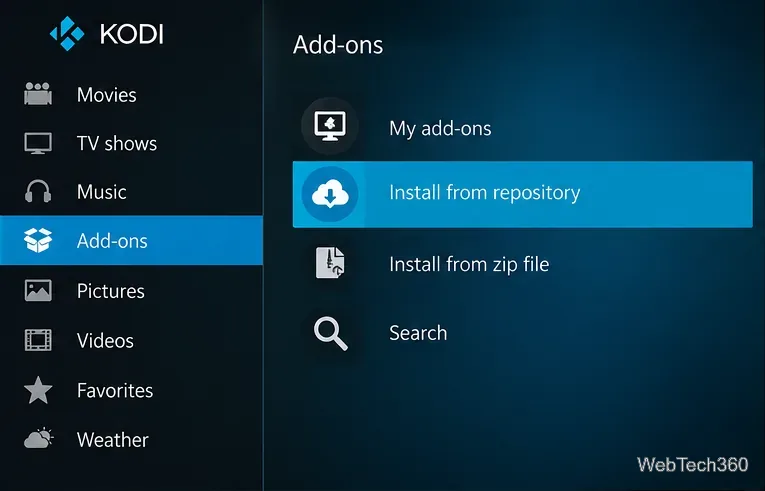
Kodi’s own Add-on manager documentation explains the features of the built-in browser, while the official repository documentation explains how add-ons are organized by compatible Kodi release.
This is the simplest path for Kodi's standard Estuary interface. Menu placement can differ with a custom skin.
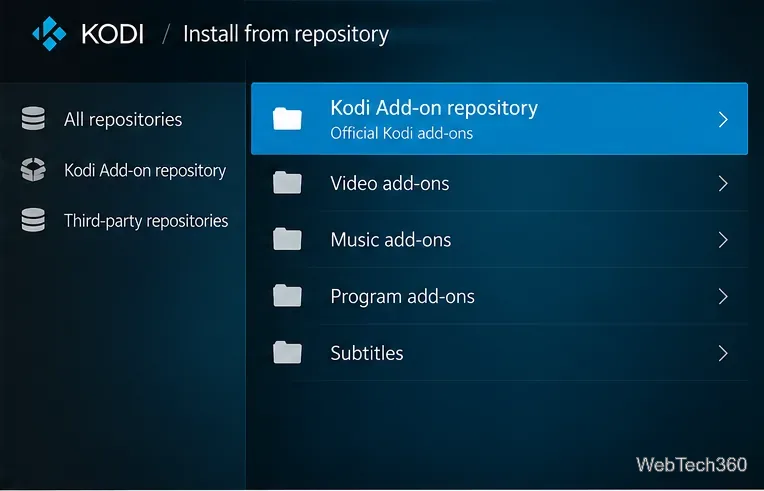
Backup does not install a bundle of streaming add-ons. Its value is protecting a working Kodi configuration before you try a new skin, migrate devices, or change multiple settings. Kodi lists Backup as an official Program add-on; its page describes scheduled and on-demand backups of databases, playlists, thumbnails, add-ons, and configuration data.
To get it, follow the official repository route above, open Program add-ons → Backup → Install, and configure a writable backup destination. Run a backup before making major changes, and keep a copy separate from the device if possible. Check what your selected backup options include rather than assuming every credential or external file is preserved.
See the current Kodi Backup add-on listing for its developer, version, and supported Kodi branch.
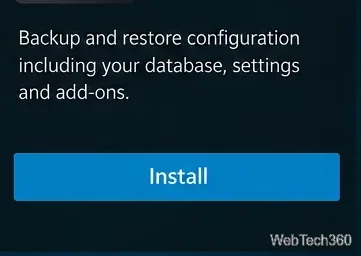
The original appeal of Ares Wizard, Simply Caz Wizard, and KodiUKTV Community Portal was convenience: they grouped repositories, builds, and maintenance commands in one place. But old tutorials often point to domains that have changed ownership, files that no longer exist, or packages designed for older Kodi releases. A familiar wizard name is not evidence that today's download is authentic.
OpenWizard is a useful documented example of the problem. Its developer's GitHub project is archived and explicitly states that the project is no longer in development. This does not mean every historical copy is malicious; it means installing it as though it receives current maintenance would be misleading. For the other legacy tools, no current source was sufficiently verified here to provide a safe installation URL.
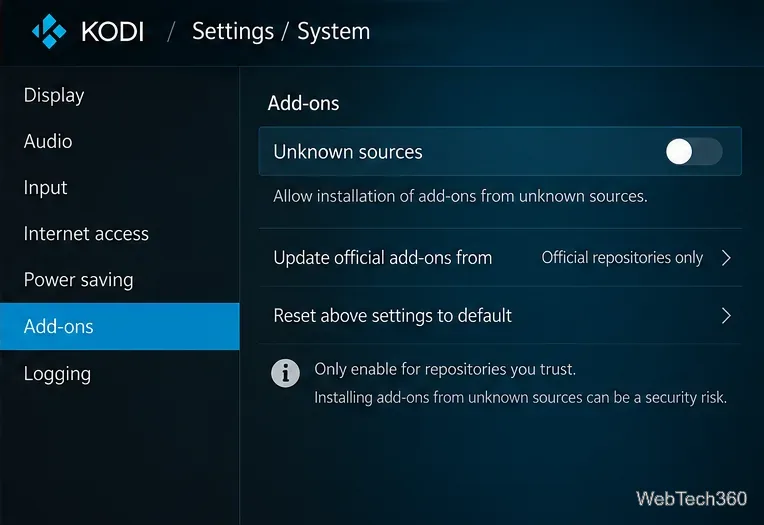
Kodi can install repository packages through Install from ZIP file, but it requires enabling Settings → System → Add-ons → Unknown sources. Kodi warns that third-party add-ons can access personal data on the device. The safer default is to leave Unknown sources off and use the official repository whenever it meets your needs.
If a particular add-on is unavailable officially, confirm the developer's own website or source-code repository, review the release date and Kodi compatibility, and back up your configuration before proceeding. Avoid anonymous download mirrors, shortened URLs, preloaded piracy builds, and instructions that demand disabling security software. A VPN may protect network traffic on some connections, but it cannot make an untrusted add-on safe or turn unauthorized streaming into authorized viewing.
Kodi also has an Update official add-ons from setting. Keeping it set to Official repositories only reduces the risk of a third-party repository replacing an official add-on with a different build. See Kodi's add-on security settings for the details.
For everyday use: stick with the built-in manager and add only what you need. Before major changes: use Backup. For a developer-only extension: consider a ZIP only after verifying the publisher, source, and version. For an old wizard mentioned in a years-old guide: look for maintenance evidence before downloading anything.
The best Kodi installation workflow is the one you can understand, update, and reverse—not the one promising the largest collection of add-ons with a single click. You can obtain Kodi itself from the official Kodi website.
Learn how to uninstall a Kodi repository safely, remove its saved source URL separately, and check which installed add-ons or dependencies you still need.
Find the safest way to watch live tennis with Kodi: learn what iPlayer WWW can stream, how to find licensed coverage, and which add-ons to avoid.
Learn how to watch movies on Kodi from your computer, USB drive, or NAS, add online video services, and fix missing titles with clear setup steps.
Set a Kodi Master Lock PIN, protect selected menus, and create a separate kids’ profile with media sources you choose.
Find the authorized stream for your country, check whether its provider supports Kodi, and watch a boxing PPV on your TV without relying on outdated add-ons.
Compare five Kodi skins in the official Omega catalog, then follow the current Settings path to install one, customize it, or switch back.
Looking for the 1Channel Kodi add-on? Learn why old PrimeWire installation guides are unreliable and how to install a supported video add-on safely.
Enable Kodi’s Chorus2 web interface, control your media from any browser, and learn how to connect remotely without exposing Kodi to the Internet.
Follow the original Nemesis Kodi installation process, learn what changed with Stream Army, and avoid outdated repository and PIN instructions.
Download Kodi safely on Windows using the official installer or Microsoft Store, then add your media library and set up trusted add-ons.








