How to Uninstall Kodi Repositories the Right Way

Learn how to uninstall a Kodi repository safely, remove its saved source URL separately, and check which installed add-ons or dependencies you still need.
The best Kodi build for 2025 depends on your device and how much customization you want. For the most reliable setup, start with a clean installation of Kodi 21 “Omega” and add an official skin. If you prefer a ready-made, third-party package, Diggz Xenon and the Misfit Mods family are names to investigate—but their current installers, contents, and device compatibility need independent checking before use.
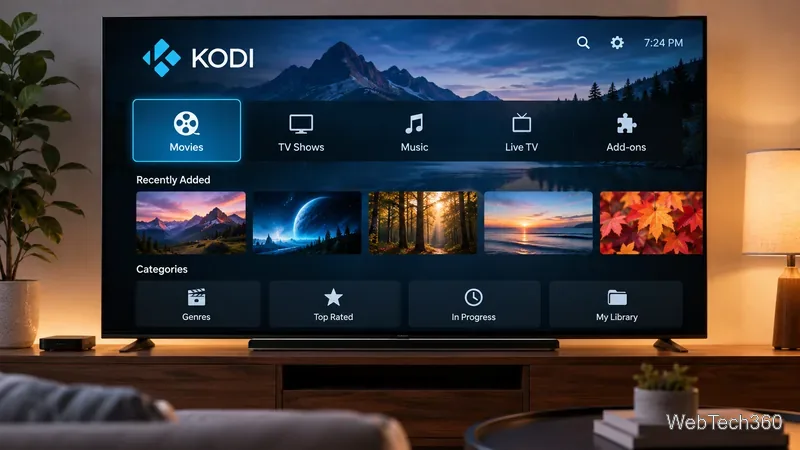
A Kodi build is a preconfigured setup that can bundle a skin, home-screen shortcuts, settings, repositories, and add-ons. A skin changes the interface without automatically installing an entire collection of third-party software. That difference matters: Kodi's developers do not endorse or support prepackaged third-party builds and warn that some have included unwanted or unsafe add-ons. See Kodi's explanation of third-party builds.
| Option | Best for | Important caveat |
|---|---|---|
| Diggz Xenon | Users seeking a feature-rich community build | Third-party installer and contents require verification |
| Misfit Mods Lite | People looking for a lighter preconfigured layout | Availability and compatibility can change |
| Misfit Mods Kids Room | A family-oriented menu layout | Not a substitute for parental controls |
| Amber | Simple, remote-friendly library navigation | Official skin, not a full build |
| Arctic: Zephyr - Reloaded | Minimalist, polished media browsing | Official skin, not a full build |
| Aeon Nox: SiLVO | Users who enjoy tailoring their home screen | Official skin, not a full build |
Diggz Xenon is often discussed as an all-in-one build for TV-based Kodi setups, with a visually rich home screen and bundled add-ons. That convenience also means you must inspect what gets installed. We could not independently confirm a current developer-controlled download or the contents of a particular release, so this is an option to research, not a verified working installation recommendation.
Misfit Mods has circulated several preset builds, including Lite and Kids Room. Lite is intended for users who value a less crowded interface; Kids Room is organized around family viewing. Neither name guarantees that its bundled add-ons are maintained, licensed, or safe. Parents should use appropriate account and content restrictions rather than assuming a family-themed menu blocks unsuitable material.
Amber's straightforward navigation emphasizes your own movies, shows, and music without the extra software bundled into a build. It's a sensible choice for a remote-controlled device or a household sharing one library. Kodi lists it in the official Kodi 21 repository: Amber skin details.
For a minimalist look, Arctic: Zephyr - Reloaded uses a clean, spacious layout. Aeon Nox: SiLVO takes a more elaborate approach and suits people who want to customize their media-center appearance. Both are listed for Kodi 21 in the official add-on repository. Review the Arctic: Zephyr - Reloaded page and Aeon Nox: SiLVO page before choosing.
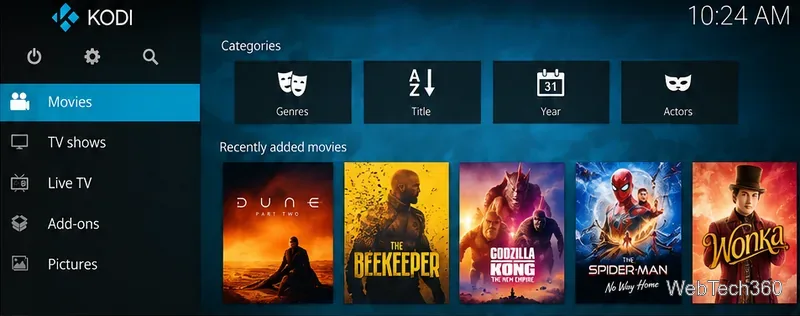
For an official skin, open Settings > Interface > Skin > Skin > Get more, select the skin, and confirm the change. You can also find skins through Settings > Add-ons > Install from repository > Look and feel > Skins. These routes are documented in Kodi's skin installation guide.
For third-party builds, take three precautions before proceeding:
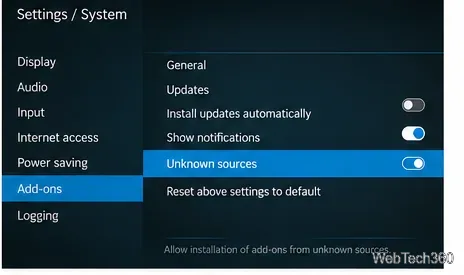
Kodi itself is free, open-source software, but the legality of a stream depends on its source, your permissions, and applicable law. A build advertising paid movies or sports for free is a warning sign, not a feature. A VPN can protect traffic on some networks, but it does not make unlicensed streaming legal, authenticate an add-on, or remove malware. Kodi explains these distinctions in its official legality guidance.
If the interface still responds, open Settings > Interface > Skin and return to Estuary, Kodi's default skin. Remove unwanted add-ons through Kodi's add-on manager. If settings are badly damaged, restore your pre-installation backup. Do not randomly delete folders inside userdata; that location contains your library and settings. The official backup documentation explains what is stored and how to protect it.
Bottom line: A personally configured official skin is the safest starting point for a 2025-era Kodi setup. Community builds may be convenient, but only install one after you can verify its source, contents, and compatibility with your Kodi version.
Learn how to uninstall a Kodi repository safely, remove its saved source URL separately, and check which installed add-ons or dependencies you still need.
Find the safest way to watch live tennis with Kodi: learn what iPlayer WWW can stream, how to find licensed coverage, and which add-ons to avoid.
Learn how to watch movies on Kodi from your computer, USB drive, or NAS, add online video services, and fix missing titles with clear setup steps.
Set a Kodi Master Lock PIN, protect selected menus, and create a separate kids’ profile with media sources you choose.
Find the authorized stream for your country, check whether its provider supports Kodi, and watch a boxing PPV on your TV without relying on outdated add-ons.
Compare five Kodi skins in the official Omega catalog, then follow the current Settings path to install one, customize it, or switch back.
Looking for the 1Channel Kodi add-on? Learn why old PrimeWire installation guides are unreliable and how to install a supported video add-on safely.
Enable Kodi’s Chorus2 web interface, control your media from any browser, and learn how to connect remotely without exposing Kodi to the Internet.
Follow the original Nemesis Kodi installation process, learn what changed with Stream Army, and avoid outdated repository and PIN instructions.
Download Kodi safely on Windows using the official installer or Microsoft Store, then add your media library and set up trusted add-ons.








