How to Uninstall Kodi Repositories the Right Way

Learn how to uninstall a Kodi repository safely, remove its saved source URL separately, and check which installed add-ons or dependencies you still need.
Kodi can play music from your own collection and stream through music add-ons. For a straightforward setup, start with Kodi’s built-in add-on repository: its current music catalog includes Bandcamp, SoundCloud, Radio Paradise, and SomaFM. Each suits a different listening habit, from exploring independent artists to leaving a curated radio stream on in the background. Add-on availability can vary by Kodi version and device, so check the catalog in your copy of Kodi before choosing.
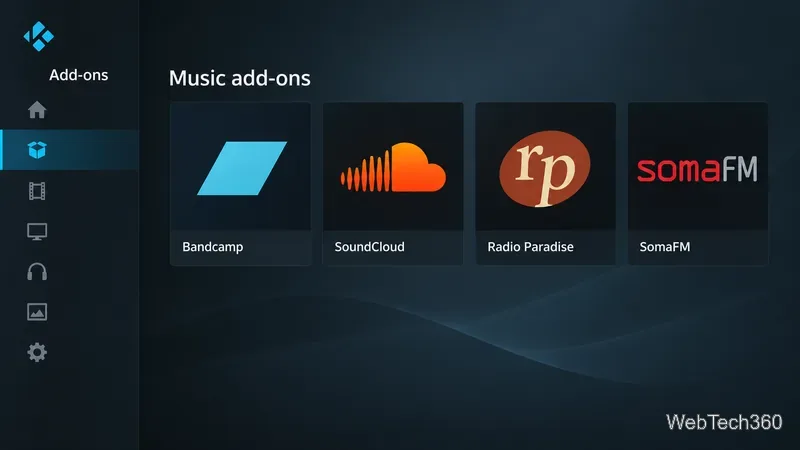
| Add-on | Best for | What to know |
|---|---|---|
| Bandcamp | Finding independent artists | Browse music and your Bandcamp collection. |
| SoundCloud | Music and podcasts | Search a broad catalog of creator-uploaded audio. |
| Radio Paradise | Hands-off listening | Eclectic DJ-mixed radio with no commercial breaks, according to its Kodi listing. |
| SomaFM | Alternative and electronic radio | Listener-supported channels curated by SomaFM’s music team. |
These are community add-ons listed in Kodi’s official catalog, rather than add-ons made by the music services themselves. The catalog is a useful starting point, but stream selection, account requirements, and regional availability depend on each service and can change. Review the add-on’s description and the service’s terms before signing in or relying on a particular stream.
The Bandcamp add-on is listed for discovering music and browsing your collection. It suits listeners exploring independent releases and supporting artists through Bandcamp. Its features may differ from the Bandcamp website or mobile app.
The SoundCloud add-on connects Kodi with a music and podcast platform that includes independent tracks and remixes. If a track will not play, check SoundCloud’s own site or app to see whether it is available to your account and region.
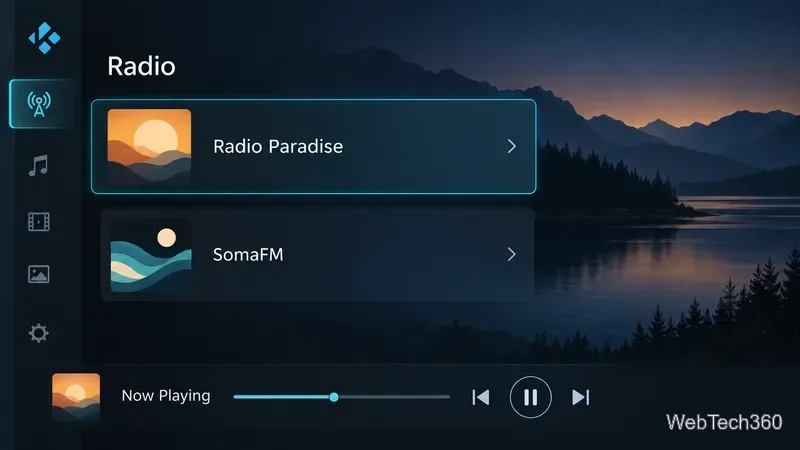
Radio Paradise is a DJ-mixed stream for listeners who would rather press play than pick each track. Kodi describes its eclectic programming as including rock, indie, electronica, and world music, in a listener-supported, commercial-free format.
SomaFM is radio-first, with more than 30 listener-supported underground and alternative channels, according to Kodi’s listing. Its DJs curate the channels, making it a fit for listeners who want a mood or scene instead of a personal queue.
Menu wording can vary with Kodi releases and skins. Kodi’s add-on manager documents the same repository flow and recommends installing listed add-ons through Kodi’s interface. Add-ons are free to install, but a connected service may require an account or paid plan for some content.
For music stored on a computer, external drive, or network share, Kodi’s built-in Music library is often the simplest choice. From the Home screen, open Music, choose Files if needed, then select Add music. Browse to the folder, give the source a name, and choose whether Kodi should scan it into the library. Kodi reads tags embedded in your music files to organize artists, albums, and songs; fetching extra artwork or information is optional.
Older Kodi tutorials often rely on entering third-party repository URLs and installing ZIP files. The recommendations above can be found through Kodi’s own add-on browser, so there is no need to add those sources just to try them. Kodi explains that installing from a ZIP requires enabling Unknown sources and warns that add-ons from outside its repository may access personal data on the device. Use an add-on only when you trust its developer, and respect the rights and terms that apply to the music you play.
To compare current options, open Kodi’s Music Add-ons catalog. It includes the add-on descriptions and links to their source projects. For official setup details, see Kodi’s add-on manager guide and music library instructions.
Learn how to uninstall a Kodi repository safely, remove its saved source URL separately, and check which installed add-ons or dependencies you still need.
Find the safest way to watch live tennis with Kodi: learn what iPlayer WWW can stream, how to find licensed coverage, and which add-ons to avoid.
Learn how to watch movies on Kodi from your computer, USB drive, or NAS, add online video services, and fix missing titles with clear setup steps.
Set a Kodi Master Lock PIN, protect selected menus, and create a separate kids’ profile with media sources you choose.
Find the authorized stream for your country, check whether its provider supports Kodi, and watch a boxing PPV on your TV without relying on outdated add-ons.
Compare five Kodi skins in the official Omega catalog, then follow the current Settings path to install one, customize it, or switch back.
Looking for the 1Channel Kodi add-on? Learn why old PrimeWire installation guides are unreliable and how to install a supported video add-on safely.
Enable Kodi’s Chorus2 web interface, control your media from any browser, and learn how to connect remotely without exposing Kodi to the Internet.
Follow the original Nemesis Kodi installation process, learn what changed with Stream Army, and avoid outdated repository and PIN instructions.
Download Kodi safely on Windows using the official installer or Microsoft Store, then add your media library and set up trusted add-ons.








