How to Uninstall Kodi Repositories the Right Way

Learn how to uninstall a Kodi repository safely, remove its saved source URL separately, and check which installed add-ons or dependencies you still need.
Official Kodi skins refresh Kodi’s menus and library browsing without a preconfigured build. A skin changes layout, navigation and visual style; it does not add media sources or streaming services. Start with Amber for a simpler screen, Quartz for fan art or Xperience1080 for panels.
“Official” here means listed in Kodi’s add-on catalog for a release. Kodi reviews submissions but warns that its review is not foolproof. A skin may install dependencies; read prompts before accepting.
A skin restyles Kodi. A build can also change settings and bundle repositories or add-ons. If you only want a new look, install a skin from Kodi’s built-in repository.
Amber is a strong starting point if you want your library central and menus easy to navigate. Kodi describes it as a no-bloat interface focused on your media. See Amber in Kodi’s Omega catalog.
Quartz is described as lightweight, customizable and built to showcase fan art. Try it when artwork helps you browse. Options vary by version; check Configure skin. See Quartz in Kodi’s Omega catalog.
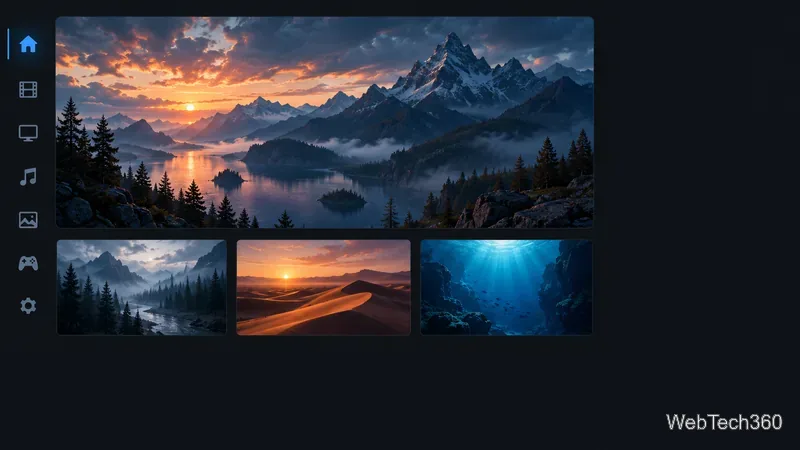
Confluence combines ideas from earlier skins and is designed to be easy for first-time Kodi users to understand. Try it if you prefer an organized layout to a dramatic redesign. See Confluence in Kodi’s Omega catalog.
fTV is based on the original Fire TV interface and aims to make content easy to reach. Its familiar TV-style browsing may suit remote users. It is a Kodi skin, not an Amazon app or a source of streaming content. See fTV in Kodi’s Omega catalog.
Aeon Nox: SiLVO retains the classic Aeon feel with a modern redesign. Aeon Tajo is a separate Omega skin inspired by Aeon Nox 5. Compare their catalog descriptions if you want that style. Aeon Nox: SiLVO · Aeon Tajo.
Xperience1080 emphasizes graphics, smooth animations and integrated functions in a panel-based layout. On a low-powered device, try it and compare navigation speed with a simpler skin; performance depends on your hardware and library. See Xperience1080 in Kodi’s Omega catalog.
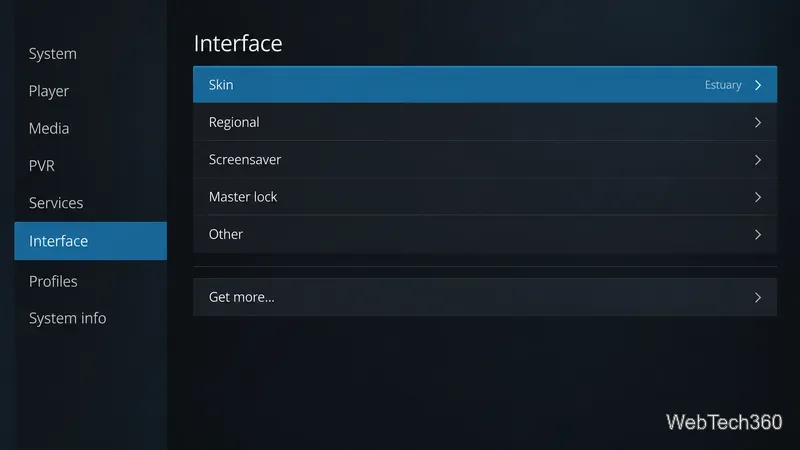
If your menu does not show Get more…, use the Add-ons browser instead: Settings → Add-ons → Install from repository → Kodi Add-on repository → Look and feel → Skin. Kodi’s documented steps use those labels, but menus can vary slightly by release and skin. Both routes install from Kodi’s repository; you do not need to add an outside repository for these picks.
Kodi’s catalog varies by version, and this shortlist follows Omega (Kodi 21). As of October 27, 2026, Kodi’s download pages list 21.3 as stable; Kodi 22 “Piers” has reached Release Candidate 1. If testing Piers, confirm skin availability in its in-app catalog; do not force-install an Omega ZIP. Older lists may mention adonic, Grid, Omni, Rapier or SiO2, which are absent from Omega’s current skin category.
To switch back, return to Settings → Interface → Skin and choose Estuary or another installed skin. Kodi’s Configure skin options are specific to each skin, so there is no universal set of performance switches. If a new layout feels slow or crowded, try a simpler skin first, then reduce artwork or animations only where that skin provides a setting. Choose the skin that is easiest to use from your seat.
Learn how to uninstall a Kodi repository safely, remove its saved source URL separately, and check which installed add-ons or dependencies you still need.
Find the safest way to watch live tennis with Kodi: learn what iPlayer WWW can stream, how to find licensed coverage, and which add-ons to avoid.
Learn how to watch movies on Kodi from your computer, USB drive, or NAS, add online video services, and fix missing titles with clear setup steps.
Set a Kodi Master Lock PIN, protect selected menus, and create a separate kids’ profile with media sources you choose.
Find the authorized stream for your country, check whether its provider supports Kodi, and watch a boxing PPV on your TV without relying on outdated add-ons.
Compare five Kodi skins in the official Omega catalog, then follow the current Settings path to install one, customize it, or switch back.
Looking for the 1Channel Kodi add-on? Learn why old PrimeWire installation guides are unreliable and how to install a supported video add-on safely.
Enable Kodi’s Chorus2 web interface, control your media from any browser, and learn how to connect remotely without exposing Kodi to the Internet.
Follow the original Nemesis Kodi installation process, learn what changed with Stream Army, and avoid outdated repository and PIN instructions.
Download Kodi safely on Windows using the official installer or Microsoft Store, then add your media library and set up trusted add-ons.








