How to Uninstall Kodi Repositories the Right Way

Learn how to uninstall a Kodi repository safely, remove its saved source URL separately, and check which installed add-ons or dependencies you still need.
The best repository for Kodi 18 “Leia” is the built-in Kodi Add-on Repository. It is maintained by Team Kodi and comes with Kodi. For a third-party source, consider KodiNerds only when you need a particular add-on whose listing explicitly supports Leia. Kodi 18 is a legacy release, so old repository lists can point to dead sources or add-ons that no longer work.
Kodi 18.9 was the final Leia release, published in October 2020. Team Kodi later moved Leia out of active support and froze its Python 2 add-on repository. Kodi 19 “Matrix” switched to Python 3, which is not directly compatible with Python 2. As of October 24, 2026, Kodi lists 21.3 “Omega” as stable, while Kodi 22 “Piers” is still a release candidate. Upgrade if your device supports a current stable release.
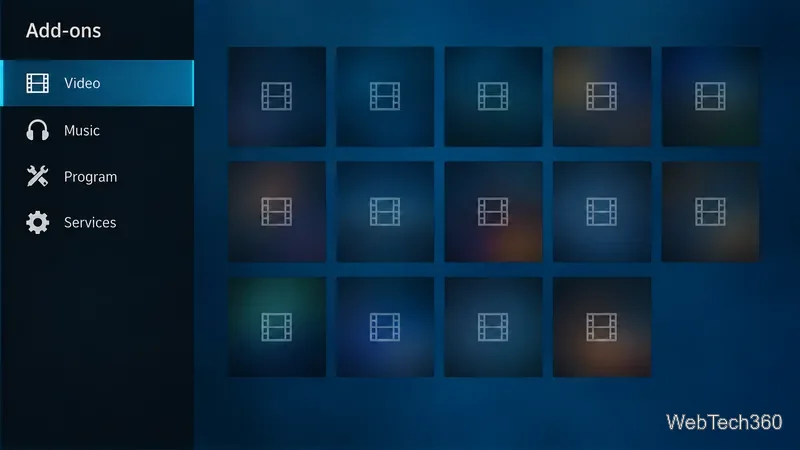
A repository is a catalog Kodi uses to install add-ons and their dependencies, then check for updates. The maintainer controls which packages appear and how updates reach you. Team Kodi warns that third-party repositories are untrusted and may not follow the review rules used for the official catalog, so check each outside source before installing its code.
Start here for most Leia setups. The official repository is included with Kodi, and add-ons go through Team Kodi’s submission process. In Kodi 18, open Add-ons, select the open-box browser, choose Install from repository, then open Kodi Add-on repository. Browse a category, review an add-on’s information, and select Install. Kodi resolves listed dependencies through the repository.
The limit is support: Leia’s repository is frozen. Existing Leia-compatible packages may remain available, but Kodi no longer accepts new Python 2 add-on updates. A listing for Kodi 19 or newer does not mean the add-on will run on Kodi 18.
KodiNerds is an unofficial community repository known mainly for German-language add-ons and skins. Its catalog has a Kodi 18 “Leia” filter, which helps you identify packages labeled for that version. Individual entries may be old, though, and a Leia label is not a security review or a promise that an online service still works. Use it only for a specific add-on after checking its author, version, and source.
The Kodi Wiki lists KodiNerds among unofficial repositories and says its catalog is mostly German add-ons and skins. The same page cautions that unofficial listings are provided for reference, can change without warning, and must be checked by users.
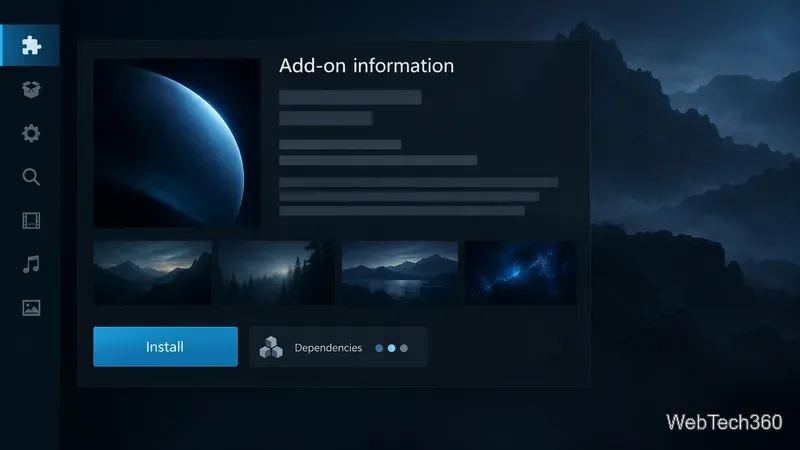
Some add-on authors maintain a small repository for their own projects. Use one only when the project’s official documentation or verified source links to it and confirms a Kodi 18 release. Check the author, release date, compatibility, and dependencies for that exact add-on; a developer repository is not a general replacement for Kodi’s catalog.
Do not carry forward old instructions for Kodil, Supremacy, or TVADDONS’ Git Browser without current confirmation from the original maintainer. A link in an archived guide does not prove that a repository is still hosted, maintained, compatible, or safe.
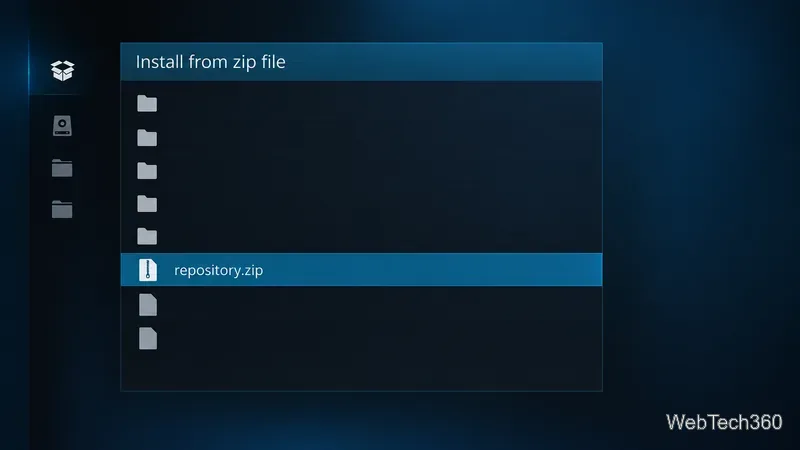
If Kodi reports an incompatible add-on or missing dependency, check the author’s release notes instead of switching to a random mirror or forcing installation. If a repository no longer connects or updates, remove that source rather than relying on an old ZIP.
For Kodi 18, the official repository is the dependable baseline. KodiNerds is a limited option when its catalog has a specific Leia-compatible add-on you need. For a new setup, choose a supported Kodi release and the add-on’s original, documented source.
Sources: Kodi Leia 18.9 release; Team Kodi on Leia support and Python 2; Kodi downloads; Kodi 22 Piers RC 1; official add-on repository; Kodinerds Leia catalog; Kodi Wiki on unofficial repositories; Kodi ZIP installation guidance.
Learn how to uninstall a Kodi repository safely, remove its saved source URL separately, and check which installed add-ons or dependencies you still need.
Find the safest way to watch live tennis with Kodi: learn what iPlayer WWW can stream, how to find licensed coverage, and which add-ons to avoid.
Learn how to watch movies on Kodi from your computer, USB drive, or NAS, add online video services, and fix missing titles with clear setup steps.
Set a Kodi Master Lock PIN, protect selected menus, and create a separate kids’ profile with media sources you choose.
Find the authorized stream for your country, check whether its provider supports Kodi, and watch a boxing PPV on your TV without relying on outdated add-ons.
Compare five Kodi skins in the official Omega catalog, then follow the current Settings path to install one, customize it, or switch back.
Looking for the 1Channel Kodi add-on? Learn why old PrimeWire installation guides are unreliable and how to install a supported video add-on safely.
Enable Kodi’s Chorus2 web interface, control your media from any browser, and learn how to connect remotely without exposing Kodi to the Internet.
Follow the original Nemesis Kodi installation process, learn what changed with Stream Army, and avoid outdated repository and PIN instructions.
Download Kodi safely on Windows using the official installer or Microsoft Store, then add your media library and set up trusted add-ons.








