How to Uninstall Kodi Repositories the Right Way

Learn how to uninstall a Kodi repository safely, remove its saved source URL separately, and check which installed add-ons or dependencies you still need.
The most dependable sports add-ons for Kodi are the ones that connect to a legitimate broadcaster, league account, or rights-holder archive. Start with Motorsport Hub for official motorsports streams, Red Bull TV for action-sports events and replays, and MLB.TV or MiLB.TV if you subscribe to baseball coverage. Hockey fans should check the current NHL service in their country before relying on Kodi’s older NHL TV client. No add-on unlocks every live game: coverage depends on rights, location, subscription, and whether its developer still maintains the connection.
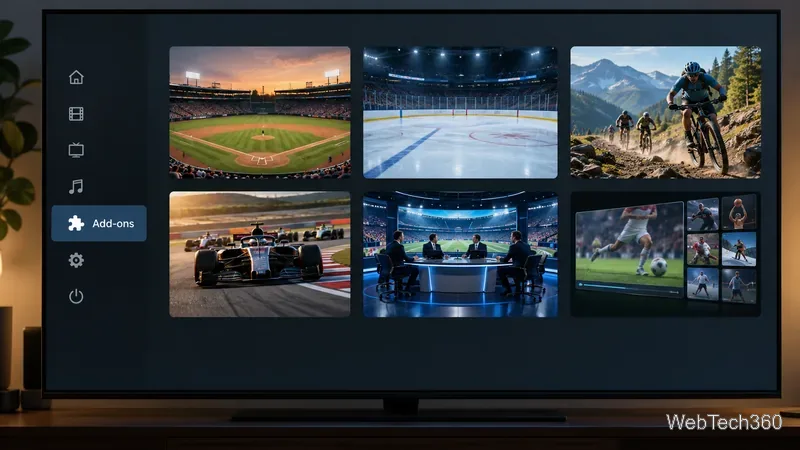
Motorsport Hub is the strongest starting point if you follow racing. Kodi’s official listing describes a directory of free streams, full replays, classics, and shows from rights-holder sources. Its coverage spans disciplines such as Formula 1 archive content, MotoGP, endurance racing, NASCAR, IndyCar, Formula E, rally, and motocross. The add-on links to the sources; it does not host or retransmit the video. YouTube playback requires Kodi’s official YouTube add-on. The listing shows version 1.0.2, dated August 17, 2026, so check for later updates and open the source channel to confirm what it currently offers.
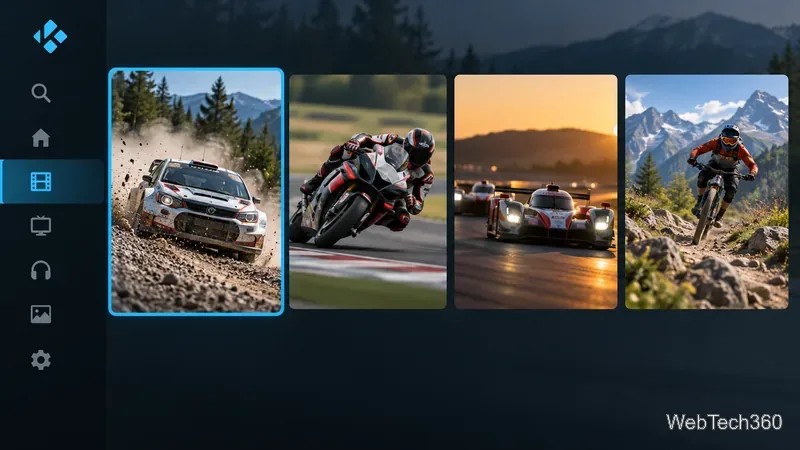
Red Bull TV is a better fit for action sports, athlete features, and selected live events than for major-league coverage across every sport. Its Kodi add-on is in the official repository, and Red Bull’s live-events calendar shows whether a specific competition is scheduled for streaming. Kodi’s page lists version 3.2.2+matrix.1 dated April 6, 2024. Because that listing is older, install it from Kodi’s own browser and test playback before planning around a live event. If the add-on fails, use Red Bull’s official site or app where available.
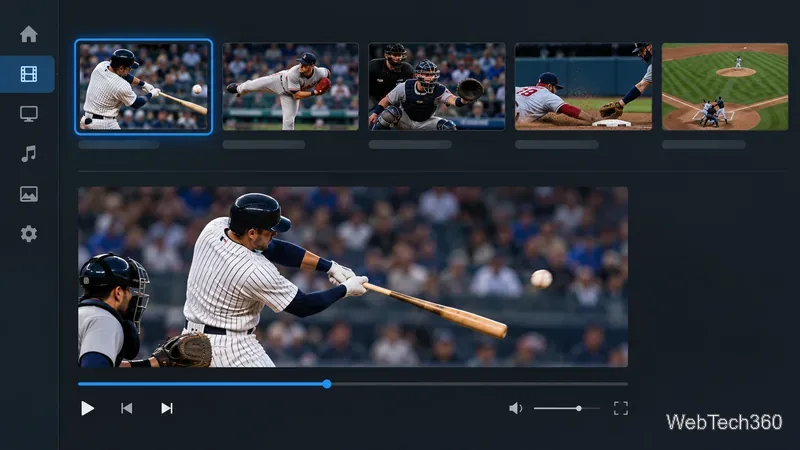
The official Kodi repository lists both MLB.TV for live and archived major-league games and MiLB.TV for minor-league coverage. The MLB.TV Kodi listing shows build 2026.4.9+matrix.1 dated April 26, 2026; the MiLB.TV listing says an MiLB.TV account is required and shows a July 2025 release. A Kodi add-on does not replace the service subscription or its viewing rules. MLB.TV games can be blacked out by location, including home-territory restrictions and other league exclusivities. Check MLB’s current coverage page and blackout guidance before buying a plan or expecting a particular game to play.
Kodi still lists an NHL TV add-on, but its page shows a 2024.10.17 release last updated February 8, 2025. NHL viewing options have since become more market-specific. For the 2026–27 season, the NHL’s guide to watching games directs U.S. out-of-market viewers to ESPN+ or NHL Center Ice, Canadian viewers to Sportsnet+ or NHL Centre Ice, and international viewers in listed territories to NHL.TV on DAZN. That means the Kodi listing is not proof that your current account can authenticate in Kodi. Check the country-specific guide and the add-on’s support page first; use the official streaming app if the Kodi client no longer matches your subscription.
You do not need to add an external repository or enable unknown sources to install the options above. Kodi’s built-in add-on repository is maintained by Team Kodi, and the add-on browser selects versions intended for the Kodi release you have installed.
Kodi warns that third-party repositories may follow different review practices and can expose devices or account details to risk. Avoid old SportsDevil and FTFA repository instructions, “all sports free” builds, and links that promise pay-per-view events without an authorized source. Old references to NBC Sports Live Extra or FOX Sports GO also should not be treated as current activation instructions; check the present add-on and provider pages instead. An official Kodi listing is a useful compatibility and provenance signal, not a guarantee that a third-party service will keep working indefinitely.
Kodi does not offer one dependable client for every sport or event. For NBA, NFL, soccer, or pay-per-view, check the licensed broadcaster in your market and its current device list. Kodi cannot remove subscription, blackout, or regional restrictions.
Learn how to uninstall a Kodi repository safely, remove its saved source URL separately, and check which installed add-ons or dependencies you still need.
Find the safest way to watch live tennis with Kodi: learn what iPlayer WWW can stream, how to find licensed coverage, and which add-ons to avoid.
Learn how to watch movies on Kodi from your computer, USB drive, or NAS, add online video services, and fix missing titles with clear setup steps.
Set a Kodi Master Lock PIN, protect selected menus, and create a separate kids’ profile with media sources you choose.
Find the authorized stream for your country, check whether its provider supports Kodi, and watch a boxing PPV on your TV without relying on outdated add-ons.
Compare five Kodi skins in the official Omega catalog, then follow the current Settings path to install one, customize it, or switch back.
Looking for the 1Channel Kodi add-on? Learn why old PrimeWire installation guides are unreliable and how to install a supported video add-on safely.
Enable Kodi’s Chorus2 web interface, control your media from any browser, and learn how to connect remotely without exposing Kodi to the Internet.
Follow the original Nemesis Kodi installation process, learn what changed with Stream Army, and avoid outdated repository and PIN instructions.
Download Kodi safely on Windows using the official installer or Microsoft Store, then add your media library and set up trusted add-ons.








