How to Uninstall Kodi Repositories the Right Way

Learn how to uninstall a Kodi repository safely, remove its saved source URL separately, and check which installed add-ons or dependencies you still need.
Castaway is best treated as a legacy Kodi add-on. As of October 24, 2026, I could not verify a current Castaway release in Kodi’s official catalog or a maintainer-supported installer. Old ZIP and repository instructions are not a dependable way to install it. Kodi is free, open-source media-player software; whether a particular stream is authorized depends on its source and the law where you use it.
Historical guides describe Castaway as a way to browse live and on-demand sports, television streams, and community-provided sources, including some peer-to-peer options. That does not establish that those links still work, that the add-on is maintained, or that a stream is authorized.
The old directions for Castaway point to dated repositories and ZIP packages. I could not confirm those as current, supported distribution channels. A copy on a third-party mirror may be outdated, modified, incompatible, or bundled with code you did not expect. Kodi warns that unofficial repository contents can change without notice and are not endorsed as safe or legal. Read Kodi’s guidance on unofficial repositories.
So there is no Castaway-specific installation sequence I can recommend today. A ZIP with the right name is not proof of who made it or what it contains.
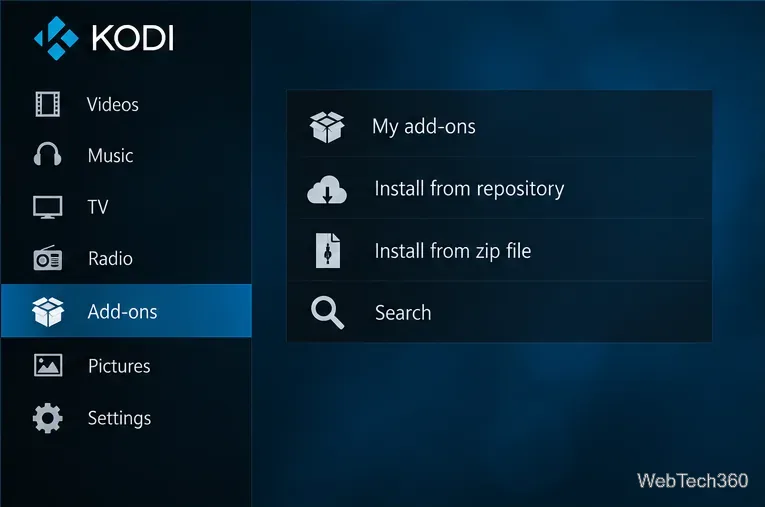
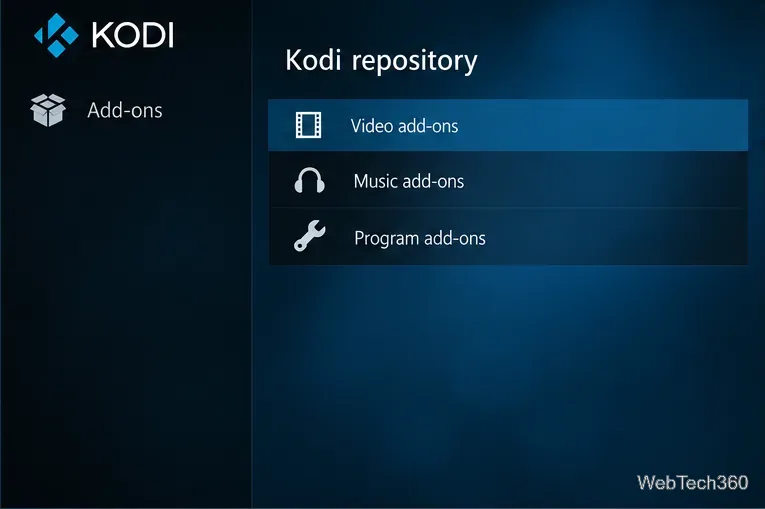
For a current Kodi feature, use the repository included with Kodi and check the catalog for your installed version. Kodi notes that available add-ons differ by version. Browse the official Kodi add-on catalog.
If Castaway is absent from the official repository, do not treat a third-party listing as an official substitute.
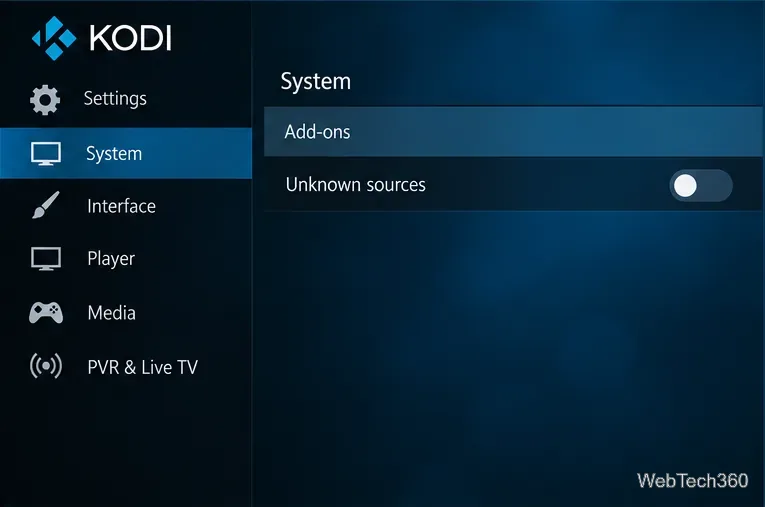
Do not enable Unknown sources just to install an old Castaway copy found on a mirror. Kodi requires Unknown sources for add-ons or repositories installed from ZIP files outside its official repository. Kodi warns that such add-ons can access personal data on the device and may cause data loss or other damage. See Kodi’s ZIP-install steps and warning.
For any third-party add-on, verify the original maintainer, recent release notes, compatibility, and update method before installing. Do not rely on a years-old video or forum post. Switch Unknown sources off again if you enabled it for a one-time install.
The add-on’s name alone cannot answer that. Kodi is a media player; it does not grant rights to sports broadcasts, and installing Kodi does not authorize a stream. A stream offered by a broadcaster or licensed service differs from one redistributed without permission. Unauthorized use can raise copyright issues, with rules varying by country. WIPO points readers to applicable national law for specific situations. Consult WIPO’s copyright FAQ.
Peer-to-peer playback may also send pieces of a file to other users, creating distribution concerns in some circumstances. A VPN changes how a connection is routed; it does not grant content rights or make an unauthorized stream lawful.
If a listing offers paid sports or recent movies free without identifying a licensed source, treat that as a warning sign. Kodi distinguishes legitimate services from unsupported piracy add-ons. Read Kodi’s guidance on online video add-ons.
If Castaway is installed, open Add-ons → My add-ons → Video add-ons, select Castaway, and choose Uninstall. Remove any repository source you added in Kodi’s File manager, then turn off Settings → System → Add-ons → Unknown sources if you no longer need it.
Castaway’s old instructions do not establish a verified current installer, and its historical stream sources cannot be assumed active or licensed. Use supported Kodi add-ons and content providers that clearly have distribution rights.
Learn how to uninstall a Kodi repository safely, remove its saved source URL separately, and check which installed add-ons or dependencies you still need.
Find the safest way to watch live tennis with Kodi: learn what iPlayer WWW can stream, how to find licensed coverage, and which add-ons to avoid.
Learn how to watch movies on Kodi from your computer, USB drive, or NAS, add online video services, and fix missing titles with clear setup steps.
Set a Kodi Master Lock PIN, protect selected menus, and create a separate kids’ profile with media sources you choose.
Find the authorized stream for your country, check whether its provider supports Kodi, and watch a boxing PPV on your TV without relying on outdated add-ons.
Compare five Kodi skins in the official Omega catalog, then follow the current Settings path to install one, customize it, or switch back.
Looking for the 1Channel Kodi add-on? Learn why old PrimeWire installation guides are unreliable and how to install a supported video add-on safely.
Enable Kodi’s Chorus2 web interface, control your media from any browser, and learn how to connect remotely without exposing Kodi to the Internet.
Follow the original Nemesis Kodi installation process, learn what changed with Stream Army, and avoid outdated repository and PIN instructions.
Download Kodi safely on Windows using the official installer or Microsoft Store, then add your media library and set up trusted add-ons.








