How to Uninstall Kodi Repositories the Right Way

Learn how to uninstall a Kodi repository safely, remove its saved source URL separately, and check which installed add-ons or dependencies you still need.
cCloud TV was a third-party Kodi add-on for browsing community-submitted live television streams. Its old installation guide used the Kodil (Kodisrael) repository, but that route should not be treated as a current, verified download method. The cCloud website is still accessible and mentions Kodi, yet a maintained Kodi-compatible installer and reliable current channel availability could not be confirmed. If you already have cCloud installed, you can inspect it safely; otherwise, use a trusted source rather than copying a repository address from an old tutorial.
The original service described itself as a “social IPTV” project: users submitted links, and cCloud did not host or control the streams. Its own FAQ says channels may go offline, which explains why a long channel list never guaranteed that each channel would play. You can read that description in the cCloud TV FAQ.
As of October 2026, the available first-party pages do not establish a supported cCloud TV release for current Kodi builds. In particular, the historical https://kdil.co/repo/ path is not a verified installation source for this guide. Avoid downloading an add-on ZIP from a mirror simply because it uses the cCloud name.
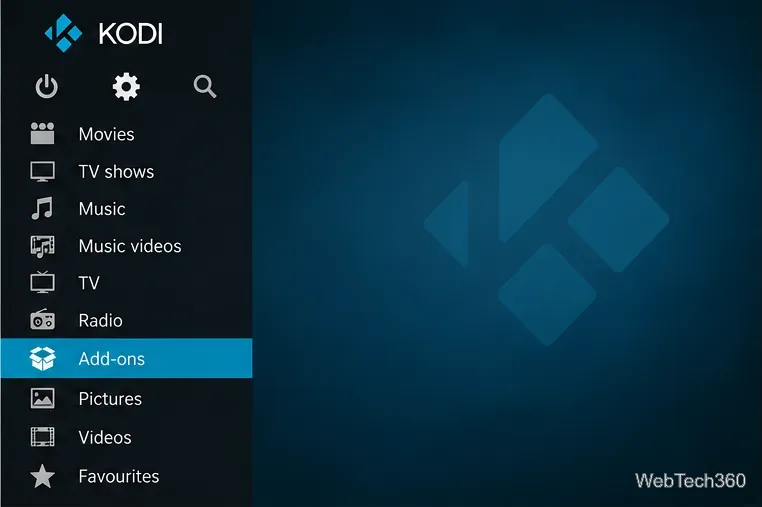
An installed copy may still appear in Kodi even if its channel feeds no longer work. An “installed” status confirms only that Kodi recognizes the add-on; it does not verify stream availability or licensing.
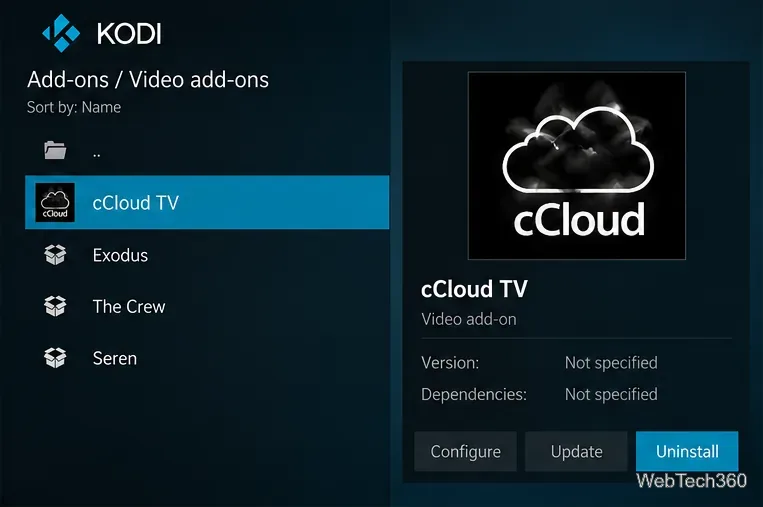
The historical procedure had three parts: add a third-party file source, install the Kodil repository from a ZIP, and then select cCloud TV under that repository’s Video add-ons category. Those steps explain older screenshots, not a download path we can recommend today.
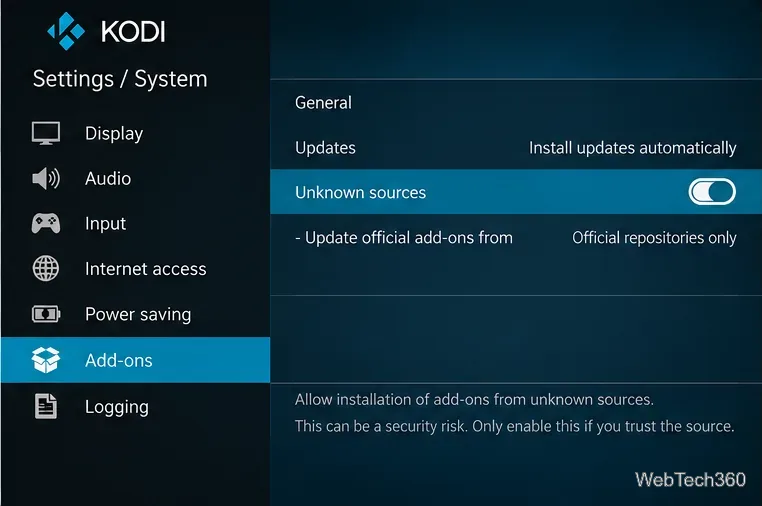
Old tutorials also instruct readers to enable Unknown sources under Settings → System → Add-ons. This setting permits installation from outside Kodi’s official repository. Only enable it when you have independently verified the publisher and the exact package, and turn it off afterward if you do not need it. Kodi explicitly cautions that third-party add-ons can access device data: see the official add-on settings guide and Kodi’s security warning.
If you encounter a functioning legacy installation, its interface may differ from these historical sections:
These are descriptions of the original navigation, not a promise that every menu or channel still exists. Listings labeled with familiar network names are not evidence that a stream is authorized. Check the rights and terms of the actual provider before watching.
For a current setup, Kodi’s official IPTV Simple Client accepts an M3U playlist and can use an XMLTV electronic program guide (EPG). You must supply a playlist from a TV provider or another source you have permission to use; the client does not include a package of premium channels.
These steps follow Kodi’s IPTV Simple Client instructions. There is no need to enable Unknown sources for this official repository add-on.
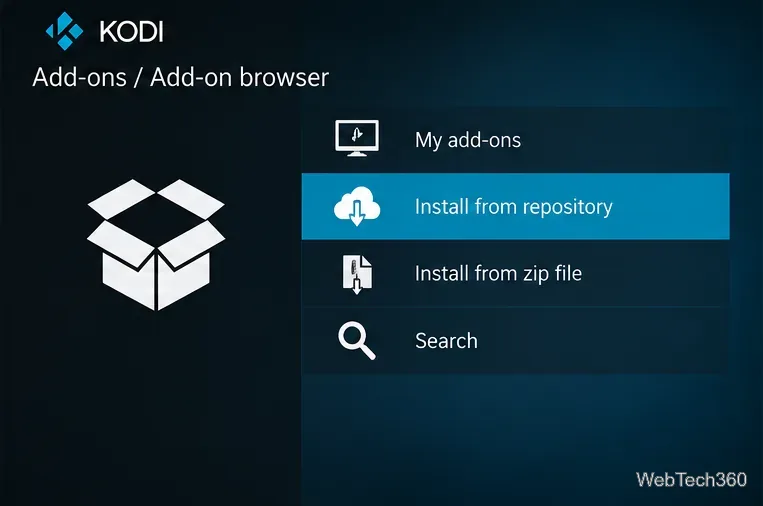
Bottom line: cCloud TV remains useful to understand as a piece of Kodi’s IPTV history, but its old Kodil installation instructions are not a trustworthy starting point for a new setup. For dependable live TV, use a current Kodi add-on and streams provided with permission.
Learn how to uninstall a Kodi repository safely, remove its saved source URL separately, and check which installed add-ons or dependencies you still need.
Find the safest way to watch live tennis with Kodi: learn what iPlayer WWW can stream, how to find licensed coverage, and which add-ons to avoid.
Learn how to watch movies on Kodi from your computer, USB drive, or NAS, add online video services, and fix missing titles with clear setup steps.
Set a Kodi Master Lock PIN, protect selected menus, and create a separate kids’ profile with media sources you choose.
Find the authorized stream for your country, check whether its provider supports Kodi, and watch a boxing PPV on your TV without relying on outdated add-ons.
Compare five Kodi skins in the official Omega catalog, then follow the current Settings path to install one, customize it, or switch back.
Looking for the 1Channel Kodi add-on? Learn why old PrimeWire installation guides are unreliable and how to install a supported video add-on safely.
Enable Kodi’s Chorus2 web interface, control your media from any browser, and learn how to connect remotely without exposing Kodi to the Internet.
Follow the original Nemesis Kodi installation process, learn what changed with Stream Army, and avoid outdated repository and PIN instructions.
Download Kodi safely on Windows using the official installer or Microsoft Store, then add your media library and set up trusted add-ons.








