How to Uninstall Kodi Repositories the Right Way

Learn how to uninstall a Kodi repository safely, remove its saved source URL separately, and check which installed add-ons or dependencies you still need.
Chrome Launcher is a Kodi program add-on that saves website shortcuts and tries to open them in an installed copy of Google Chrome. It does not include a browser or install Chrome for you. Compatibility is the main catch: the upstream legacy add-on declares a Python 2 dependency, while Kodi 19 and later use Python 3, and its launch code has paths for Windows, macOS, and Linux but not Android. The old ZIP may not work on modern Kodi or Android-based devices; verify package compatibility first.
Chrome Launcher is not in Kodi’s official catalog. Forks may differ, so inspect the maintainer’s source: confirm its addon.xml requires Python 3 and its launcher supports your operating system. Kodi warns that add-ons can break between releases; Kodi 19 Matrix introduced Python 3. The upstream metadata still requires xbmc.python 2.1.0, and its code checks for Chrome on Windows, macOS, and Linux.
Do not downgrade to an unsupported Kodi release just to run an old add-on. Kodi’s Android setup guidance also notes that browser availability and launching vary by device.
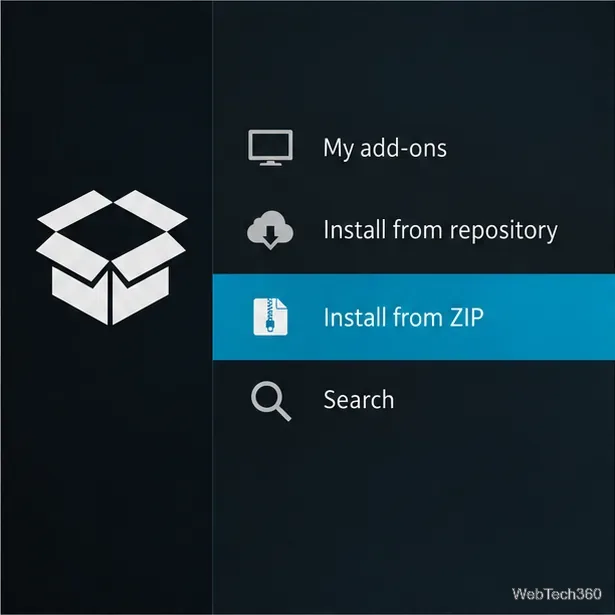
These are Kodi’s standard ZIP-install steps. Labels can vary by version or skin. Save the ZIP somewhere Kodi can browse, such as device storage or a network share.
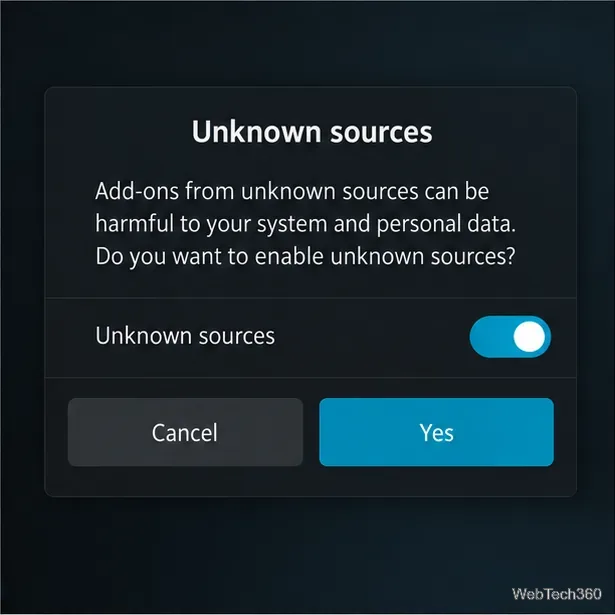
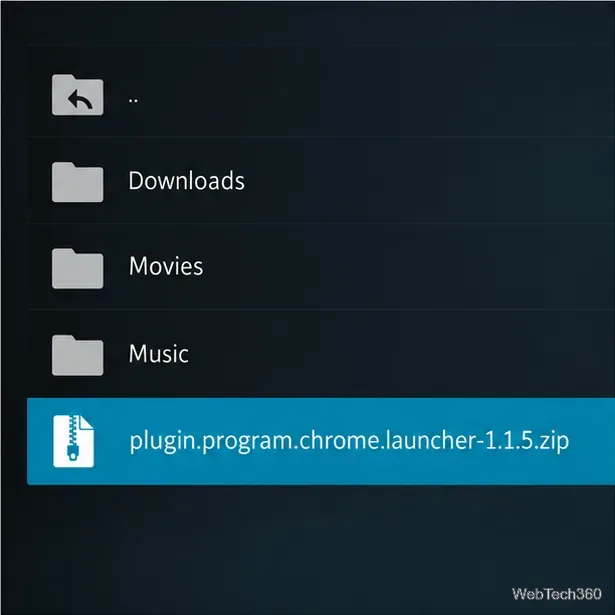
If installation succeeds and the add-on is enabled, return to Kodi’s home screen and open Add-ons > Program add-ons > Chrome Launcher. Older builds may show YouTube Leanback and Vimeo Couchmode shortcuts; those legacy pages may have changed or stopped loading. A launcher menu is shown below as an illustration.
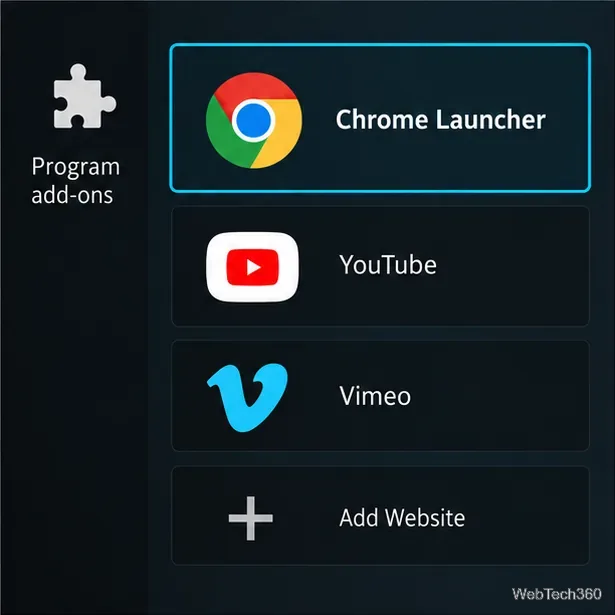
https://. Use the site’s home page rather than a private or one-time link.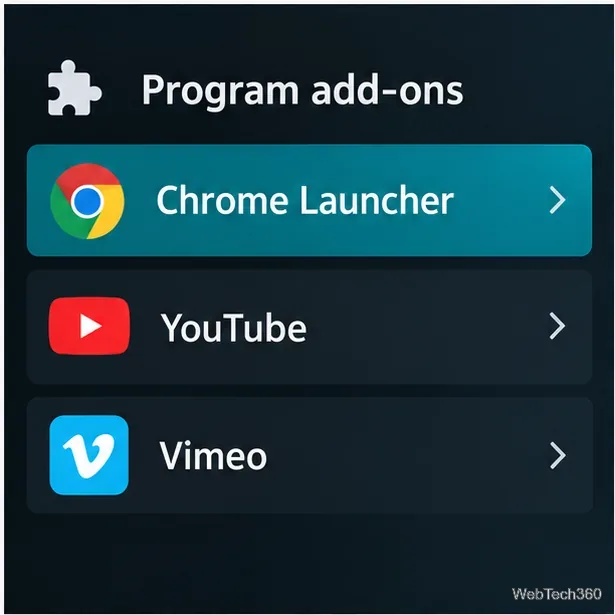
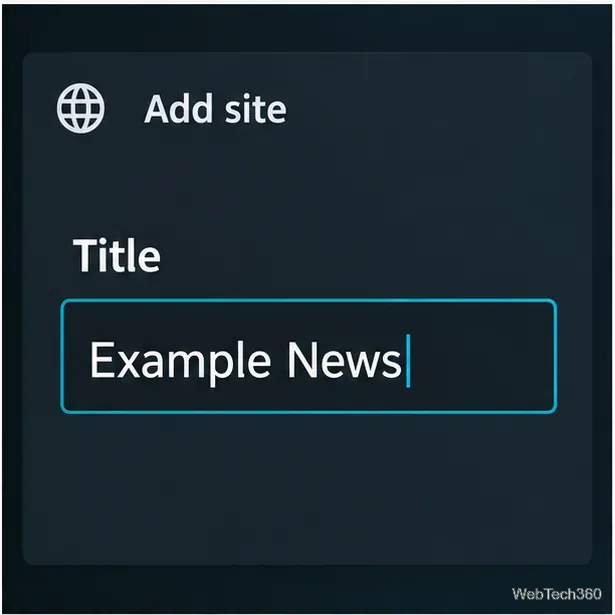
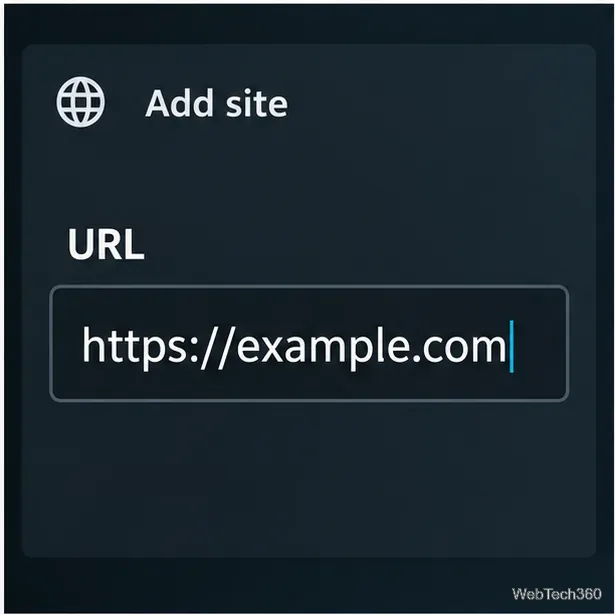
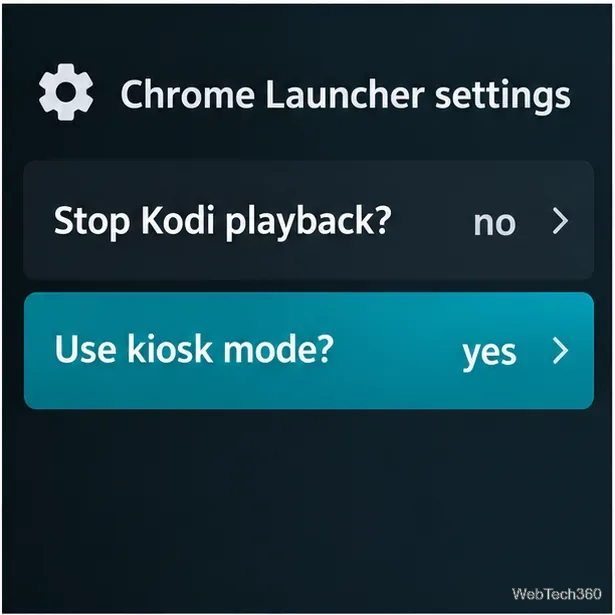
This add-on launches a separate browser; it does not turn Kodi into a full web browser with an address bar. Add URLs in Kodi first. A TV remote can be awkward for typing and navigating, so a USB or Bluetooth keyboard and mouse may help. Some sites require newer browser features or restrict video playback, and Chrome Launcher cannot bypass those requirements.
Use only a source you have inspected, and remove the add-on if it behaves unexpectedly. For current guidance, read Kodi’s Add-on Manager instructions, Unknown sources settings, and Python 3 migration notes. Compare the legacy add-on’s GitHub project, metadata, and launcher code before relying on a fork. For Android devices, check Kodi’s Android setup guidance.
Learn how to uninstall a Kodi repository safely, remove its saved source URL separately, and check which installed add-ons or dependencies you still need.
Find the safest way to watch live tennis with Kodi: learn what iPlayer WWW can stream, how to find licensed coverage, and which add-ons to avoid.
Learn how to watch movies on Kodi from your computer, USB drive, or NAS, add online video services, and fix missing titles with clear setup steps.
Set a Kodi Master Lock PIN, protect selected menus, and create a separate kids’ profile with media sources you choose.
Find the authorized stream for your country, check whether its provider supports Kodi, and watch a boxing PPV on your TV without relying on outdated add-ons.
Compare five Kodi skins in the official Omega catalog, then follow the current Settings path to install one, customize it, or switch back.
Looking for the 1Channel Kodi add-on? Learn why old PrimeWire installation guides are unreliable and how to install a supported video add-on safely.
Enable Kodi’s Chorus2 web interface, control your media from any browser, and learn how to connect remotely without exposing Kodi to the Internet.
Follow the original Nemesis Kodi installation process, learn what changed with Stream Army, and avoid outdated repository and PIN instructions.
Download Kodi safely on Windows using the official installer or Microsoft Store, then add your media library and set up trusted add-ons.








