How to Uninstall Kodi Repositories the Right Way

Learn how to uninstall a Kodi repository safely, remove its saved source URL separately, and check which installed add-ons or dependencies you still need.
Short answer: Covenant is a legacy third-party Kodi video add-on, and its old Ares Wizard, Colossus repository, and ZIP-file instructions are not a current Kodi-supported setup. Kodi’s forum rules page lists Covenant among its add-on blacklist and Colossus among its repository blacklist. For a dependable Kodi setup, use an add-on from the built-in Kodi repository and stream only media you are authorized to watch.
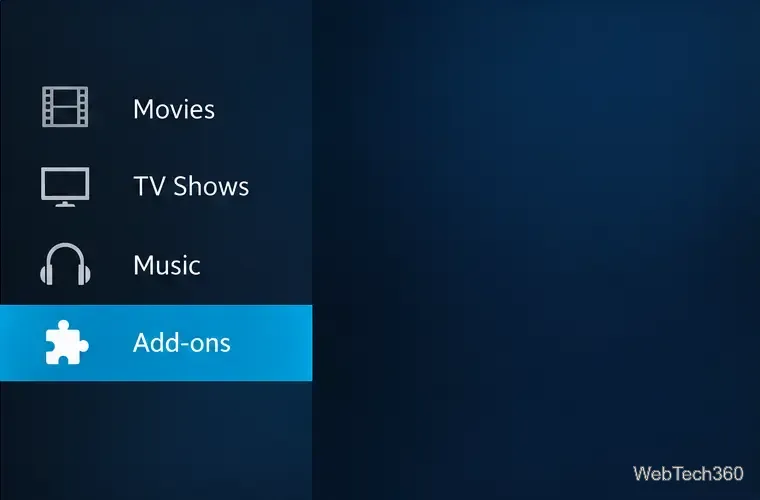
Covenant rose to prominence as an Exodus-style add-on that organized movies and TV shows into browsable menus. The original guide’s Ares Wizard and Colossus directions belong to that older third-party add-on ecosystem. Those steps should not be treated as a reliable install path today: neither Covenant nor Colossus is part of Kodi’s built-in repository, and Kodi does not provide official support for third-party add-ons.
Kodi’s official documentation also warns that add-ons installed from ZIP files or private repositories are the user’s responsibility. Enabling Unknown sources allows software from outside Kodi’s repository to access data on the device, so installing an old archive from an unverified mirror can create both security and compatibility problems. Kodi 19 also removed Python 2 support, a major change that broke older add-ons that had not been updated. A familiar name or an old download link does not confirm that a build works with your current Kodi version.
The Kodi application itself is a legal media center, but it does not include movies or shows. Kodi explains that third-party add-ons are not produced, supported, or endorsed by Team Kodi, and that users are responsible for what they install and play. A VPN does not verify a stream’s rights or turn an untrusted add-on into a supported one.
These steps use Kodi’s built-in repository. Add-on availability varies by Kodi version, so check the official add-on catalog for the version installed on your device.
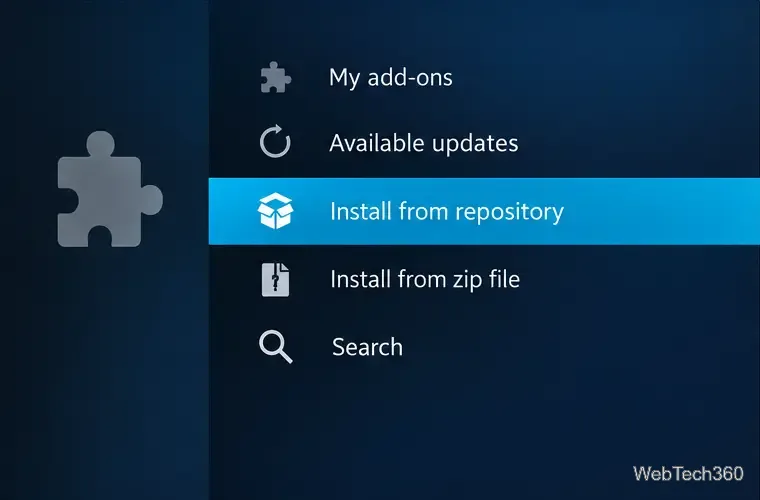
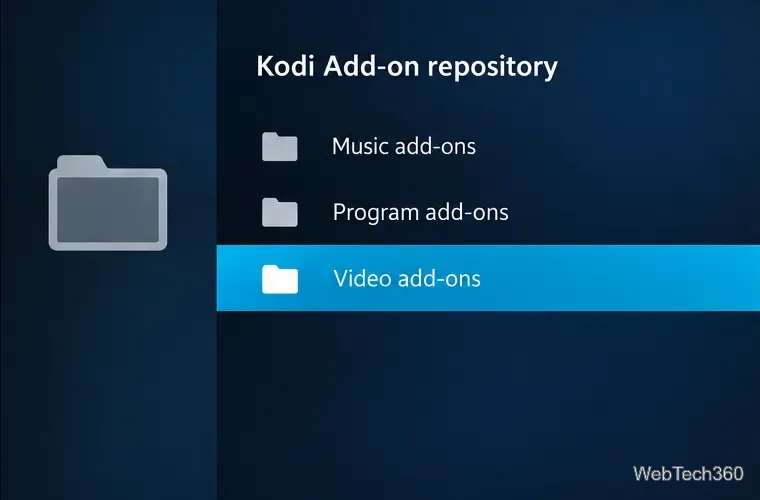
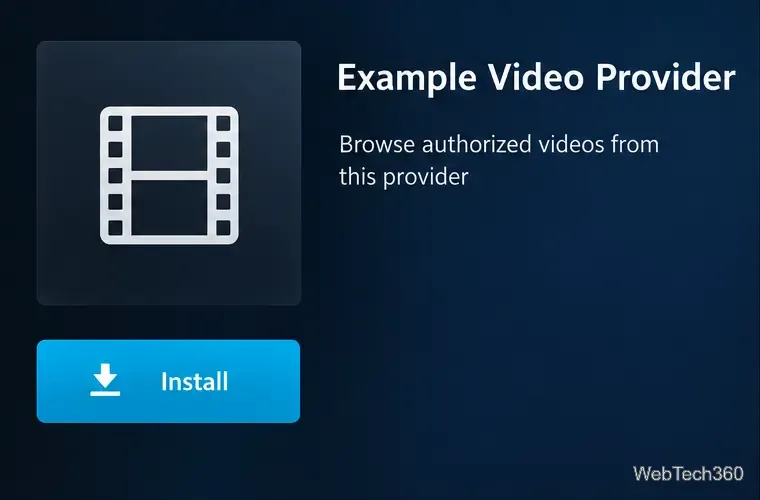
If a streaming service does not offer a supported Kodi add-on, use its official app or website on your TV, streaming device, or computer. Kodi can also play video files you own or are licensed to use from local storage or a network share; add the folder through Kodi’s video library and let Kodi scan the files. The Kodi download page describes its role as a player for local or remote media, while the official repository provides add-ons for services and features that are available for your Kodi release.
Before installing any extension, verify that the developer links to a real provider, the provider permits access in your region, and the content is offered with authorization. Be cautious of a listing promising new theater releases or paid channels for free, asking you to install a bundle of repositories, or instructing you to disable security warnings.
To remove it, open Settings → Add-ons → My add-ons → Video add-ons, choose Covenant, and select Uninstall. Menu names can vary by version and skin. If you also installed a repository only for Covenant, remove that repository from My add-ons → Add-on repository after checking that no other add-on depends on it. Do not delete shared dependencies at random; Kodi manages those separately.
No. A VPN may change how your network traffic is routed, but it cannot confirm that an add-on is trustworthy, compatible, or authorized to provide a movie or show. For current setup steps and support, use Kodi’s add-on manager guide and the Kodi forum rules list.
Learn how to uninstall a Kodi repository safely, remove its saved source URL separately, and check which installed add-ons or dependencies you still need.
Find the safest way to watch live tennis with Kodi: learn what iPlayer WWW can stream, how to find licensed coverage, and which add-ons to avoid.
Learn how to watch movies on Kodi from your computer, USB drive, or NAS, add online video services, and fix missing titles with clear setup steps.
Set a Kodi Master Lock PIN, protect selected menus, and create a separate kids’ profile with media sources you choose.
Find the authorized stream for your country, check whether its provider supports Kodi, and watch a boxing PPV on your TV without relying on outdated add-ons.
Compare five Kodi skins in the official Omega catalog, then follow the current Settings path to install one, customize it, or switch back.
Looking for the 1Channel Kodi add-on? Learn why old PrimeWire installation guides are unreliable and how to install a supported video add-on safely.
Enable Kodi’s Chorus2 web interface, control your media from any browser, and learn how to connect remotely without exposing Kodi to the Internet.
Follow the original Nemesis Kodi installation process, learn what changed with Stream Army, and avoid outdated repository and PIN instructions.
Download Kodi safely on Windows using the official installer or Microsoft Store, then add your media library and set up trusted add-ons.








