How to Uninstall Kodi Repositories the Right Way

Learn how to uninstall a Kodi repository safely, remove its saved source URL separately, and check which installed add-ons or dependencies you still need.
You can watch Crunchyroll anime in Kodi, but the installation method has changed. Instead of relying on the old Crunchyroll listing in Kodi’s built-in repository, use a maintained community add-on and its developer repository. You will need a Crunchyroll account, and the add-on’s developer says an active Premium subscription is required to play videos.
This guide explains where to obtain the repository, how to install the Crunchyroll Kodi add-on, and how to sign in with a device activation code—without entering your Crunchyroll password into Kodi.
Kodi is a media center that can play content from installed video add-ons. The Crunchyroll integration lets subscribers find anime series, browse seasons and episodes, and watch within Kodi’s TV-friendly interface. The current the current community-maintained add-on project supports search, simulcast browsing, watch history, queues, subtitle and dub preferences, and playback progress synchronization.
Important: This is an independent, third-party project, not an official Crunchyroll application or an add-on published by Crunchyroll. The original MrKrabat repository was archived in December 2024; installing that older package may leave you with outdated sign-in instructions. Features can change when Crunchyroll changes its service.
Menu placement may differ with your Kodi version or skin.
Open the developer’s Crunchyroll repository page on a browser and follow its Download repository zip file link. Save the repository ZIP to a location your Kodi device can access, such as a local Downloads folder or a USB drive. Download only from the project’s own repository page, not from a random “Kodi build” bundle.
Use a supported Kodi version; check the developer repository for compatibility.
In Kodi, open Settings → System → Add-ons and enable Unknown sources if Kodi requires it for ZIP installation. Kodi warns about add-ons outside its official repository because their code is managed by third parties. Proceed only when you trust the source, and consider switching the setting off again after setup. See Kodi’s add-on security settings for details.
Return to Add-ons, open the package/open-box icon to reach the Add-on Browser, and select Install from zip file. This option is documented in Kodi’s Add-on Manager documentation.
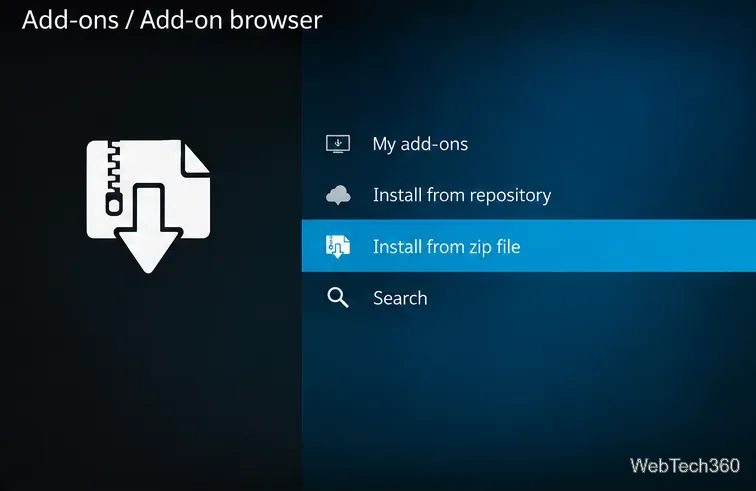
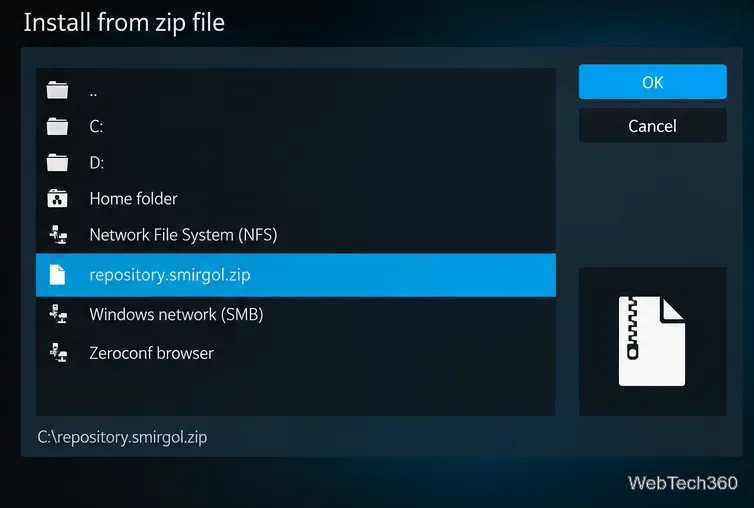
Navigate to the folder or drive where you saved the repository ZIP, highlight the file, and confirm the installation. Wait for Kodi to report that the repository was added. Do not extract the ZIP before selecting it in Kodi.
Open the Add-on Browser again and choose Install from repository → smirgols repository. Find the Crunchyroll add-on under the repository’s video add-ons, select Install, and approve any dependencies Kodi requests. Wait for the installed notification.
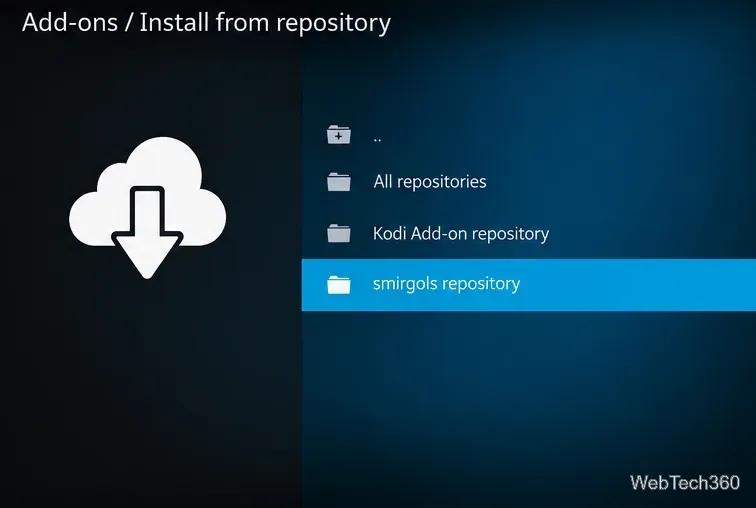
The repository method also provides the developer’s update channel.
Open Add-ons → Video add-ons → Crunchyroll. On first launch, the maintained add-on displays a device code and activation URL or QR code. On a phone or computer, visit the exact activation address shown in Kodi, sign in to your account on Crunchyroll website, and enter the device code. Leave the dialog open until Kodi completes authentication; expired codes must be requested again.
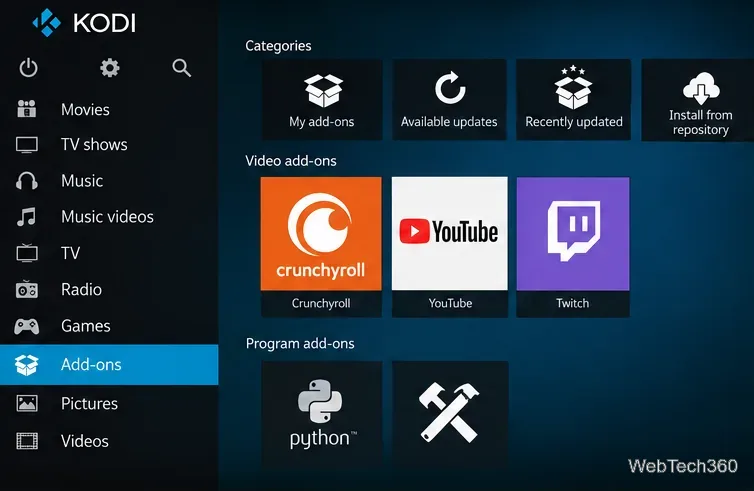
You can then browse series by popularity, season, genre, or title, open a show, and select an episode. Available audio and subtitle options depend on the program and region. For Japanese audio with English subtitles, check the add-on’s language settings and the episode’s available tracks.
For errors that persist, the project’s GitHub page explains how to enable its debug logging and file an issue. Before sharing logs, remove any account tokens, device identifiers, or other private information.
No. A VPN is not required to install Kodi or use a legitimate Crunchyroll subscription. It also does not make an outdated or malfunctioning add-on safe. Streaming rights differ by country, and Crunchyroll’s region and VPN guidance says using a VPN to access titles unavailable in your region is not supported and may cause playback or sign-in problems.
If this community add-on breaks after a service update, the official Crunchyroll website or app is the simpler choice. Crunchyroll supports many browsers, phones, TV platforms, and streaming devices; check Crunchyroll’s supported-device list for current compatibility. The Kodi add-on is useful if you prefer keeping your anime library inside one media-center interface, but it should not be treated as a guaranteed replacement for Crunchyroll’s supported apps.
Learn how to uninstall a Kodi repository safely, remove its saved source URL separately, and check which installed add-ons or dependencies you still need.
Find the safest way to watch live tennis with Kodi: learn what iPlayer WWW can stream, how to find licensed coverage, and which add-ons to avoid.
Learn how to watch movies on Kodi from your computer, USB drive, or NAS, add online video services, and fix missing titles with clear setup steps.
Set a Kodi Master Lock PIN, protect selected menus, and create a separate kids’ profile with media sources you choose.
Find the authorized stream for your country, check whether its provider supports Kodi, and watch a boxing PPV on your TV without relying on outdated add-ons.
Compare five Kodi skins in the official Omega catalog, then follow the current Settings path to install one, customize it, or switch back.
Looking for the 1Channel Kodi add-on? Learn why old PrimeWire installation guides are unreliable and how to install a supported video add-on safely.
Enable Kodi’s Chorus2 web interface, control your media from any browser, and learn how to connect remotely without exposing Kodi to the Internet.
Follow the original Nemesis Kodi installation process, learn what changed with Stream Army, and avoid outdated repository and PIN instructions.
Download Kodi safely on Windows using the official installer or Microsoft Store, then add your media library and set up trusted add-ons.








