How to Uninstall Kodi Repositories the Right Way

Learn how to uninstall a Kodi repository safely, remove its saved source URL separately, and check which installed add-ons or dependencies you still need.
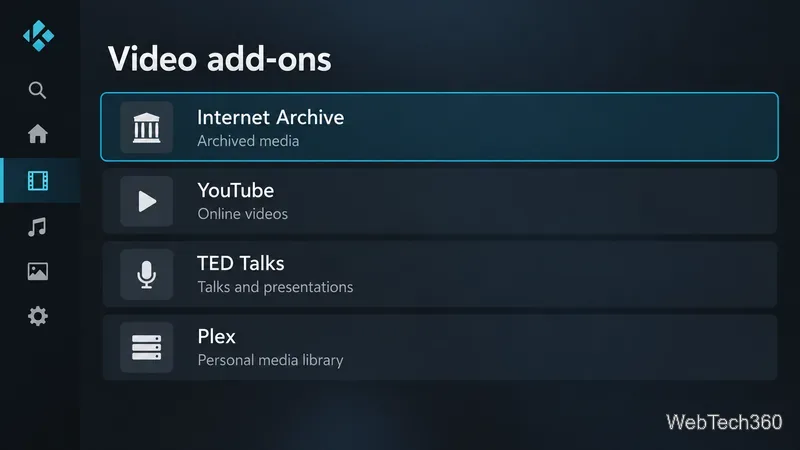
The original Dandy Media repository was a third-party Kodi source, and the Kodi team’s current official add-on catalog does not list Dandy Media or a maintained Dandy replacement. If you want a safer alternative, choose add-ons tied to a known service or use Kodi with your own media library. The practical options include Internet Archive, YouTube, TED Talks, Plex, and Kodi’s built-in playback for local and network files.
There is no verified one-for-one replacement for Dandy’s old mix of movies, television, cartoons, and documentaries. Separate services are more dependable than installing an unfamiliar repository that promises everything. Kodi is a media center; it does not provide the movies or shows itself. Its official repository is maintained by Team Kodi, while other repositories are added by their own operators. See the Kodi Foundation’s explanation of Kodi and add-ons and the official repository documentation.
These options cover different needs rather than reproducing Dandy’s old catalog. Find them in Kodi’s built-in repository, then check each add-on’s description and service requirements before installing.
If your priority is live television, check Kodi’s official PVR documentation and use a compatible tuner, backend, or service feed that you are authorized to access. Broadcaster add-ons and subscription services can vary by country, account, and platform, so verify availability with the provider rather than relying on a generic repository list.
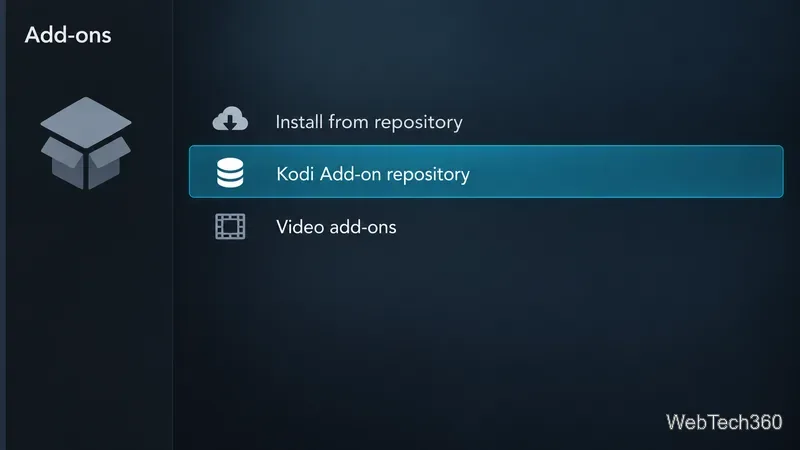
Open Kodi’s Add-on browser, choose Install from repository, select Kodi Add-on repository, and browse Video add-ons or use Search. Select an add-on to read its description and then choose Install. Kodi’s interface labels can vary slightly by skin or release, but the built-in repository route is the same in the official add-on manager documentation.
Check the catalog page for your installed Kodi version before following an older tutorial. Kodi’s add-on directory is version-specific. As of October 27, 2026, Kodi 22 “Piers” was at Release Candidate 1; users who want a stable setup should use the stable Kodi release offered for their device and select add-ons compatible with that release. Browse Kodi’s version-specific add-on catalog or read the Kodi 22 Piers RC 1 announcement.
If Dandy Media is still listed in Kodi, remove its repository in the Add-on browser under My add-ons and Add-on repositories, then uninstall any Dandy add-ons you no longer use. If you added a repository address manually, open Settings and File manager, highlight that source, open its context menu, and choose Remove source. Removing a source entry does not remove the repository add-on, so check both places.
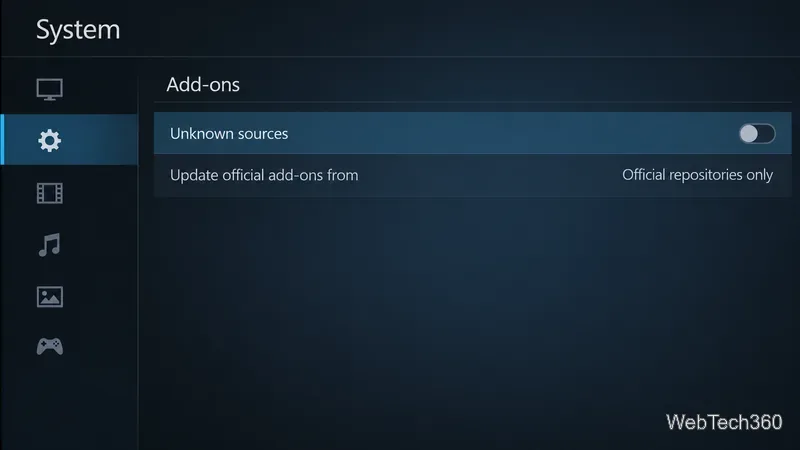
For everyday use, keep Unknown sources off and leave Update official add-ons from set to Official repositories only. Kodi’s settings documentation says installing ZIP files from outside its repository requires enabling unknown sources and warns that add-ons can access personal data on the device. If an old repo has no trusted maintainer or current compatibility information, do not install a mirror just because it uses the familiar name.
In short, start with the built-in catalog and select tools by what they actually provide: archived media, creator videos, talks, your Plex library, or files you already have. Treat old Dandy installation links as historical instructions, verify version compatibility, and follow the rights and terms of the service hosting each stream.
Sources: Kodi add-on settings documentation; Kodi Add-on manager documentation.
Learn how to uninstall a Kodi repository safely, remove its saved source URL separately, and check which installed add-ons or dependencies you still need.
Find the safest way to watch live tennis with Kodi: learn what iPlayer WWW can stream, how to find licensed coverage, and which add-ons to avoid.
Learn how to watch movies on Kodi from your computer, USB drive, or NAS, add online video services, and fix missing titles with clear setup steps.
Set a Kodi Master Lock PIN, protect selected menus, and create a separate kids’ profile with media sources you choose.
Find the authorized stream for your country, check whether its provider supports Kodi, and watch a boxing PPV on your TV without relying on outdated add-ons.
Compare five Kodi skins in the official Omega catalog, then follow the current Settings path to install one, customize it, or switch back.
Looking for the 1Channel Kodi add-on? Learn why old PrimeWire installation guides are unreliable and how to install a supported video add-on safely.
Enable Kodi’s Chorus2 web interface, control your media from any browser, and learn how to connect remotely without exposing Kodi to the Internet.
Follow the original Nemesis Kodi installation process, learn what changed with Stream Army, and avoid outdated repository and PIN instructions.
Download Kodi safely on Windows using the official installer or Microsoft Store, then add your media library and set up trusted add-ons.








