How to Uninstall Kodi Repositories the Right Way

Learn how to uninstall a Kodi repository safely, remove its saved source URL separately, and check which installed add-ons or dependencies you still need.
Fire TV Guru was a third-party Kodi build that bundled a custom home screen, repositories, and add-ons in one installation. If you are looking for the original Fire TV Guru build today, there is an important limitation: as of October 27, 2026, its old source address, https://firetvguru.net/fire, returns a 404 error. We could not verify a current, developer-maintained download or compatibility with modern Kodi. Do not substitute a random “working mirror” for the missing repository.
This guide explains the original installation approach, which parts of Kodi's menus still apply, how to navigate an existing Fire TV Guru setup, and what to do if the installer is no longer available.
Fire TV Guru was designed as a preconfigured Kodi setup rather than a separate version of the Kodi app. Older releases used a simple, Kodi Jarvis-style layout with sections such as Movies, TV Shows, Live Streams, Sports, Kids, and Music. A selection of add-ons appeared beneath the main menu, making it possible to browse categories without opening each add-on from the standard Kodi interface.
The package also offered shortcuts and search features. However, a build cannot guarantee that individual add-ons, content providers, or streaming links will keep working. Claims that Fire TV Guru is currently maintained, lightweight on every device, or compatible with Kodi 21 or 22 have not been independently confirmed.
For version context, Kodi 21.3 “Omega” is an official stable release, while Kodi 22 “Piers” had reached release-candidate status on October 10, 2026. See Kodi’s 21.3 release announcement and Kodi’s 22 release-candidate announcement. An installer intended for the Kodi 16/17 era should not be assumed to work on either branch.
Important: The following is the standard Kodi procedure for installing a third-party repository and its program add-on, not a verified working Fire TV Guru download. Stop if you cannot confirm the developer, repository URL, ZIP file, and supported Kodi version.
Open Kodi and select the gear icon to enter Settings. Before changing a build, back up your existing Kodi data, especially your library, artwork, playlists, profiles, and add-on settings. Kodi documents full-data-folder backups and provides a Backup program add-on in its official repository. A “fresh start” option in an unofficial wizard may remove your existing configuration.
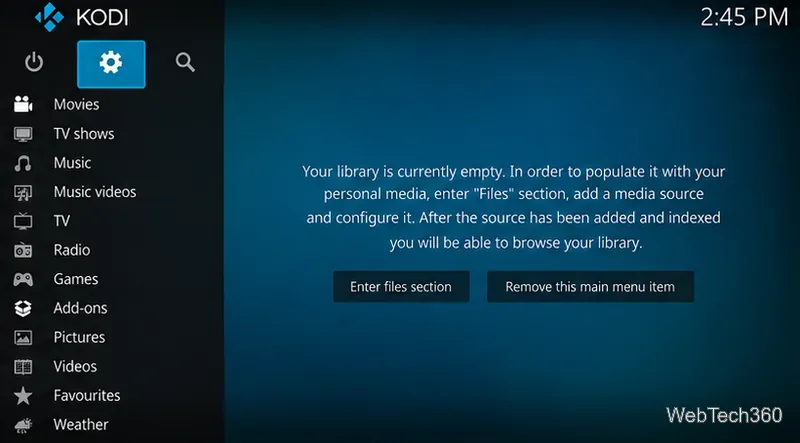
Follow Kodi’s backup documentation if you need to preserve your setup. A backup from one major Kodi version is not necessarily appropriate for restoring into another major version.
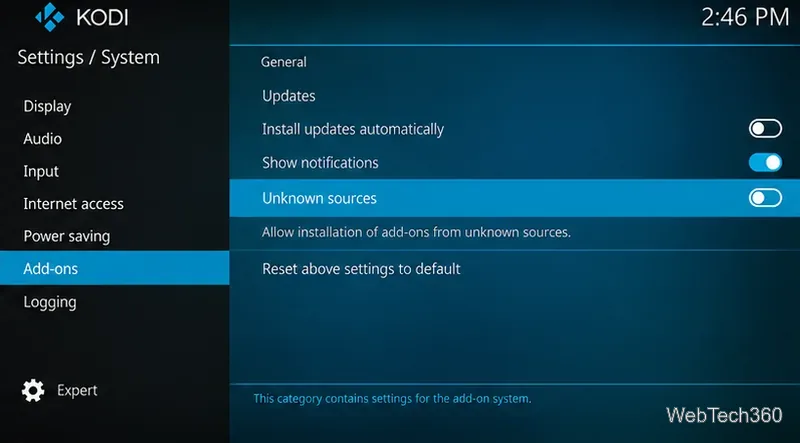
Open Settings > System > Add-ons. Kodi normally keeps Unknown sources disabled. If—and only if—you have verified the package and its publisher, enable this setting to install a repository ZIP outside the official Kodi repository. Read the warning carefully: third-party add-ons may access information stored on your device. You can disable Unknown sources again after installation.
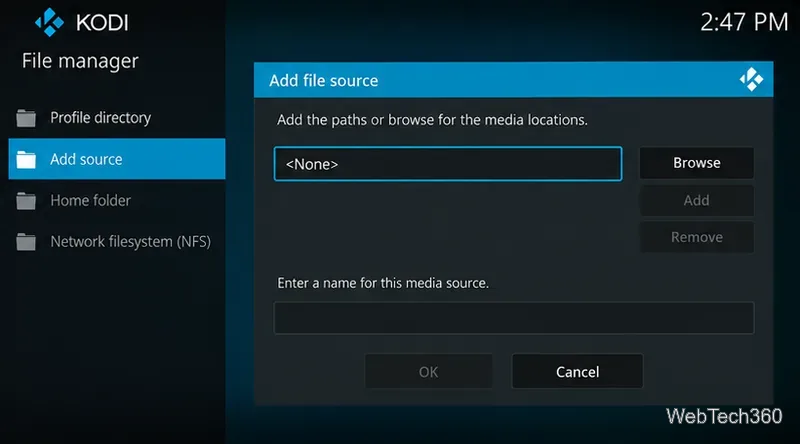
Return to Settings and open File manager > Add source. Select the path field, enter the exact repository address supplied by its verified maintainer, and give it a recognizable name. Do not use the historical Fire TV Guru URL above as an active installation instruction: it is currently unavailable. If no trustworthy replacement exists, stop here rather than downloading an unexplained ZIP from an unrelated site.
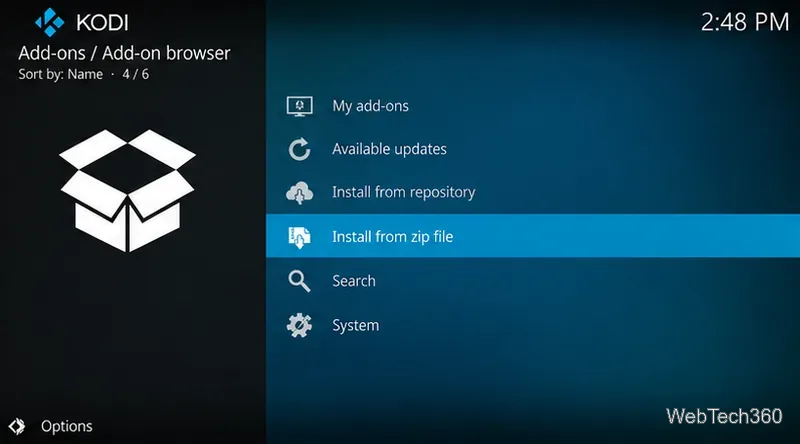
From Kodi's home screen, open Add-ons, select the open-box Add-on browser icon, then choose Install from zip file. Browse to the previously verified source or a ZIP already stored on your device. Review the repository name and its dependencies before proceeding. If the repository installs successfully, return to Install from repository, open its Program add-ons section, and install the publisher's wizard only if its identity and compatibility are clear.
Historically, the Fire TV Guru installation used a repository ZIP, then a Fire TV Wizard program add-on, followed by a build selection. The wizard offered installation modes described as Fresh Start and Standard Install. These are descriptions of an older workflow, not evidence that those menu items still exist. Read any data-deletion warning before confirming, restart Kodi only when prompted, and restore your backup if the new configuration fails.
On older installations, the customized home screen organized add-ons into content categories. Use the remote or keyboard to move across the menu, open a category, and select one of the add-ons shown beneath it. Some versions also exposed category searches for titles, genres, or release years. These functions depend on the installed add-ons and their current sources; a menu may remain visible even when the underlying service is broken.
If a movie or show will not play, try a legitimate source you already have permission to access. A Kodi build does not itself supply streaming rights, and neither Kodi nor a VPN turns unauthorized content into licensed content.
If your goal is a clean Kodi interface with easy access to media, use Add-ons > Install from repository > Kodi Add-on Repository to select individual maintained add-ons and compatible skins. That avoids relying on a discontinued-looking bundle. Kodi's official Add-on manager instructions explain both repository installs and ZIP installs, and its Add-ons settings reference explains the security implications of Unknown sources.
Bottom line: Fire TV Guru is worth recognizing as an older Kodi build, but there is no verified current download to recommend from the original source. Back up your configuration, use only identifiable publishers, and prefer the official Kodi repository when you can.
Learn how to uninstall a Kodi repository safely, remove its saved source URL separately, and check which installed add-ons or dependencies you still need.
Find the safest way to watch live tennis with Kodi: learn what iPlayer WWW can stream, how to find licensed coverage, and which add-ons to avoid.
Learn how to watch movies on Kodi from your computer, USB drive, or NAS, add online video services, and fix missing titles with clear setup steps.
Set a Kodi Master Lock PIN, protect selected menus, and create a separate kids’ profile with media sources you choose.
Find the authorized stream for your country, check whether its provider supports Kodi, and watch a boxing PPV on your TV without relying on outdated add-ons.
Compare five Kodi skins in the official Omega catalog, then follow the current Settings path to install one, customize it, or switch back.
Looking for the 1Channel Kodi add-on? Learn why old PrimeWire installation guides are unreliable and how to install a supported video add-on safely.
Enable Kodi’s Chorus2 web interface, control your media from any browser, and learn how to connect remotely without exposing Kodi to the Internet.
Follow the original Nemesis Kodi installation process, learn what changed with Stream Army, and avoid outdated repository and PIN instructions.
Download Kodi safely on Windows using the official installer or Microsoft Store, then add your media library and set up trusted add-ons.








