How to Uninstall Kodi Repositories the Right Way

Learn how to uninstall a Kodi repository safely, remove its saved source URL separately, and check which installed add-ons or dependencies you still need.
If Kodi closes before its home screen appears, restart the device and note what changed just before the crashes began. Then check the stable build, test with a clean data folder, and inspect the startup log. Back up Kodi’s data before moving folders or reinstalling.
Figures are illustrative; Kodi skins and operating-system screens vary.
Quit Kodi completely, restart the device, and try once more. On a computer, close demanding apps and check for free disk space. Temporarily unplug a recently added USB device or disconnect a changed display or audio connection. Note whether the crash began after a Kodi, add-on, skin, operating-system, or driver update. Change one thing at a time.
Install Kodi from its official download page or your platform’s app store. As of October 27, 2026, Team Kodi labels Kodi 22 “Piers” RC 1 a prerelease. For reliability, use the latest stable build offered for your device; choose a release candidate only if you intend to test prerelease software. Restart the device after updating and try Kodi before restoring add-ons.
Avoid third-party installers and bundled “builds.” Add-ons can behave differently from Kodi itself.
Install pending operating-system updates and check that the system drive is not full. On a desktop, if the problem followed an OS or driver change, get a supported graphics-driver update from the computer or GPU maker. If security software flagged a Kodi file, review its alert and use a trusted official installer; do not disable protection globally. On TVs and streaming devices, use the device’s built-in update and app store.
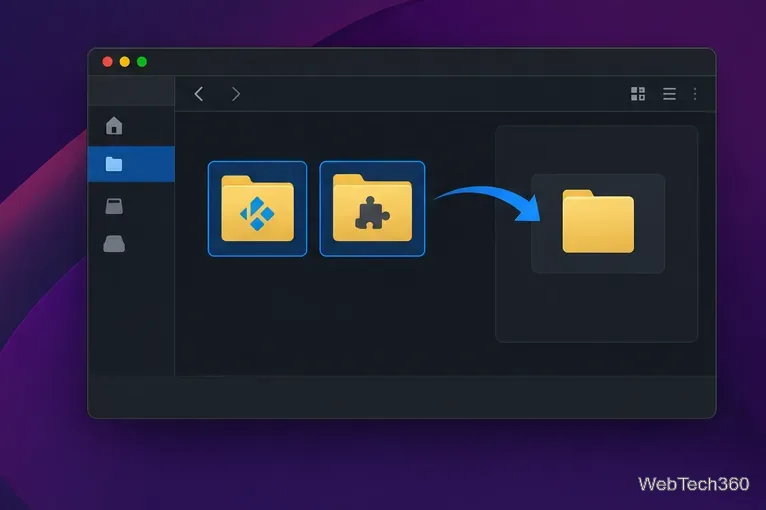
Quit Kodi fully and copy the entire Kodi data folder somewhere safe. It contains add-ons, settings, databases, and other changes; copying only userdata is not a full backup.
Common desktop locations are %APPDATA%\Kodi on Windows, ~/.kodi on Linux, and ~/Library/Application Support/Kodi on macOS. Store and portable installs can differ. Use Kodi’s data-folder guide for other paths.
With Kodi closed, rename the data folder, adding a suffix such as .saved, then launch Kodi to create a fresh one. If it opens, the old profile is a likely cause. To undo the test, close Kodi, move the new folder aside, and restore the saved folder’s original name. Android and TV devices may restrict access; don’t select “Clear data” without a verified backup.
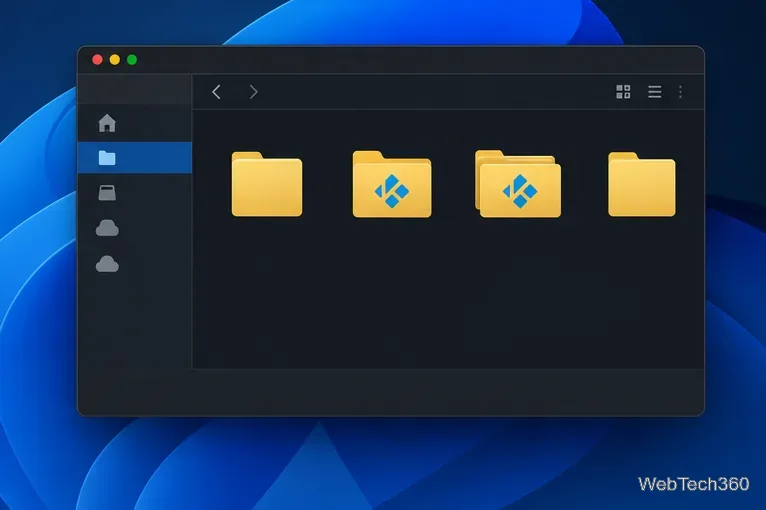
If a clean profile opens, inspect the old profile. Kodi stores installed add-on files in the data folder’s addons directory; userdata/addon_data holds settings for some add-ons. They are different folders, as explained in Kodi’s data-folder documentation.
With Kodi closed and your backup intact, move one recently changed third-party add-on folder out of addons into a separate holding folder. Don’t delete it or move folders you can’t identify. Launch Kodi. If the crash stops, leave that add-on out until a compatible update is available; otherwise restore it and try the next likely add-on. If you can’t access the folders safely, use the log rather than guessing.
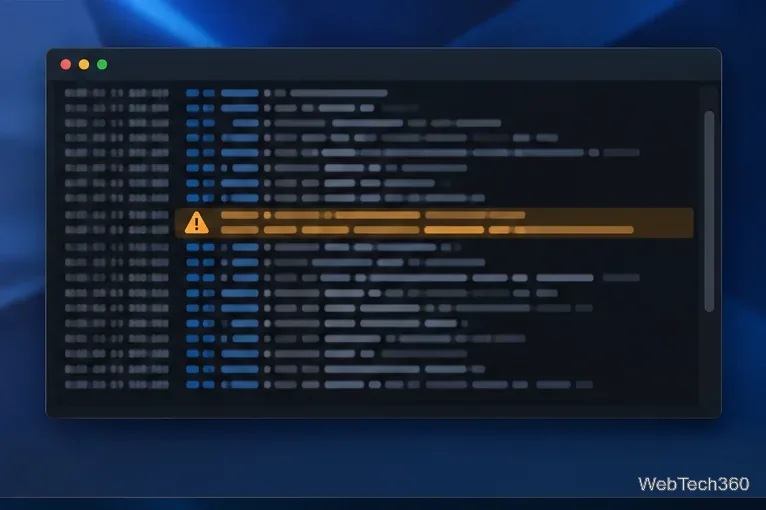
Common log paths are %APPDATA%\Kodi\kodi.log on Windows, ~/.kodi/temp/kodi.log on Linux, and ~/Library/Logs/kodi.log on macOS. Other platforms have different paths; see Kodi’s log-file guide.
Look near the end for an error or add-on name before Kodi exits, but treat it as a clue, not proof. A new launch rotates the current log, so the failed session may be in kodi.old.log. Logs can reveal personal folder names or add-on credentials; redact private details before sharing.
Reinstall from Kodi’s official download page or your platform’s store, keeping the saved data folder. Removing the app may leave its profile in place, so a reinstall can reuse the same broken settings. Leave the folder renamed until you confirm Kodi starts cleanly; never overwrite your backup.
If it opens, add back only needed settings and extensions, one at a time, restarting between changes. Prefer the Kodi repository or an add-on author’s maintained source. If a clean profile and current stable build still crash, share the log and device details with Kodi’s official support community.
For fewer repeat crashes: keep supported software current, back up before major upgrades, use trusted add-on sources, and make changes one at a time.
Learn how to uninstall a Kodi repository safely, remove its saved source URL separately, and check which installed add-ons or dependencies you still need.
Find the safest way to watch live tennis with Kodi: learn what iPlayer WWW can stream, how to find licensed coverage, and which add-ons to avoid.
Learn how to watch movies on Kodi from your computer, USB drive, or NAS, add online video services, and fix missing titles with clear setup steps.
Set a Kodi Master Lock PIN, protect selected menus, and create a separate kids’ profile with media sources you choose.
Find the authorized stream for your country, check whether its provider supports Kodi, and watch a boxing PPV on your TV without relying on outdated add-ons.
Compare five Kodi skins in the official Omega catalog, then follow the current Settings path to install one, customize it, or switch back.
Looking for the 1Channel Kodi add-on? Learn why old PrimeWire installation guides are unreliable and how to install a supported video add-on safely.
Enable Kodi’s Chorus2 web interface, control your media from any browser, and learn how to connect remotely without exposing Kodi to the Internet.
Follow the original Nemesis Kodi installation process, learn what changed with Stream Army, and avoid outdated repository and PIN instructions.
Download Kodi safely on Windows using the official installer or Microsoft Store, then add your media library and set up trusted add-ons.








