How to Uninstall Kodi Repositories the Right Way

Learn how to uninstall a Kodi repository safely, remove its saved source URL separately, and check which installed add-ons or dependencies you still need.
To back up and restore Kodi, use the Backup program add-on from Kodi’s official repository, or copy Kodi’s entire data folder to a safe location while the app is closed. The first method is convenient for most devices; the second is particularly useful on Windows, macOS, and Linux. Both can preserve settings, add-ons, and library information without rebuilding your setup from scratch.
Keep the backup outside the Kodi data folder—ideally on a USB drive, network share, or other storage that will survive a reinstall. These methods do not back up your actual movies, TV episodes, or music files stored elsewhere.
Kodi provides a community-maintained Backup program add-on in its official repository. It supports on-demand backups and restores, selectable data, and scheduled backups. You do not need to enable Unknown sources or install an unofficial wizard. See the official Backup add-on instructions and Kodi add-on listing.
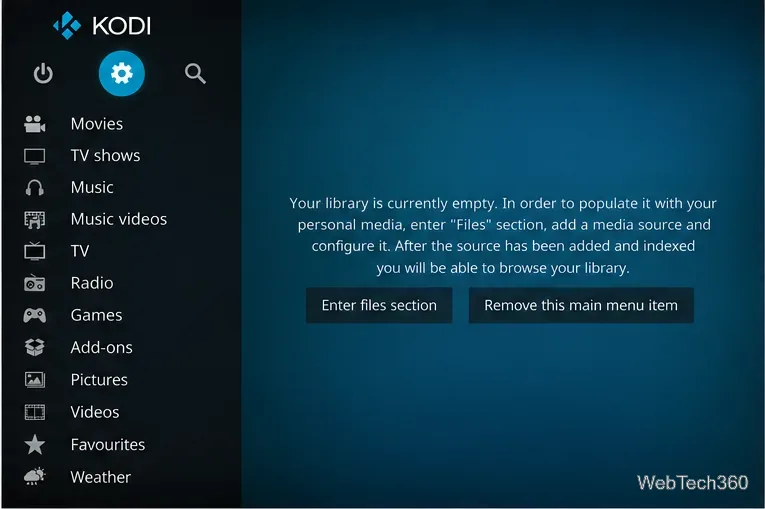
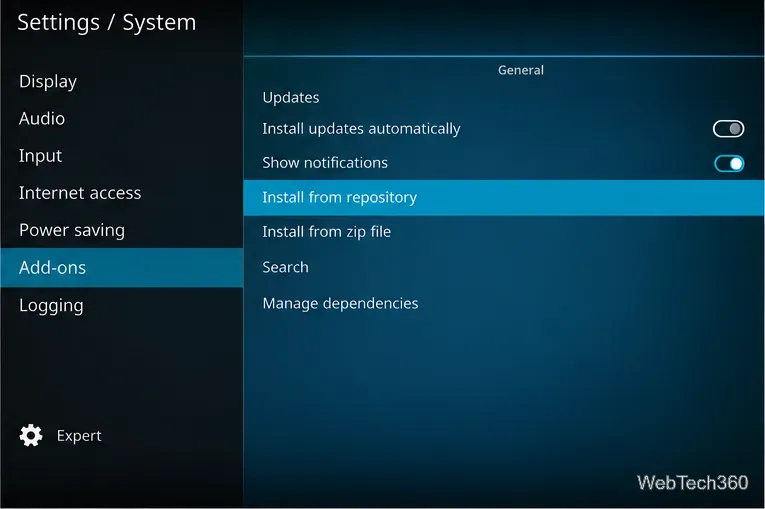
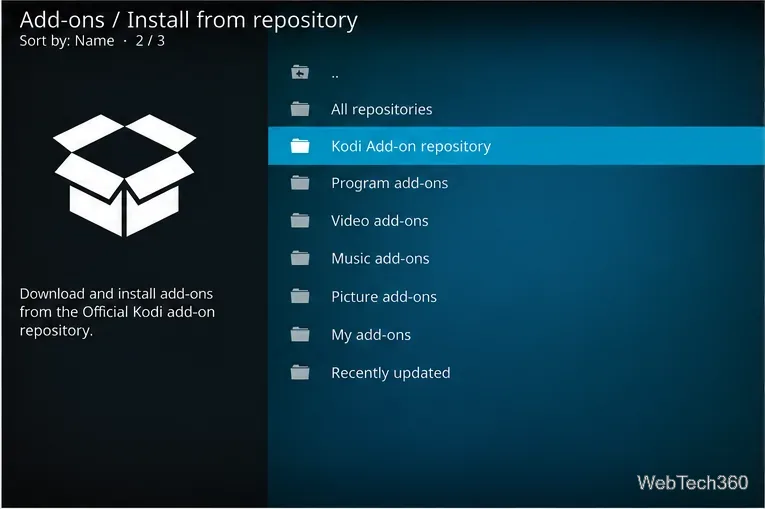
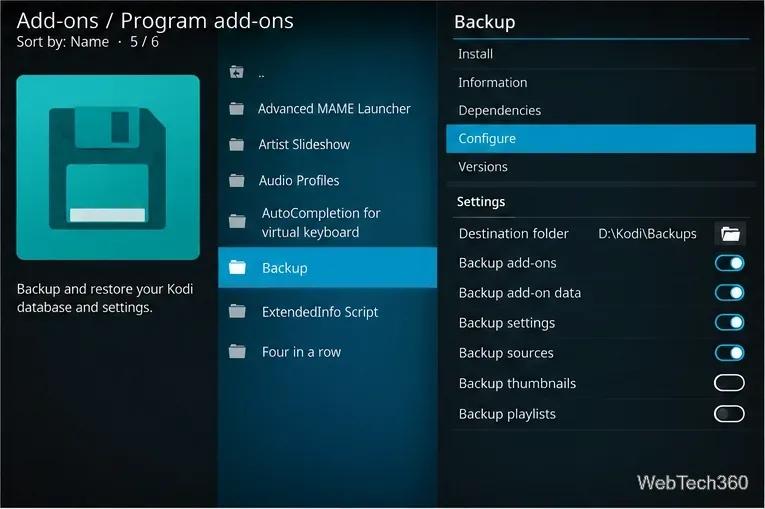
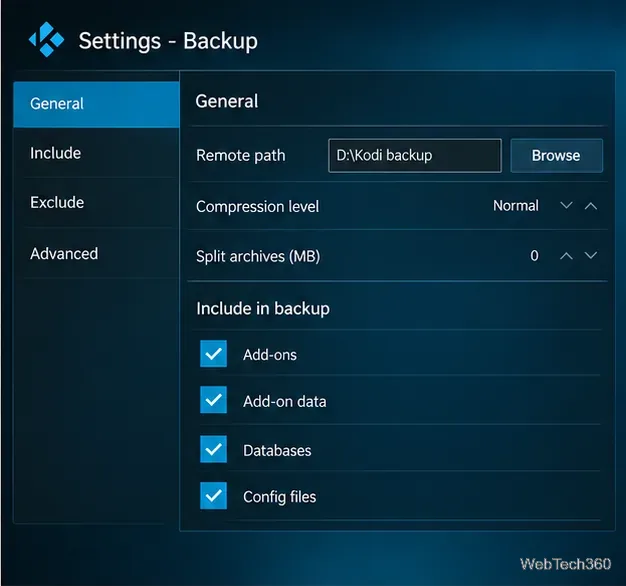
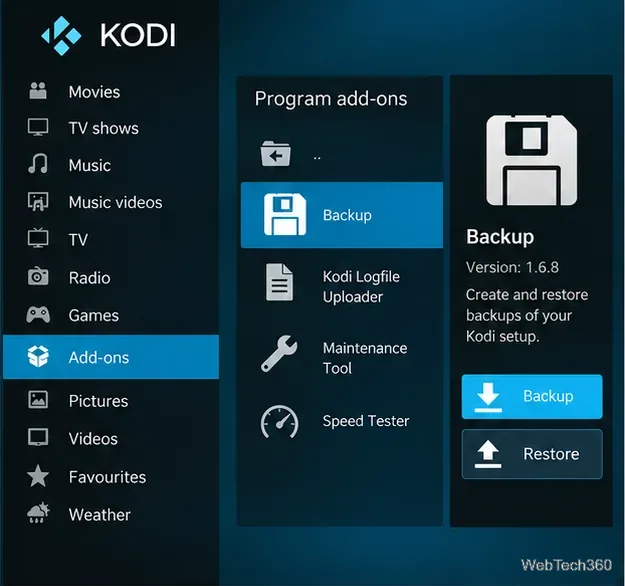
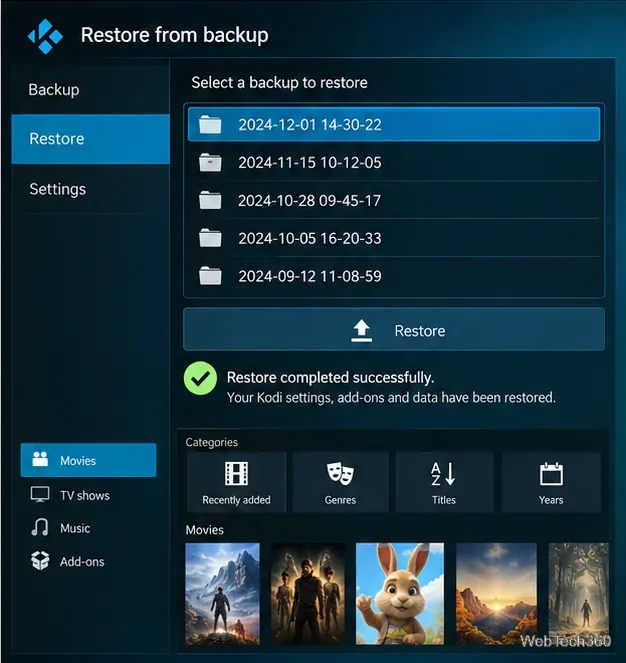
Manual copying is often the simplest option on a computer. Kodi stores customizations in its data folder, separate from the application’s program files. Copy the entire folder, not just userdata, if you want installed add-ons and their settings too. See Kodi’s backup documentation and the Kodi data folder reference.
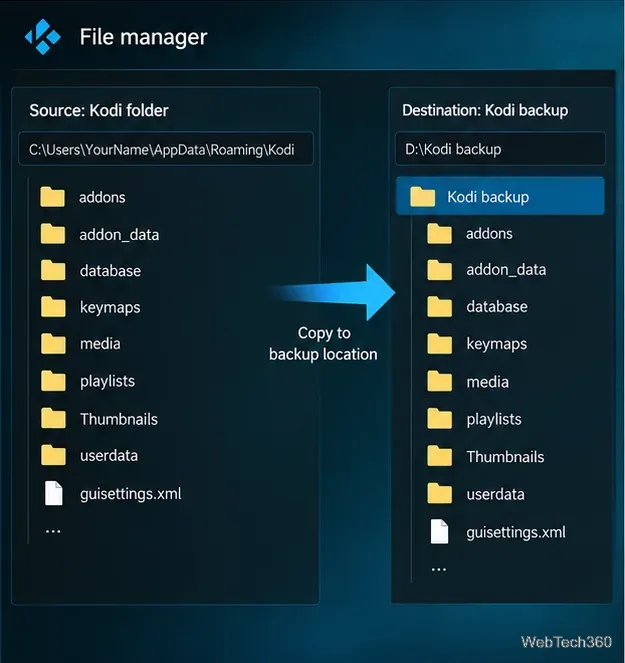
| Device or system | Typical Kodi data folder |
|---|---|
| Windows desktop | %APPDATA%\Kodi |
| macOS | ~/Library/Application Support/Kodi |
| Linux | ~/.kodi |
| LibreELEC | /storage/.kodi |
| Android / Fire TV | Android/data/org.xbmc.kodi/files/.kodi (access varies) |
For Microsoft Store/Xbox, portable installations, iOS, and other systems, paths differ. Consult official userdata paths rather than assuming the desktop directory applies. Android’s storage restrictions may prevent an ordinary file manager from opening the app’s data directory; the Backup add-on or Kodi’s built-in file manager may be more practical.
A full data-folder copy is not a universal migration file. Kodi cautions against restoring it across different operating systems or different major Kodi versions. Even between devices running the same OS, audio, display, storage paths, and add-on dependencies may need adjustment.
If you are changing platforms, favor a fresh Kodi installation and migrate only compatible configuration or library data. Files referenced by network shares, USB drives, and local folder paths must still be accessible. Do not expect a backup to recreate media files that were never stored inside Kodi.
On LibreELEC, a separate backup and restore feature is also available through its settings add-on, as noted in LibreELEC’s official update documentation. Back up before major system upgrades, not only after problems appear.
Before resetting or uninstalling Kodi, make a dated backup and verify that you can read it. A backup stored only inside the folder you plan to erase is no backup at all.
Learn how to uninstall a Kodi repository safely, remove its saved source URL separately, and check which installed add-ons or dependencies you still need.
Find the safest way to watch live tennis with Kodi: learn what iPlayer WWW can stream, how to find licensed coverage, and which add-ons to avoid.
Learn how to watch movies on Kodi from your computer, USB drive, or NAS, add online video services, and fix missing titles with clear setup steps.
Set a Kodi Master Lock PIN, protect selected menus, and create a separate kids’ profile with media sources you choose.
Find the authorized stream for your country, check whether its provider supports Kodi, and watch a boxing PPV on your TV without relying on outdated add-ons.
Compare five Kodi skins in the official Omega catalog, then follow the current Settings path to install one, customize it, or switch back.
Looking for the 1Channel Kodi add-on? Learn why old PrimeWire installation guides are unreliable and how to install a supported video add-on safely.
Enable Kodi’s Chorus2 web interface, control your media from any browser, and learn how to connect remotely without exposing Kodi to the Internet.
Follow the original Nemesis Kodi installation process, learn what changed with Stream Army, and avoid outdated repository and PIN instructions.
Download Kodi safely on Windows using the official installer or Microsoft Store, then add your media library and set up trusted add-ons.








