How to Uninstall Kodi Repositories the Right Way

Learn how to uninstall a Kodi repository safely, remove its saved source URL separately, and check which installed add-ons or dependencies you still need.
To clear Kodi's video cache, stop the stream and restart Kodi. Its normal playback buffer is temporary and is managed automatically; there is no built-in “Clear Video Cache” button you need to press. If a video repeatedly pauses or displays an “out of cache” warning, the cause is usually data arriving too slowly, not a pile of old video files that needs deleting.
For Kodi 21 Omega and later, you can review buffering options at Settings > Services > Caching. If you want to free up device storage instead, distinguish Kodi's video buffer from Android app cache and downloaded library artwork. These are different things, and deleting the wrong data can create extra problems.
When you stream a video, Kodi keeps some upcoming content ready so brief connection slowdowns do not immediately interrupt playback. The usual video buffer lives in RAM and is discarded as Kodi uses it. Kodi's official cache explanation explicitly says that this buffer does not require routine manual cleaning.
That distinction matters: an “out of cache” warning generally means the source is delivering video too slowly for the buffer to cover the delay. Deleting thumbnails or installing a cleaning wizard will not speed up an overloaded streaming server.
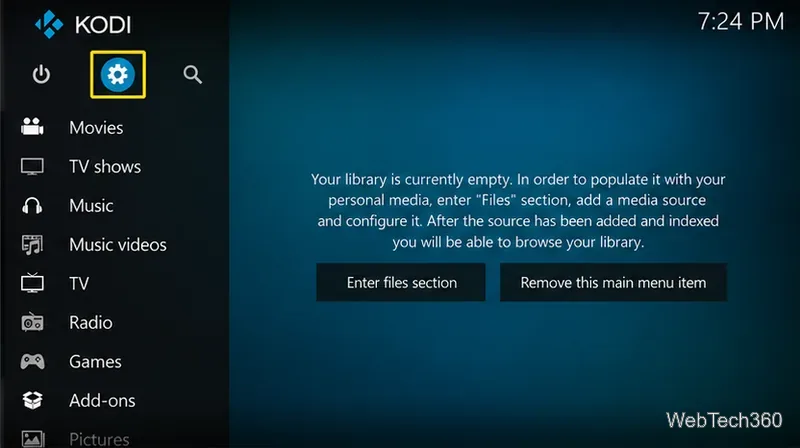
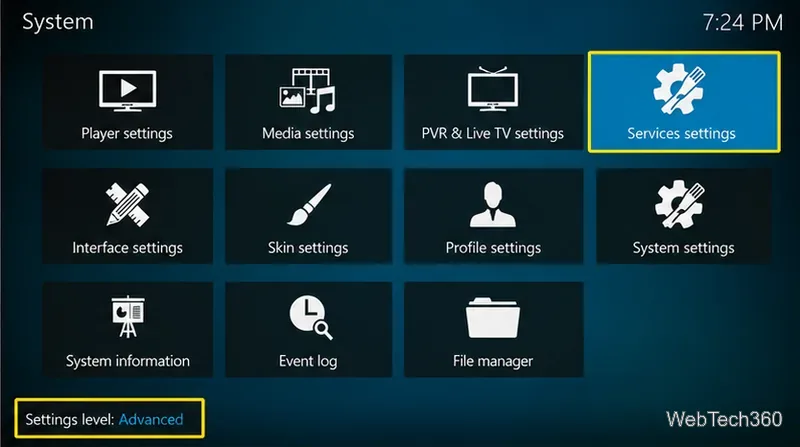
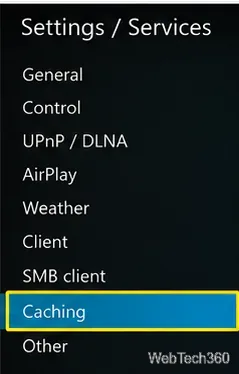
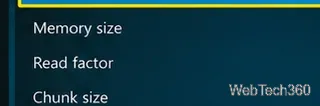
Important: Setting Memory Size to 0 does not empty the buffer. It tells Kodi to use disk storage instead of RAM. Kodi warns that this can cause playback failure or crashes on devices with limited free storage, including many streaming sticks. Likewise, selecting No buffer disables buffering rather than clearing old files. Neither change is a general performance fix.
If Kodi is crashing, the device reports low storage, or the application behaves abnormally, clearing its operating-system app cache may help. This is not the same as emptying the in-memory video buffer.
On many Android TV devices, open the device's Settings, find Apps, select Kodi, and look for Storage & cache > Clear cache. The wording differs by TV manufacturer and Android version. Google's Android storage guide explains that Clear cache removes temporary data, while Clear storage removes app data.
On Fire TV, start at Settings > Applications > Manage Installed Applications, choose Kodi, and use the available cache-clearing control. Amazon documents this app-management menu in its Fire TV documentation. Avoid Clear data, Clear storage, or uninstalling Kodi unless you have backed up your configuration and intend to reset the application.
Kodi stores poster images, fan art, and other visual assets in its userdata/Thumbnails folder. Those files are a persistent artwork cache, not the playback video buffer. They can occupy storage as your library grows.
On Kodi 22 Piers prerelease builds that include the feature, Settings > Media > Library at the Expert level offers Clean image cache for old, unused images. See Kodi's library settings reference. This option is not present in Kodi 21, and it is not a video-buffer cleaner.
For persistent corrupt or missing artwork, Kodi documents a last-resort method involving the thumbnails folder and the texture database. Do not delete these casually: Kodi must rebuild cached images afterward, and artwork hosted at vanished source URLs might not return. Back up the Kodi data folder first and follow the official artwork-cache instructions only if you have an actual artwork problem.
No. Old articles commonly recommended Ares Wizard and Simply Caz Wizard for cache cleaning, then supplied XML snippets to set Kodi's buffer. Those steps are not appropriate as a general current guide. Since Kodi 21, the former advancedsettings.xml cache tags are deprecated and ignored; Kodi's video-cache guide points readers to the settings interface instead. You do not need an unofficial repository or a third-party cleaning wizard to refresh a normal playback buffer.
Bottom line: Restart playback to refresh the temporary buffer, use Services > Caching only when there is a specific buffering problem, and clear app or artwork caches only when the corresponding storage issue calls for it.
Learn how to uninstall a Kodi repository safely, remove its saved source URL separately, and check which installed add-ons or dependencies you still need.
Find the safest way to watch live tennis with Kodi: learn what iPlayer WWW can stream, how to find licensed coverage, and which add-ons to avoid.
Learn how to watch movies on Kodi from your computer, USB drive, or NAS, add online video services, and fix missing titles with clear setup steps.
Set a Kodi Master Lock PIN, protect selected menus, and create a separate kids’ profile with media sources you choose.
Find the authorized stream for your country, check whether its provider supports Kodi, and watch a boxing PPV on your TV without relying on outdated add-ons.
Compare five Kodi skins in the official Omega catalog, then follow the current Settings path to install one, customize it, or switch back.
Looking for the 1Channel Kodi add-on? Learn why old PrimeWire installation guides are unreliable and how to install a supported video add-on safely.
Enable Kodi’s Chorus2 web interface, control your media from any browser, and learn how to connect remotely without exposing Kodi to the Internet.
Follow the original Nemesis Kodi installation process, learn what changed with Stream Army, and avoid outdated repository and PIN instructions.
Download Kodi safely on Windows using the official installer or Microsoft Store, then add your media library and set up trusted add-ons.








