How to Uninstall Kodi Repositories the Right Way

Learn how to uninstall a Kodi repository safely, remove its saved source URL separately, and check which installed add-ons or dependencies you still need.
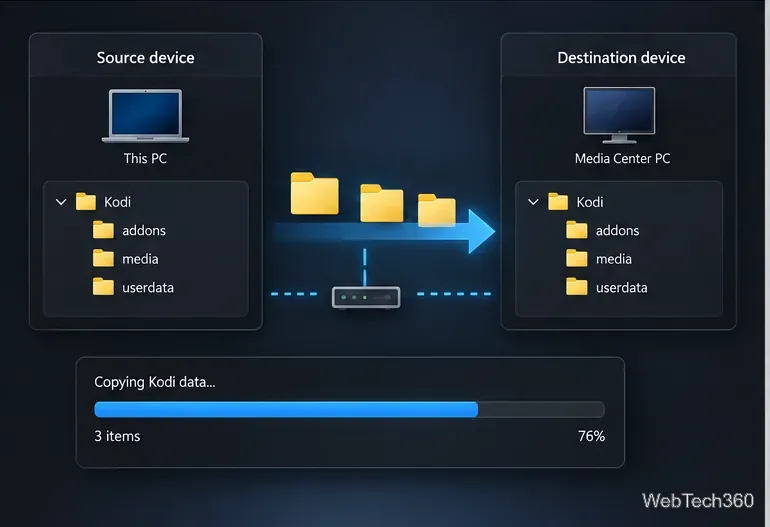
To clone your Kodi configuration, copy the complete Kodi data folder from the source device to the matching folder on the destination while Kodi is closed. That folder contains the changes you have made to Kodi, including add-ons, profiles, skins, settings, playlists, and library databases. You can also use Kodi’s Backup add-on for a guided export and restore. Either way, the video and music files stored outside Kodi’s data folder must be available separately on the new device.
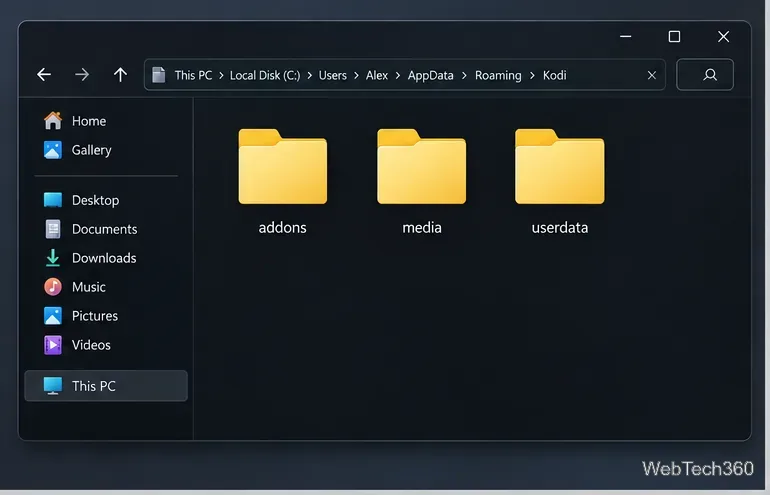
Kodi saves add-ons and their data, library databases, artwork cache, playlists, and other user changes in its data folder. Common subfolders include addons, media, and userdata; copy the complete folder to capture other files too. Kodi’s data-folder documentation describes what is stored there.
Your actual media files are separate. If the source library points to a local drive or a network share that the destination cannot reach, Kodi may show missing items until you connect the same share or update the source paths. Some add-ons also depend on the operating system, external services, or credentials and may need to be reinstalled, signed in, or configured again.
The location depends on the operating system. These are the standard locations documented by Kodi; Linux distributions, app packages, and some Android devices can differ.
| Platform | Kodi data folder |
|---|---|
| Windows | C:\Users\<username>\AppData\Roaming\Kodi |
| macOS | ~/Library/Application Support/Kodi |
| Linux | ~/.kodi |
| LibreELEC | /storage/.kodi |
| Android | Android/data/org.xbmc.kodi/files/.kodi |
On macOS, the Library folder is hidden in Finder by default; use Finder’s Go to Folder command and enter the path above. Android access is more complicated: Android 11 and later restrict file-picker access to Android/data. Kodi lists the usual Android path, but your file manager may not be able to open or write there. In that case, use Kodi’s own backup option if available or a transfer method supported by the device. See Google’s Android storage documentation for the platform restriction.
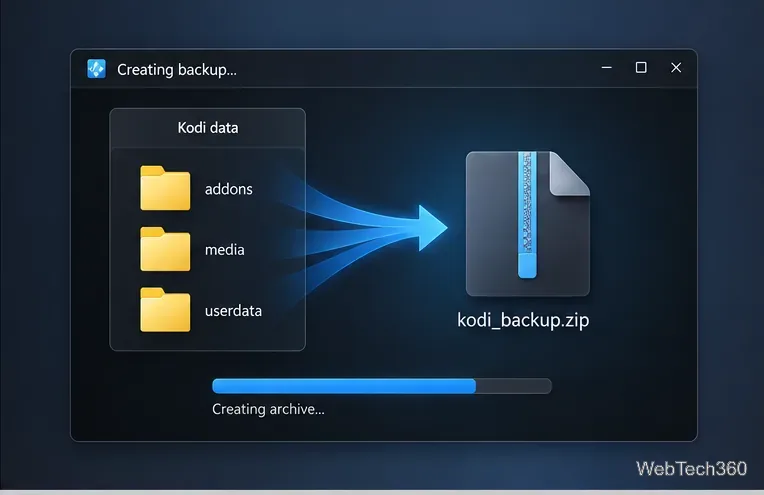
Kodi’s official wiki documents a community-maintained Backup add-on in the Kodi repository. When it is available for your Kodi version, install it from the repository’s Program add-ons section, choose a destination Kodi can write to, and run a backup. The add-on can export items such as databases, playlists, thumbnails, add-ons, and configuration files; on the destination, install the add-on and use its restore function. Repository availability and screen labels can vary by Kodi version and skin, so follow the add-on’s own settings and current instructions. See Kodi’s backup guide.
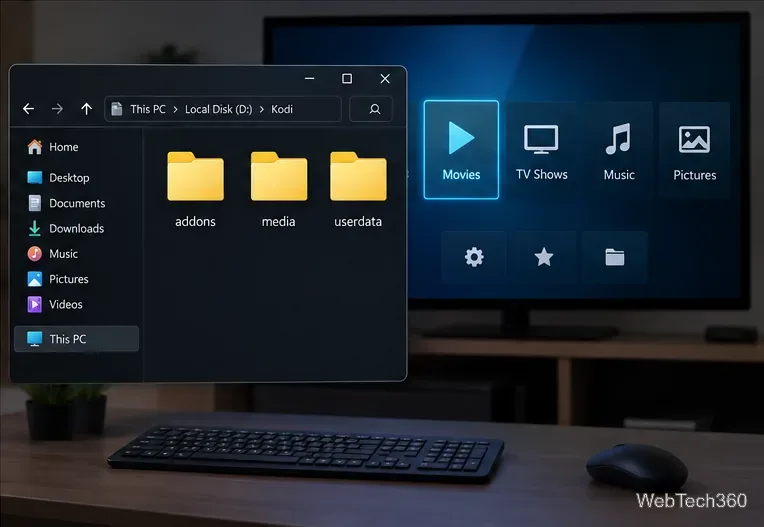
If Kodi starts with the default skin or missing settings, check that you copied the contents of the source data folder into the correct destination folder—not into an extra nested Kodi folder. If add-ons appear but fail, update or reinstall them from their original repositories and check whether they support the destination platform. If the library is present but its files will not play, the media paths likely changed; the clone does not move movies, shows, music, or network shares.
For a device that blocks access to its app-data directory, do not assume an older file manager can bypass the operating system. Use an in-app backup, a Kodi-supported network location, or the device maker’s supported transfer process. Once everything works, retain one private backup so you can restore the setup if a later update or device failure causes a problem.
Learn how to uninstall a Kodi repository safely, remove its saved source URL separately, and check which installed add-ons or dependencies you still need.
Find the safest way to watch live tennis with Kodi: learn what iPlayer WWW can stream, how to find licensed coverage, and which add-ons to avoid.
Learn how to watch movies on Kodi from your computer, USB drive, or NAS, add online video services, and fix missing titles with clear setup steps.
Set a Kodi Master Lock PIN, protect selected menus, and create a separate kids’ profile with media sources you choose.
Find the authorized stream for your country, check whether its provider supports Kodi, and watch a boxing PPV on your TV without relying on outdated add-ons.
Compare five Kodi skins in the official Omega catalog, then follow the current Settings path to install one, customize it, or switch back.
Looking for the 1Channel Kodi add-on? Learn why old PrimeWire installation guides are unreliable and how to install a supported video add-on safely.
Enable Kodi’s Chorus2 web interface, control your media from any browser, and learn how to connect remotely without exposing Kodi to the Internet.
Follow the original Nemesis Kodi installation process, learn what changed with Stream Army, and avoid outdated repository and PIN instructions.
Download Kodi safely on Windows using the official installer or Microsoft Store, then add your media library and set up trusted add-ons.








