How to Uninstall Kodi Repositories the Right Way

Learn how to uninstall a Kodi repository safely, remove its saved source URL separately, and check which installed add-ons or dependencies you still need.
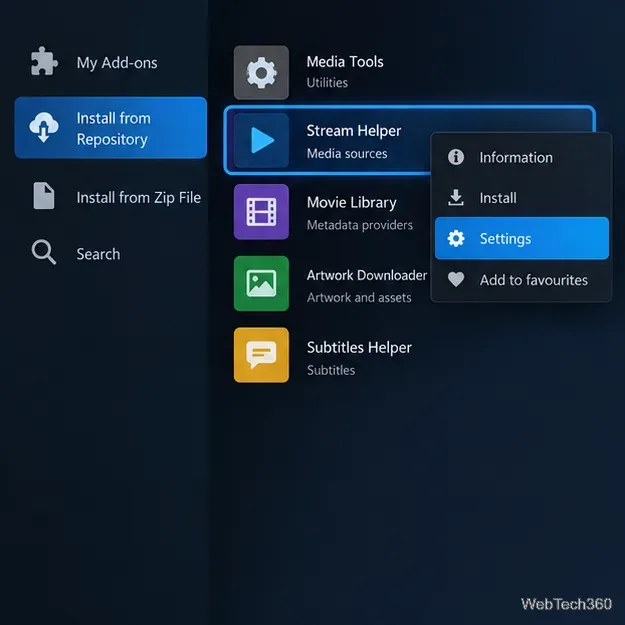
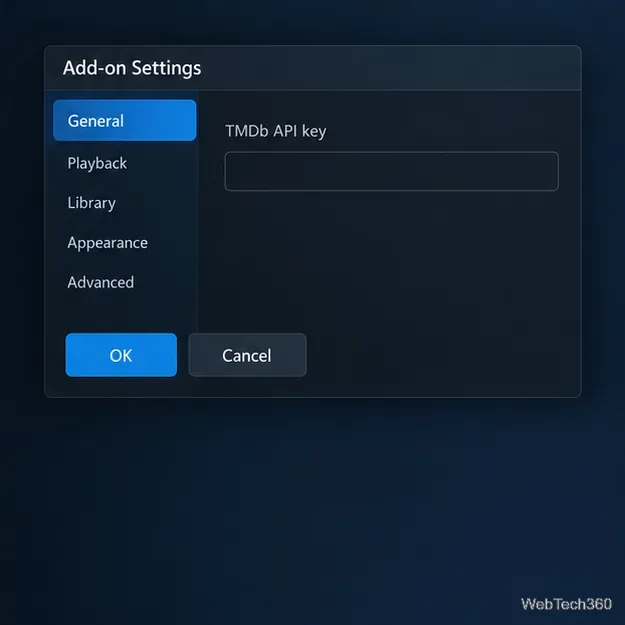
If a Kodi add-on asks for your own TMDB credential, request one through your TMDB account and enter it in that add-on’s settings. Kodi itself has no system-wide TMDB API-key field, so the add-on must support a custom key. A personal key may help if an add-on relies on a shared credential, but it does not bypass TMDB’s rate limits or guarantee a fix for crashes.
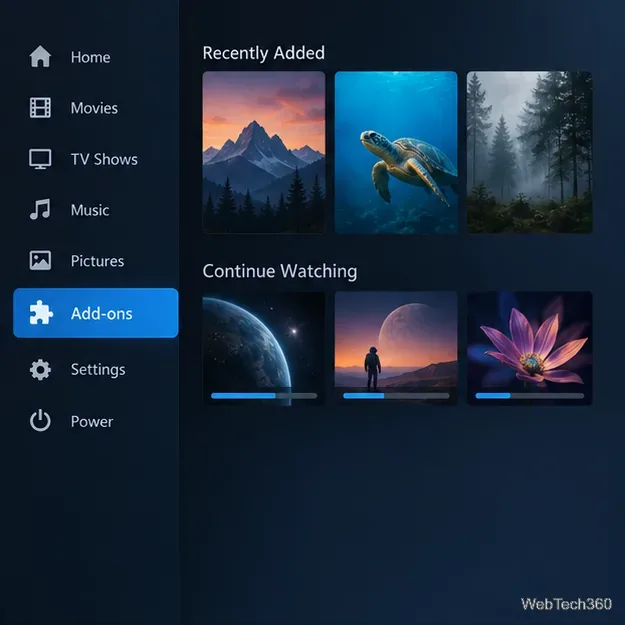
The interface images below are illustrative. TMDB may change its account controls, and Kodi menus vary by skin, device, and add-on.
You need a TMDB account and a Kodi add-on that uses TMDB’s API and exposes a setting for a custom credential. TMDB recommends applying from a desktop browser because its API registration flow is not optimized for mobile. The TMDB Getting Started guide explains where to request access and links to the terms you must accept.
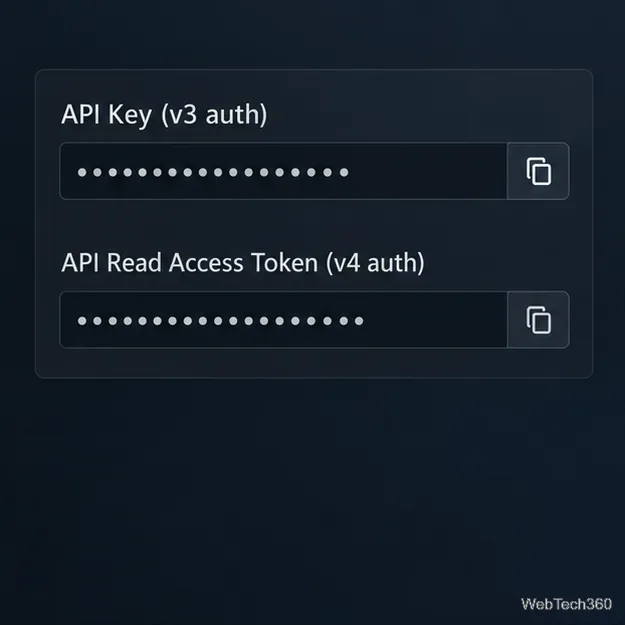
TMDB lists two application credentials: an API Key (v3 auth) and an API Read Access Token (v4 auth). TMDB documents both as ways to authenticate API requests, but a particular add-on may accept only one format. Match the credential to the field the add-on actually requests; do not paste a v3 key into a field that specifically asks for a v4 bearer token.
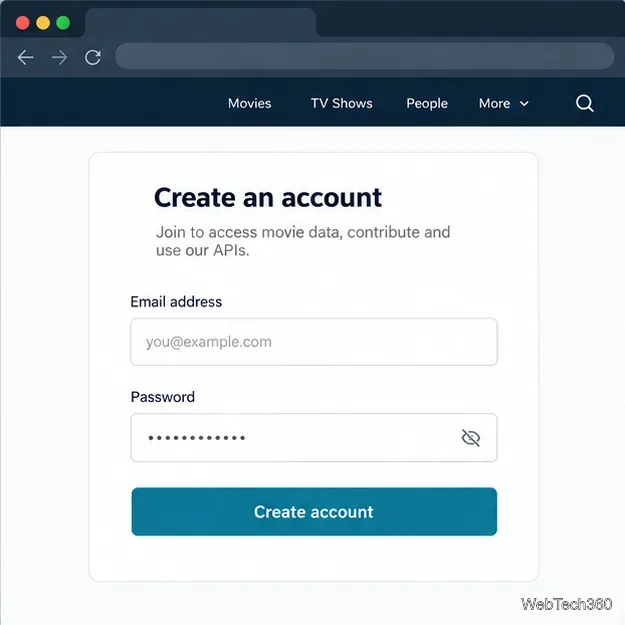
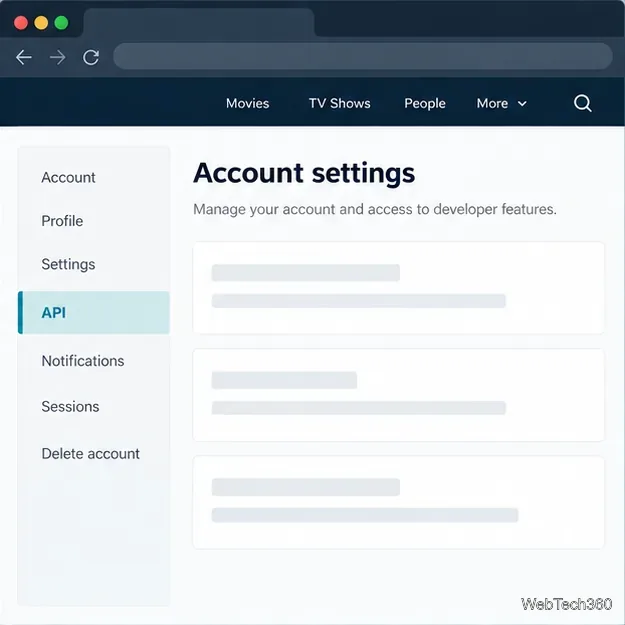
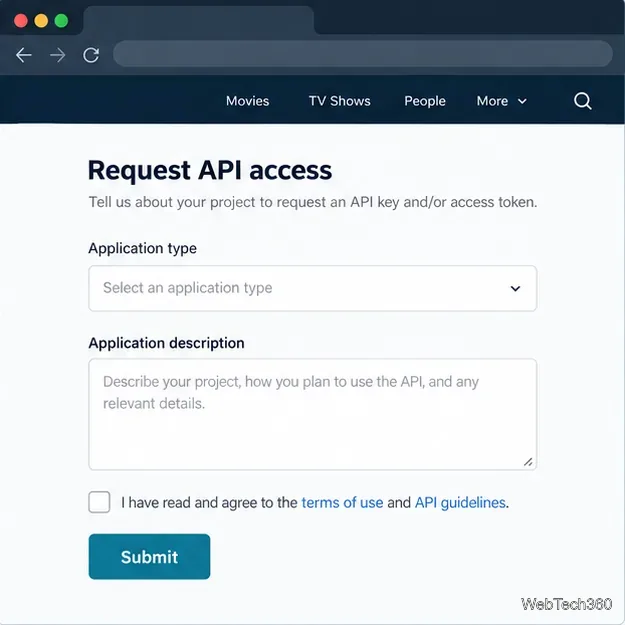
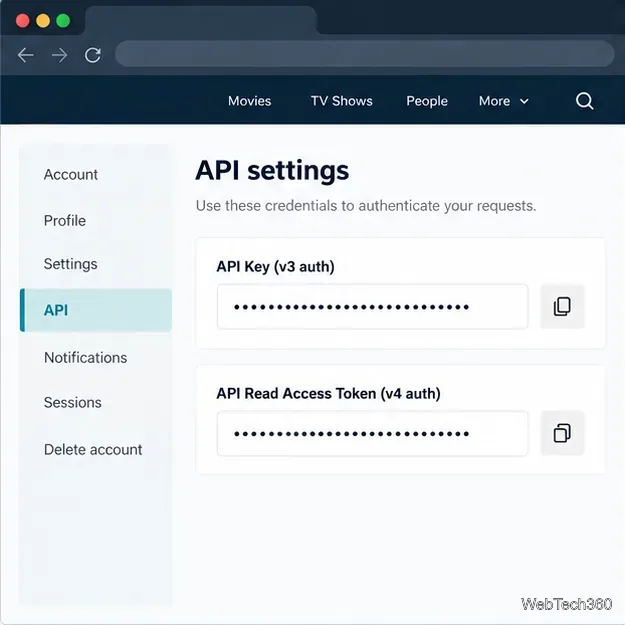
For non-commercial API use, TMDB’s API FAQ says its data and images must be attributed. It directs commercial projects to contact TMDB about licensing. If you are only configuring an existing add-on, follow the add-on maintainer’s instructions and do not publish your personal credential.
Learn how to uninstall a Kodi repository safely, remove its saved source URL separately, and check which installed add-ons or dependencies you still need.
Find the safest way to watch live tennis with Kodi: learn what iPlayer WWW can stream, how to find licensed coverage, and which add-ons to avoid.
Learn how to watch movies on Kodi from your computer, USB drive, or NAS, add online video services, and fix missing titles with clear setup steps.
Set a Kodi Master Lock PIN, protect selected menus, and create a separate kids’ profile with media sources you choose.
Find the authorized stream for your country, check whether its provider supports Kodi, and watch a boxing PPV on your TV without relying on outdated add-ons.
Compare five Kodi skins in the official Omega catalog, then follow the current Settings path to install one, customize it, or switch back.
Looking for the 1Channel Kodi add-on? Learn why old PrimeWire installation guides are unreliable and how to install a supported video add-on safely.
Enable Kodi’s Chorus2 web interface, control your media from any browser, and learn how to connect remotely without exposing Kodi to the Internet.
Follow the original Nemesis Kodi installation process, learn what changed with Stream Army, and avoid outdated repository and PIN instructions.
Download Kodi safely on Windows using the official installer or Microsoft Store, then add your media library and set up trusted add-ons.








