How to Uninstall Kodi Repositories the Right Way

Learn how to uninstall a Kodi repository safely, remove its saved source URL separately, and check which installed add-ons or dependencies you still need.
If Kodi says “Failed to install a dependency,” the add-on you chose needs another Kodi component that Kodi could not find, download, or install. The fix depends on the missing component: check its exact name, confirm the add-on supports your Kodi version, then repair the trusted repository or connection that provides it. Avoid downloading a random ZIP just because it has a matching filename.
A Kodi add-on can declare required add-ons or modules in its package information. Kodi resolves those requirements during installation and checks that the required component and version are available. An error can therefore mean that a dependency is absent from every enabled repository, its repository cannot be reached, or the add-on requires a newer Kodi or platform version than the one installed. The Kodi add-on format documentation explains how required components and minimum versions are declared.
Use this order to narrow the cause before removing add-ons or changing Kodi settings.
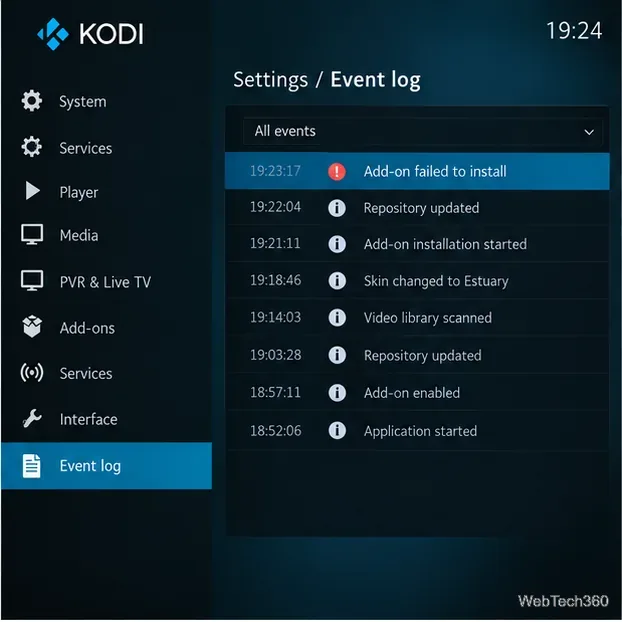
When the error appears, write down the add-on name and the dependency name shown in the dialog. If the name is missing or disappears, try the install once more and open Kodi’s Event Log from the Settings menu right away. Its entries include failed add-on installations, and the log clears when Kodi restarts, so check it before restarting.
The Event Log is a useful first clue, but it may not explain why the install failed. The Kodi Event Log guide describes where to find it and which events it records.
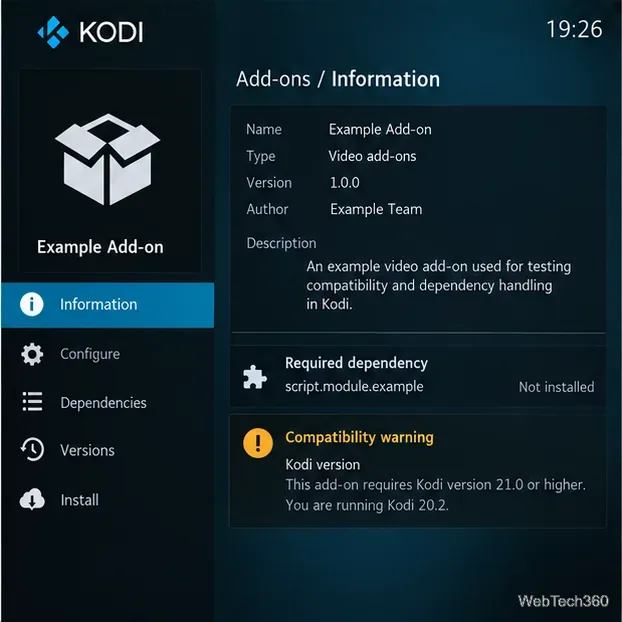
Open the add-on’s information page and review its version, author, and dependency list. Compare its stated Kodi and operating-system requirements with your installed Kodi release and device. A component can be missing because the add-on was built for a different Kodi release, architecture, or platform.
Add-ons in Kodi’s official repository are organized for compatible Kodi releases. For a manually installed ZIP, compatibility is the user’s responsibility. Check the add-on maintainer’s current documentation before updating, downgrading, or changing builds; do not install a development release just to see whether it works. If Kodi itself needs an update, use the official Kodi downloads page or your operating system’s trusted package source.
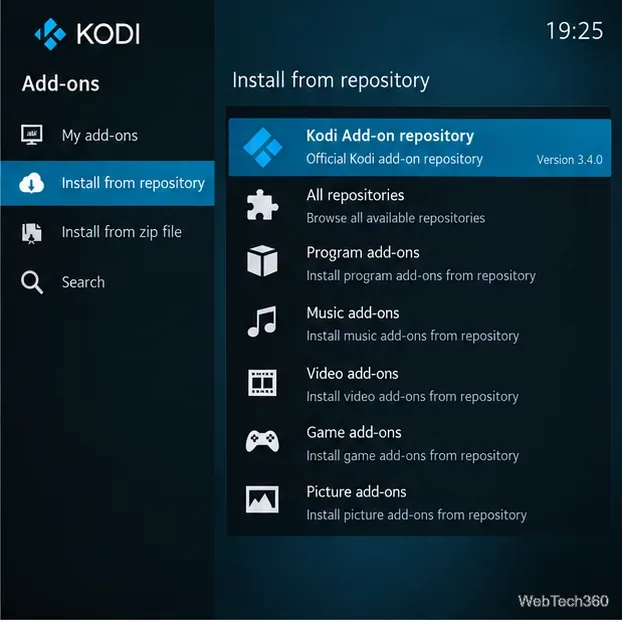
In Kodi, open Add-ons > Install from repository and check whether the add-on or dependency is available from the Kodi Add-on repository. If a third-party add-on needs a component from its own repository, confirm that the repository is enabled and that the add-on’s maintainer still publishes it there. Kodi can install dependencies automatically only when a suitable component is available from an enabled repository.
If Kodi reports that repository information could not be fetched, check the device’s internet connection and try refreshing the repository. A missing page or repeated 404 usually means the repository address or package has been removed; it is not a reason to replace it with a similarly named repository from an old guide. Disable or uninstall only repositories you recognize as obsolete or no longer trust. Kodi warns that ZIP-installed add-ons and repositories can access personal data on the device, so use only a source you can verify. See the official add-on manager guide and official repository overview for details.
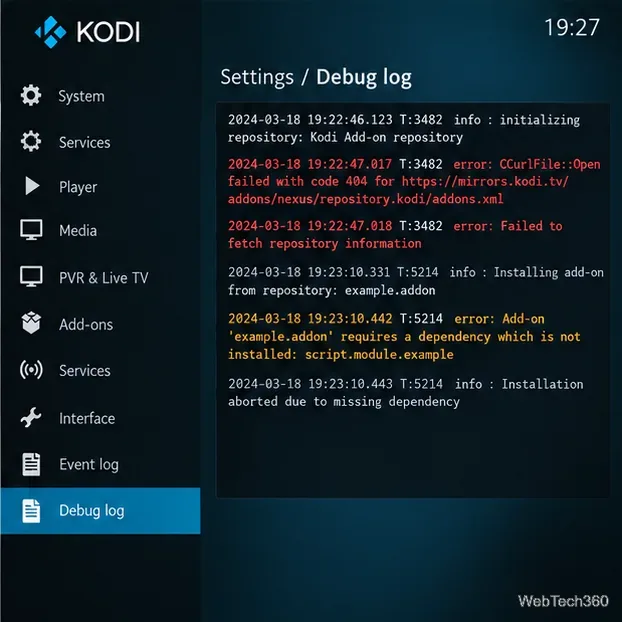
Enable debug logging in Settings > System > Logging, restart Kodi using its power menu, and repeat the failed installation once. Then inspect kodi.log or use Kodi’s special://logpath location. The log path varies by platform; for example, Windows commonly uses %APPDATA%\Kodi\kodi.log, macOS uses ~/Library/Logs/kodi.log, and Linux uses ~/.kodi/temp/kodi.log. Android paths vary by device. Kodi’s log file guide lists more locations and explains how to capture a debug log.
Search around the time of the failed install for the dependency ID, “failed to fetch,” “404,” “timeout,” or a version requirement. A timeout points toward a connection problem; a 404 or missing repository entry points toward an unavailable package; a version requirement points toward an add-on/Kodi compatibility issue. Turn debug logging off after collecting what you need. Before sharing a log, review it for personal information such as account names, file paths, or repository details.
If the add-on maintainer has stopped publishing the required component, or the add-on does not support your Kodi release, there may be no safe repair on your current setup. Choose a maintained alternative from the official repository or a developer source you can verify. Do not install an unverified ZIP, restore a retired repository, or disable security checks to force the installation. If you ask for help, include the Kodi version, device platform, add-on name, exact dependency ID, and a reviewed log excerpt.
Learn how to uninstall a Kodi repository safely, remove its saved source URL separately, and check which installed add-ons or dependencies you still need.
Find the safest way to watch live tennis with Kodi: learn what iPlayer WWW can stream, how to find licensed coverage, and which add-ons to avoid.
Learn how to watch movies on Kodi from your computer, USB drive, or NAS, add online video services, and fix missing titles with clear setup steps.
Set a Kodi Master Lock PIN, protect selected menus, and create a separate kids’ profile with media sources you choose.
Find the authorized stream for your country, check whether its provider supports Kodi, and watch a boxing PPV on your TV without relying on outdated add-ons.
Compare five Kodi skins in the official Omega catalog, then follow the current Settings path to install one, customize it, or switch back.
Looking for the 1Channel Kodi add-on? Learn why old PrimeWire installation guides are unreliable and how to install a supported video add-on safely.
Enable Kodi’s Chorus2 web interface, control your media from any browser, and learn how to connect remotely without exposing Kodi to the Internet.
Follow the original Nemesis Kodi installation process, learn what changed with Stream Army, and avoid outdated repository and PIN instructions.
Download Kodi safely on Windows using the official installer or Microsoft Store, then add your media library and set up trusted add-ons.








