How to Uninstall Kodi Repositories the Right Way

Learn how to uninstall a Kodi repository safely, remove its saved source URL separately, and check which installed add-ons or dependencies you still need.
The Trakt add-on for Kodi runs in the background to record supported movies and TV episodes in your Trakt history. After you connect your account, it can scrobble playback, synchronize watched status and collection data, and offer a rating prompt. Install it from Kodi’s official repository, authorize the device with a code, then review the sync and exclusion settings before watching.
Trakt tracks viewing information; it does not provide video streams. Scrobbling also depends on Kodi identifying the title correctly. Local media is best supported when played from Kodi’s library, while third-party streaming add-ons must pass usable show, episode, or movie metadata for Trakt to match an item.
Use Kodi’s built-in repository instead of a third-party ZIP or repository. Kodi’s current add-on documentation lists Trakt as a Program add-on, and the Kodi wiki installation page shows the same route. Menu wording can differ slightly by Kodi version or skin.
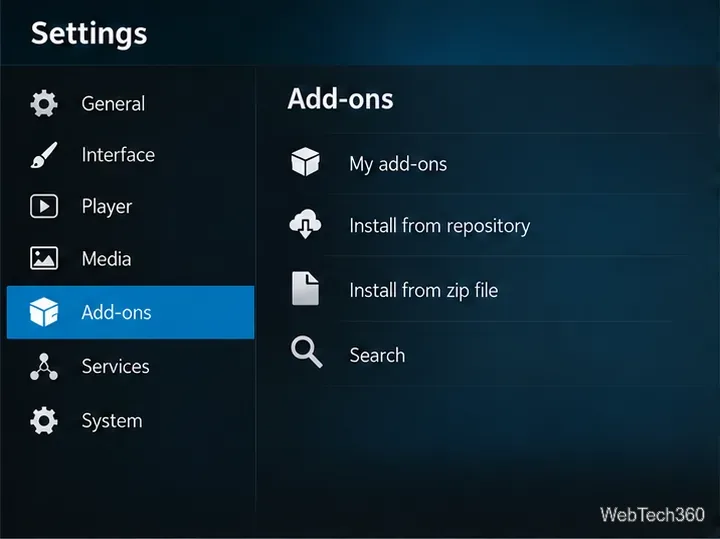
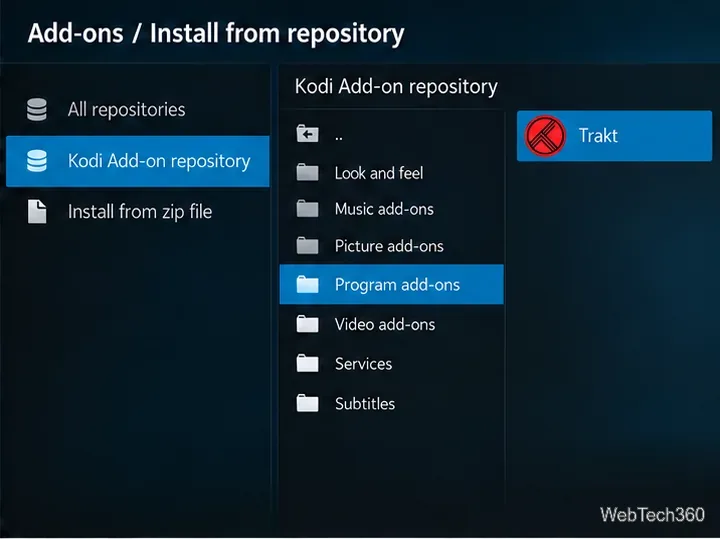
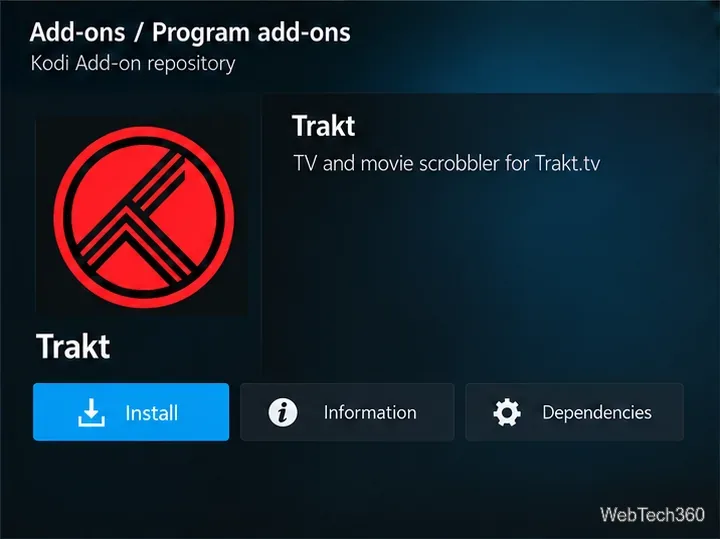
The Kodi add-on listing describes the official add-on as a TV and movie scrobbler. It is a background service, so opening its icon may not launch a separate browsing screen.
After installation, Kodi may open the authorization prompt automatically. If it does not, open the Trakt add-on’s information page, choose Configure, and select the authorization option (shown in Trakt’s guide as How do I authorize?). Trakt’s device-linking process uses a unique eight-digit code for each device.
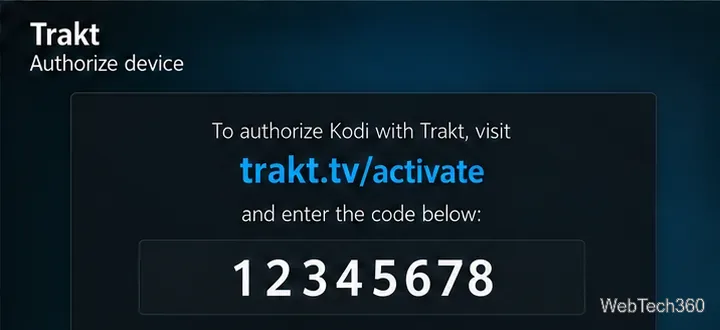
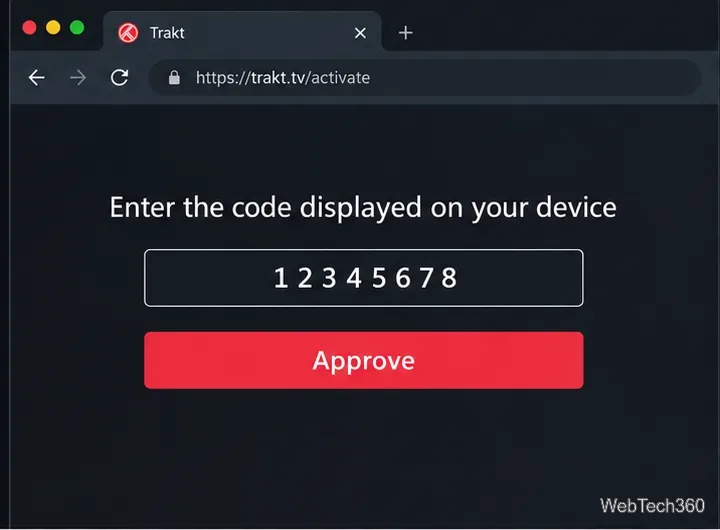
Trakt’s device-authentication instructions explain the same sign-in and approval flow. If you connect multiple Kodi installations, repeat it with a new code for each one.
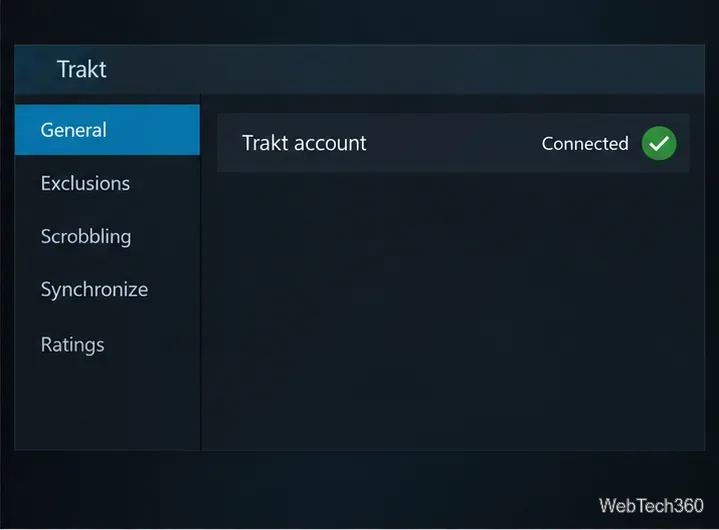
Open the Trakt add-on’s information page and use its context menu to reach Settings or Configure. On a remote or touchscreen, the context-menu control may be a long press or a menu button rather than a right-click. In settings, use the General tab to confirm the connected account.
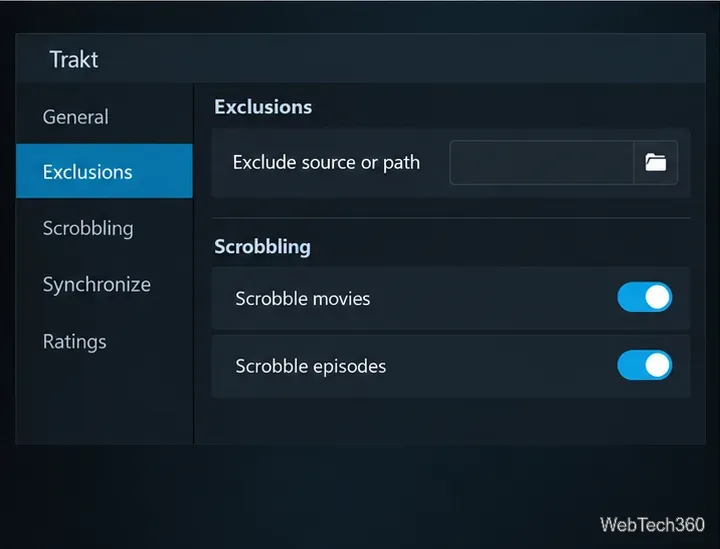
In Exclusions, you can keep selected paths or sources out of your Trakt history—for example, a family member’s media folder or a test library. Review any source-wide exclusion carefully: Trakt’s guide notes that excluding HTTP sources can prevent streaming content from being recorded. In Scrobbling, check that movie and episode tracking match your preference, and decide whether Kodi should show notifications when it sends playback updates.
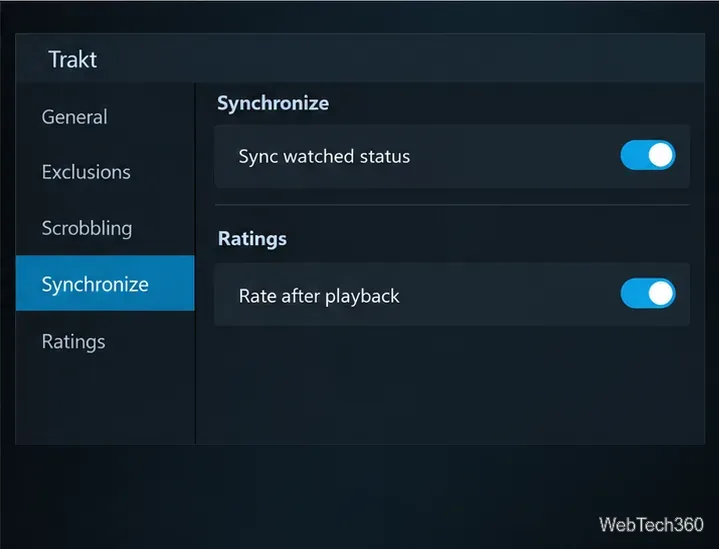
The add-on supports watched-status synchronization between Kodi and Trakt, and it can sync library collection data. Select the options you actually want; synchronization can affect information on both services. Be especially careful with any setting that removes items from your Trakt collection when they are absent from Kodi. That cleanup may be unsuitable if Trakt also represents physical media or libraries managed by other apps. The Trakt Kodi feature guide explains the sync choices and their effects.
Under Ratings, decide whether Kodi should ask you to rate an episode or movie after playback. Leave the prompt enabled if you want to rate as you watch; turn it off if you prefer to rate items later on Trakt.
For version-specific details, use the Trakt add-on source and documentation or ask its maintainers through the support links on the official Kodi listing.
Learn how to uninstall a Kodi repository safely, remove its saved source URL separately, and check which installed add-ons or dependencies you still need.
Find the safest way to watch live tennis with Kodi: learn what iPlayer WWW can stream, how to find licensed coverage, and which add-ons to avoid.
Learn how to watch movies on Kodi from your computer, USB drive, or NAS, add online video services, and fix missing titles with clear setup steps.
Set a Kodi Master Lock PIN, protect selected menus, and create a separate kids’ profile with media sources you choose.
Find the authorized stream for your country, check whether its provider supports Kodi, and watch a boxing PPV on your TV without relying on outdated add-ons.
Compare five Kodi skins in the official Omega catalog, then follow the current Settings path to install one, customize it, or switch back.
Looking for the 1Channel Kodi add-on? Learn why old PrimeWire installation guides are unreliable and how to install a supported video add-on safely.
Enable Kodi’s Chorus2 web interface, control your media from any browser, and learn how to connect remotely without exposing Kodi to the Internet.
Follow the original Nemesis Kodi installation process, learn what changed with Stream Army, and avoid outdated repository and PIN instructions.
Download Kodi safely on Windows using the official installer or Microsoft Store, then add your media library and set up trusted add-ons.








