How to Uninstall Kodi Repositories the Right Way

Learn how to uninstall a Kodi repository safely, remove its saved source URL separately, and check which installed add-ons or dependencies you still need.
Looking for the ESPN 3 add-on for Kodi? You can check for it through Kodi’s built-in add-on browser, but the older ESPN 3 plug-in is not listed in the official Kodi 19, 20, or 21 repository indexes checked in October 2026. That means the installation walkthrough found in older guides may not work on a modern Kodi setup. Here is how to check safely, what to do if an installation is possible, and how to watch ESPN3 when it is not.
The original community plug-in was designed to play ESPN3 events, selected ESPN channels, and replays. It was not an official ESPN product, as Kodi’s ESPN 3 add-on reference makes clear. Installing a plug-in never grants access to sports streams that your account or provider does not include.
These steps follow the Kodi add-on browser. Menu placement can vary by skin and version. They let you verify availability without enabling unknown sources or downloading an unverified ZIP.
From the Kodi home screen, select Add-ons. Open the add-on browser with the open-box icon if the installation controls are not already visible.
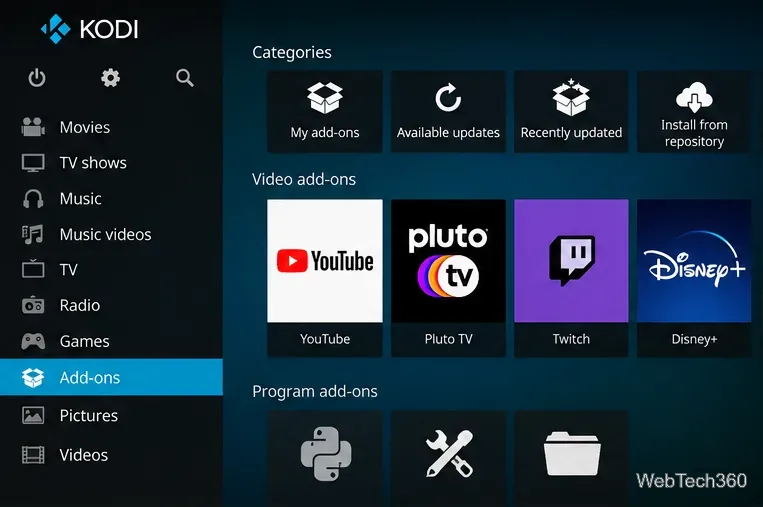
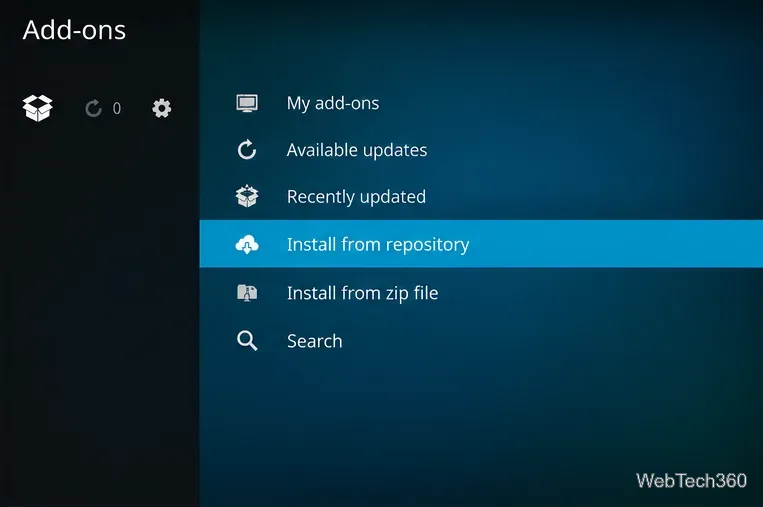
Select Install from repository. If Kodi shows multiple repositories, choose Kodi Add-on repository, which is included with Kodi. Do not choose Install from zip file for this check.
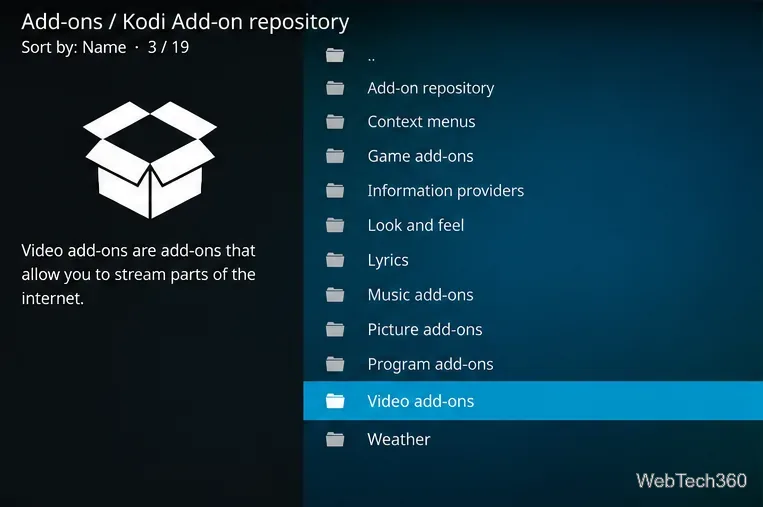
In the official repository, select Video add-ons. Kodi may take a moment to load the available entries. Availability is tied to the version of Kodi and the repository you have selected.
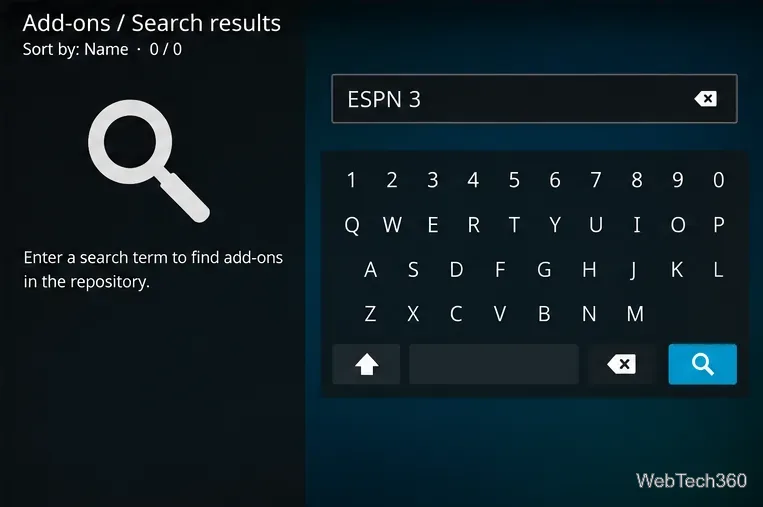
Browse the list or use the browser’s Search option and enter ESPN 3. If an ESPN 3 entry genuinely appears in a repository you trust, open its information page, check the source and compatibility, then select Install. Wait for Kodi’s installation confirmation. If the add-on is absent, stop here: there is no current official-repository installation to complete.
Compatibility note: Kodi’s archived Kodi’s ESPN 3 add-on reference still describes the historical six-click installation, but neither the Kodi Nexus repository index nor the Kodi Omega repository index currently lists the old plugin.video.espn_3 package. The Kodi’s add-on manager instructions explains the repository workflow used above.
On an older Kodi installation where the plug-in remains functional, open Add-ons → Video add-ons → ESPN 3. The historical plug-in offered live listings, upcoming events, and replay navigation. It could request account or TV-provider authorization for protected streams; some ESPN3 access previously depended on a participating internet provider.
If a stream fails, first confirm that the event is included in your ESPN entitlement and is available in your location. Try updating Kodi and the add-on only from trusted sources, and lower the stream-quality setting if buffering occurs. The old add-on’s sign-in methods and playback endpoints may no longer work, even with a valid account. Do not turn off SSL certificate checks to force playback.
The most dependable supported option is the ESPN app or ESPN.com, rather than a discontinued Kodi plug-in. ESPN confirms that ESPN Unlimited includes ESPN3 in its U.S. offering; other access arrangements can depend on an eligible provider and the location of the viewer. See ESPN’s current plan comparison for the official entitlement description.
ESPN documents its ESPN’s supported devices and ESPN’s activation guide. For finding live and replay listings, consult ESPN’s schedule and replay instructions. These instructions refer to ESPN’s official service—not authentication inside Kodi.
No. It was a community-maintained plug-in, separate from ESPN. Its appearance in older Kodi documentation should not be mistaken for current ESPN support or compatibility.
No VPN is required to browse or install add-ons from Kodi’s official repository. A VPN does not replace an ESPN subscription, grant rights to restricted broadcasts, or guarantee that a discontinued plug-in will work. Respect the service’s regional and account restrictions.
Replays were part of the historical plug-in, but their availability and retention period cannot be guaranteed today. Check the event within ESPN’s current official service instead.
Bottom line: Check the Kodi repository first, but do not assume ESPN 3 is available on current Kodi releases. If it is missing or its authentication fails, the official ESPN app is the clearer route to entitled live sports and replays.
Learn how to uninstall a Kodi repository safely, remove its saved source URL separately, and check which installed add-ons or dependencies you still need.
Find the safest way to watch live tennis with Kodi: learn what iPlayer WWW can stream, how to find licensed coverage, and which add-ons to avoid.
Learn how to watch movies on Kodi from your computer, USB drive, or NAS, add online video services, and fix missing titles with clear setup steps.
Set a Kodi Master Lock PIN, protect selected menus, and create a separate kids’ profile with media sources you choose.
Find the authorized stream for your country, check whether its provider supports Kodi, and watch a boxing PPV on your TV without relying on outdated add-ons.
Compare five Kodi skins in the official Omega catalog, then follow the current Settings path to install one, customize it, or switch back.
Looking for the 1Channel Kodi add-on? Learn why old PrimeWire installation guides are unreliable and how to install a supported video add-on safely.
Enable Kodi’s Chorus2 web interface, control your media from any browser, and learn how to connect remotely without exposing Kodi to the Internet.
Follow the original Nemesis Kodi installation process, learn what changed with Stream Army, and avoid outdated repository and PIN instructions.
Download Kodi safely on Windows using the official installer or Microsoft Store, then add your media library and set up trusted add-ons.








