How to Install IPVanish for Kodi on Windows and Fire TV

IPVanish is installed on the device that runs Kodi; it is not a Kodi add-on. On a Windows PC, install the Windows app. On Fire TV, install IPVanish from the Amazon Appstore. Sign in and connect first, then open Kodi. The VPN app needs to be running on the same device as Kodi for its traffic to use the VPN tunnel.

The screens below are illustrative. Button names and layouts can vary by operating system, app version, and Fire TV model.

Before you begin

Have an IPVanish account, internet access, and permission to install apps. First confirm where Kodi runs: a VPN on your laptop will not cover Kodi on a separate Fire TV Stick. Install IPVanish on the Fire TV itself or use a compatible router.

Kodi is a media player, not a source of movies or live channels. It does not provide media; see Kodi's overview and download the app only from official sources. Use add-ons and content you are authorized to access.

Install IPVanish on a Windows PC running Kodi

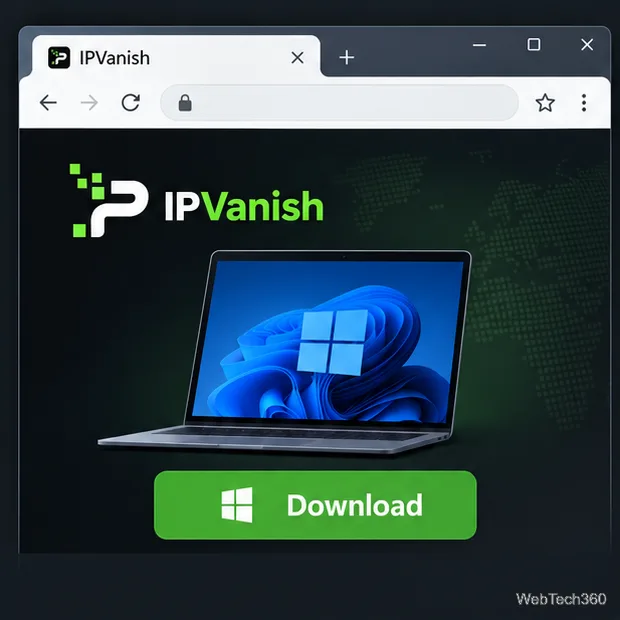
  1. Download the Windows app from IPVanish. Open the official IPVanish Windows setup page and choose its Windows download. Avoid software mirrors and unofficial installers.
    A Windows browser displaying an IPVanish page with a prominent Download button
    The IPVanish Windows download page shown in a browser.
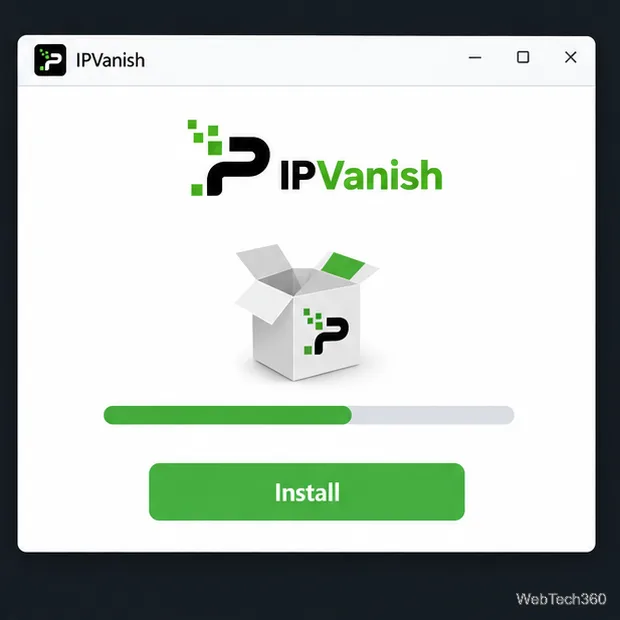
  2. Run the installer. Open the downloaded installer and follow its prompts. Keep the default installation choices unless you have a reason to change them. When setup finishes, start IPVanish.
    An IPVanish installer window showing installation progress and an Install button
    An installer window with the IPVanish name and an Install action.
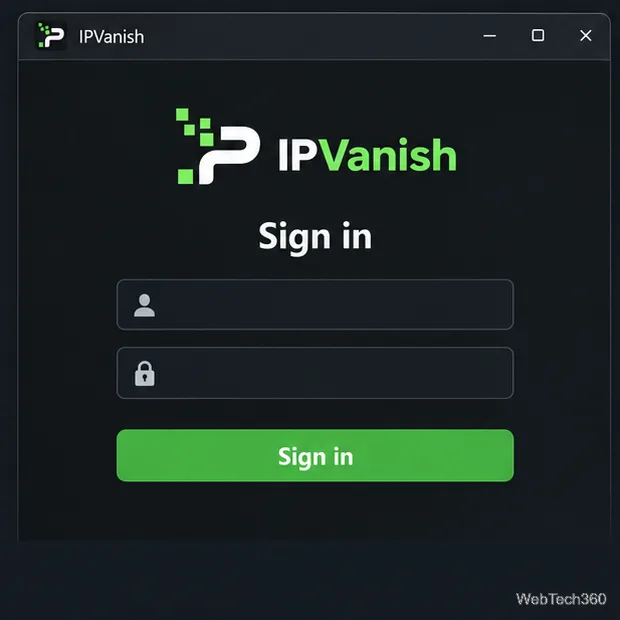
  3. Sign in to your account. Enter your IPVanish credentials in the app. If you cannot sign in, check that the account is active and use the provider's account-recovery process rather than entering credentials into a third-party app.
    The IPVanish Windows sign-in screen with empty username and password fields
    The IPVanish sign-in screen with blank credential fields.
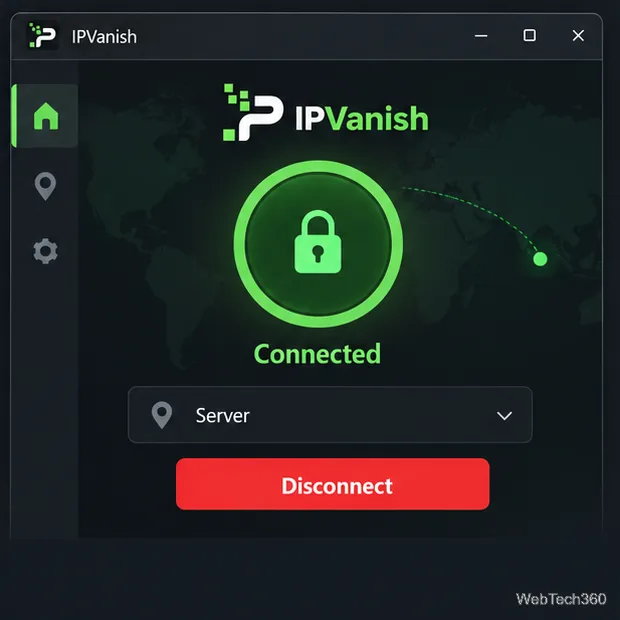
  4. Choose a server and connect. In the app, select a location or use its automatic connection option, then connect. Wait for the app to show that the VPN is connected before opening Kodi. For ordinary privacy, a nearby server is a sensible starting point; choose a different region only when you are permitted to use a service there.
    The IPVanish Windows app showing Connected, a server selector, and a Disconnect button
    The Windows app showing a Connected status and a selected-server control.

Open Kodi on the same PC. Unless split tunneling or an app exclusion is active, the device-level VPN routes the computer's apps through its tunnel. If you use exclusions, make sure Kodi is included; there is no VPN to install inside Kodi.

Install IPVanish on a Fire TV device running Kodi

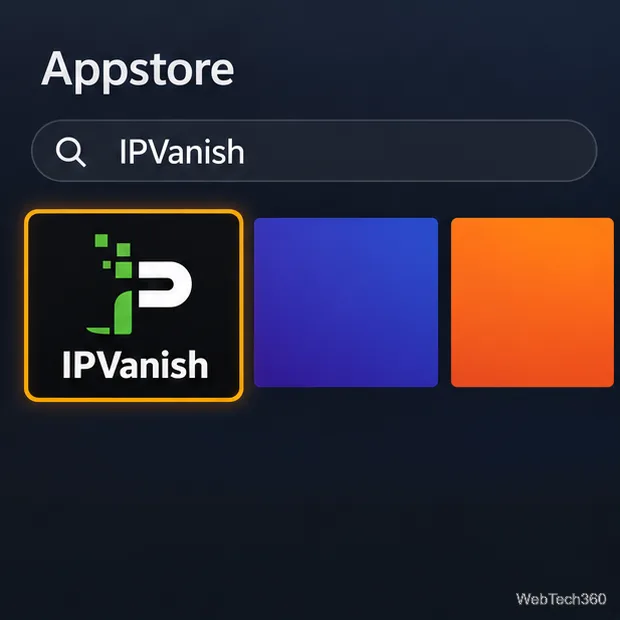
  1. Find IPVanish in the built-in Appstore. From the Fire TV home screen, open Appstore and search for IPVanish. Select the official app listing.
    A Fire TV Appstore search for IPVanish with the IPVanish app highlighted
    The Fire TV Appstore search results with IPVanish selected.
  2. Install the app. Open the IPVanish listing and select Install or Get, depending on the wording shown on your device. Wait for installation to finish, then open the app.
    The IPVanish Fire TV app listing with an Install button
    The IPVanish app listing with its Install button.
  3. Sign in and approve the VPN connection if prompted. Enter your account details using the remote or another supported input method. Fire TV may ask you to allow the app to set up a VPN connection; review and accept that system prompt to continue.
    The IPVanish Fire TV sign-in screen with two blank credential fields and a Sign in button
    The TV app's sign-in screen, ready for account details.
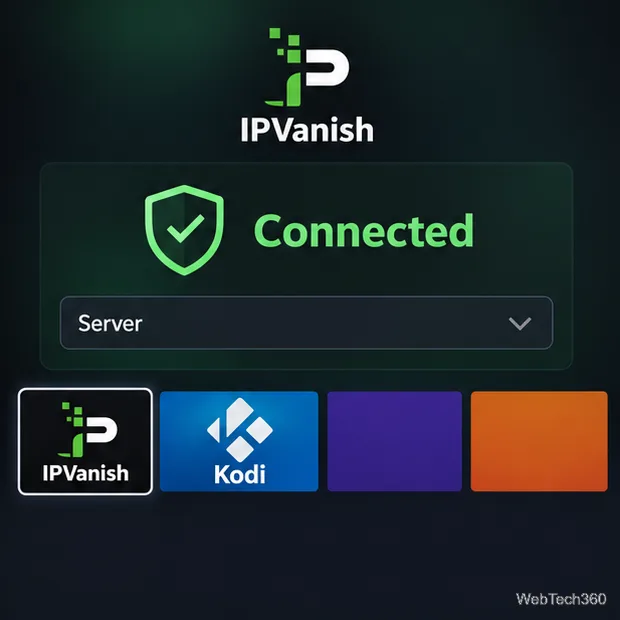
  4. Connect before opening Kodi. Select a server location or automatic option and wait for IPVanish to show Connected. Return to the Fire TV home screen and open Kodi. IPVanish and Kodi remain separate apps, but the VPN connection covers network traffic from the Fire TV device while it is active.
    The IPVanish TV app showing Connected above a server selector, with Kodi shown as a separate app tile
    The IPVanish app's Connected status beside a separate Kodi app tile.

See IPVanish's Fire TV setup guide for current directions. If the app is unavailable on your model, avoid unknown installers; use a supported device or check IPVanish's router options.

Check the connection and fix common problems

Before using Kodi, return to IPVanish and confirm the app still reports Connected. Kodi does not display the VPN's connection state. If Kodi traffic seems unaffected, make sure the VPN is running on the device that hosts Kodi and review any split-tunneling or app-exclusion settings.

  • IPVanish will not connect: Check the device's internet connection, restart the IPVanish app, and try another available server. If the problem continues, update the app and consult IPVanish support.
  • Playback buffers or stops: Try a nearby server and check whether the device's Wi-Fi is stable. A VPN can add network overhead, so performance varies with the server, connection, and streaming service.
  • A service still blocks playback: A VPN changes the network route and public IP address, but streaming platforms can detect or block VPN connections and enforce their own location and account rules. A VPN does not guarantee access to a particular catalog or channel.

What a VPN does—and does not—protect

A VPN encrypts the connection between your device and the VPN server and replaces the public IP address seen by many destination services. It can help protect traffic from observers on the local network, but it does not make you anonymous: your internet provider can still see that you connected to a VPN, the VPN provider handles the tunneled traffic, and websites can recognize you through an account or cookies.

A VPN also does not change copyright law, make an unauthorized stream legal, or override a service's terms. Use Kodi with media and add-ons you are authorized to access.

Leave a Comment

How to Uninstall Kodi Repositories the Right Way

How to Uninstall Kodi Repositories the Right Way

Learn how to uninstall a Kodi repository safely, remove its saved source URL separately, and check which installed add-ons or dependencies you still need.

Live Tennis on Kodi: Best Add-Ons and Legal Ways to Watch

Live Tennis on Kodi: Best Add-Ons and Legal Ways to Watch

Find the safest way to watch live tennis with Kodi: learn what iPlayer WWW can stream, how to find licensed coverage, and which add-ons to avoid.

How to Watch Movies on Kodi: A Complete Beginner’s Tutorial

How to Watch Movies on Kodi: A Complete Beginner’s Tutorial

Learn how to watch movies on Kodi from your computer, USB drive, or NAS, add online video services, and fix missing titles with clear setup steps.

How to Turn On Kodi Parental Controls and Lock a Kids’ Profile

How to Turn On Kodi Parental Controls and Lock a Kids’ Profile

Set a Kodi Master Lock PIN, protect selected menus, and create a separate kids’ profile with media sources you choose.

How to Watch Boxing PPV Streams on Kodi—Legally and Reliably

How to Watch Boxing PPV Streams on Kodi—Legally and Reliably

Find the authorized stream for your country, check whether its provider supports Kodi, and watch a boxing PPV on your TV without relying on outdated add-ons.

5 Best Kodi Skins and How to Change Kodi’s Look in Minutes

5 Best Kodi Skins and How to Change Kodi’s Look in Minutes

Compare five Kodi skins in the official Omega catalog, then follow the current Settings path to install one, customize it, or switch back.

1Channel Kodi Add-on: Can You Still Install It for Movies and TV Shows?

1Channel Kodi Add-on: Can You Still Install It for Movies and TV Shows?

Looking for the 1Channel Kodi add-on? Learn why old PrimeWire installation guides are unreliable and how to install a supported video add-on safely.

How to Control Kodi With the Web Interface, at Home or Away

How to Control Kodi With the Web Interface, at Home or Away

Enable Kodi’s Chorus2 web interface, control your media from any browser, and learn how to connect remotely without exposing Kodi to the Internet.

Nemesis Kodi Add-on: How to Install It and Check Availability

Nemesis Kodi Add-on: How to Install It and Check Availability

Follow the original Nemesis Kodi installation process, learn what changed with Stream Army, and avoid outdated repository and PIN instructions.

How to Download and Set Up Kodi on Windows

How to Download and Set Up Kodi on Windows

Download Kodi safely on Windows using the official installer or Microsoft Store, then add your media library and set up trusted add-ons.