How to Uninstall Kodi Repositories the Right Way

Learn how to uninstall a Kodi repository safely, remove its saved source URL separately, and check which installed add-ons or dependencies you still need.
If you are looking for a working installation link for the Kodi Quantum add-on, there is no current source I could verify. Older guides describe Quantum as Sanctuary’s successor and point to a Sanctuary repository plus a separate LiveResolver ZIP. I could not confirm either as a maintained, trustworthy release source, so this guide does not direct you to download those files. You can still use Kodi’s built-in add-on catalog to install supported add-ons from sources you can verify.
This distinction matters: Kodi is a media center, while add-ons are separate software. Team Kodi says third-party repositories are not produced, supported, or endorsed by Kodi, and recommends checking who operates a source before installing from it. The official Kodi explanation of add-ons and content rights also makes clear that users are responsible for the add-ons and media sources they choose.
The original process asks you to enable installation from unknown sources, install LiveResolver version 0.1.49 from an old ZIP mirror, add a Sanctuary web address in Kodi’s File Manager, install a repository ZIP, and then choose Quantum. Those are instructions for a third-party chain whose current ownership, package integrity, compatibility, and update status could not be verified from an official or maintained project source.
| Old instruction | What to do now |
|---|---|
| Download the LiveResolver ZIP from a mirror | Skip it unless the add-on maintainer provides a current, verifiable release and dependency instructions. |
| Add the Sanctuary repository URL | Do not rely on the legacy address as a working or trusted source; I could not verify a current repository there. |
| Enable Unknown Sources for the tutorial | Leave it off when using Kodi’s built-in repository. Only enable it for a specific add-on you have independently vetted. |
Kodi’s add-on system ties updates to repository origin. Kodi notes that add-ons installed directly from ZIP files, rather than from a repository, do not receive repository updates automatically. An old ZIP may therefore remain installed without a reliable update path, even if it installs successfully.
These steps install an add-on available in Kodi’s built-in catalog. Menu wording can vary slightly with the Kodi version, device, and skin; the illustrations below are interface mockups, not screenshots of a running installation.
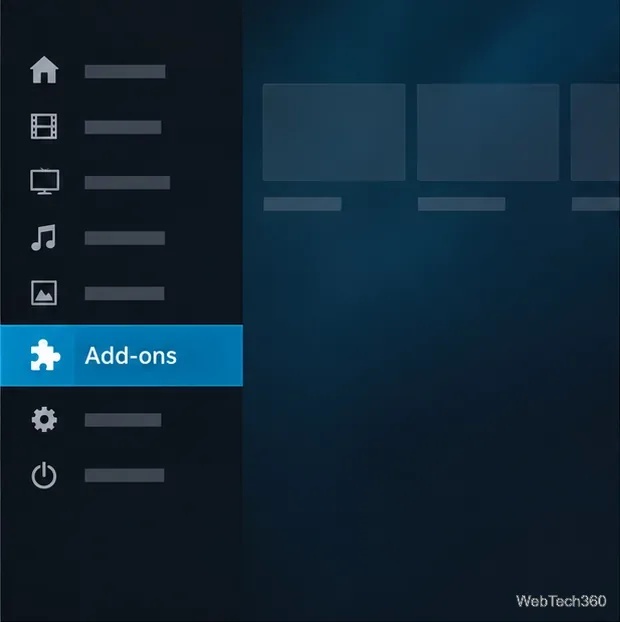
From the Home screen, select Add-ons. Open the package or box icon to reach the add-on browser. If you are already inside the add-on manager, the same icon may appear in its upper-left area.
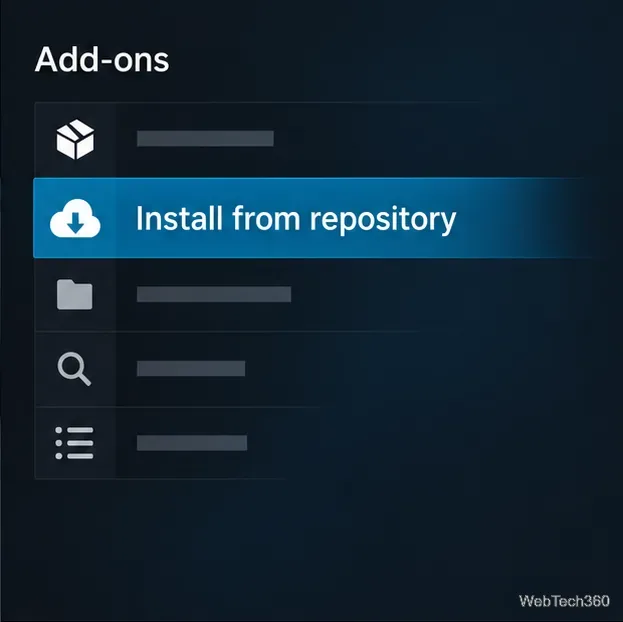
Select Install from repository. Kodi will show the repositories registered on your device. If you have not added another repository, the built-in Kodi Add-on repository may open directly.
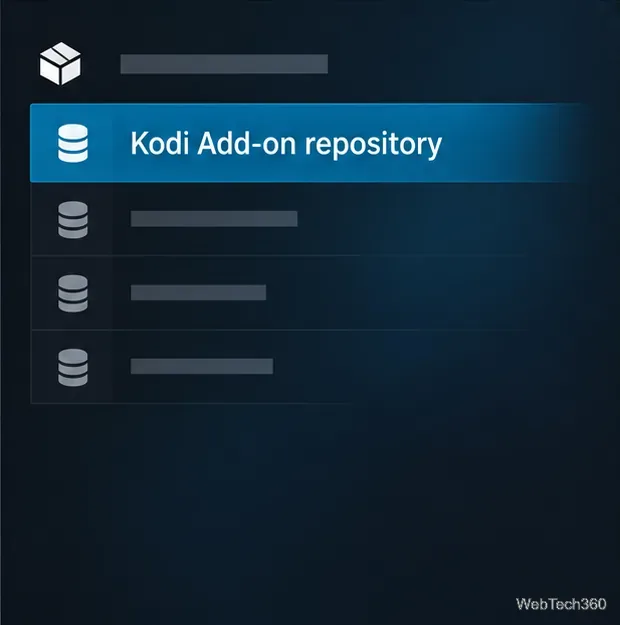
Choose Kodi Add-on repository, then open the category that matches what you need, such as music, video, program, service, or skin add-ons. You can also browse the official Kodi add-on catalog for the options available for your Kodi version.
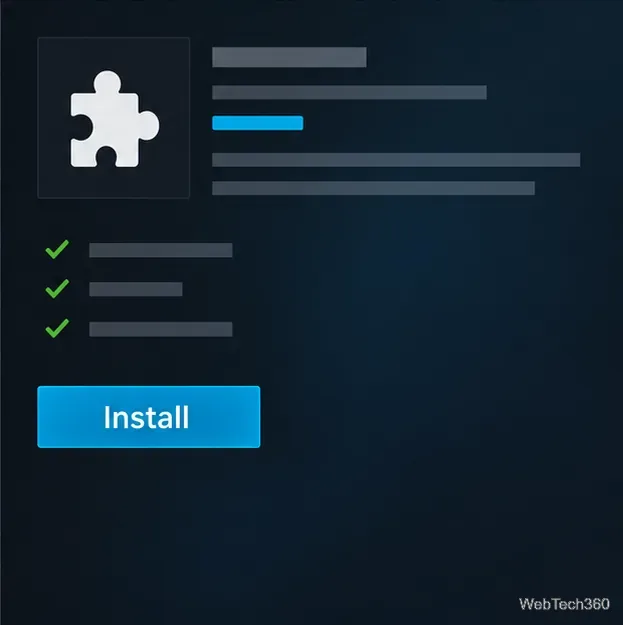
Select an add-on to read its description and review any dependencies shown by Kodi. If it meets your needs, choose Install and wait for Kodi’s confirmation. The installed add-on will appear in the relevant section of Kodi. If you cannot find Quantum in the built-in catalog, that does not prove an old third-party package is safe or compatible; it means you need a current source from its maintainer before proceeding.
Open Add-ons, then the add-on browser or manager, and select My add-ons. Find Quantum under its relevant category and use Kodi’s uninstall option if you no longer trust or need it. You can also remove the Sanctuary repository from the repository category if no other installed add-on depends on it. Avoid deleting dependency files manually: another add-on may rely on them. Afterward, return to Settings and turn off Unknown Sources if you no longer need ZIP installs.
The old article describes LiveResolver as a required dependency, but without a current Quantum release source there is no reliable way to confirm that dependency or which version would be compatible with your Kodi build. Installing a similarly named ZIP from a mirror is not a safe substitute. Stop if Kodi reports a missing dependency; look for support from the add-on’s verified maintainer instead.
A VPN is not an installation requirement for Kodi itself, and it cannot verify an add-on, make a download trustworthy, or grant permission to stream copyrighted media. Use services and media sources you are authorized to access. For current installation guidance, consult Kodi’s Add-on Manager documentation and download Kodi only through its official downloads page.
Learn how to uninstall a Kodi repository safely, remove its saved source URL separately, and check which installed add-ons or dependencies you still need.
Find the safest way to watch live tennis with Kodi: learn what iPlayer WWW can stream, how to find licensed coverage, and which add-ons to avoid.
Learn how to watch movies on Kodi from your computer, USB drive, or NAS, add online video services, and fix missing titles with clear setup steps.
Set a Kodi Master Lock PIN, protect selected menus, and create a separate kids’ profile with media sources you choose.
Find the authorized stream for your country, check whether its provider supports Kodi, and watch a boxing PPV on your TV without relying on outdated add-ons.
Compare five Kodi skins in the official Omega catalog, then follow the current Settings path to install one, customize it, or switch back.
Looking for the 1Channel Kodi add-on? Learn why old PrimeWire installation guides are unreliable and how to install a supported video add-on safely.
Enable Kodi’s Chorus2 web interface, control your media from any browser, and learn how to connect remotely without exposing Kodi to the Internet.
Follow the original Nemesis Kodi installation process, learn what changed with Stream Army, and avoid outdated repository and PIN instructions.
Download Kodi safely on Windows using the official installer or Microsoft Store, then add your media library and set up trusted add-ons.








