How to Uninstall Kodi Repositories the Right Way

Learn how to uninstall a Kodi repository safely, remove its saved source URL separately, and check which installed add-ons or dependencies you still need.
To watch Netflix inside Kodi, install the community-maintained Netflix add-on from CastagnaIT. It is an unofficial project, so Netflix does not support it and playback depends on your Kodi device and add-on compatibility. You still need an eligible Netflix membership. For travel, sign in normally; VPNs do not reliably unlock other catalogs and may limit you to worldwide-licensed titles.
One important compatibility check comes first: the add-on’s current installation guide says video playback no longer works on Windows or macOS, and Apple iOS and tvOS are unsupported. Read the maintainer’s current installation notes before installing, especially if you use Android or a Linux-based media device.
Use the current CastagnaIT repository page for the repository ZIP. Older guides that install NetfliXBMC through Alelec, Indigo, Git Browser, or Chrome Launcher describe a different, outdated setup.
Open the CastagnaIT repository page on a computer or phone and download its repository installation file, currently named in the repository.castagnait-2.0.x.zip format. Do not unzip it. Save it somewhere Kodi can browse, such as the device’s Downloads folder, or copy it to a USB drive for a TV box.
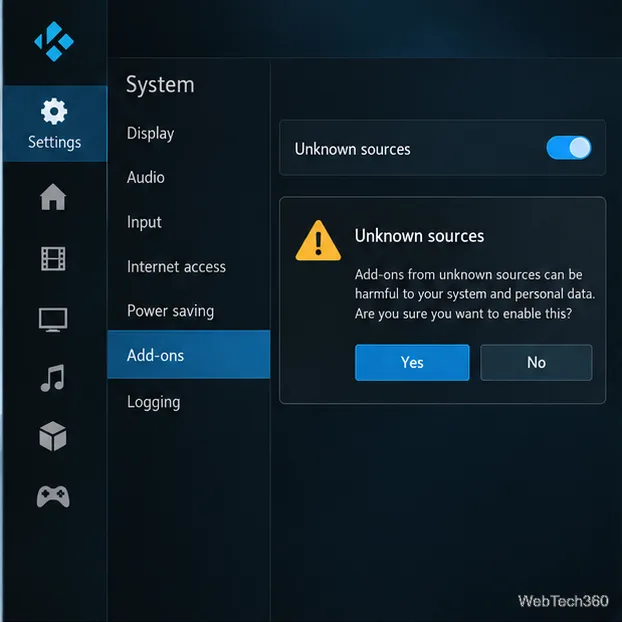
In Kodi, open Settings (the gear), choose System, then Add-ons. Turn on Unknown sources and accept Kodi’s warning. This setting permits add-ons outside Kodi’s official repository; only install ZIPs from a source you trust. Kodi documents this control in its add-on settings guide.
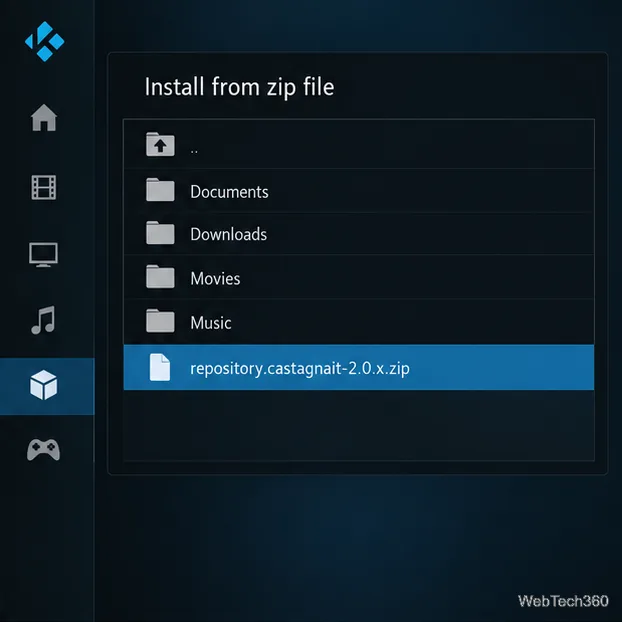
Return to Kodi’s home screen and open Add-ons. Select the open-box Add-on browser, choose Install from zip file, then browse to the ZIP you downloaded and select it. Confirm any prompt and wait for Kodi’s repository-installed notification.
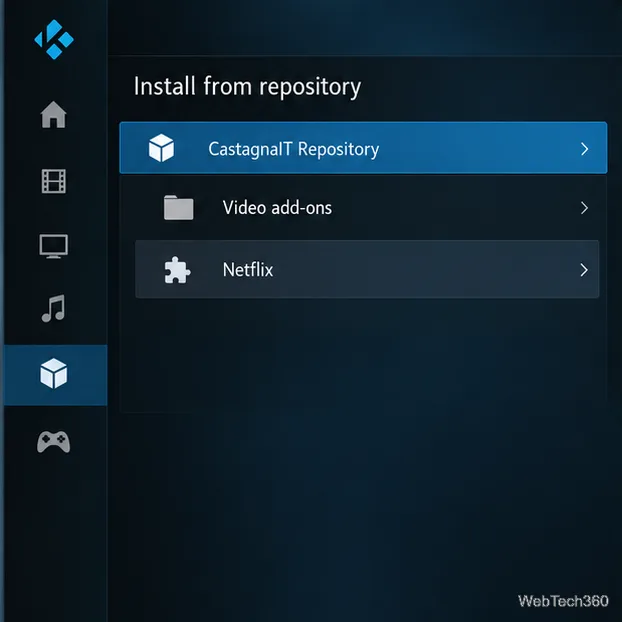
In the Add-on browser, choose Install from repository, open CastagnaIT Repository, then select Video add-ons and Netflix. Choose Install and allow Kodi to install any dependencies it offers. The maintainer’s step-by-step guide includes extra requirements for Linux distributions and other devices.
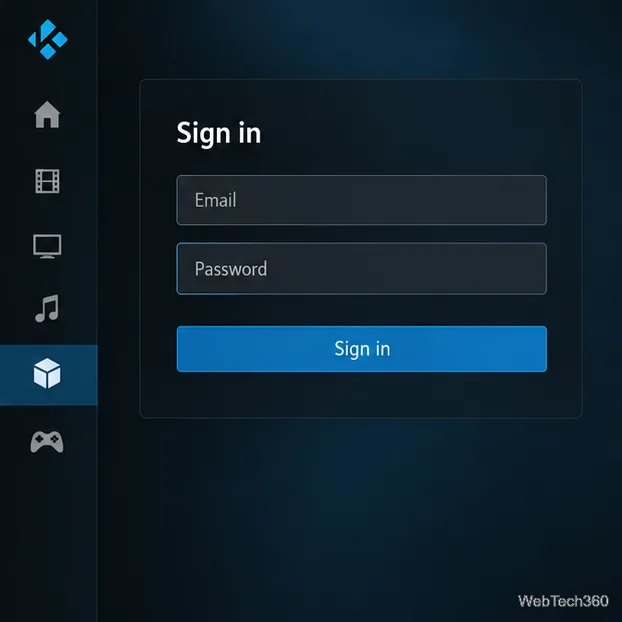
Launch Netflix from Kodi’s Video add-ons list. Enter your Netflix credentials when prompted, or follow the authentication-key method linked above if the regular login fails. Browse and play titles from the add-on. If the add-on is missing, return to the repository and confirm installation completed; if playback fails, check the device limitations before changing account or network settings.
Not reliably. Netflix’s help center says that a VPN can make a connection appear to come from another location, but it may then show only programs and movies Netflix licenses worldwide. Netflix also says VPNs are not supported for live events or for an ad-supported experience. That means a VPN can reduce the catalog you see, trigger a proxy error, or prevent playback; it does not guarantee access to a chosen country’s library.
While traveling, use Netflix normally; its catalog follows regional licensing. Netflix says each country has its own catalog and that the account country changes only if you move. If Netflix thinks you are in the wrong country, sign out and back in after travel; if a VPN or proxy warning appears, turn off the VPN and retry. See Netflix’s guidance on watching through a VPN, country and catalog changes, and region availability errors.
For a dependable trip setup, the official Netflix app on a supported phone, tablet, TV streamer, or game console is the simplest option; Netflix lists supported device families in its device support guide. Use the Kodi add-on when its community-maintained compatibility fits your device, and treat the VPN claim in older tutorials as outdated.
Learn how to uninstall a Kodi repository safely, remove its saved source URL separately, and check which installed add-ons or dependencies you still need.
Find the safest way to watch live tennis with Kodi: learn what iPlayer WWW can stream, how to find licensed coverage, and which add-ons to avoid.
Learn how to watch movies on Kodi from your computer, USB drive, or NAS, add online video services, and fix missing titles with clear setup steps.
Set a Kodi Master Lock PIN, protect selected menus, and create a separate kids’ profile with media sources you choose.
Find the authorized stream for your country, check whether its provider supports Kodi, and watch a boxing PPV on your TV without relying on outdated add-ons.
Compare five Kodi skins in the official Omega catalog, then follow the current Settings path to install one, customize it, or switch back.
Looking for the 1Channel Kodi add-on? Learn why old PrimeWire installation guides are unreliable and how to install a supported video add-on safely.
Enable Kodi’s Chorus2 web interface, control your media from any browser, and learn how to connect remotely without exposing Kodi to the Internet.
Follow the original Nemesis Kodi installation process, learn what changed with Stream Army, and avoid outdated repository and PIN instructions.
Download Kodi safely on Windows using the official installer or Microsoft Store, then add your media library and set up trusted add-ons.








