How to Uninstall Kodi Repositories the Right Way

Learn how to uninstall a Kodi repository safely, remove its saved source URL separately, and check which installed add-ons or dependencies you still need.
SuperRepo is not a dependable option for current Kodi installations. The once-popular third-party add-on collection used the source address srp.nu, but its old download service could not be reached during this article's October 2026 review, and a compatible, maintained release for modern Kodi could not be verified. Below is the original installation workflow for reference, followed by the practical way to install add-ons today.
SuperRepo brought together numerous independently developed Kodi add-ons, including video, music, and specialty tools. It was useful when its version-specific repositories were available, but a large catalog did not guarantee that individual add-ons or their streaming sources would continue to work.
The instructions commonly shared for SuperRepo were written for older releases such as Jarvis (Kodi 16) and Krypton (Kodi 17). In contrast, Kodi 21.3 Omega is a maintained stable release, and Kodi 22 Piers RC 1 was announced on October 10, 2026. Do not assume an old SuperRepo ZIP works with either generation. Also avoid anonymous mirrors advertising a newly fixed SuperRepo package: their provenance and contents may be impossible to verify.
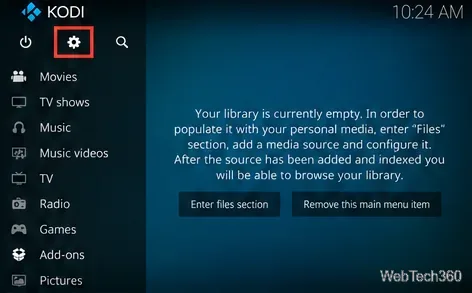
These are historical steps, not a verified working installation on current Kodi. They explain the process you may see in older SuperRepo guides. Only proceed with third-party packages when you can verify their publisher and compatibility.
Launch Kodi, select the gear-shaped Settings icon, and open System for add-on permissions. To reach the old source-entry screen, use Settings > File manager; the exact placement may differ by skin.
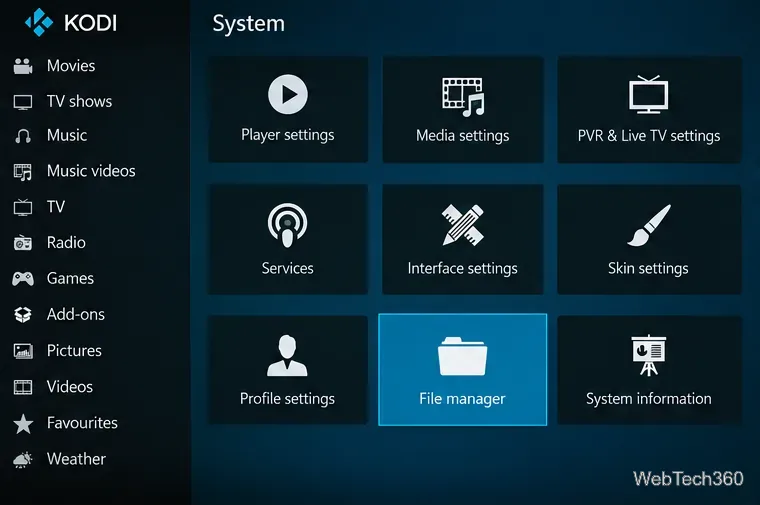
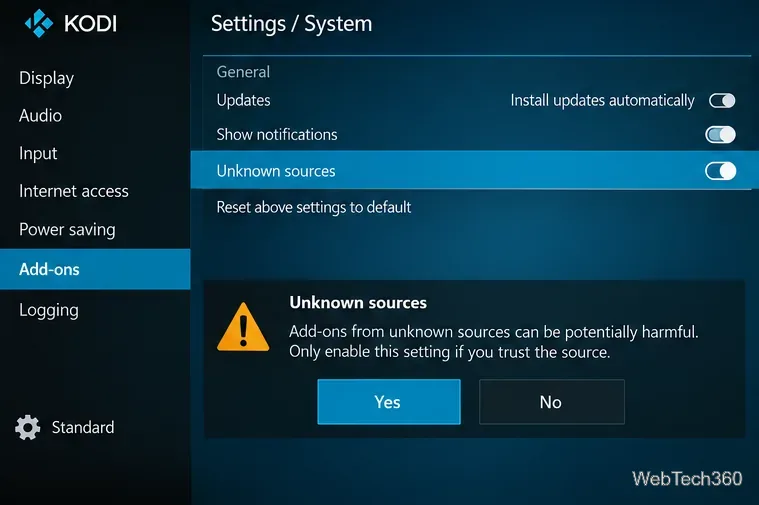
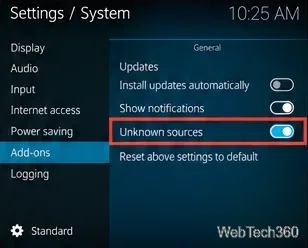
Go to Settings > System > Add-ons. Older instructions ask you to enable Unknown sources and accept a warning before installing an external ZIP. Kodi warns that third-party add-ons may access data on your device. Leave this option off unless you have a specific, verified package to install. The official Kodi add-on settings reference explains the permission.
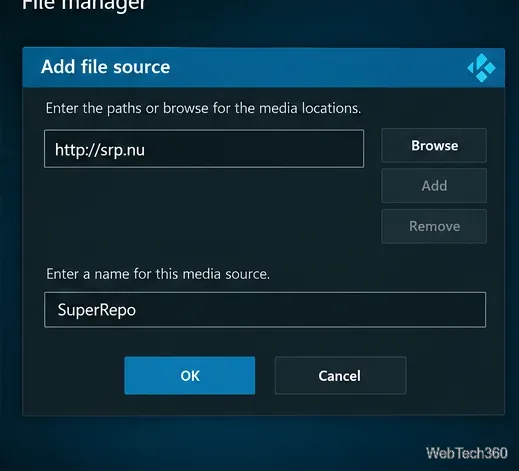
In Settings > File manager > Add source, the historic address was http://srp.nu. Guides generally named the source SuperRepo and selected OK. Adding a source only saves a location; it does not install a repository or establish that the server is safe or reachable. Do not substitute a look-alike domain if this address fails.
From the home screen, choose Add-ons, open the package installer (box icon), then choose Install from zip file. Old directions pointed to the SuperRepo source, a Kodi-version folder, and an All or repositories package. Those folders may no longer appear. Never choose a ZIP built for a different Kodi generation merely because its name resembles the expected file.
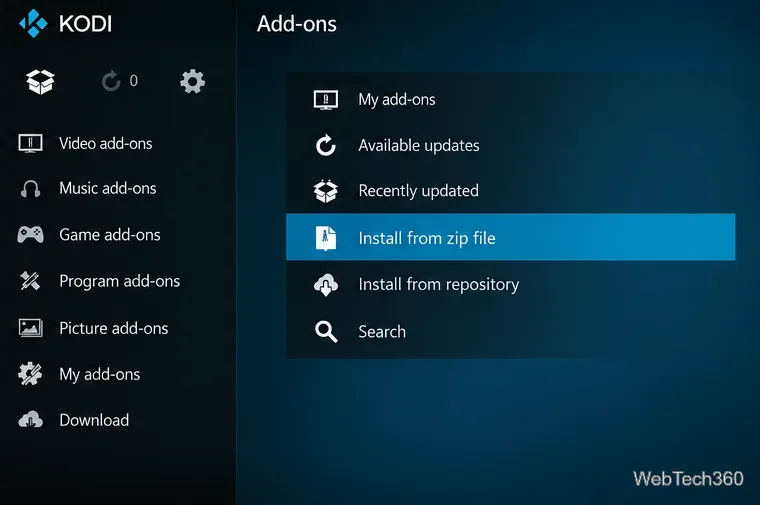
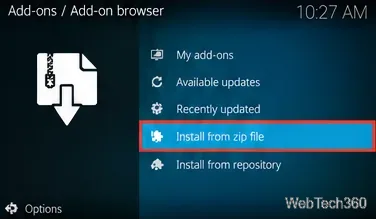
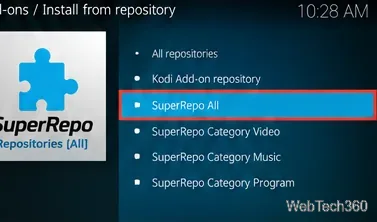
The historical final step was Add-ons > Install from repository > SuperRepo All, followed by categories such as Video add-ons. A repository appearing in a menu does not prove that its index, dependencies, or content providers still work. Do not install every available add-on indiscriminately.
For an everyday Kodi setup, use the Kodi Add-on repository already included with the app. You do not need to enable Unknown sources to use this built-in catalog.
Kodi's Add-on manager guide documents both the built-in repository and third-party ZIP methods. Official add-ons are curated by the Kodi project, although services, geographic availability, and external accounts may still affect what an add-on can play.
If you previously added SuperRepo, you can remove its saved file source through File manager and uninstall the repository under Add-ons > My add-ons > Add-on repositories, if listed. Review any old add-ons separately, then turn Unknown sources off if you no longer need it.
Kodi itself is legitimate open-source media software, but a third-party repository is not endorsed just because Kodi can load its ZIP. Add-ons may rely on unauthorized streams, outdated code, or unverified distribution servers. Only access media you have rights to watch. A VPN cannot repair an abandoned repository, make an unsafe add-on trustworthy, or grant permission to stream copyrighted material.
Bottom line: the SuperRepo steps explain how the repository used to be installed, but there is no verified, current SuperRepo installation path to recommend. For a dependable Kodi experience, begin with the built-in add-on repository and use publisher-controlled third-party packages only when genuinely needed.
Learn how to uninstall a Kodi repository safely, remove its saved source URL separately, and check which installed add-ons or dependencies you still need.
Find the safest way to watch live tennis with Kodi: learn what iPlayer WWW can stream, how to find licensed coverage, and which add-ons to avoid.
Learn how to watch movies on Kodi from your computer, USB drive, or NAS, add online video services, and fix missing titles with clear setup steps.
Set a Kodi Master Lock PIN, protect selected menus, and create a separate kids’ profile with media sources you choose.
Find the authorized stream for your country, check whether its provider supports Kodi, and watch a boxing PPV on your TV without relying on outdated add-ons.
Compare five Kodi skins in the official Omega catalog, then follow the current Settings path to install one, customize it, or switch back.
Looking for the 1Channel Kodi add-on? Learn why old PrimeWire installation guides are unreliable and how to install a supported video add-on safely.
Enable Kodi’s Chorus2 web interface, control your media from any browser, and learn how to connect remotely without exposing Kodi to the Internet.
Follow the original Nemesis Kodi installation process, learn what changed with Stream Army, and avoid outdated repository and PIN instructions.
Download Kodi safely on Windows using the official installer or Microsoft Store, then add your media library and set up trusted add-ons.








