How to Uninstall Kodi Repositories the Right Way

Learn how to uninstall a Kodi repository safely, remove its saved source URL separately, and check which installed add-ons or dependencies you still need.
Install the KodiNerds repository by downloading its current ZIP from the official Kodinerds repo site, then selecting that ZIP in Kodi’s Add-on browser. After installation, open Add-ons > Install from repository to browse the catalog. The ZIP adds a source; it does not install every add-on.
KodiNerds is a third-party community repository, separate from Kodi’s built-in repository. Its live site offers a versioned “Download Repo Addon” package, and catalog items can have different Kodi-version requirements. Skip old fixed-version links such as 6.0.0; get the current package from the publisher. Kodi’s Add-on Manager guide documents ZIP installation.
Check your Kodi version and note where the ZIP is saved. Kodi must be able to browse that local folder or network location. Compatibility varies by add-on. Kodi also warns that external add-ons may access personal data on your device, so install only packages you trust.
The following interface illustrations show the relevant labels; layouts vary by Kodi version, skin, and device.
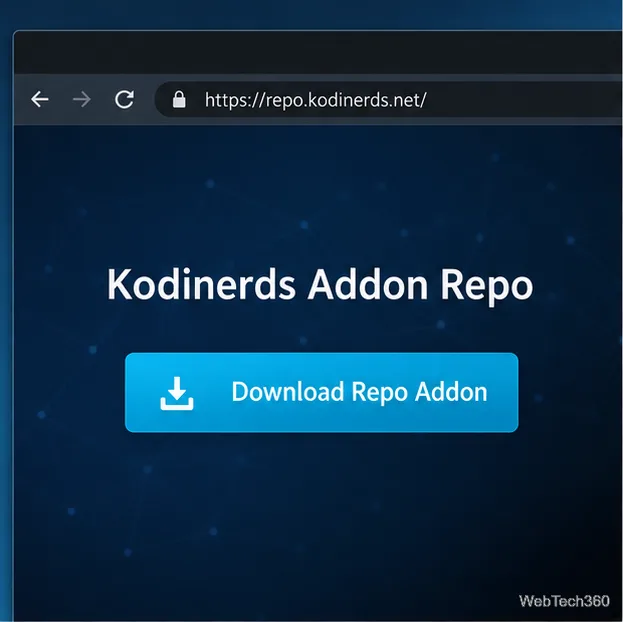
On the Kodinerds site, select Download Repo Addon and save the repository.kodinerds-…zip file. The version number changes; do not extract the archive.
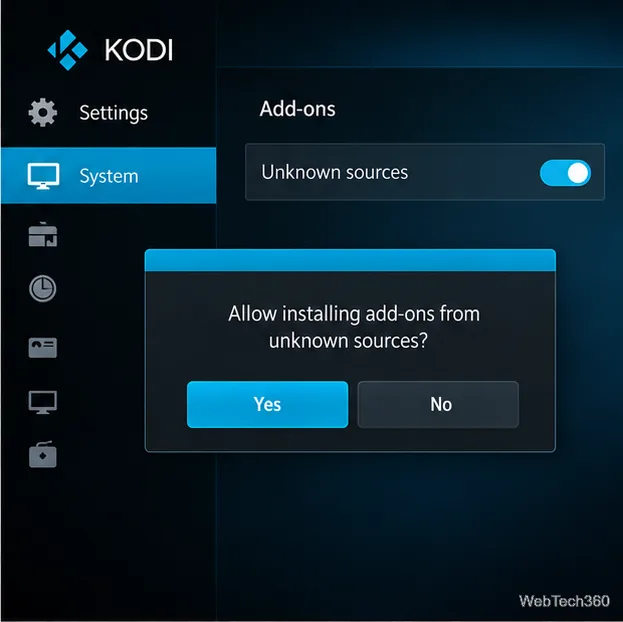
In Kodi, open Settings > System > Add-ons, turn on Unknown sources, and read the confirmation. Select Yes only if you intend to install this third-party ZIP. See Kodi’s Unknown sources documentation.
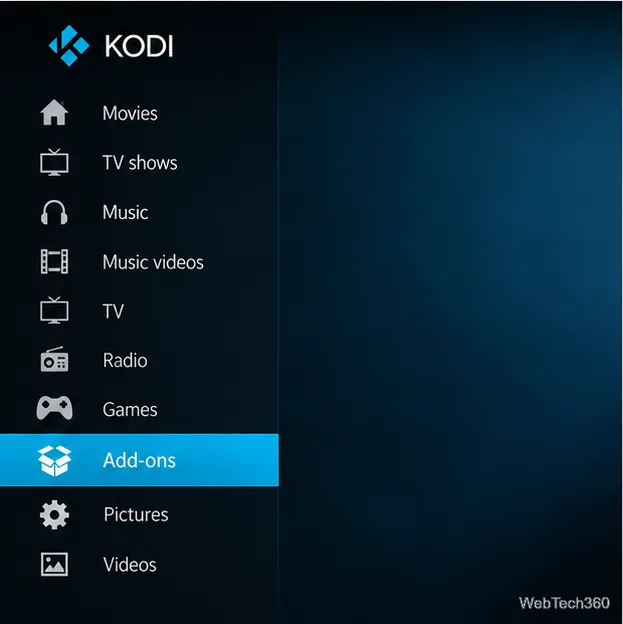
Return to the home screen and choose Add-ons in the main menu.
Select the package or open-box icon to open the Add-on browser, then choose Install from zip file.
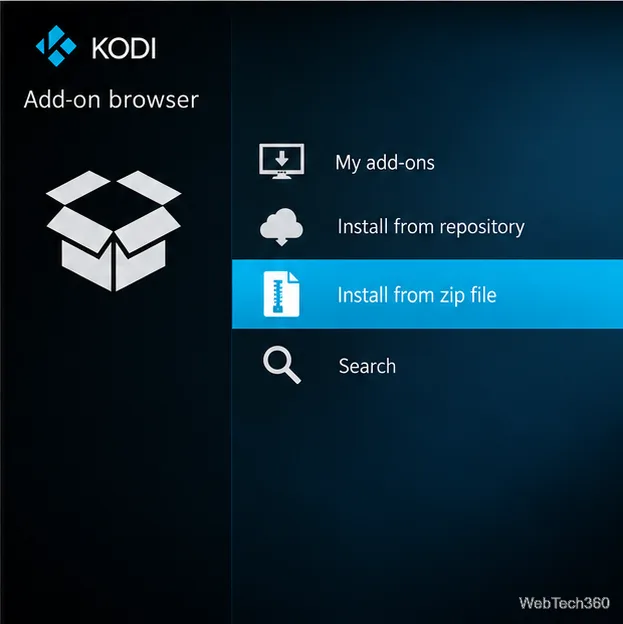
Browse to the folder where you saved the ZIP, select the KodiNerds repository package, and confirm. If the file is on another device or a network share, make that location accessible to Kodi first. Select the package itself—not its containing folder or a source-code archive.
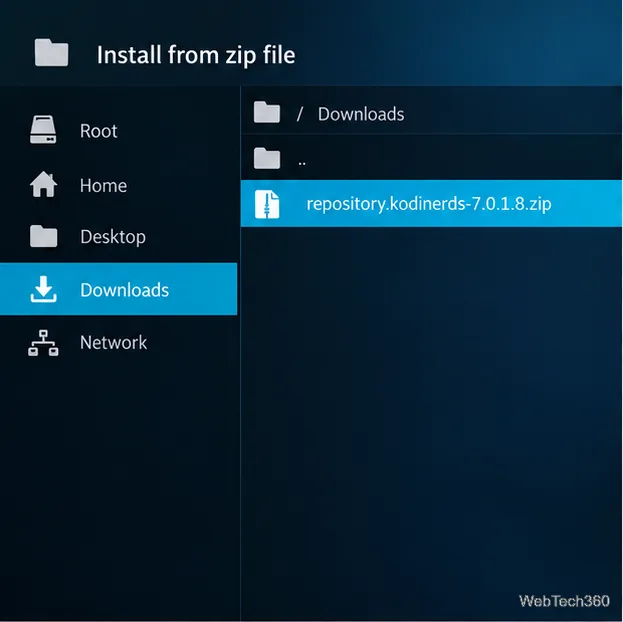
Let Kodi install the repository and its required dependencies. Continue when the success notification appears. If Kodi reports an invalid or incompatible ZIP, check the troubleshooting notes below.
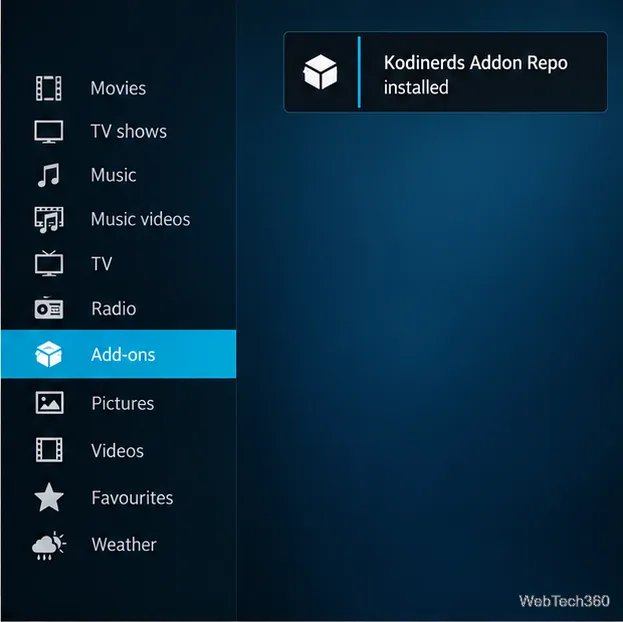
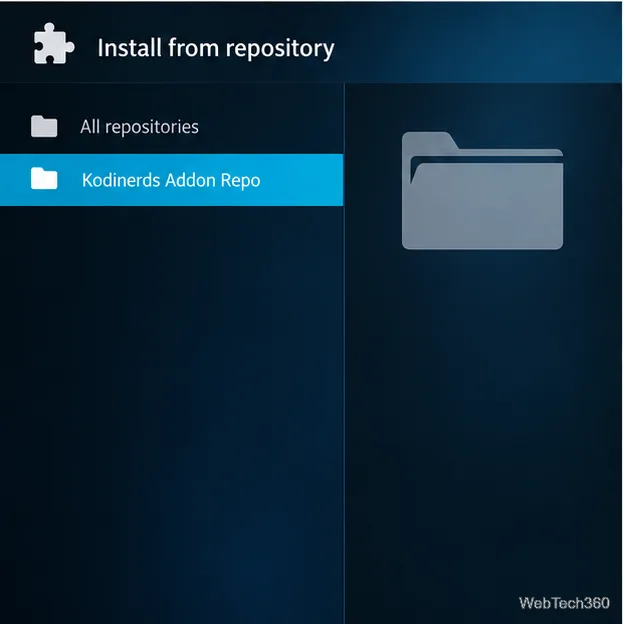
In the Add-on browser, choose Install from repository, then select the KodiNerds entry. Its display name can vary slightly by package, so look for the repository name associated with KodiNerds.
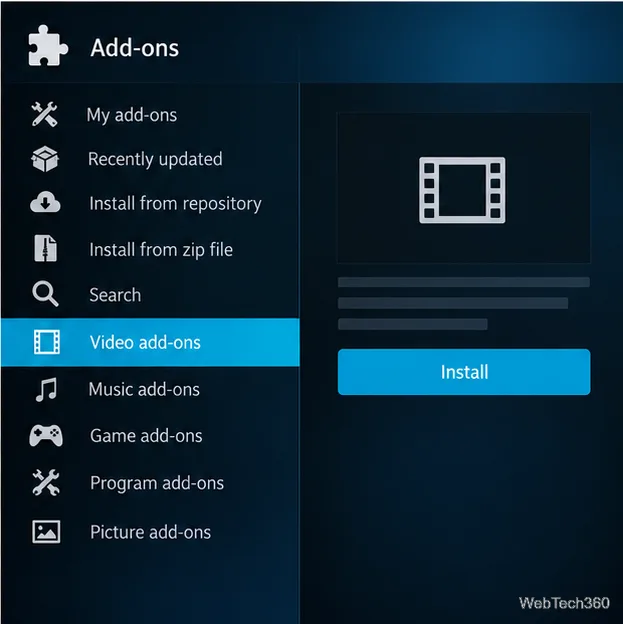
Choose a category and review an add-on’s description, supported Kodi versions, account requirements, and dependencies before selecting Install. Services may require a separate account or subscription, and their availability depends on the provider.
A repository is a distribution channel, not a guarantee that every add-on is secure, supported, or authorized for every use. Kodi’s third-party add-on guidance recommends checking who publishes an add-on and what it does. Review requested permissions and dependencies, and use content you are entitled to access. A VPN is not required for installation and cannot verify an add-on’s code or grant access rights.
No. It installs the repository entry; you select and install add-ons separately.
No. A VPN is not part of the repository installation process and does not establish that an add-on is safe or authorized.
Learn how to uninstall a Kodi repository safely, remove its saved source URL separately, and check which installed add-ons or dependencies you still need.
Find the safest way to watch live tennis with Kodi: learn what iPlayer WWW can stream, how to find licensed coverage, and which add-ons to avoid.
Learn how to watch movies on Kodi from your computer, USB drive, or NAS, add online video services, and fix missing titles with clear setup steps.
Set a Kodi Master Lock PIN, protect selected menus, and create a separate kids’ profile with media sources you choose.
Find the authorized stream for your country, check whether its provider supports Kodi, and watch a boxing PPV on your TV without relying on outdated add-ons.
Compare five Kodi skins in the official Omega catalog, then follow the current Settings path to install one, customize it, or switch back.
Looking for the 1Channel Kodi add-on? Learn why old PrimeWire installation guides are unreliable and how to install a supported video add-on safely.
Enable Kodi’s Chorus2 web interface, control your media from any browser, and learn how to connect remotely without exposing Kodi to the Internet.
Follow the original Nemesis Kodi installation process, learn what changed with Stream Army, and avoid outdated repository and PIN instructions.
Download Kodi safely on Windows using the official installer or Microsoft Store, then add your media library and set up trusted add-ons.








