How to Uninstall Kodi Repositories the Right Way

Learn how to uninstall a Kodi repository safely, remove its saved source URL separately, and check which installed add-ons or dependencies you still need.
The Loop is a third-party Kodi add-on. Install its repository first, then install The Loop from that repository. It is not in Kodi’s built-in catalog, and availability can change. The 2017 Dropbox ZIP in older versions of this guide is obsolete; verify the current project source before installing.
Kodi does not review or support third-party repositories, and an add-on can access data on your device. Continue only if you trust the source. Read Kodi’s security warning and guidance on third-party streams.
Only watch streams you are authorized to access; neither installing an add-on nor using a VPN grants viewing rights. Kodi recommends stable builds for everyday use, and a prerelease may not support every add-on.
The source used below is https://loopaddon.uk/loop/, available over HTTPS. The project has used different paths and ZIP names over time, so compare the address and current package listing with its GitHub repository. If the documented ZIP is missing, stop and check the project’s current instructions instead of using a mirror.
These steps use Kodi’s default Estuary-style menus. Some devices arrange the same controls slightly differently, but the labels are the same. Kodi’s Add-ons settings guide and add-on manager guide document the ZIP and repository installation flow.
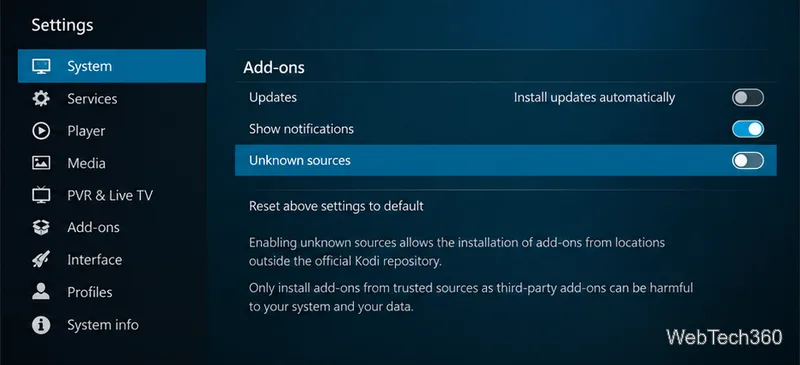
From Kodi’s home screen, open Settings (the gear icon), choose System, then select Add-ons. Turn on Unknown sources. Read Kodi’s warning and confirm only if you have checked the source and want to proceed. Kodi needs this setting to install a repository ZIP from outside its built-in catalog.
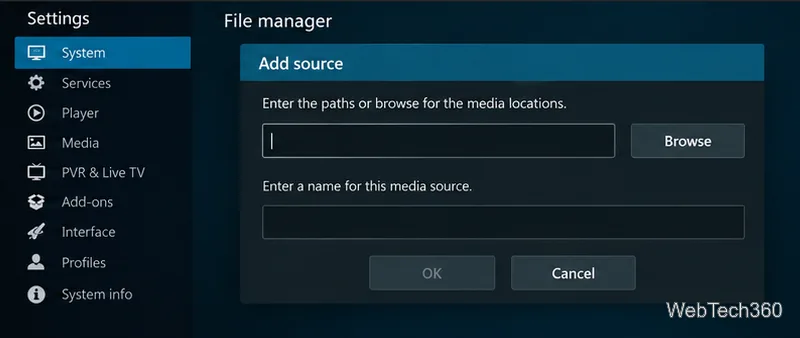
Return to Settings, open File manager, and select Add source. In the dialog, select the field labeled <None> or the location field. Kodi lets you save a network location under a short name so it is easy to find in the ZIP browser.
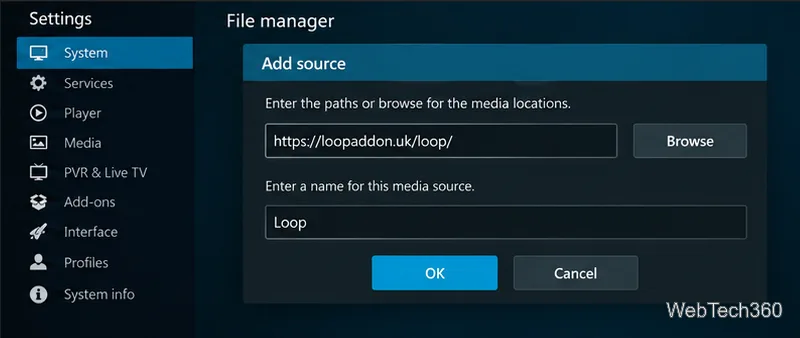
Type https://loopaddon.uk/loop/ in the location field. In the source-name box below, enter Loop, then select OK. Check the spelling and the HTTPS address before saving. The source name is just a label; it does not verify the publisher.
Return to Kodi’s home screen and open Add-ons. If the File Manager is still open, use the back control until the home menu appears. The add-on area is where Kodi keeps the browser for installing ZIP files and repository add-ons.
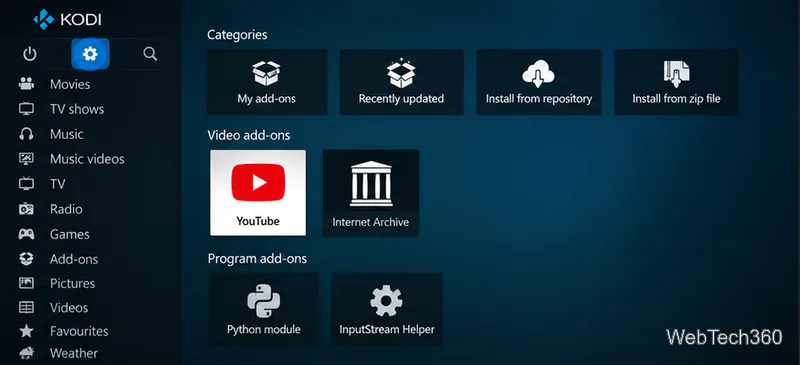
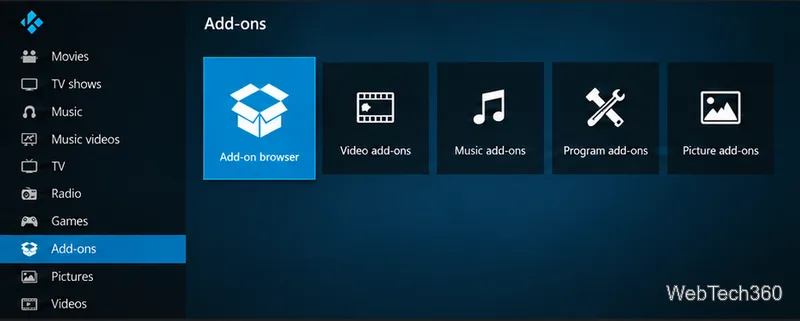
Select the Add-on Browser tile, usually shown with an open-box icon. On some skins, Kodi displays that icon near the top of the Add-ons screen. The browser contains both Install from zip file and Install from repository.
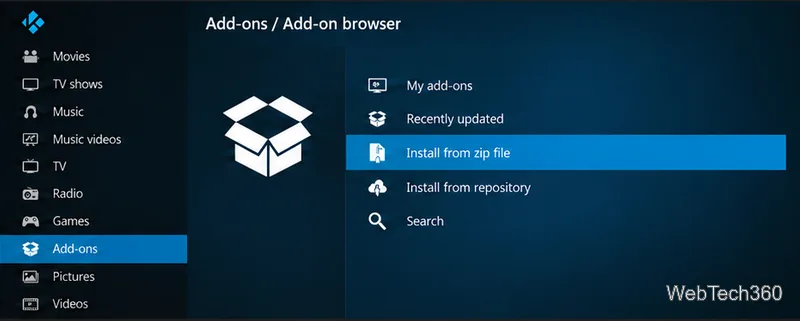
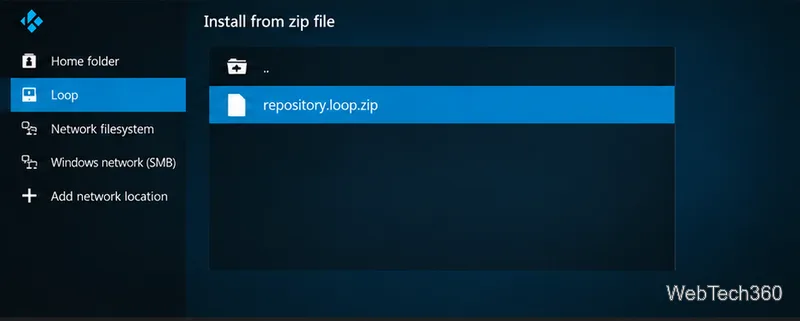
Choose Install from zip file. If prompted, enable unknown sources as in step 1. Open Loop, select repository.loop.zip, and confirm. Leave it zipped; Kodi installs the archive directly. Wait for Kodi’s repository-installed notification. If the file is missing or named differently, check the project’s current listing rather than guessing.
Return to the Add-on Browser and choose Install from repository. Open the Loop repository; it may appear as Loop Repo or Loop Repository. Select Video add-ons, then choose The Loop. If Kodi does not show the repository, wait briefly for the source to refresh and reopen the browser.
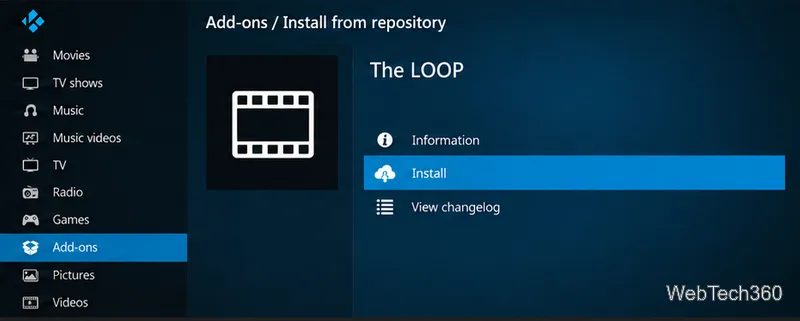
On The Loop’s information page, select Install. Kodi may ask to install dependencies; review the list before accepting. Wait for Kodi’s add-on-enabled notification. The Loop should then appear under Add-ons in the video add-ons category. If the install fails, capture the exact Kodi error and contact the add-on publisher rather than Kodi support, since Kodi does not maintain this third-party add-on.
If you no longer trust the source, uninstall its repository under My add-ons and remove the saved Loop entry from File Manager.
Learn how to uninstall a Kodi repository safely, remove its saved source URL separately, and check which installed add-ons or dependencies you still need.
Find the safest way to watch live tennis with Kodi: learn what iPlayer WWW can stream, how to find licensed coverage, and which add-ons to avoid.
Learn how to watch movies on Kodi from your computer, USB drive, or NAS, add online video services, and fix missing titles with clear setup steps.
Set a Kodi Master Lock PIN, protect selected menus, and create a separate kids’ profile with media sources you choose.
Find the authorized stream for your country, check whether its provider supports Kodi, and watch a boxing PPV on your TV without relying on outdated add-ons.
Compare five Kodi skins in the official Omega catalog, then follow the current Settings path to install one, customize it, or switch back.
Looking for the 1Channel Kodi add-on? Learn why old PrimeWire installation guides are unreliable and how to install a supported video add-on safely.
Enable Kodi’s Chorus2 web interface, control your media from any browser, and learn how to connect remotely without exposing Kodi to the Internet.
Follow the original Nemesis Kodi installation process, learn what changed with Stream Army, and avoid outdated repository and PIN instructions.
Download Kodi safely on Windows using the official installer or Microsoft Store, then add your media library and set up trusted add-ons.








