How to Uninstall Kodi Repositories the Right Way

Learn how to uninstall a Kodi repository safely, remove its saved source URL separately, and check which installed add-ons or dependencies you still need.
You can install RTP Play from Kodi’s built-in add-on repository: open Add-ons, choose the add-on browser, then go to Install from repository → Kodi Add-on repository → Video add-ons → RTP Play → Install. After installation, launch it from your video add-ons. The Kodi listing describes live and on-demand RTP Play broadcasts, but what plays can depend on the program’s rights and your location.
RTP Play is Rádio e Televisão de Portugal’s free online radio and TV service. Its own help page says the platform carries live channels and an on-demand catalog. The Kodi add-on is maintained independently of RTP: its project page says it is not an official RTP product or endorsed by the broadcaster. Kodi’s repository listing is useful for finding the add-on, but it should not be read as RTP’s endorsement of the project.
Use Kodi’s own repository rather than a third-party ZIP or repository. Kodi recommends installing add-ons through its interface, and its catalog can differ by Kodi version. When checked for this rewrite, Kodi’s Omega page listed RTP Play version 6.0.4, dated April 6, 2024, with a description covering live and on-demand broadcasts. If you do not see the same listing, check that Kodi can reach its repository and that your Kodi version is supported; do not add an unfamiliar repository just to find it.
The screens below are visual guides. Your menu labels or layout may vary by platform, Kodi skin, and version.
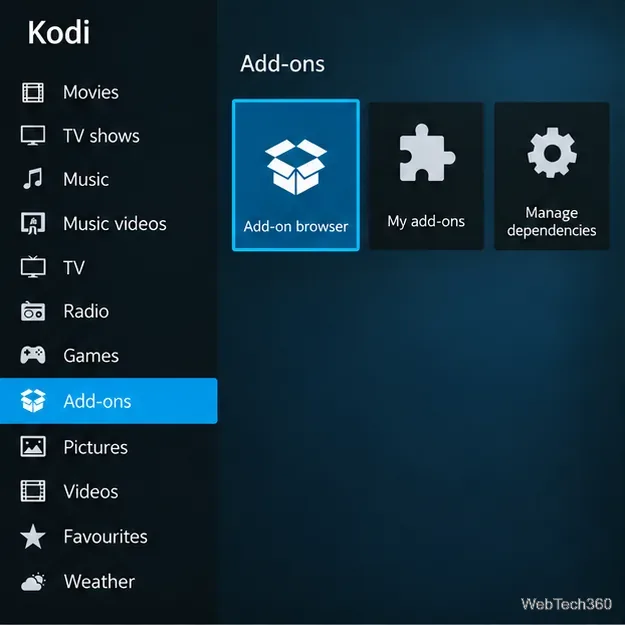
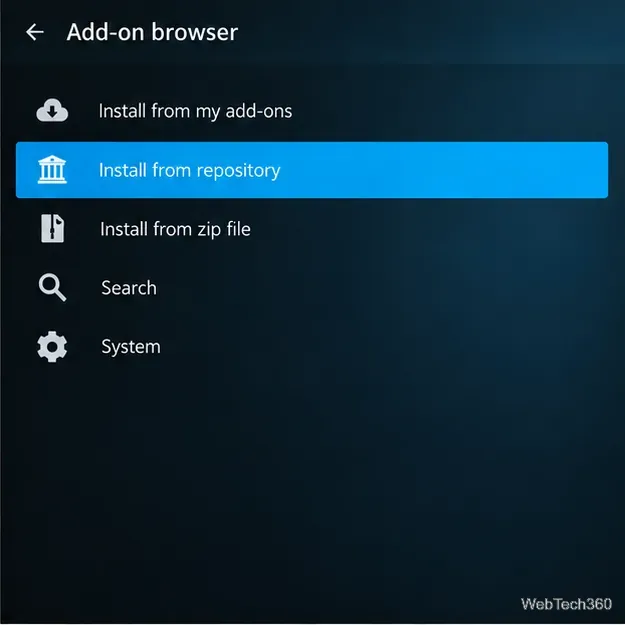
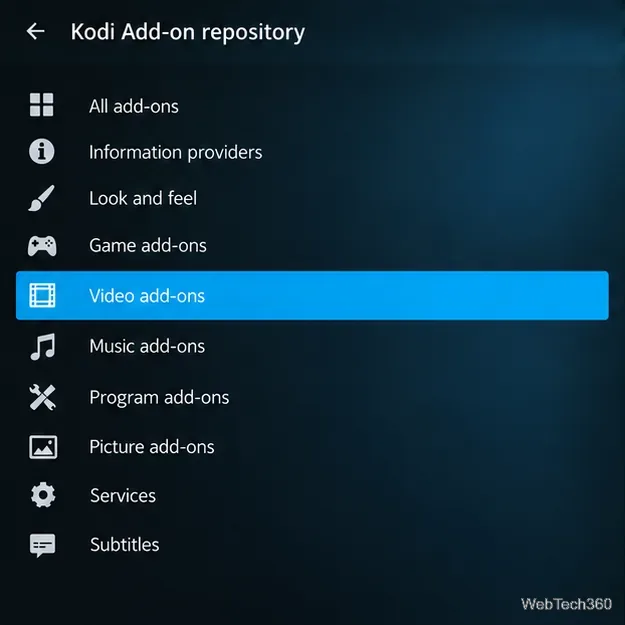
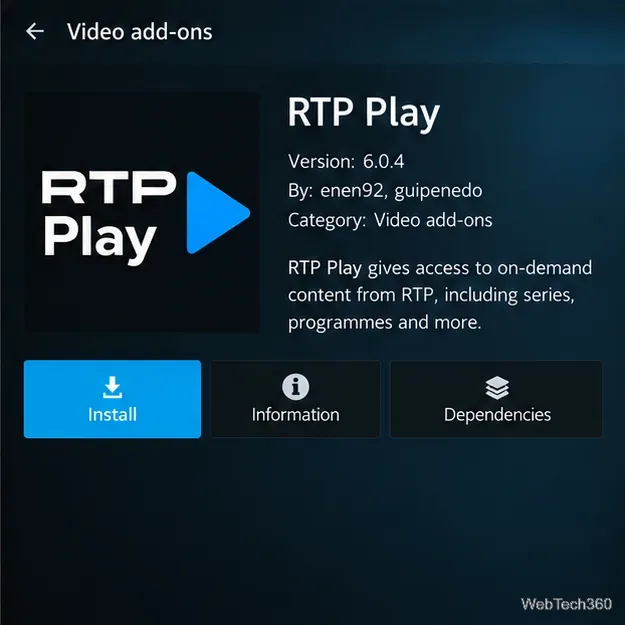
Open RTP Play and browse the categories or channel list that the add-on currently provides. Select a live stream or program to start playback. The exact entries can change as RTP updates its service and the add-on adapts; the older eight-channel list sometimes repeated in guides is not a reliable current catalog. The Kodi listing now describes both live and on-demand broadcasts, so check the entries shown on your device instead of assuming every RTP channel or show is available there.
RTP says its official service is free and can be accessed outside Portugal, but some programs, films, series, and live broadcasts are unavailable abroad because of transmission rights. Restrictions can also affect individual titles within Portugal. If a stream is missing or reports that it has no online rights, try another available item or use RTP’s official website or supported app to check what is offered in your region. A VPN cannot grant RTP the rights to distribute a program in a country where it is restricted; follow RTP’s terms and the rules that apply where you are.
See the RTP Play listing in Kodi’s Omega catalog, Kodi’s Add-on manager instructions, RTP’s RTP Play help and rights information, and the add-on project page.
Learn how to uninstall a Kodi repository safely, remove its saved source URL separately, and check which installed add-ons or dependencies you still need.
Find the safest way to watch live tennis with Kodi: learn what iPlayer WWW can stream, how to find licensed coverage, and which add-ons to avoid.
Learn how to watch movies on Kodi from your computer, USB drive, or NAS, add online video services, and fix missing titles with clear setup steps.
Set a Kodi Master Lock PIN, protect selected menus, and create a separate kids’ profile with media sources you choose.
Find the authorized stream for your country, check whether its provider supports Kodi, and watch a boxing PPV on your TV without relying on outdated add-ons.
Compare five Kodi skins in the official Omega catalog, then follow the current Settings path to install one, customize it, or switch back.
Looking for the 1Channel Kodi add-on? Learn why old PrimeWire installation guides are unreliable and how to install a supported video add-on safely.
Enable Kodi’s Chorus2 web interface, control your media from any browser, and learn how to connect remotely without exposing Kodi to the Internet.
Follow the original Nemesis Kodi installation process, learn what changed with Stream Army, and avoid outdated repository and PIN instructions.
Download Kodi safely on Windows using the official installer or Microsoft Store, then add your media library and set up trusted add-ons.








