How to Uninstall Kodi Repositories the Right Way

Learn how to uninstall a Kodi repository safely, remove its saved source URL separately, and check which installed add-ons or dependencies you still need.
You can install the USTVnow Kodi add-on only if it still appears in the official repository built into your Kodi version. There is an important catch: Kodi’s own add-on page marks USTVnow as broken because its backend changed, and USTVnow Plus is a separate third-party add-on with no current, trustworthy installation source that I could verify. The steps below show how to check safely and what to use if the add-on is missing or fails.
Kodi’s Add-on browser installs software from repositories. For the safest check, use the built-in Kodi Add-on Repository and do not add a new source just to make an old tutorial work. Menu names can vary slightly with Kodi versions and skins, but the repository workflow is consistent.
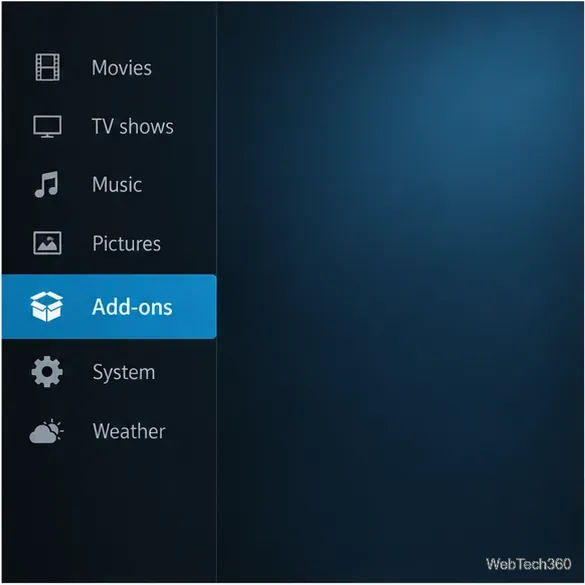
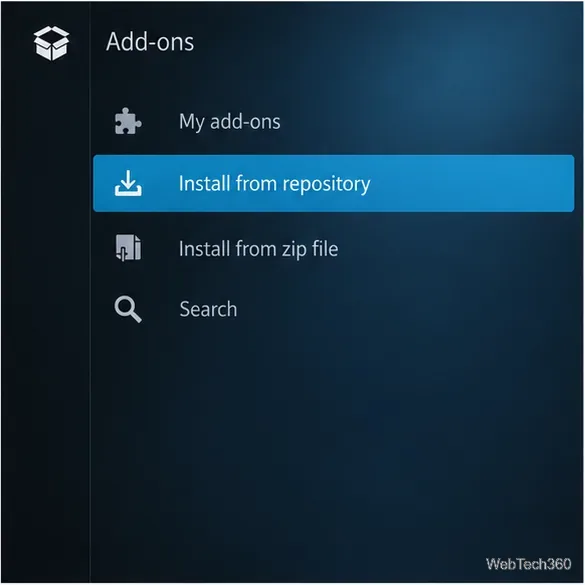
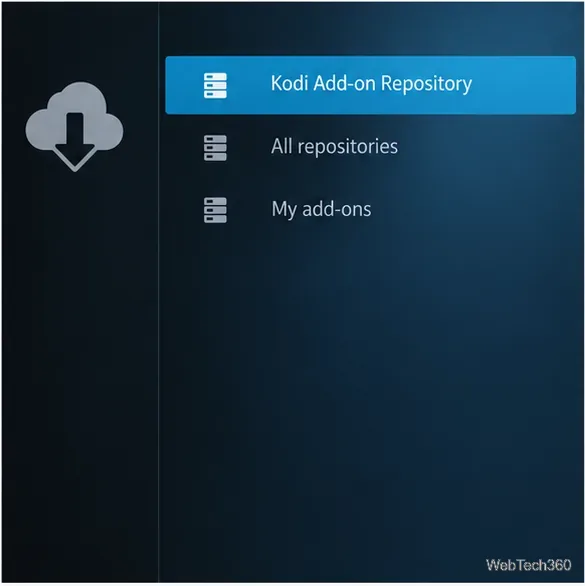
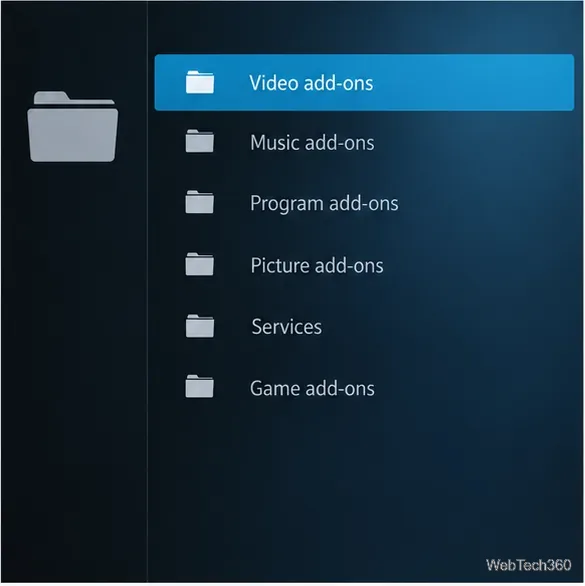
The Kodi Wiki entry for USTVnow says the add-on is marked broken in the repository because the backend changed. It also lists it under older Krypton and Leia repository categories. The Kodi mirror’s archived Krypton folder contains packages dated 2019 and 2020. Those old files may help explain why older guides show different menus, but they are not a current compatibility guarantee.
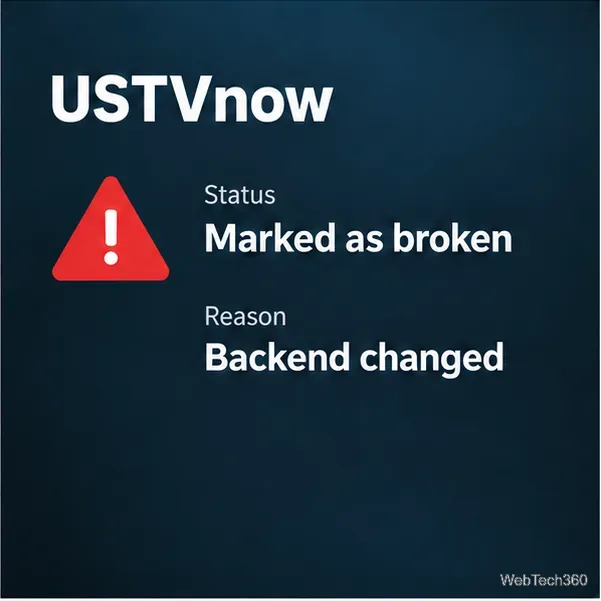
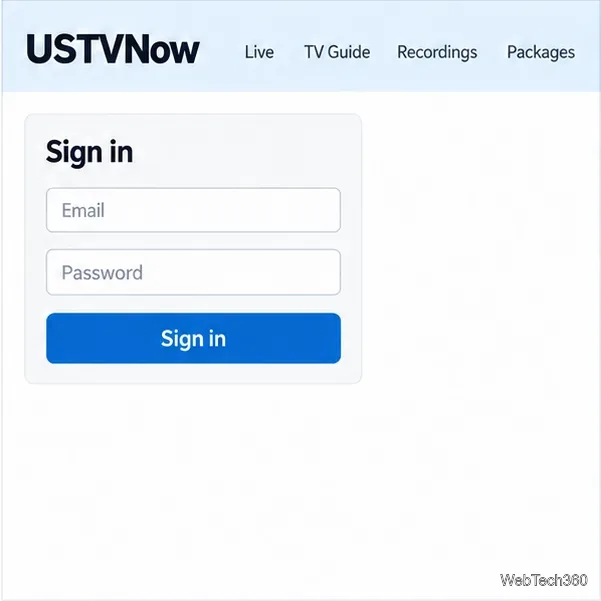
If Kodi offers the official add-on and you install it, sign in only through the add-on’s expected USTVnow account prompt. First confirm that your account works on the official USTVnow website. If the Kodi add-on cannot authenticate, shows an empty guide, or fails to play a channel, the documented backend issue may be the cause. Reinstalling an older ZIP or changing unrelated Kodi settings is unlikely to repair a service-side incompatibility.
USTVnow Plus is not the official Kodi add-on; it is an independently distributed add-on described in older guides. Some older instructions point to repositories such as Simply Caz, but I could not verify a current USTVnow Plus release or a maintained distribution source from Kodi’s official documentation. Simply Caz is also absent from the Kodi Wiki’s current list of active unofficial repositories.
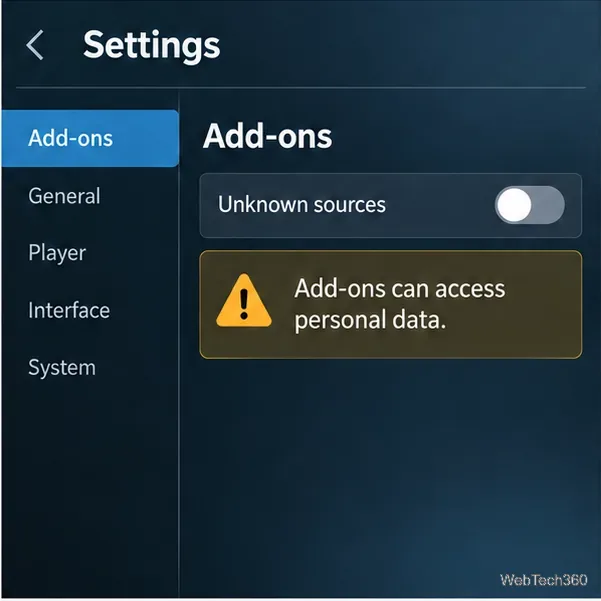
That matters because Kodi distinguishes its built-in repository from third-party repositories, which it describes as untrusted and subject to change without notice. Installing a repository ZIP requires enabling Unknown sources; Kodi warns that add-ons can access personal data on the device. Do not enter the old Simply Caz address or install a ZIP from a mirror just because an old article lists it. If a maintainer later publishes a current release, verify that it comes from the maintainer’s own site and explicitly supports your Kodi version before considering it.
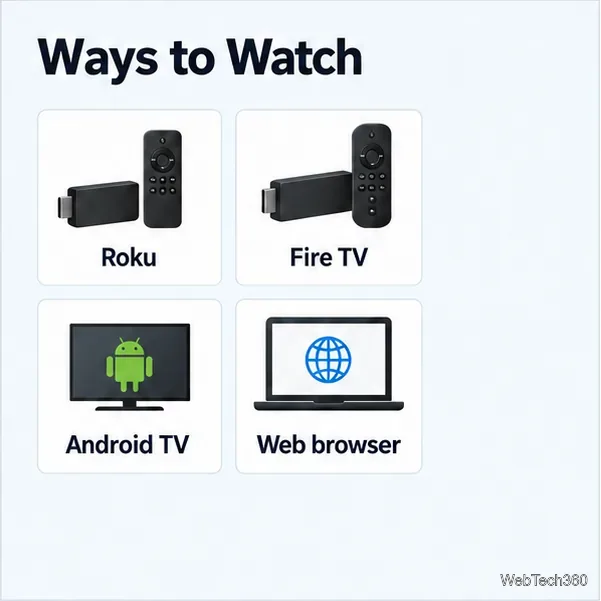
If your goal is to watch USTVnow, the service’s current device guidance is a more dependable starting point than an old Kodi extension. Its official device guide lists Roku, Amazon Fire TV devices, Android TV, smart TVs, computers, tablets, phones, and modern web browsers. Check the service’s site for current availability, account requirements, packages, and app links; those details can change.
Kodi’s Add-on manager guide documents the repository install path and explains how ZIP installs and unknown sources work. For this particular service, the practical rule is simple: install USTVnow only if it is offered by Kodi’s built-in repository, treat Plus instructions that rely on an unverified old repository as outdated, and use USTVnow’s supported apps or website when you need dependable playback.
Learn how to uninstall a Kodi repository safely, remove its saved source URL separately, and check which installed add-ons or dependencies you still need.
Find the safest way to watch live tennis with Kodi: learn what iPlayer WWW can stream, how to find licensed coverage, and which add-ons to avoid.
Learn how to watch movies on Kodi from your computer, USB drive, or NAS, add online video services, and fix missing titles with clear setup steps.
Set a Kodi Master Lock PIN, protect selected menus, and create a separate kids’ profile with media sources you choose.
Find the authorized stream for your country, check whether its provider supports Kodi, and watch a boxing PPV on your TV without relying on outdated add-ons.
Compare five Kodi skins in the official Omega catalog, then follow the current Settings path to install one, customize it, or switch back.
Looking for the 1Channel Kodi add-on? Learn why old PrimeWire installation guides are unreliable and how to install a supported video add-on safely.
Enable Kodi’s Chorus2 web interface, control your media from any browser, and learn how to connect remotely without exposing Kodi to the Internet.
Follow the original Nemesis Kodi installation process, learn what changed with Stream Army, and avoid outdated repository and PIN instructions.
Download Kodi safely on Windows using the official installer or Microsoft Store, then add your media library and set up trusted add-ons.








