How to Jailbreak Roku and Install Kodi: What Actually Works

Short answer: you cannot jailbreak a Roku to install Kodi as a native Roku app. Roku OS does not run Kodi’s Android app or its Windows build. The practical workaround is to install Kodi on a compatible Android phone or tablet and mirror that device’s screen to Roku. You can also mirror Kodi from a Windows PC using Roku’s supported wireless-display feature.

This distinction matters: mirroring shows the screen of another device on your TV. Kodi still runs on the phone or computer, and that device remains in control of playback.

Why a Roku jailbreak will not install Kodi

Roku has a developer mode, but it is meant for testing apps built with Roku’s developer tools. The official Roku setup describes sideloading a Roku app package through its Development Application Installer. Kodi’s official downloads are for platforms such as Android, Windows, macOS, Linux, and iOS; they do not provide a Roku build. Developer mode therefore does not turn a Kodi APK into a Roku channel. See the Roku developer setup and Kodi’s official platform downloads.

Be wary of tutorials promising a Kodi channel after entering a remote-control code or installing an unofficial Roku file. Those steps do not add Kodi support to Roku OS. Screen mirroring is the supported way to display Kodi from another device.

Check compatibility before you start

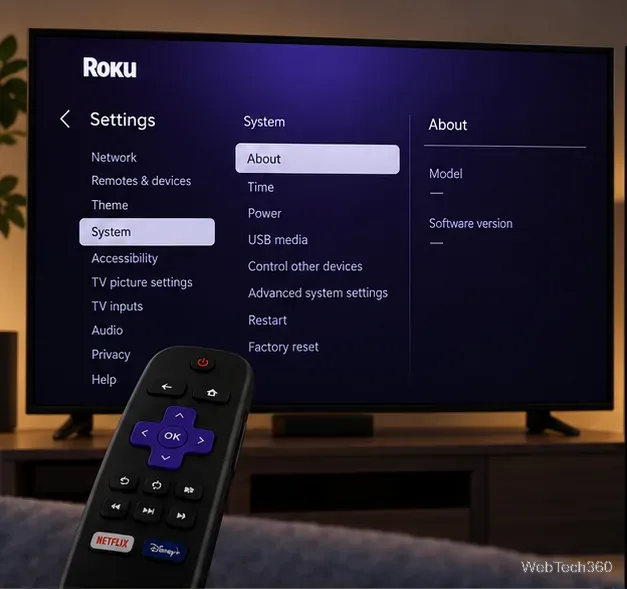
Most current Roku streaming players and Roku TV models support screen mirroring, but some older models do not. On Roku, open Settings > System > About to find the model, then compare it with the compatibility notes in Roku’s screen-mirroring guide. Roku says Android 10 or later is generally likely to support mirroring, though Google-branded devices such as Pixel models can be exceptions. Check your phone maker’s instructions if you do not see a mirroring control.

Roku Settings menu open to System and About, where the device model and software version are listed.
Use Settings > System > About to identify your Roku model before checking screen-mirroring support.

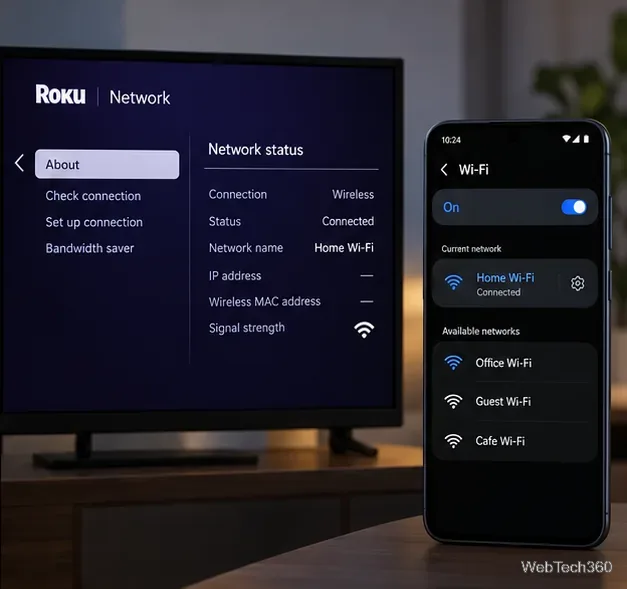
Connect the Roku and phone to the same local network; using the same Wi-Fi network is the simplest setup. A guest network or router setting that isolates devices can prevent the phone from finding Roku.

Roku network status and Android Wi-Fi settings both showing the same Home Wi-Fi network.
Confirm that Roku and the Android device can see each other on the home network.

How to mirror Kodi from Android to Roku

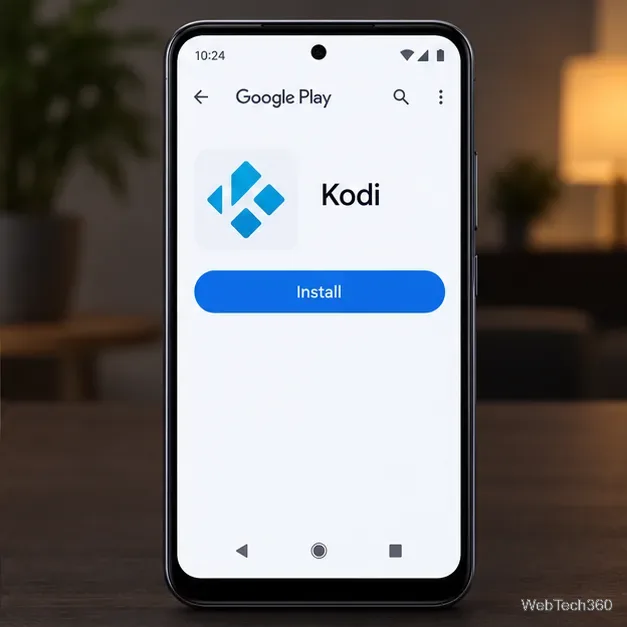
  1. Install Kodi on Android. Use the Kodi listing in Google Play, linked from Kodi’s official Android download page. If you need an installer outside Google Play, get it only from Kodi’s official site and follow its current Android instructions; avoid repackaged APKs.
Android phone displaying the Google Play listing for Kodi with the Install button.
Install Kodi from its official Google Play listing on the device you will mirror.
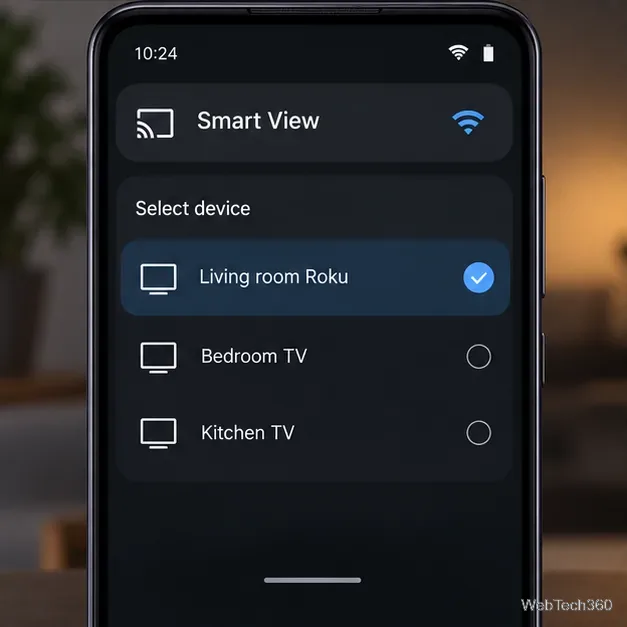
  1. Open your phone’s screen-mirroring control. Swipe down to Quick Settings and look for Smart View, Cast, Screen Cast, or Wireless Display. The label depends on the phone maker. Tap it and choose your Roku from the nearby-device list.
Android Smart View device list with Living room Roku selected.
Choose the Roku from the Android mirroring list; menu names vary by phone.
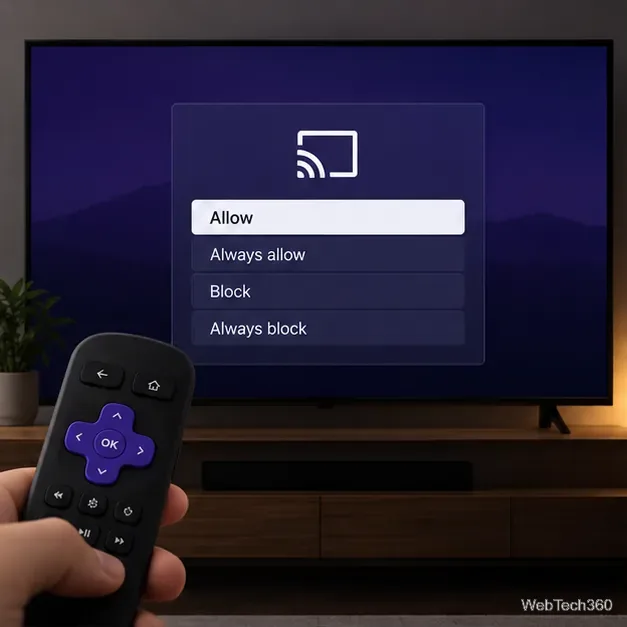
  1. Allow the connection on Roku. A request appears on the TV. Select Allow for this session. Always allow saves the device for future connections without another prompt, so use that only if you want that behavior.
Roku screen-mirroring permission prompt with Allow, Always allow, Block, and Always block options.
Choose Allow for a one-session connection, or Always allow only for a device you trust.
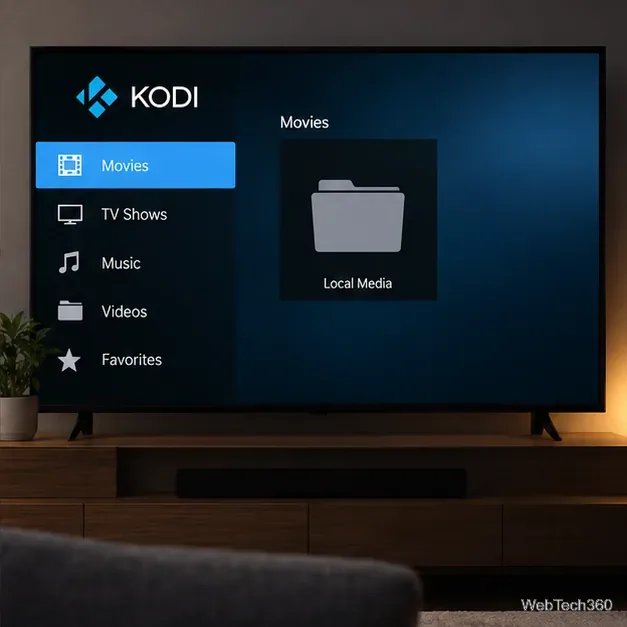
  1. Open Kodi and start playback. Once the phone screen appears on the TV, launch Kodi and play a video from your own library or a source you are authorized to use. Keep the phone awake: Roku is displaying the phone’s screen, not taking over the stream.
Television showing Kodi’s media menu and a local media folder during screen mirroring.
Kodi remains open on the Android device while its interface appears on the Roku-connected TV.
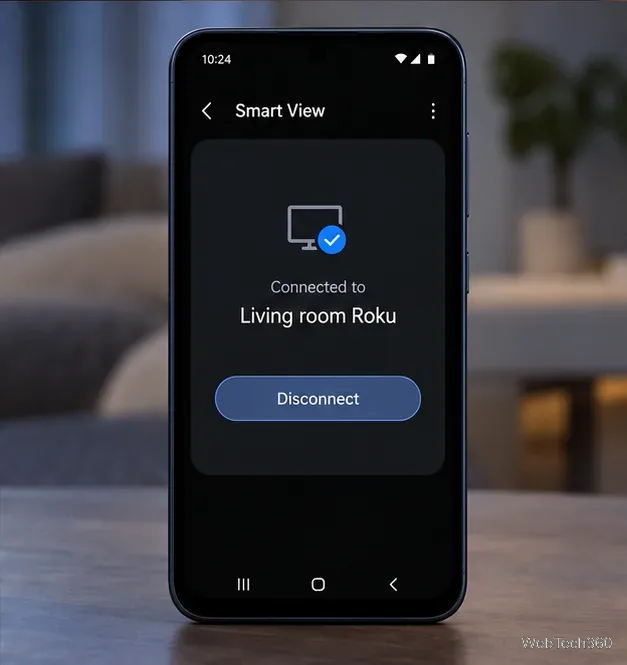
  1. Stop mirroring when you are finished. Open the same Android mirroring control and tap Disconnect, or press Home on the Roku remote. Because mirroring shows the full phone screen, turn on Do Not Disturb first if you do not want notifications appearing on the TV.
Android Smart View connection status for Living room Roku with a Disconnect button.
Disconnect from Smart View to end the mirrored session.

Using Kodi on a Windows PC instead

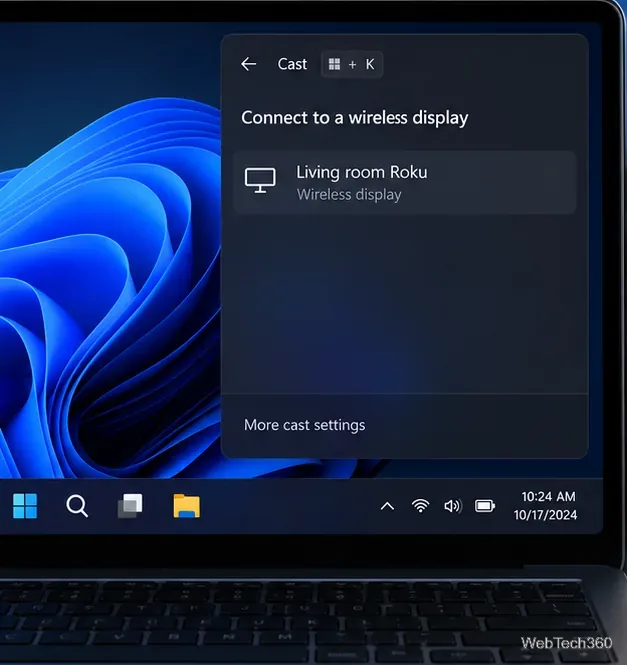
If you prefer a computer, install the Windows version of Kodi from its official download page and use the Windows 11 instructions in Roku’s screen-mirroring guide. Roku documents connecting from the Windows wireless-display menu; accept the request on the TV, then run Kodi on the PC. The computer—not the Roku—continues to handle the app and playback.

Windows 11 wireless-display chooser with Living room Roku listed as a display.
Windows can mirror Kodi to a compatible Roku through its wireless-display controls.

Troubleshooting and content notes

  • Roku is missing from the list: confirm model compatibility, reconnect both devices to the same network, and restart the phone, Roku, and router. If your Android device has no Smart View or wireless-display option, its manufacturer may not support the protocol Roku uses.
  • The connection is accepted but playback does not appear: check the phone display itself first. Some apps restrict screen capture or external display output. Try a local video you are allowed to play.
  • Playback is choppy: keep the phone near the router, close heavy background apps, and keep the phone powered. Screen mirroring depends on the sending device and network, so results vary.

Kodi is a media-player application and does not include movies or TV shows. Use content you own or have permission to access. A VPN is not required to mirror Kodi and does not change whether a stream is authorized. If you use an iPhone, iPad, or Mac, check Roku’s separate AirPlay compatibility and setup guide; that is a different route from Android screen mirroring.

Leave a Comment

How to Uninstall Kodi Repositories the Right Way

How to Uninstall Kodi Repositories the Right Way

Learn how to uninstall a Kodi repository safely, remove its saved source URL separately, and check which installed add-ons or dependencies you still need.

Live Tennis on Kodi: Best Add-Ons and Legal Ways to Watch

Live Tennis on Kodi: Best Add-Ons and Legal Ways to Watch

Find the safest way to watch live tennis with Kodi: learn what iPlayer WWW can stream, how to find licensed coverage, and which add-ons to avoid.

How to Watch Movies on Kodi: A Complete Beginner’s Tutorial

How to Watch Movies on Kodi: A Complete Beginner’s Tutorial

Learn how to watch movies on Kodi from your computer, USB drive, or NAS, add online video services, and fix missing titles with clear setup steps.

How to Turn On Kodi Parental Controls and Lock a Kids’ Profile

How to Turn On Kodi Parental Controls and Lock a Kids’ Profile

Set a Kodi Master Lock PIN, protect selected menus, and create a separate kids’ profile with media sources you choose.

How to Watch Boxing PPV Streams on Kodi—Legally and Reliably

How to Watch Boxing PPV Streams on Kodi—Legally and Reliably

Find the authorized stream for your country, check whether its provider supports Kodi, and watch a boxing PPV on your TV without relying on outdated add-ons.

5 Best Kodi Skins and How to Change Kodi’s Look in Minutes

5 Best Kodi Skins and How to Change Kodi’s Look in Minutes

Compare five Kodi skins in the official Omega catalog, then follow the current Settings path to install one, customize it, or switch back.

1Channel Kodi Add-on: Can You Still Install It for Movies and TV Shows?

1Channel Kodi Add-on: Can You Still Install It for Movies and TV Shows?

Looking for the 1Channel Kodi add-on? Learn why old PrimeWire installation guides are unreliable and how to install a supported video add-on safely.

How to Control Kodi With the Web Interface, at Home or Away

How to Control Kodi With the Web Interface, at Home or Away

Enable Kodi’s Chorus2 web interface, control your media from any browser, and learn how to connect remotely without exposing Kodi to the Internet.

Nemesis Kodi Add-on: How to Install It and Check Availability

Nemesis Kodi Add-on: How to Install It and Check Availability

Follow the original Nemesis Kodi installation process, learn what changed with Stream Army, and avoid outdated repository and PIN instructions.

How to Download and Set Up Kodi on Windows

How to Download and Set Up Kodi on Windows

Download Kodi safely on Windows using the official installer or Microsoft Store, then add your media library and set up trusted add-ons.