How to Uninstall Kodi Repositories the Right Way

Learn how to uninstall a Kodi repository safely, remove its saved source URL separately, and check which installed add-ons or dependencies you still need.
To reset Kodi to factory settings, remove its saved app data, not just the Kodi program. On Android or Fire TV, use Clear storage or Clear data for Kodi. On Windows or macOS, close Kodi and rename its data folder, then reopen the app. These methods give you a fresh Kodi setup without resetting the entire computer or streaming device.
A reset can help after a broken build, conflicting add-ons, or troublesome settings. It also removes your Kodi library database, add-ons, custom skins, sources, and locally stored preferences. It does not ordinarily delete video or music files stored separately on your drives or network shares.
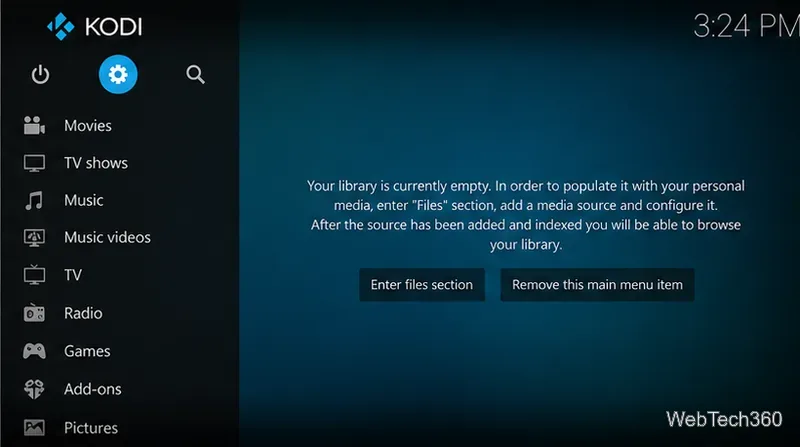
Back up your Kodi data first if you may want your library, watched status, playlists, add-ons, or settings later. The safest desktop backup is a copy of the entire Kodi data folder to a different location. The official Kodi backup guide also describes the Backup add-on available through Kodi’s own repository.
Make sure Kodi is fully closed before copying or renaming folders. If it remains open, it may rewrite settings while you are making changes. Do not confuse Clear cache, which deletes temporary files, with Clear data, which removes the saved Kodi setup.
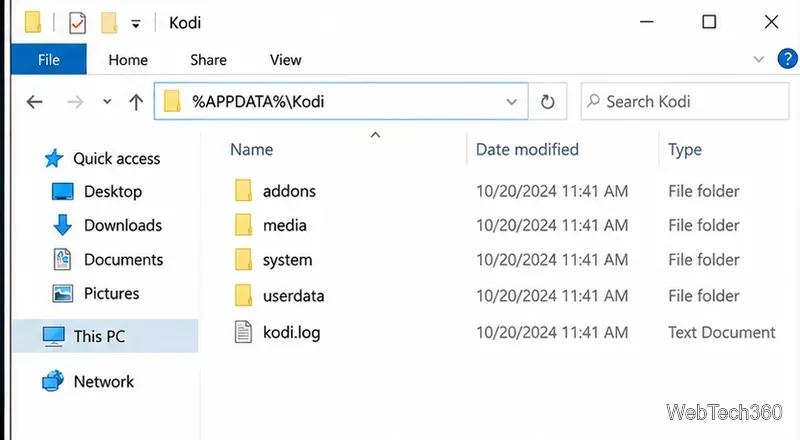
Installed Kodi from the Microsoft Store? Its data lives in a different location. Open %LOCALAPPDATA%\Packages\XBMCFoundation.Kodi_4n2hpmxwrvr6p\LocalCache\Roaming and back up or rename the Kodi folder there instead. Kodi’s Windows installation instructions explain both locations.
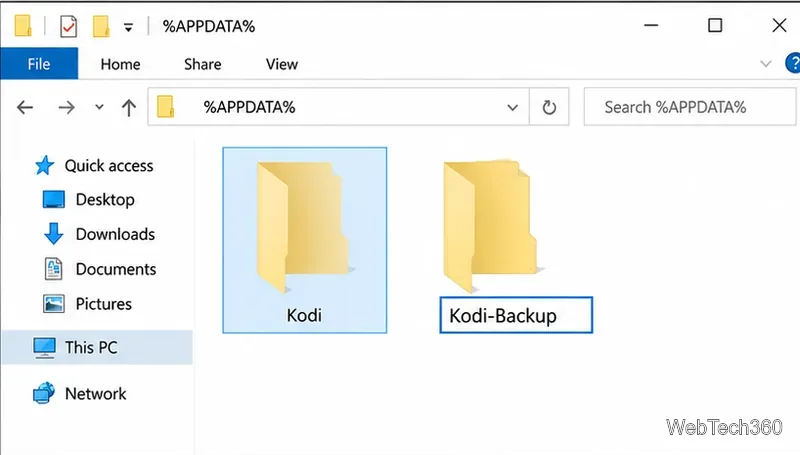
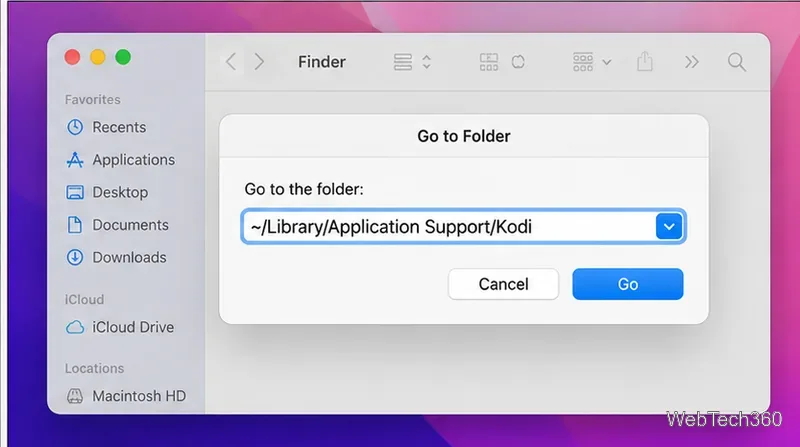
Moving only the Kodi application from Applications to Trash may leave the Application Support folder behind. That is why a reinstall alone is not always a complete reset. The Kodi data-folder reference documents the path.
Exact menu labels depend on the manufacturer and Android version. Clearing only the cache is not a factory reset. Google’s Android storage guidance distinguishes cached files from persistent app data. On newer Android versions, direct access to Kodi’s hidden data folder can be restricted, so the device’s app settings are usually simpler.
Do not choose “Reset to Factory Defaults” for the entire Fire TV just to fix Kodi: doing so affects other apps and device settings. Amazon documents the app-management route in its Fire TV application instructions.
On a regular Linux desktop installation, close Kodi and back up, then rename ~/.kodi to ~/.kodi-old. On LibreELEC, the Kodi data folder is /storage/.kodi; use its built-in backup tools before making advanced file changes. Flatpak installations use a different folder, so consult the official platform-specific path list first.
Uninstalling and reinstalling Kodi is not a reliable reset on every platform. Desktop uninstallers may leave user data in place, causing the same configuration to appear after installation. When a fresh install is necessary, obtain it from the official Kodi download page rather than an unknown third-party build.
For most users, the safest fresh start is to back up first, reset only Kodi’s data, and reopen the app. You can then reinstall just the add-ons you still need.
Learn how to uninstall a Kodi repository safely, remove its saved source URL separately, and check which installed add-ons or dependencies you still need.
Find the safest way to watch live tennis with Kodi: learn what iPlayer WWW can stream, how to find licensed coverage, and which add-ons to avoid.
Learn how to watch movies on Kodi from your computer, USB drive, or NAS, add online video services, and fix missing titles with clear setup steps.
Set a Kodi Master Lock PIN, protect selected menus, and create a separate kids’ profile with media sources you choose.
Find the authorized stream for your country, check whether its provider supports Kodi, and watch a boxing PPV on your TV without relying on outdated add-ons.
Compare five Kodi skins in the official Omega catalog, then follow the current Settings path to install one, customize it, or switch back.
Looking for the 1Channel Kodi add-on? Learn why old PrimeWire installation guides are unreliable and how to install a supported video add-on safely.
Enable Kodi’s Chorus2 web interface, control your media from any browser, and learn how to connect remotely without exposing Kodi to the Internet.
Follow the original Nemesis Kodi installation process, learn what changed with Stream Army, and avoid outdated repository and PIN instructions.
Download Kodi safely on Windows using the official installer or Microsoft Store, then add your media library and set up trusted add-ons.








