How to Uninstall Kodi Repositories the Right Way

Learn how to uninstall a Kodi repository safely, remove its saved source URL separately, and check which installed add-ons or dependencies you still need.
Kodi profiles let people share one Kodi installation while keeping different settings, media libraries, and media sources. You can create a profile for each family member, keep a separate setup for testing add-ons, or customize the appearance of a shared TV. The process starts in Kodi’s profile settings and does not require an extra account or subscription.
Each profile can have its own skin, view preferences, add-on settings, keymaps, and media information. You decide whether to reuse the master profile’s media sources or keep a separate list. The default Master user profile already exists; you add other profiles alongside it.
Important: Profiles organize access inside Kodi, but they are not strong security boundaries. Someone with access to your computer’s files or certain Kodi remote-control features may be able to bypass profile locks. For sensitive or truly restricted content, also use device accounts and file-system permissions. See Kodi’s official profiles documentation.
The following labels follow Kodi’s standard Estuary-style interface. Your skin may arrange the screens differently.
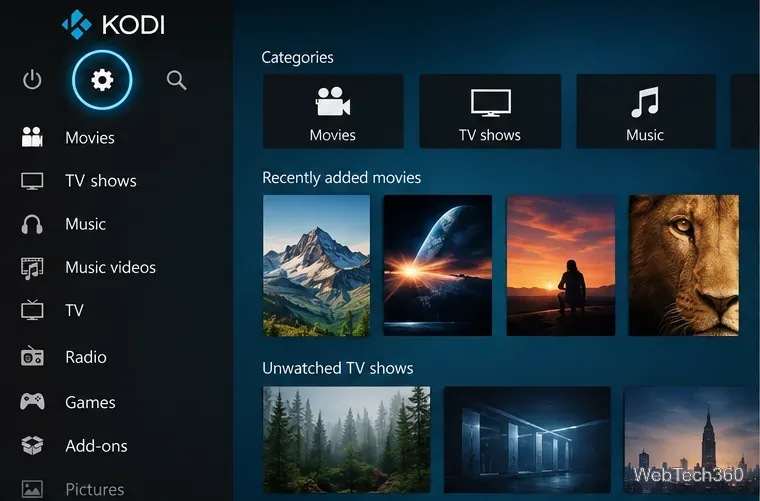
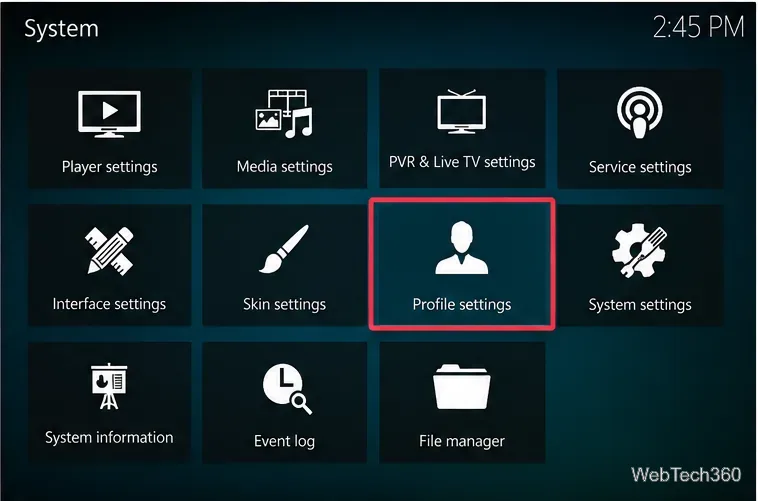
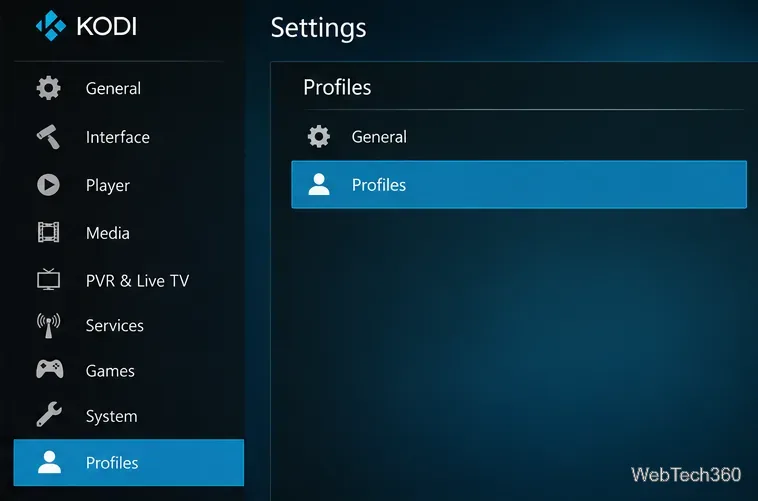
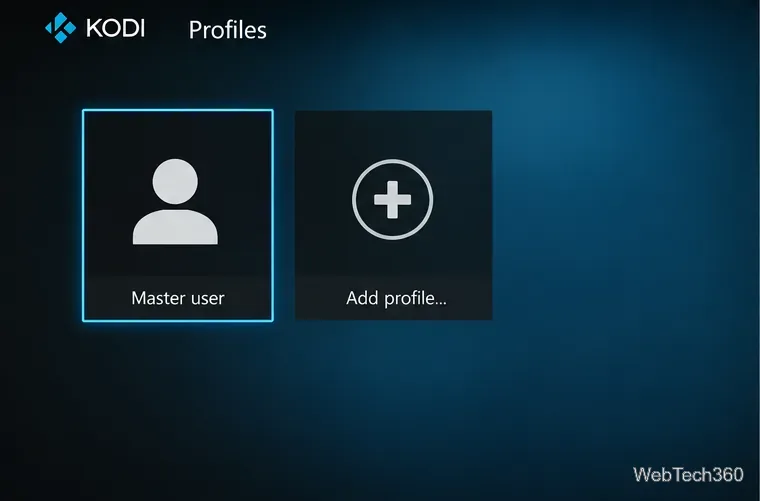
userdata/profiles directory.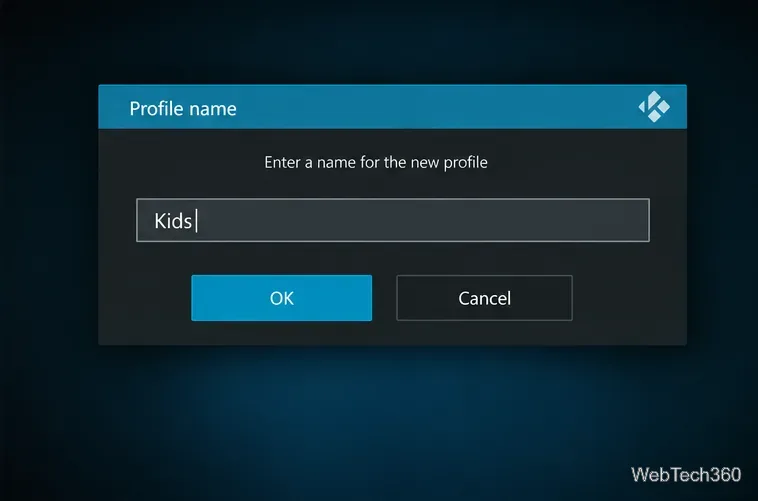
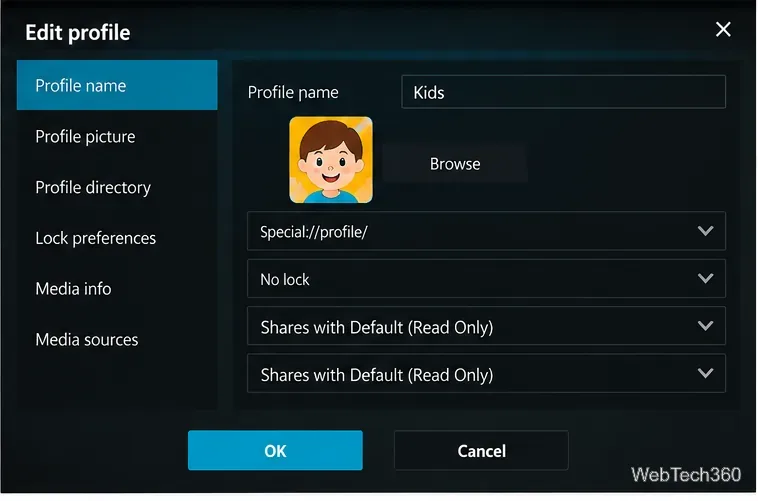
Kodi treats Media info (library records, including titles and watched states) separately from Media sources (the folders or network locations that Kodi scans). You can configure each independently:
For a family profile with its own watched status, choose separate media information. To point several profiles at the same movie folders, share or copy media sources as appropriate. Copying settings or sources during setup creates a starting configuration; it is not the same as maintaining a shared source list.
Return to Settings → Profiles → Profiles, open the context menu on the profile you want, and choose Load profile. On a keyboard, the C key opens Kodi’s context menu; supported remotes have an equivalent menu command. You can also open the power menu and choose Log off to select another user.
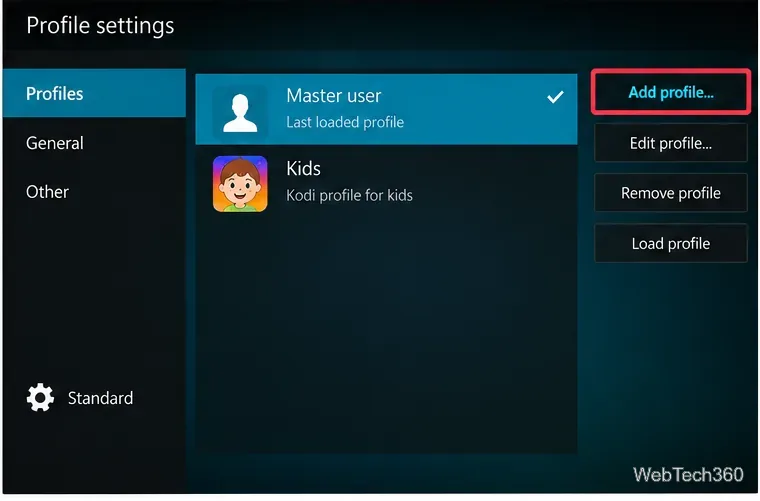
To make profile selection appear whenever Kodi starts, open Settings → Profiles → General and turn on Show login screen on startup. If you leave that option off, Automatic Login on startup lets you use the last-used profile or select a particular one. These settings are documented in Kodi’s Profile settings reference.
Choose a profile from the Profiles list to review its options. For a household setup, consider a distinct profile picture and limited media sources. To protect settings from casual changes, configure Lock preferences or Kodi’s Master lock. A profile lock does not encrypt your data or replace operating-system permissions; Kodi explains these limitations in its Master lock documentation.
To remove an unused profile, open its context menu in the Profiles list and choose Delete. Back up any profile-specific library information, add-on settings, or other data you want to retain before confirming. Do not edit or delete profiles.xml manually just to manage accounts.
If an add-on or skin is available in Master user but missing in another profile, check Add-ons → My add-ons: it may already be installed but disabled for that profile. Enable it there if needed. The screen below shows Kodi’s add-on area, which can differ according to installed add-ons and skin.
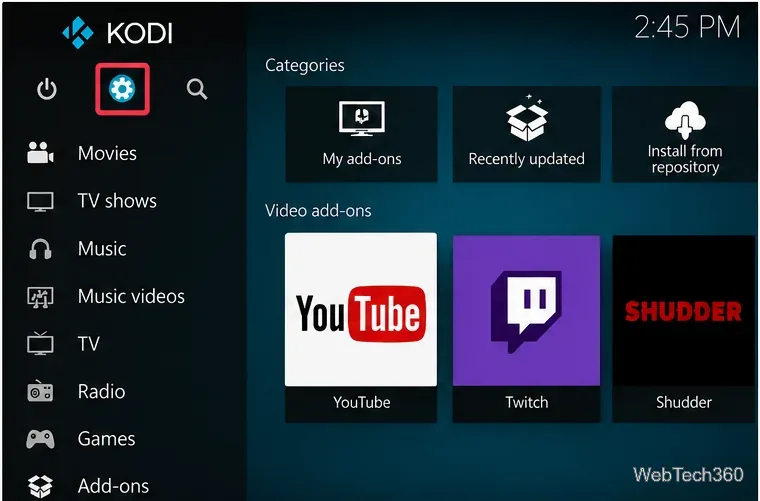
If the interface looks incomplete after switching profiles, restart Kodi. Kodi also documents a skin-reload workaround for affected systems, but advanced keymap changes are generally unnecessary for routine profile use. If users can see media you intended to hide, review both the profile’s source-sharing selection and the underlying folder permissions.
Kodi profiles work best as a way to personalize a shared media center: give each user a familiar home screen, select the right library and sources, and use login selection when the device serves multiple people.
Learn how to uninstall a Kodi repository safely, remove its saved source URL separately, and check which installed add-ons or dependencies you still need.
Find the safest way to watch live tennis with Kodi: learn what iPlayer WWW can stream, how to find licensed coverage, and which add-ons to avoid.
Learn how to watch movies on Kodi from your computer, USB drive, or NAS, add online video services, and fix missing titles with clear setup steps.
Set a Kodi Master Lock PIN, protect selected menus, and create a separate kids’ profile with media sources you choose.
Find the authorized stream for your country, check whether its provider supports Kodi, and watch a boxing PPV on your TV without relying on outdated add-ons.
Compare five Kodi skins in the official Omega catalog, then follow the current Settings path to install one, customize it, or switch back.
Looking for the 1Channel Kodi add-on? Learn why old PrimeWire installation guides are unreliable and how to install a supported video add-on safely.
Enable Kodi’s Chorus2 web interface, control your media from any browser, and learn how to connect remotely without exposing Kodi to the Internet.
Follow the original Nemesis Kodi installation process, learn what changed with Stream Army, and avoid outdated repository and PIN instructions.
Download Kodi safely on Windows using the official installer or Microsoft Store, then add your media library and set up trusted add-ons.








