How to Uninstall Kodi Repositories the Right Way

Learn how to uninstall a Kodi repository safely, remove its saved source URL separately, and check which installed add-ons or dependencies you still need.
To set up PVR IPTV Simple Client on Kodi, install it from the official repository, then point it to an M3U playlist from a service or source you are authorized to use. XMLTV guide data is optional: add it in the client’s EPG settings if your provider supplies a compatible file or URL. Kodi provides the player interface; it does not supply channels or a subscription.
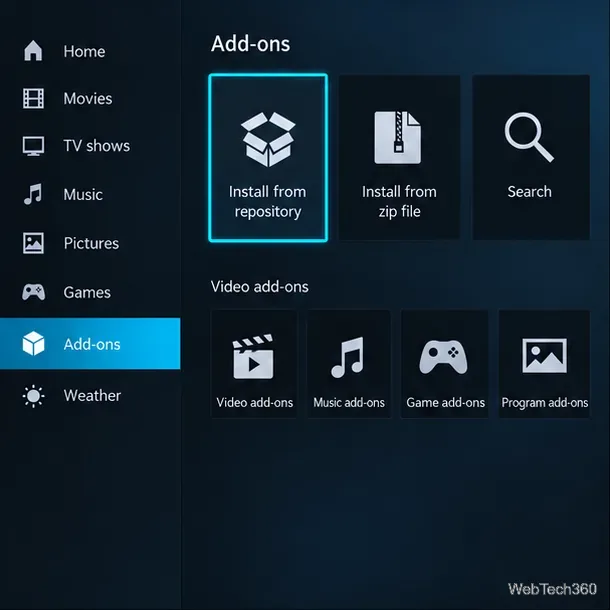
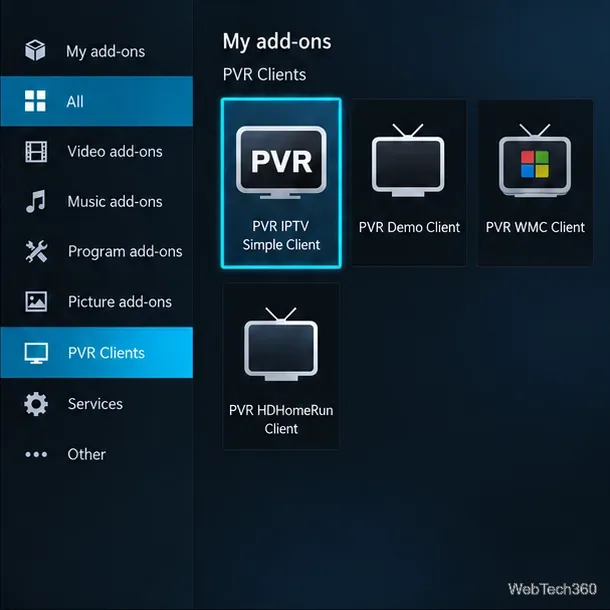
The screens below are Kodi-style interface illustrations. Menu wording and layout can vary by Kodi release, platform, and skin.
Treat playlist URLs as private credentials. Some include an account name, password, or access token. Do not post yours publicly, and use an HTTPS address when your provider offers one.
In Kodi, open Settings > Add-ons > Install from repository > PVR clients. Select PVR IPTV Simple Client, choose Install, and wait for Kodi to finish. Kodi’s official PVR guide lists PVR clients in the official repository; if the labels differ, look in the Add-on browser for the PVR clients category.
Go to Settings > Add-ons > My add-ons > PVR clients, select PVR IPTV Simple Client, then choose Configure. You can also open the add-on’s information page after installation and select Configure there.
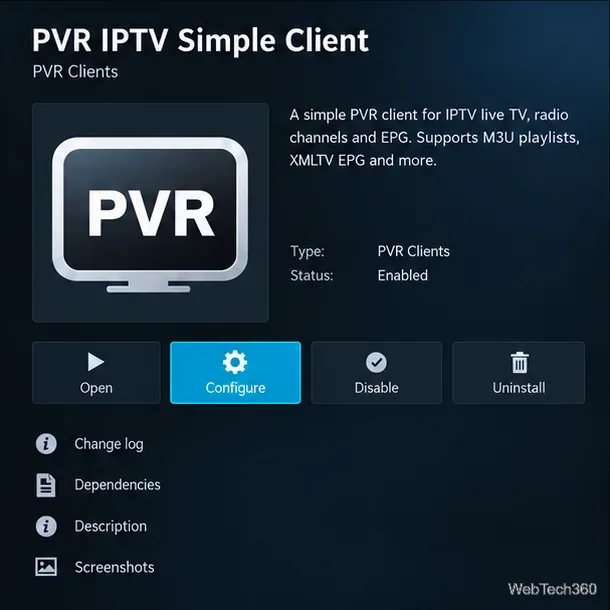
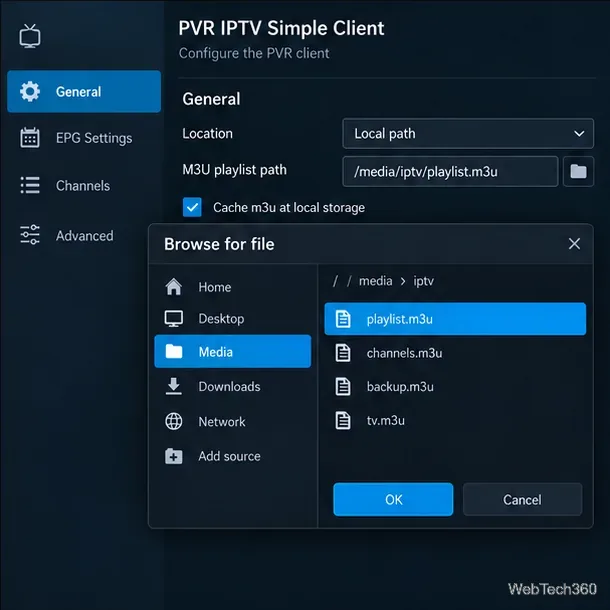
In the client’s General settings, find Location. Choose Remote path if your provider gave you a web address, or Local path if you saved the M3U file on the device or a network location Kodi can browse.
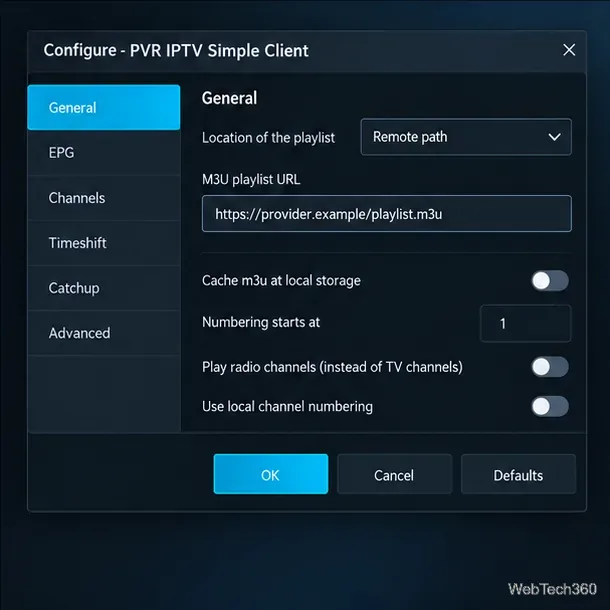
For a remote playlist, enter the full M3U URL in M3U playlist URL. Keep any query string or token supplied by your provider intact. For a local playlist, choose Local path, open M3U playlist path, and browse to the file. The add-on supports a device path or a local network path; the location must be readable from Kodi on the device running it.
If you are troubleshooting a file you created yourself, a basic M3U contains a header, a channel entry, and a stream address. For example:
#EXTM3U
#EXTINF:-1 tvg-id="sample.channel",Example Channel
https://stream.example.invalid/live/channel.m3u8
The address above is only a format example and will not play. The upstream documentation describes the supported M3U fields and formats.
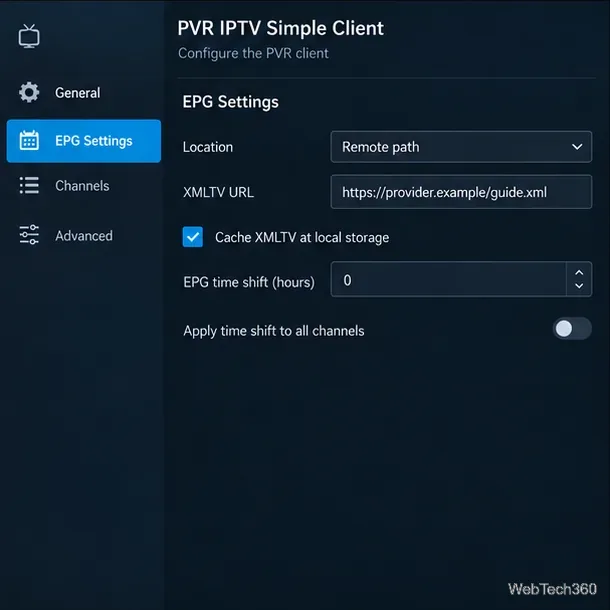
Open the client’s EPG settings. Choose Remote path and enter the XMLTV URL, or select Local path and browse to the XMLTV file. Save the settings with OK. The channel IDs in the playlist should correspond to the IDs in the guide; when they do not match, Kodi may show channels but no program titles. Leave the EPG time shift at zero unless the guide consistently displays programs at the wrong time.
Choose OK to save. Confirm that the client is enabled; if its details page offers Enable, select it. Kodi then loads the playlist and, if configured, guide data. A large list or slow remote server can take a little time to process. If Kodi displays a prompt to reload PVR data or restart, follow that prompt.
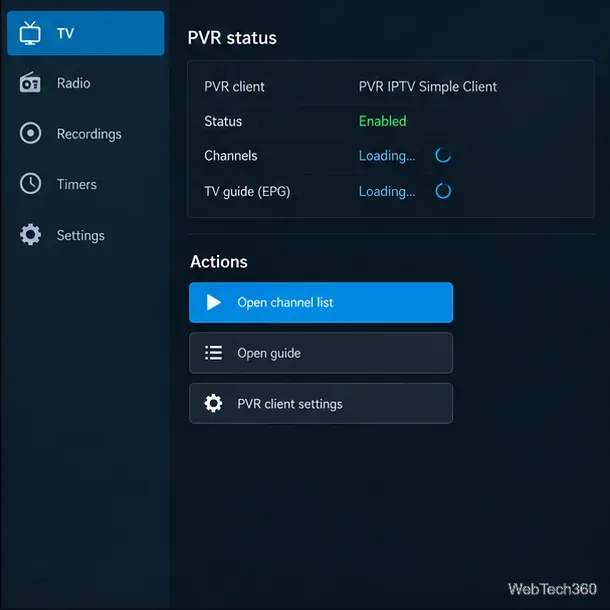
Return to Kodi’s home screen and open TV, then Channels. If the playlist contains radio entries, open Radio to see them. The menu can appear only after Kodi’s PVR service has initialized, and the exact navigation depends on the skin.
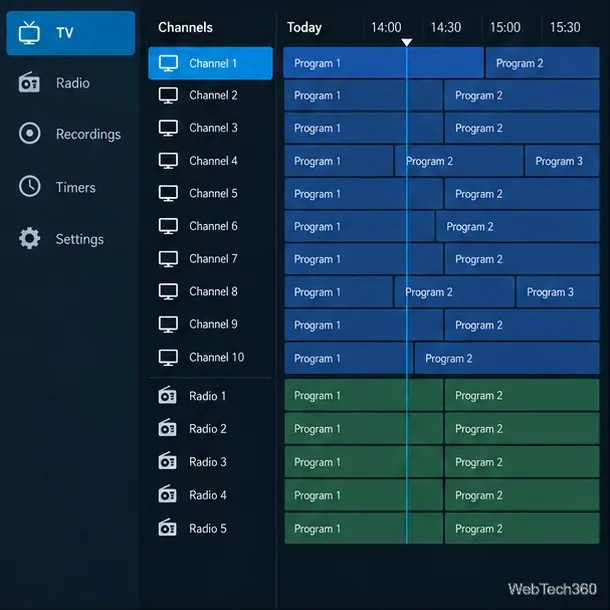
Choose TV > Guide to browse listings. A blank guide does not necessarily mean the playlist failed: channel playback and EPG data are separate. If you see channels but no program information, verify the XMLTV location and channel-ID mapping before changing other settings.
For exact setting descriptions and supported playlist and XMLTV fields, consult the Kodi Wiki page for PVR IPTV Simple Client and the upstream IPTV Simple documentation.
Learn how to uninstall a Kodi repository safely, remove its saved source URL separately, and check which installed add-ons or dependencies you still need.
Find the safest way to watch live tennis with Kodi: learn what iPlayer WWW can stream, how to find licensed coverage, and which add-ons to avoid.
Learn how to watch movies on Kodi from your computer, USB drive, or NAS, add online video services, and fix missing titles with clear setup steps.
Set a Kodi Master Lock PIN, protect selected menus, and create a separate kids’ profile with media sources you choose.
Find the authorized stream for your country, check whether its provider supports Kodi, and watch a boxing PPV on your TV without relying on outdated add-ons.
Compare five Kodi skins in the official Omega catalog, then follow the current Settings path to install one, customize it, or switch back.
Looking for the 1Channel Kodi add-on? Learn why old PrimeWire installation guides are unreliable and how to install a supported video add-on safely.
Enable Kodi’s Chorus2 web interface, control your media from any browser, and learn how to connect remotely without exposing Kodi to the Internet.
Follow the original Nemesis Kodi installation process, learn what changed with Stream Army, and avoid outdated repository and PIN instructions.
Download Kodi safely on Windows using the official installer or Microsoft Store, then add your media library and set up trusted add-ons.








