How to Uninstall Kodi Repositories the Right Way

Learn how to uninstall a Kodi repository safely, remove its saved source URL separately, and check which installed add-ons or dependencies you still need.
A slow Fire TV Stick usually points to laggy menus or video buffering. If navigation is slow, check apps, storage, updates, and then restart. If menus respond but playback pauses, troubleshoot Wi-Fi first. These steps help when software or network conditions are at fault; they cannot change the device's hardware limits.
Menu names vary by model; look for My Fire TV or Device & Software.
If one app freezes or opens slowly, inspect it first. Removing apps you no longer use can free storage and help isolate trouble, but uninstalling everything will not reliably speed up the Stick. Fire TV settings show available storage on supported versions.
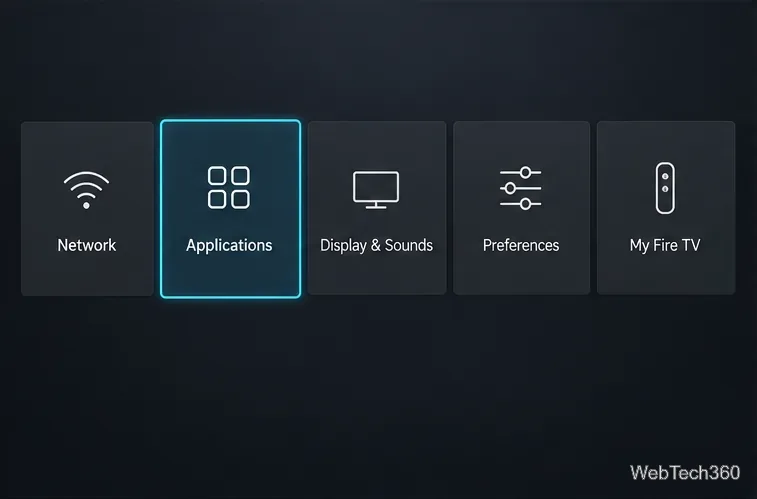
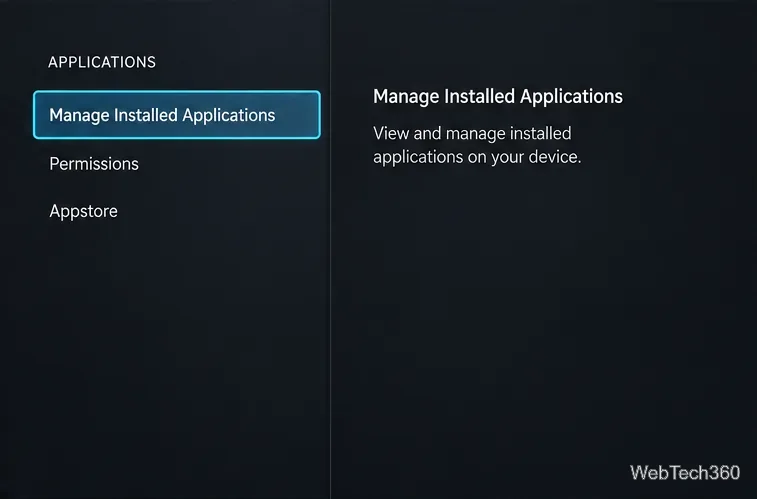
Remove sideloaded apps only if you know you no longer need them. If storage is adequate and apps work, deleting more may not help.
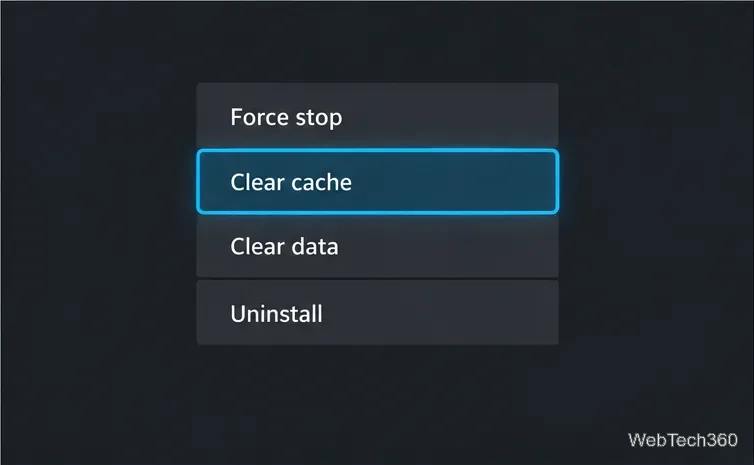
If one streaming app is the problem, clear its temporary cache before clearing its data or reinstalling it. Go to Settings > Applications > Manage Installed Applications, choose the app, then select Clear cache. Return to the app and test it again.
Clear data can reset settings or sign you out, so try it only if needed. Options vary by app and model. See Amazon's cache and data instructions.
Fire TV downloads software updates when online, but you can check manually if the interface is acting up. Open Settings > My Fire TV or Device & Software > About > Check for System Update. Install any offered update before testing playback.
See Amazon's Fire TV update guide. App updates are separate and may appear in the Appstore.
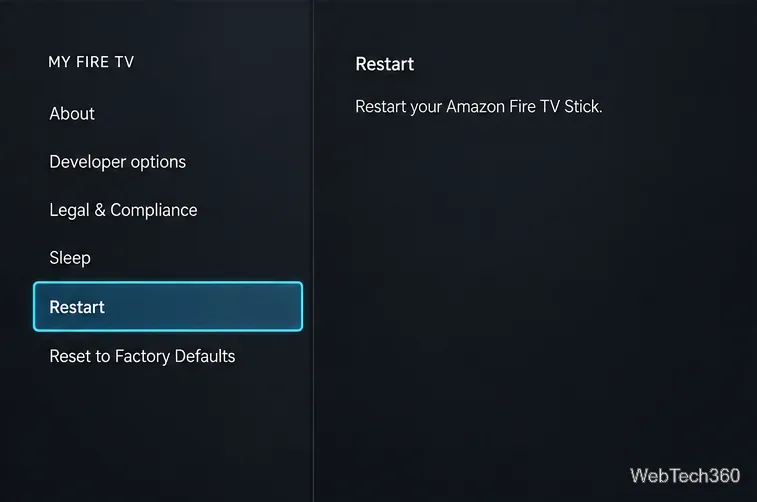
A restart is a good first fix for temporary menu lag, a stuck app, or a device that has been running for a long time. Go to Settings > My Fire TV or Device & Software > Restart, then confirm. If the screen is frozen, Amazon also documents holding Select and Play/Pause together on the remote for about five seconds on compatible devices.
A restart does not erase your apps or settings. Follow Amazon's restart instructions if your menu labels differ.
If the home screen is responsive but video pauses, test whether one app or several are affected. For multiple apps, open Settings > Network, select your network, and press Play/Pause on supported devices to open Network Status. It checks the Wi-Fi link to the router separately from the router's internet connection. Some models also show a speed test or advanced details.
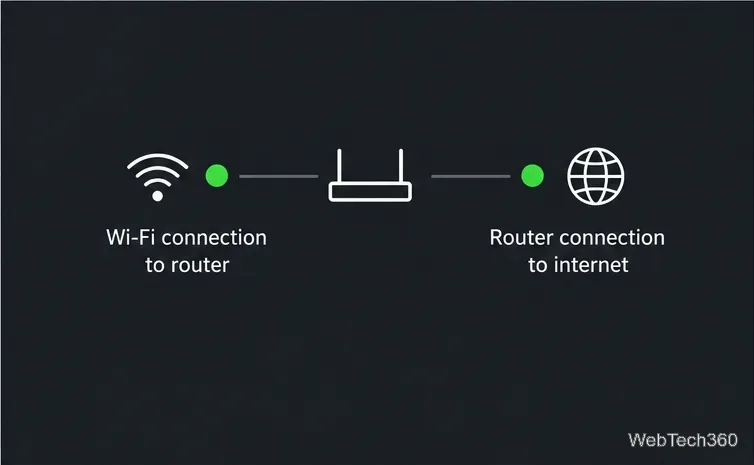
If one app buffers, test another and check the first for an update or service issue. If other devices also lose internet, suspect the router, modem, or provider. See Amazon's Network Status guide and Wi-Fi troubleshooting steps.
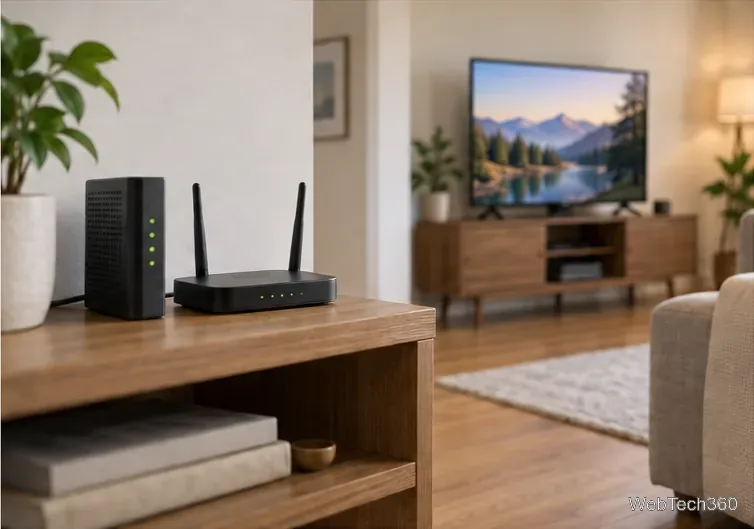
Move the Fire TV Stick and router closer if practical, and reduce walls or furniture between them. If the connection still stalls, restart the modem and router: unplug both for one minute, reconnect the modem first, and wait for it to reconnect to the internet. Then reconnect the router and give it time to come back online. If you use a VPN, temporarily disconnect it as a diagnostic test; a VPN does not add bandwidth and can sometimes route traffic more slowly.
Reset only after app, update, restart, and network checks fail. A reset removes downloaded apps and local settings. Note your apps and make sure you know your Amazon sign-in details. Open Settings > My Fire TV or Device & Software > Reset to Factory Defaults, then confirm. You will need to set up the Stick and reinstall apps.
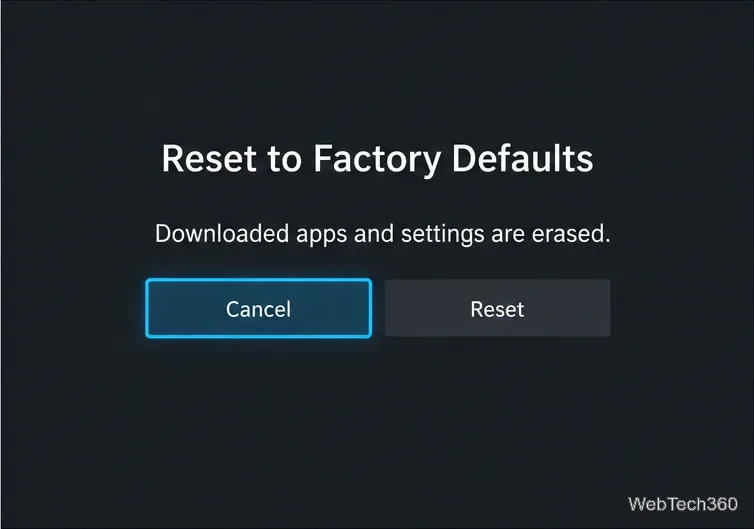
See Amazon's factory-reset instructions. If the Stick remains slow after a reset while other devices stream normally, the device's age or hardware may be the limiting factor; repeating the reset is unlikely to help.
| What you notice | Try first |
|---|---|
| Home screen or menus lag | Restart, check available storage, and inspect apps that crash. |
| One app buffers or freezes | Clear that app's cache, update it, and test another app. |
| Several apps buffer | Run Network Status, improve Wi-Fi placement, and restart modem/router. |
| Nothing has helped | Back up your app list and consider a factory reset as the final software step. |
Skip one-tap cleaner apps: use Fire TV's cache control for app issues and troubleshoot Wi-Fi when video buffers.
Learn how to uninstall a Kodi repository safely, remove its saved source URL separately, and check which installed add-ons or dependencies you still need.
Find the safest way to watch live tennis with Kodi: learn what iPlayer WWW can stream, how to find licensed coverage, and which add-ons to avoid.
Learn how to watch movies on Kodi from your computer, USB drive, or NAS, add online video services, and fix missing titles with clear setup steps.
Set a Kodi Master Lock PIN, protect selected menus, and create a separate kids’ profile with media sources you choose.
Find the authorized stream for your country, check whether its provider supports Kodi, and watch a boxing PPV on your TV without relying on outdated add-ons.
Compare five Kodi skins in the official Omega catalog, then follow the current Settings path to install one, customize it, or switch back.
Looking for the 1Channel Kodi add-on? Learn why old PrimeWire installation guides are unreliable and how to install a supported video add-on safely.
Enable Kodi’s Chorus2 web interface, control your media from any browser, and learn how to connect remotely without exposing Kodi to the Internet.
Follow the original Nemesis Kodi installation process, learn what changed with Stream Army, and avoid outdated repository and PIN instructions.
Download Kodi safely on Windows using the official installer or Microsoft Store, then add your media library and set up trusted add-ons.








