How to Uninstall Kodi Repositories the Right Way

Learn how to uninstall a Kodi repository safely, remove its saved source URL separately, and check which installed add-ons or dependencies you still need.
Quasar can play BitTorrent media inside Kodi while pieces download, but it is a legacy add-on. Its latest listed release is v0.9.78, dated April 13, 2017; the project README names Kodi 16 as its minimum, with no current compatibility guarantee for Kodi 21.3 Omega. Treat this as a controlled test, not a supported install.
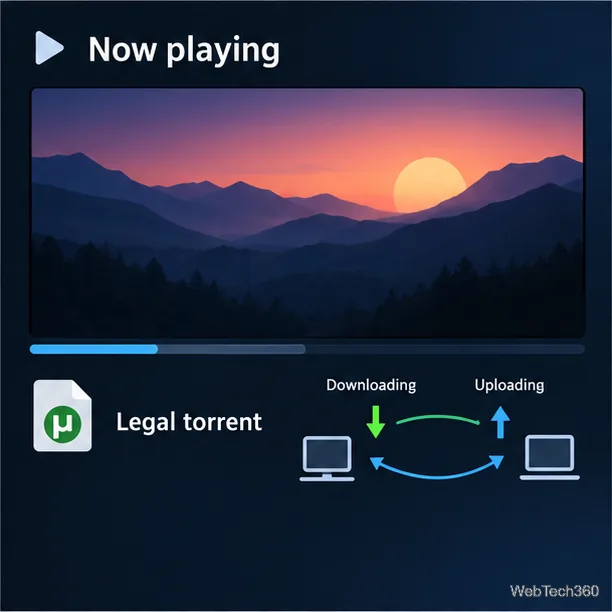
Use only torrents you have permission to download and share. BitTorrent peers exchange file pieces, so your device may upload data while playing. That is part of the protocol, not an optional privacy setting.
Quasar combines a Kodi video add-on with a BitTorrent engine. Its project documentation says it can use TMDB and Trakt for media information, then call separately installed provider add-ons to find torrent links. Those providers are not an authorized catalog. This guide does not list provider packs or torrent-indexing sites.
Kodi warns that third-party add-ons can access personal data on your device. Manually installed ZIP add-ons also require you to verify compatibility and updates. Read Kodi’s Add-on manager instructions before enabling unknown sources.
Open the official Quasar releases page. Its newest listed release is v0.9.78 from April 2017. If you continue, choose a prebuilt ZIP asset for your exact operating system and processor architecture. Do not use GitHub’s “Download ZIP” source-code archive; the project README says to use a release package. If there is no matching asset, or Kodi reports an incompatibility, stop instead of installing files from an unknown mirror.
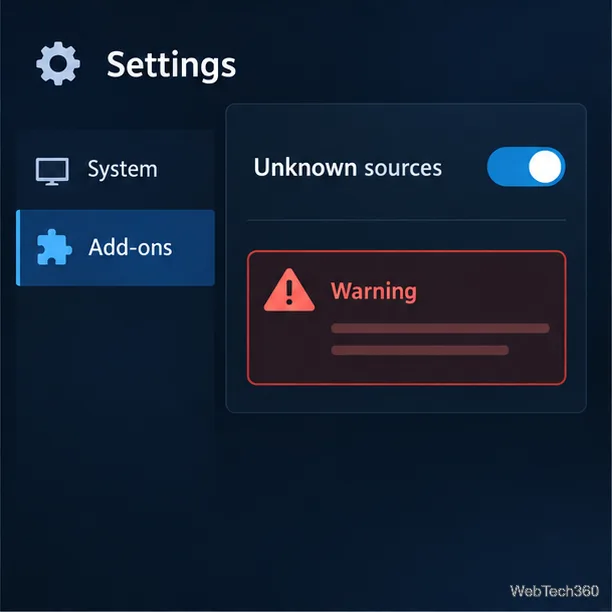
Copy the verified ZIP to your Kodi device. Open Add-ons, select the open-box add-on browser, then choose Install from zip file. If Kodi asks for Unknown sources, review its warning before proceeding. In current Kodi, this setting is under Settings → System → Add-ons; labels can vary by skin and version. Enable it only for a package you trust, then turn it off again after installation. See Kodi’s add-on settings documentation.
In Quasar, choose a writable local download folder with enough free space. The old project README also asks users to enable both application-control options under Settings → Services → Control, then restart Kodi if needed. Those settings let applications communicate with Kodi. If you test them, keep the device on a trusted private network, block the control port from the public internet, and do not forward it through your router. If you cannot keep access local, do not proceed.
Quasar’s prompts may not match current Kodi screens, and an installed ZIP can still fail at runtime. Do not downgrade Kodi to an obsolete release just to make the add-on run.
If Quasar exposes Add Torrent, select a local .torrent file supplied by a rights-holder or another source that expressly permits sharing. Older instructions also describe using a direct torrent-file URL. Do not use provider add-ons to find copyrighted streams without permission. Menu labels differ, and current operation is not verified for Kodi 21.3.
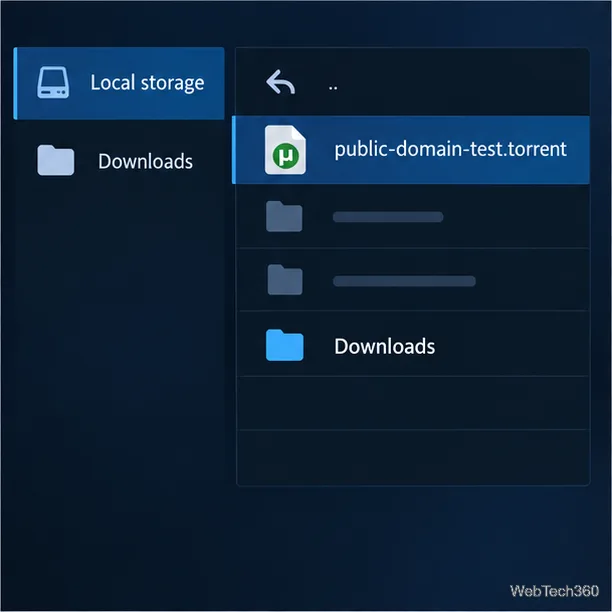
If the torrent contains several files, select the permitted media file. Then wait while Quasar locates peers and builds a playback buffer. A torrent with few reachable peers may start slowly or fail; no add-on can guarantee a stream. Avoid seeking far ahead before enough data is ready. Stop the torrent in Kodi when finished if you do not want transfers to continue.
For most users, no. Quasar’s newest listed release dates to 2017, while Kodi’s current stable version is 21.3. Kodi says manually installed add-ons may not update through its official repository and that users must check compatibility themselves. To play legal files already on your network, add them to Kodi’s library. For torrent transfers, use a maintained client from a source you trust, then play completed files in Kodi. Quasar is best treated as a historical project for an isolated test—not a dependable way to find movies or TV shows today.
Read the Quasar project README, the BitTorrent protocol specification, Kodi’s third-party add-on warning, and the Kodi 21.3 Omega release notes for the source details.
Learn how to uninstall a Kodi repository safely, remove its saved source URL separately, and check which installed add-ons or dependencies you still need.
Find the safest way to watch live tennis with Kodi: learn what iPlayer WWW can stream, how to find licensed coverage, and which add-ons to avoid.
Learn how to watch movies on Kodi from your computer, USB drive, or NAS, add online video services, and fix missing titles with clear setup steps.
Set a Kodi Master Lock PIN, protect selected menus, and create a separate kids’ profile with media sources you choose.
Find the authorized stream for your country, check whether its provider supports Kodi, and watch a boxing PPV on your TV without relying on outdated add-ons.
Compare five Kodi skins in the official Omega catalog, then follow the current Settings path to install one, customize it, or switch back.
Looking for the 1Channel Kodi add-on? Learn why old PrimeWire installation guides are unreliable and how to install a supported video add-on safely.
Enable Kodi’s Chorus2 web interface, control your media from any browser, and learn how to connect remotely without exposing Kodi to the Internet.
Follow the original Nemesis Kodi installation process, learn what changed with Stream Army, and avoid outdated repository and PIN instructions.
Download Kodi safely on Windows using the official installer or Microsoft Store, then add your media library and set up trusted add-ons.








