How to Uninstall Kodi Repositories the Right Way

Learn how to uninstall a Kodi repository safely, remove its saved source URL separately, and check which installed add-ons or dependencies you still need.
If you want to remove a Kodi build completely, close Kodi, back up anything you want to keep, and reset Kodi’s data folder. Kodi has no universal “uninstall build” button because builds can change the skin, add-ons, repositories, sources, and profile settings. Moving the data folder aside lets Kodi create a clean one the next time it starts.
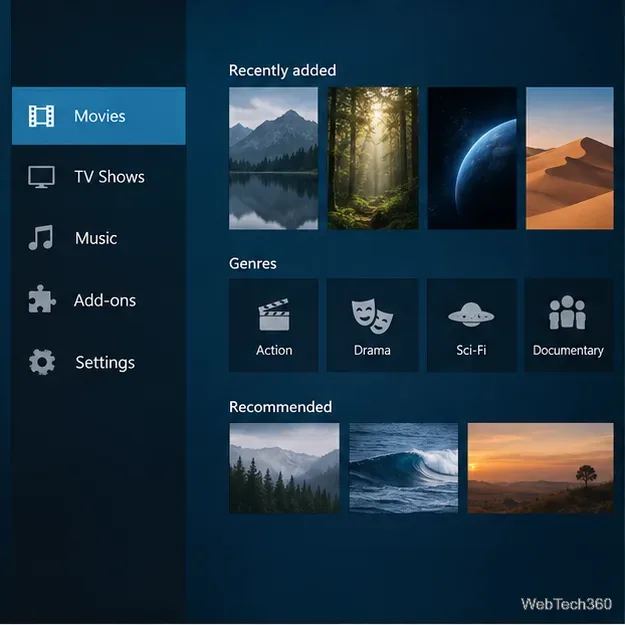
Kodi stores user changes in its data folder, including installed add-ons and skins, library databases, playlists, and settings. A full reset removes the build’s customizations along with your own Kodi preferences and library entries. It does not normally delete video or music files stored elsewhere on your device. If you manually saved media inside Kodi’s data folder, move those files first so they are not caught in the reset.
For a full rollback, copy the entire Kodi data folder to a different drive or location before changing it. Kodi’s backup guide explains that a full copy preserves the add-ons, skins, library databases, playlists, and settings. Restoring that full backup will also restore the build, so keep it only as a safety copy if your goal is a clean start.
If you mainly want to preserve video-library details, use Kodi’s library export and choose Separate Files. Kodi writes NFO metadata files alongside the media, which can be read again when you scan those folders after the reset. The video library export guide describes the options. Also note where your media folders and network shares are located; you will need to add those sources again.
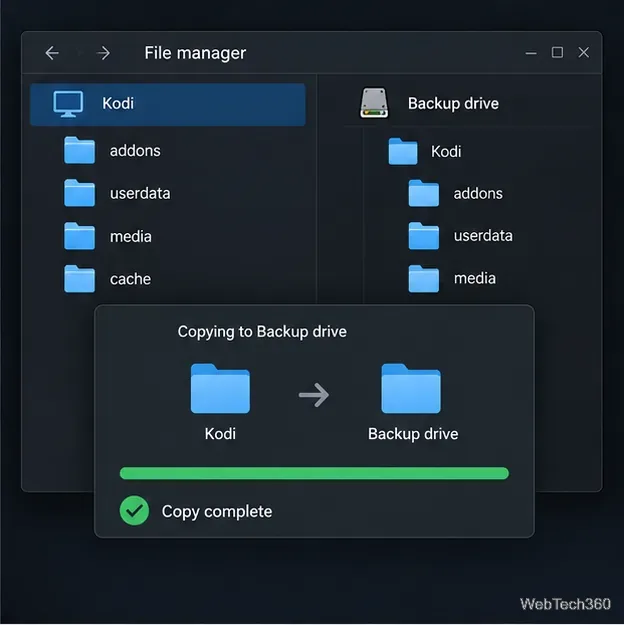
Use the path for your installation type. Kodi’s data-folder reference lists additional platforms and notes that Android paths can vary.
| Platform | Kodi data folder |
|---|---|
| Windows desktop installer | %APPDATA%\Kodi |
| Windows Microsoft Store or Xbox | %LOCALAPPDATA%\Packages\XBMCFoundation.Kodi_4n2hpmxwrvr6p\LocalCache\Roaming\Kodi |
| Windows portable | <Kodi install folder>\portable_data |
| macOS | ~/Library/Application Support/Kodi |
| Linux | ~/.kodi |
| Linux Flatpak | ~/.var/app/tv.kodi.Kodi/data |
| Android and many TV devices | Android/data/org.xbmc.kodi/files/.kodi |
| LibreELEC / OSMC | /storage/.kodi / /home/osmc/.kodi |
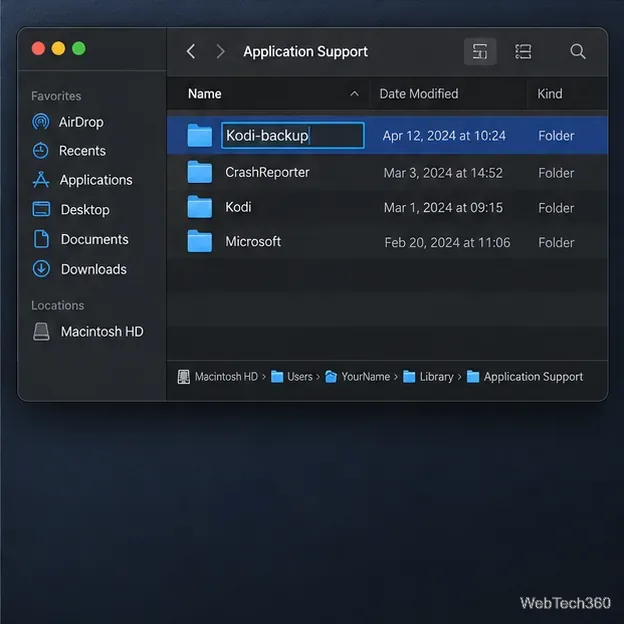
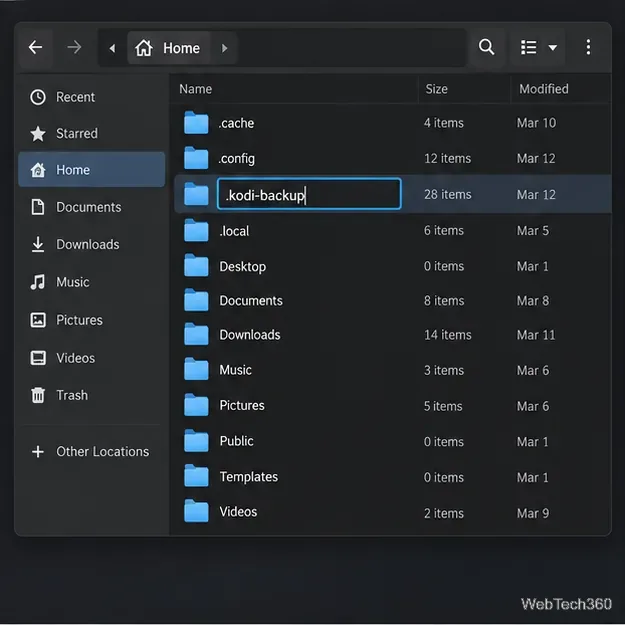
%APPDATA%, and press Enter to find the desktop-installer folder. For the Store version, open its full path from the table in File Explorer. On macOS, use Finder’s Go > Go to Folder and enter the path. On Linux, show hidden files to see .kodi.Kodi-backup on Windows and macOS or .kodi-backup on Linux. Renaming is reversible and leaves the backup outside Kodi’s active folder name. For a portable Windows installation, rename portable_data in the Kodi installation location.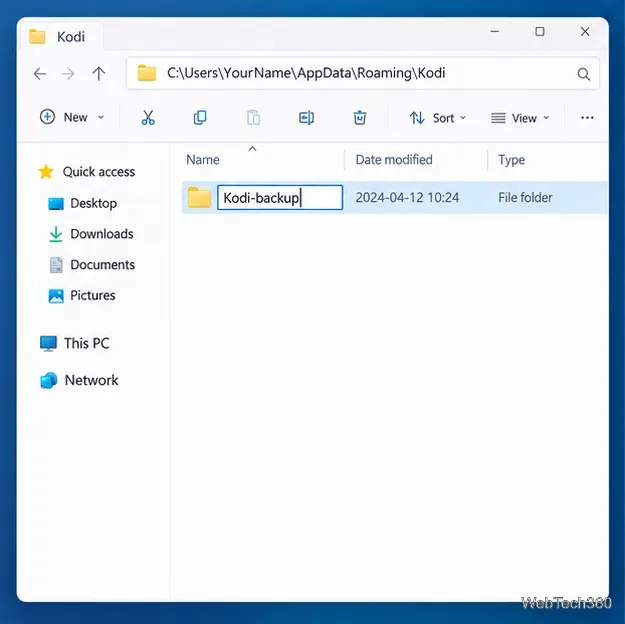
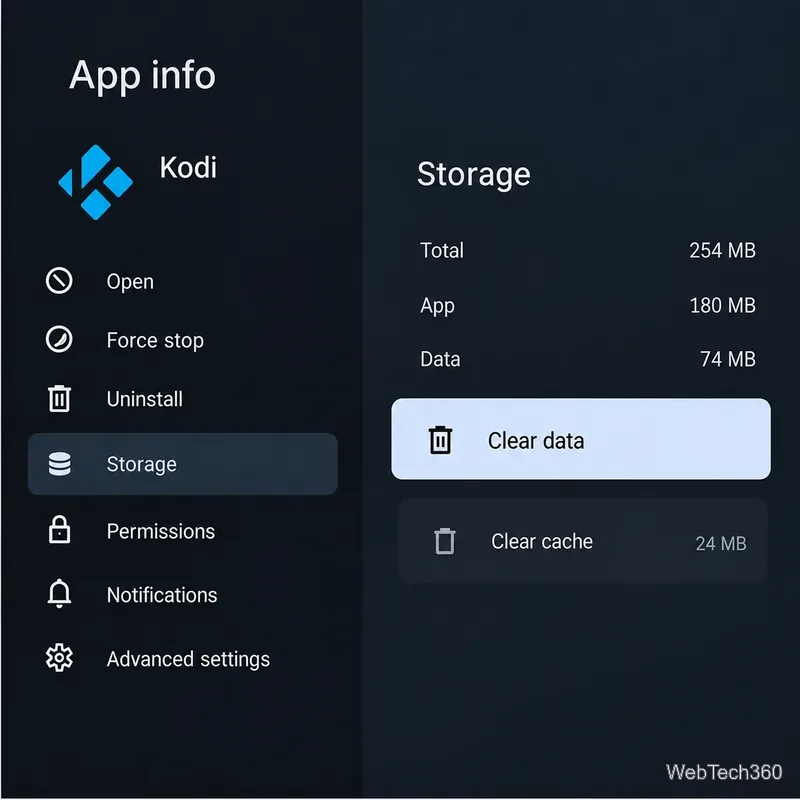
Android/data.Android Help: clear an app’s cache and data
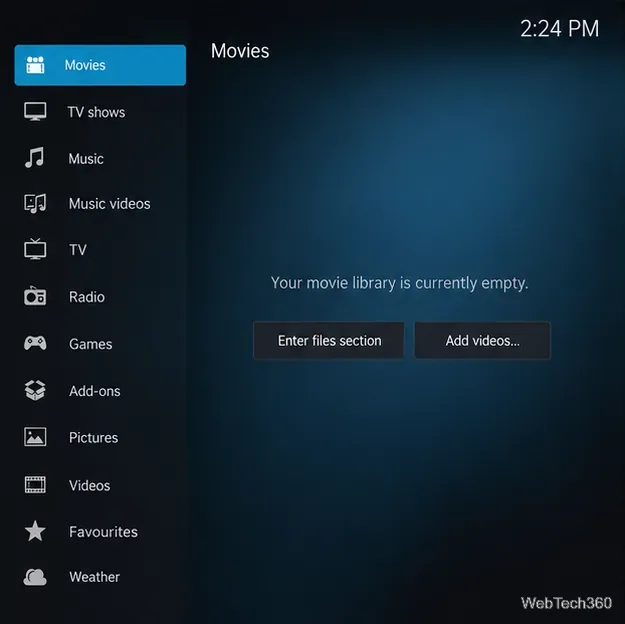
After the reset, the default-style home screen should appear without the old custom skin or add-ons. If the build is still there, Kodi may still be open or you may have renamed a different data folder; check the installation type and repeat with Kodi fully closed.
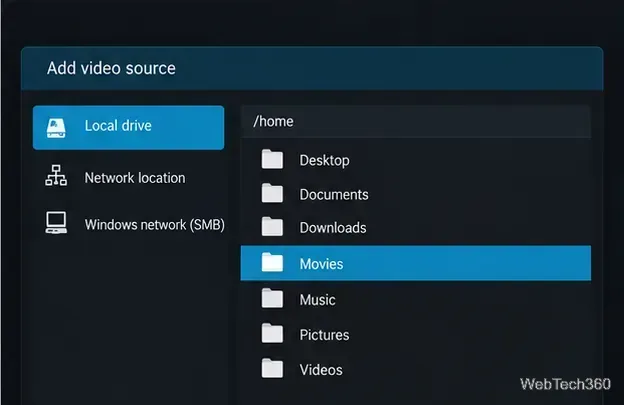
Add your local or network media folders again and scan them into the library. If you exported separate NFO files, Kodi can use them during its normal scan. Reinstall only the add-ons you still need from sources you trust; do not copy the entire old data folder back if you want to keep the build removed.
To undo the reset, quit Kodi, move its newly created data folder aside, and restore your saved folder under the original name. Kodi advises keeping a full-data restore on the same operating system and major Kodi version.
Learn how to uninstall a Kodi repository safely, remove its saved source URL separately, and check which installed add-ons or dependencies you still need.
Find the safest way to watch live tennis with Kodi: learn what iPlayer WWW can stream, how to find licensed coverage, and which add-ons to avoid.
Learn how to watch movies on Kodi from your computer, USB drive, or NAS, add online video services, and fix missing titles with clear setup steps.
Set a Kodi Master Lock PIN, protect selected menus, and create a separate kids’ profile with media sources you choose.
Find the authorized stream for your country, check whether its provider supports Kodi, and watch a boxing PPV on your TV without relying on outdated add-ons.
Compare five Kodi skins in the official Omega catalog, then follow the current Settings path to install one, customize it, or switch back.
Looking for the 1Channel Kodi add-on? Learn why old PrimeWire installation guides are unreliable and how to install a supported video add-on safely.
Enable Kodi’s Chorus2 web interface, control your media from any browser, and learn how to connect remotely without exposing Kodi to the Internet.
Follow the original Nemesis Kodi installation process, learn what changed with Stream Army, and avoid outdated repository and PIN instructions.
Download Kodi safely on Windows using the official installer or Microsoft Store, then add your media library and set up trusted add-ons.








