How to Uninstall Kodi Repositories the Right Way

Learn how to uninstall a Kodi repository safely, remove its saved source URL separately, and check which installed add-ons or dependencies you still need.
To update Kodi on a smart TV, use the same route you used to install it: Google Play for Android TV or Google TV, the official Android package for a sideloaded installation, or a new IPK package through Developer Mode on a compatible LG webOS TV. A TV firmware update is separate from a Kodi app update.
Kodi currently labels v21.3 “Omega” as the Recommended stable Android build; Kodi 22 “Piers” RC 1 remains prerelease. For everyday use, choose Recommended and check Kodi’s Android downloads and release notice.
In TV Settings, check About, Device Preferences, or System for the operating system. Android TV and Google TV support Kodi; LG webOS has an official build with a more technical install. Because one brand can use different systems across models, check the OS instead of relying on the brand name.
In Kodi, open Settings (gear) > System information > Summary. The version and build details appear at the bottom right. Compare the number with the Recommended release on Kodi’s download page; the System Information guide shows where to find it.
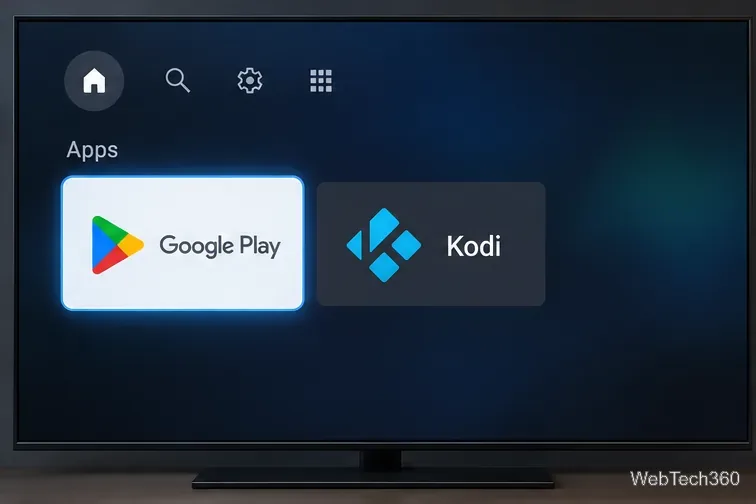
If Kodi came from Google Play, let the store update it. Google’s menu names can vary slightly by TV model, but the update list is the most reliable place to check.
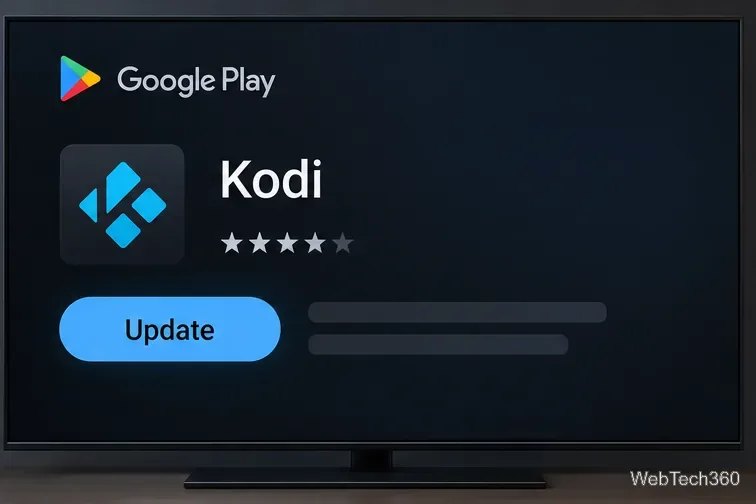
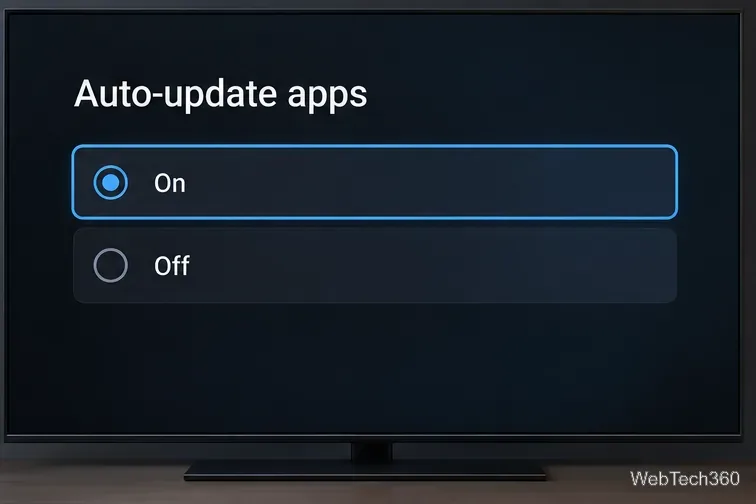
Google’s Android TV instructions use the same My Apps update list. If you prefer automatic updates, open My Apps > Open settings > Auto-update apps and turn the setting on.
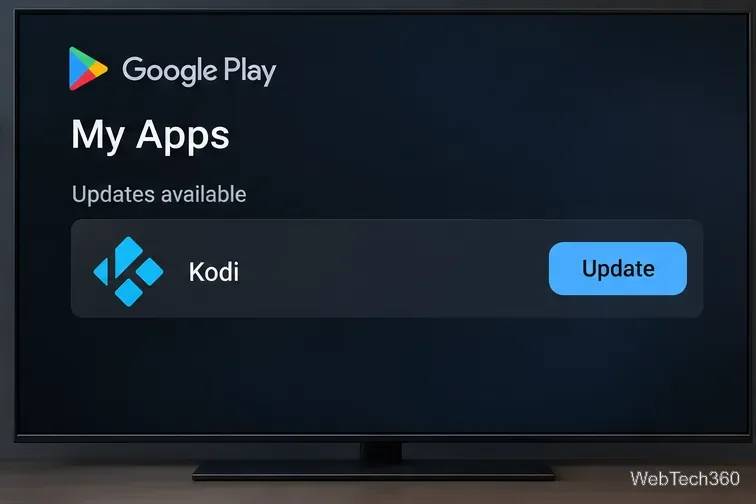
If Kodi does not appear under Updates available, the store may not have delivered the build to your device yet. Confirm the installed version first; do not uninstall Kodi just to force an update.
Use this route if Kodi was installed from an APK. On Android TV and compatible Fire TV models running Android-based Fire OS, install the new package over the existing app.
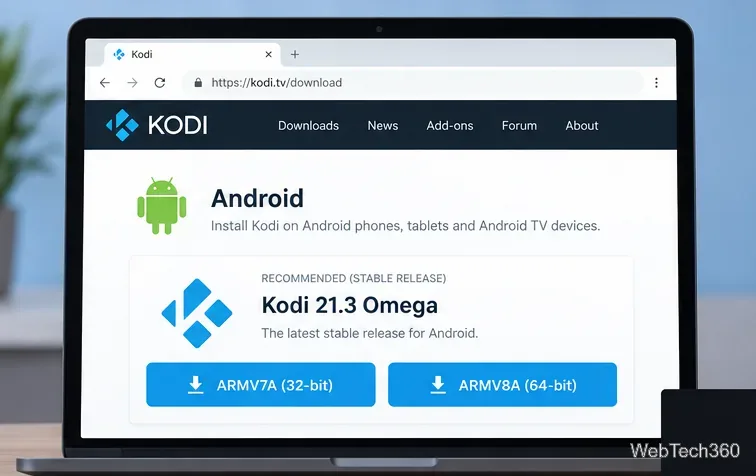
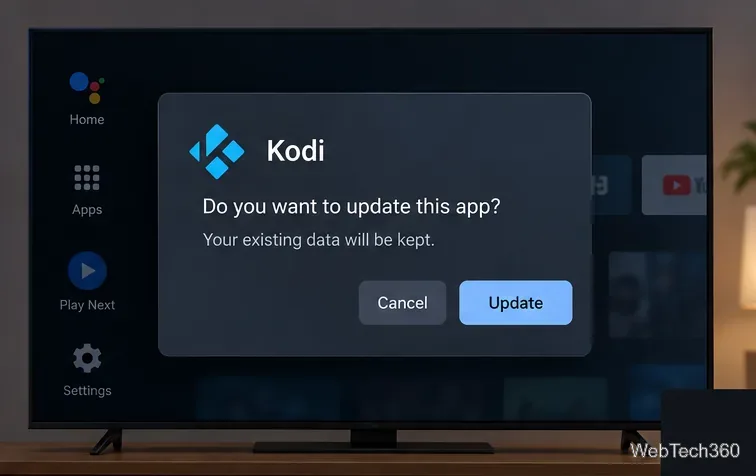
Kodi says official signed Android releases install over the existing app and preserve its settings and files. Back up Kodi data before a major version change. Do not uninstall first: Android deletes user data during uninstall. If a signature or package conflict appears, check whether your current copy is an unofficial build before removing it.
Fire TV models vary: Fire OS is Android-based, while newer models use Vega OS and cannot use Kodi’s Android APK. Check the device’s OS first and follow Kodi’s Fire TV guide for compatible models.
Kodi now publishes a stable webOS build, correcting older guidance that said LG TVs could not run Kodi. Its webOS download page provides an IPK package, and the Kodi webOS guide explains the Developer Mode setup.
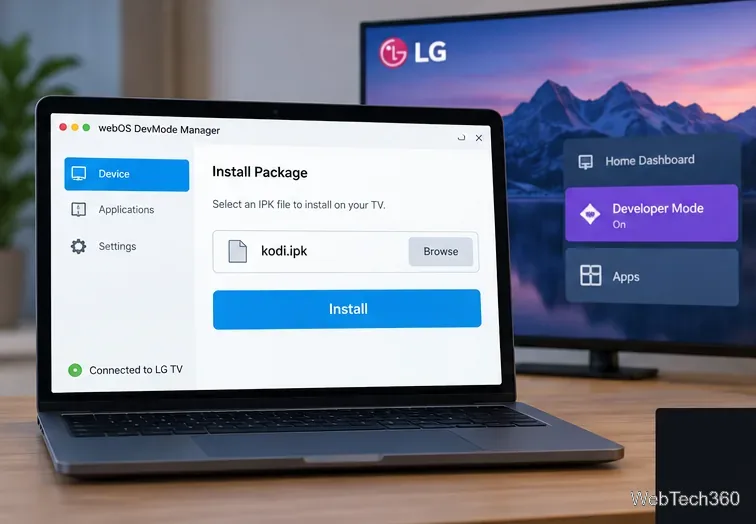
Kodi’s official downloads do not include a Samsung Tizen package, so a TV firmware update will not add Kodi support. If your TV cannot run Kodi, use a compatible HDMI-connected player.
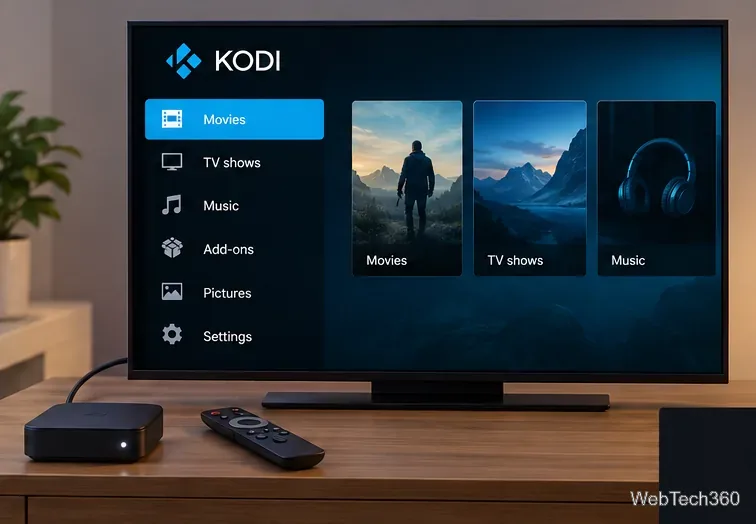
Check the internet connection and free storage, then restart the TV and retry through the same installation source. For APKs, verify the architecture and stable channel. If the installer reports a package conflict, back up Kodi and identify the current build before removing it.
Learn how to uninstall a Kodi repository safely, remove its saved source URL separately, and check which installed add-ons or dependencies you still need.
Find the safest way to watch live tennis with Kodi: learn what iPlayer WWW can stream, how to find licensed coverage, and which add-ons to avoid.
Learn how to watch movies on Kodi from your computer, USB drive, or NAS, add online video services, and fix missing titles with clear setup steps.
Set a Kodi Master Lock PIN, protect selected menus, and create a separate kids’ profile with media sources you choose.
Find the authorized stream for your country, check whether its provider supports Kodi, and watch a boxing PPV on your TV without relying on outdated add-ons.
Compare five Kodi skins in the official Omega catalog, then follow the current Settings path to install one, customize it, or switch back.
Looking for the 1Channel Kodi add-on? Learn why old PrimeWire installation guides are unreliable and how to install a supported video add-on safely.
Enable Kodi’s Chorus2 web interface, control your media from any browser, and learn how to connect remotely without exposing Kodi to the Internet.
Follow the original Nemesis Kodi installation process, learn what changed with Stream Army, and avoid outdated repository and PIN instructions.
Download Kodi safely on Windows using the official installer or Microsoft Store, then add your media library and set up trusted add-ons.








