How to Uninstall Kodi Repositories the Right Way

Learn how to uninstall a Kodi repository safely, remove its saved source URL separately, and check which installed add-ons or dependencies you still need.
To update Kodi’s media library, select Update library from the video or music section’s side menu. To automate scans, enable Update library on startup or schedule the official Library Auto Update add-on if it is available for your Kodi release. A scan adds media to Kodi’s catalog; it does not update the Kodi application.
Before scanning, add the media folder as a Kodi source and assign it the right content type. Menu labels can vary by version, platform, and skin.
Startup scanning is the simplest automatic option. Kodi checks for new video or music content whenever it launches.
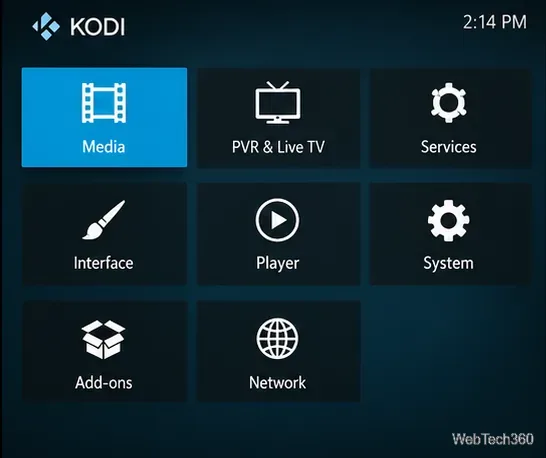
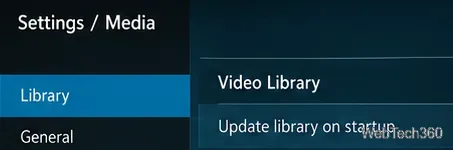
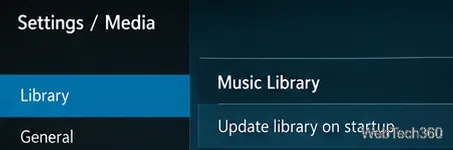
Startup scans may take time with large collections, and Kodi may contact an information provider while processing files. If your collection rarely changes, leave this option off and scan only when needed. See Kodi’s library settings guide for the video and music options.
Open Videos or Music from the home menu. In the library view, open the left side menu—usually with the left-arrow key or by moving the pointer to the left edge—and select Update library.
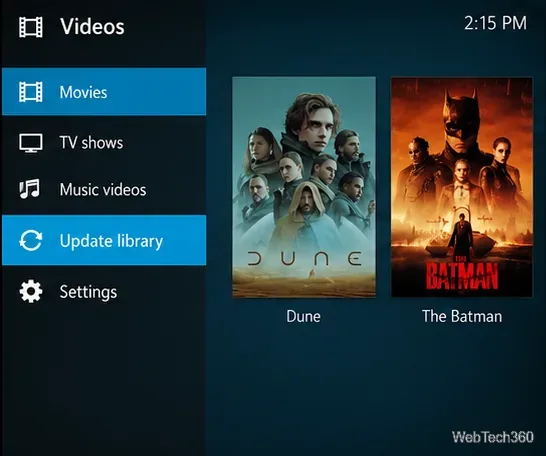
In Music, use the same command from a music library view to scan music sources. Kodi describes this as a global scan in its Update Music Library guide. The video update guide documents the equivalent procedure.
If you added files to one folder, scan only that source. Open Videos > Files, highlight the source, open its context menu, and choose Scan for new content. For music, open Music > Files, highlight the source, and choose Scan item to library.
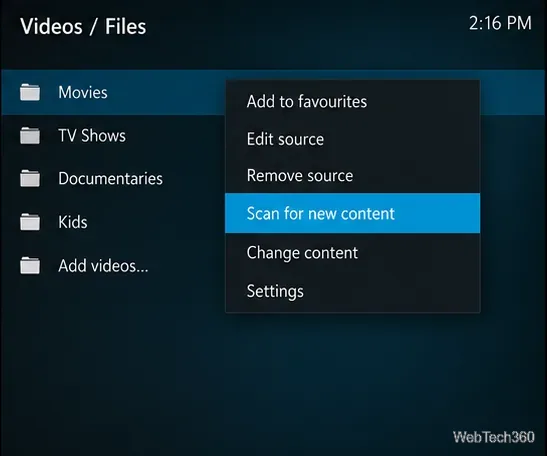
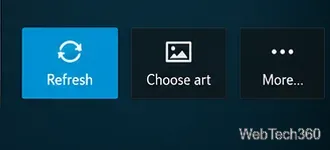
To add one movie or episode, use the scan command for that item in Files view. If the item is already in the library and you changed its metadata or artwork, open its information screen and choose Refresh. A normal scan looks for new content; it may not replace existing details from an edited NFO file or scraper result.
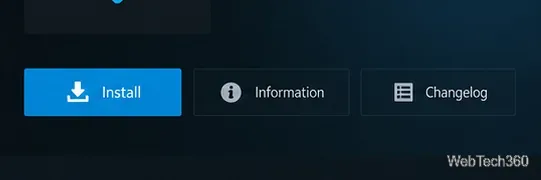
The Library Auto Update add-on can scan video and music libraries on an interval or a cron-style schedule. Open Settings > Add-ons > Install from repository to begin.
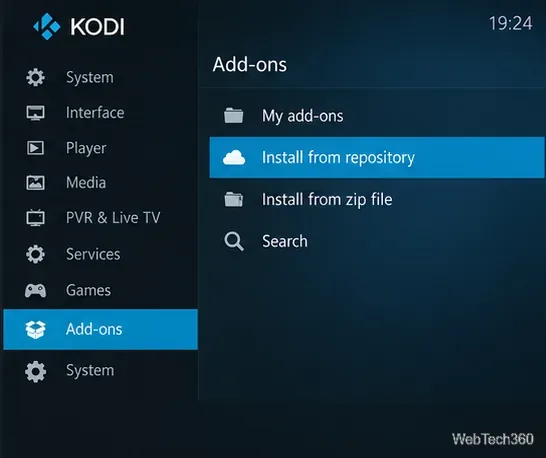
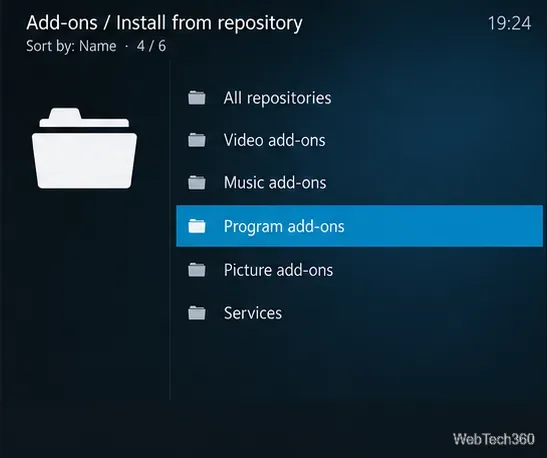
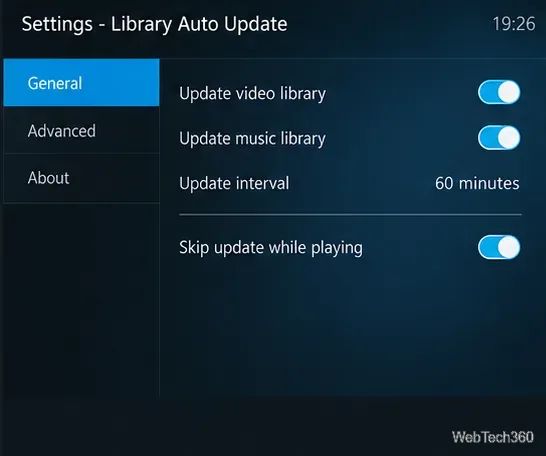
The settings let you choose video, music, or both; set an interval or cron-style timer; and skip an update while a file is playing. Use a schedule that matches how often your media changes.
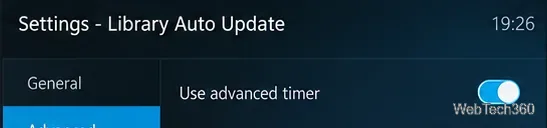
Check compatibility: Kodi’s Wiki entry currently lists Library Auto Update in the Kodi 20 and 21 repositories. If it is not available in the official repository for your installed release, use startup or manual scans instead. Read the official add-on page for its repository notes.
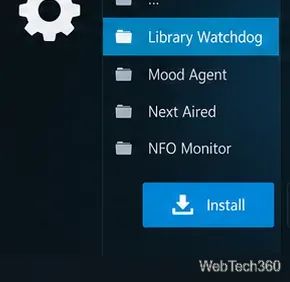
Kodi also documents Library Watchdog, a service that watches media sources for additions or removals. Its Wiki entry lists Kodi 20 and 21 repositories, so check that your version offers a compatible copy before relying on it.
For occasional additions, manual or startup scanning is usually enough. Use a scheduled add-on only when you need scans between sessions and it is compatible with your Kodi version.
Learn how to uninstall a Kodi repository safely, remove its saved source URL separately, and check which installed add-ons or dependencies you still need.
Find the safest way to watch live tennis with Kodi: learn what iPlayer WWW can stream, how to find licensed coverage, and which add-ons to avoid.
Learn how to watch movies on Kodi from your computer, USB drive, or NAS, add online video services, and fix missing titles with clear setup steps.
Set a Kodi Master Lock PIN, protect selected menus, and create a separate kids’ profile with media sources you choose.
Find the authorized stream for your country, check whether its provider supports Kodi, and watch a boxing PPV on your TV without relying on outdated add-ons.
Compare five Kodi skins in the official Omega catalog, then follow the current Settings path to install one, customize it, or switch back.
Looking for the 1Channel Kodi add-on? Learn why old PrimeWire installation guides are unreliable and how to install a supported video add-on safely.
Enable Kodi’s Chorus2 web interface, control your media from any browser, and learn how to connect remotely without exposing Kodi to the Internet.
Follow the original Nemesis Kodi installation process, learn what changed with Stream Army, and avoid outdated repository and PIN instructions.
Download Kodi safely on Windows using the official installer or Microsoft Store, then add your media library and set up trusted add-ons.








