How to Uninstall Kodi Repositories the Right Way

Learn how to uninstall a Kodi repository safely, remove its saved source URL separately, and check which installed add-ons or dependencies you still need.
ResolveURL is a background Kodi dependency, not a video catalog or a standalone player. Most users should install the add-on that needs it from a repository they trust; Kodi can then install ResolveURL as a dependency. To check it, open Kodi’s dependency manager. Add-on developers can declare script.module.resolveurl in their manifest and use ResolveURL’s current Python API.
ResolveURL is a fork of URLResolver. The maintained project identifies the package as script.module.resolveurl and publishes it through a separate Kodi repository. The project index listed version 5.1.212 when checked on October 27, 2026; use the live index for the current version because it can change. ResolveURL only handles links supported by its code and does not search the web for movies or shows. Use it with content you have the right to access.
A Kodi add-on may receive a page or file-host URL that is not itself a direct playable stream. ResolveURL tries to turn supported links into a stream URL that Kodi can open. It is a shared library used by other add-ons, so you normally interact with the parent add-on rather than opening ResolveURL from Kodi’s home screen.
ResolveURL and the older URLResolver are separate add-on packages. A fork does not automatically replace every older dependency or repair an add-on that has stopped working. Check the add-on’s own documentation before changing or removing anything.
repository.resolveurl package. A repository ZIP registers an update source; it is not the ResolveURL module itself.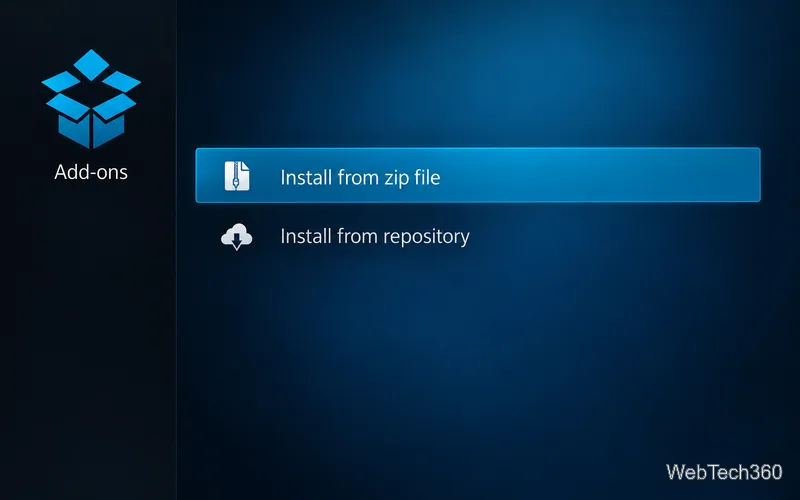
The Add-ons browser separates ZIP installation from browsing installed repositories.
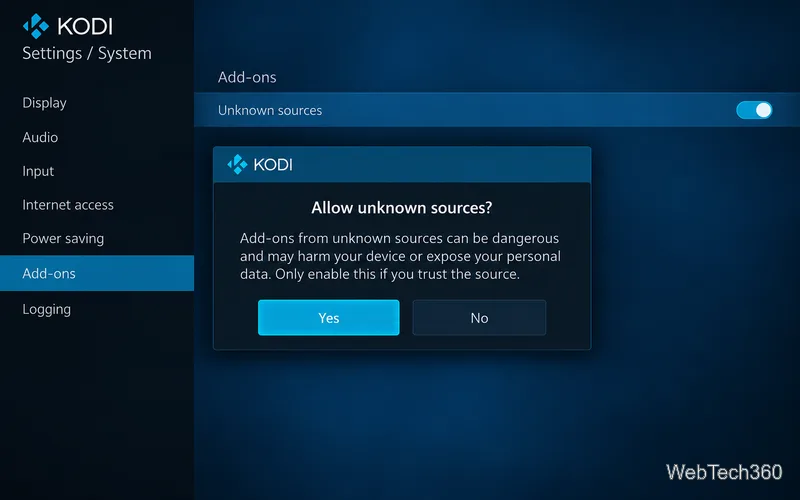
Kodi warns that add-ons from unknown sources may expose personal data.
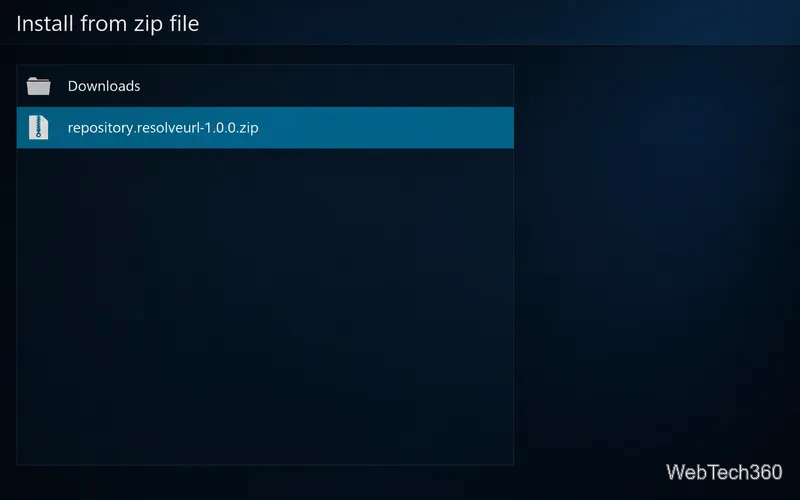
Select the repository ZIP you obtained from the maintainer’s archive.
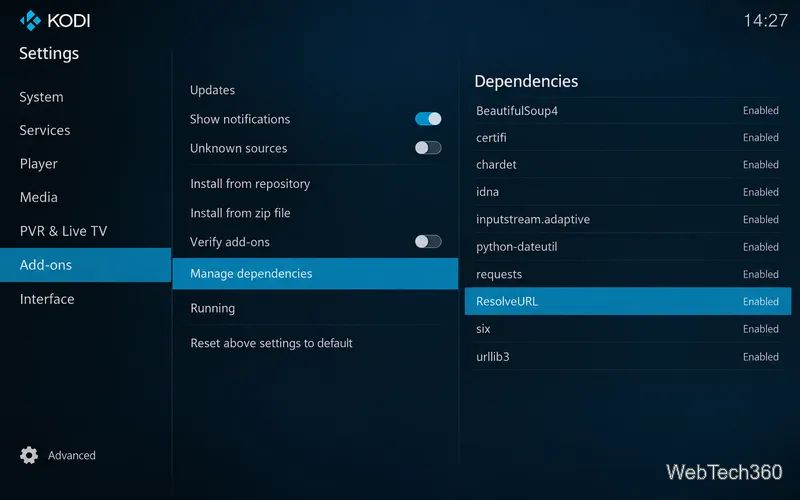
Manage dependencies is the place to confirm ResolveURL is present and enabled.
For developers, add ResolveURL as a required dependency in the add-on’s addon.xml. The version attribute is the minimum version your code needs; match it to the API you use and the Kodi versions you support.
<requires>
  <import addon="script.module.resolveurl" version="5.1.0" />
</requires>
Then use the upstream project’s HostedMediaFile interface to check and resolve a supported source URL:
import resolveurl

hosted_file = resolveurl.HostedMediaFile(source_url)
playable_url = hosted_file.resolve() if hosted_file else None

if not playable_url:
    # Report an unsupported or unavailable source to the user.
    pass
Pass the resulting URL to Kodi’s playback flow only after checking that the result is usable. A false or missing result can mean the host is unsupported, the source URL has expired, the host has changed its page, or the request failed. The resolver cannot make unavailable or unauthorized content playable.
The current interface and dependency example are documented in the ResolveURL source repository. Kodi’s add-on manifest guide explains automatic dependency resolution, and its Add-ons settings reference describes Manage dependencies and Unknown sources.
In short, install the add-on that needs ResolveURL from a trusted source, let Kodi manage its dependency, and use the maintained project documentation if you are developing an add-on. Avoid repositories or add-ons that offer copyrighted streams without authorization.
Learn how to uninstall a Kodi repository safely, remove its saved source URL separately, and check which installed add-ons or dependencies you still need.
Find the safest way to watch live tennis with Kodi: learn what iPlayer WWW can stream, how to find licensed coverage, and which add-ons to avoid.
Learn how to watch movies on Kodi from your computer, USB drive, or NAS, add online video services, and fix missing titles with clear setup steps.
Set a Kodi Master Lock PIN, protect selected menus, and create a separate kids’ profile with media sources you choose.
Find the authorized stream for your country, check whether its provider supports Kodi, and watch a boxing PPV on your TV without relying on outdated add-ons.
Compare five Kodi skins in the official Omega catalog, then follow the current Settings path to install one, customize it, or switch back.
Looking for the 1Channel Kodi add-on? Learn why old PrimeWire installation guides are unreliable and how to install a supported video add-on safely.
Enable Kodi’s Chorus2 web interface, control your media from any browser, and learn how to connect remotely without exposing Kodi to the Internet.
Follow the original Nemesis Kodi installation process, learn what changed with Stream Army, and avoid outdated repository and PIN instructions.
Download Kodi safely on Windows using the official installer or Microsoft Store, then add your media library and set up trusted add-ons.








