How to Uninstall Kodi Repositories the Right Way

Learn how to uninstall a Kodi repository safely, remove its saved source URL separately, and check which installed add-ons or dependencies you still need.
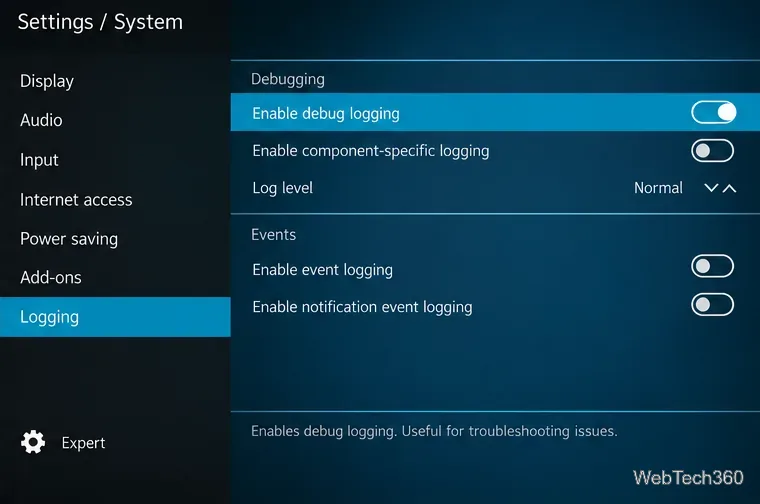
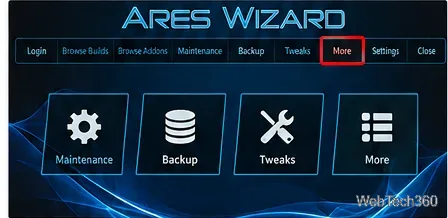
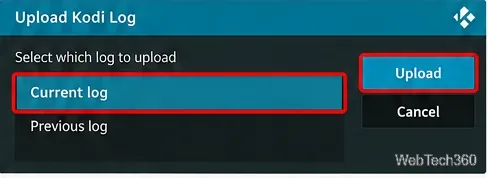
To view a Kodi error log, enable debug logging, reproduce the problem, then open the log with Kodi's official tools or a text editor. If you still have Ares Wizard installed, its older More > Upload Kodi Log feature may offer another route, but Ares Wizard is a legacy add-on and its upload service cannot be relied on today.
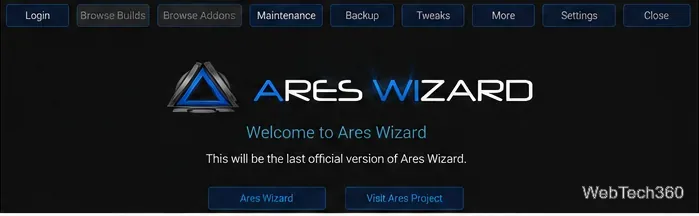
Ares Wizard once provided maintenance, backups, settings tweaks, and log uploads. Its last widely documented maintenance-only release dates back to 2017. We could not verify a currently maintained official Ares Wizard repository or an uploader compatible with current Kodi releases. Avoid old installation ZIPs and replacement download links from unknown websites. You do not need Ares Wizard to troubleshoot Kodi.
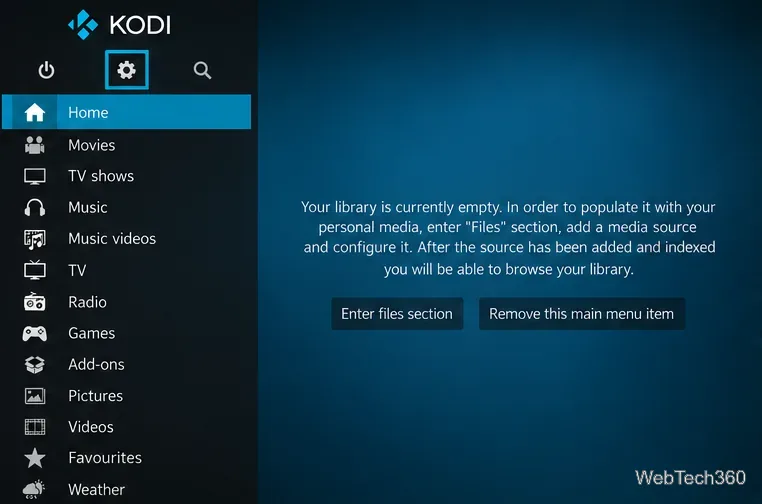
kodi.log records startup activity, add-on operations, playback messages, warnings, and errors. Ordinary logging runs automatically; debug logging adds details that developers need to diagnose a failure. The log may reveal a missing dependency, a denied file operation, an unreachable server, or an unsupported media file. An error entry is a clue, not always the root cause.
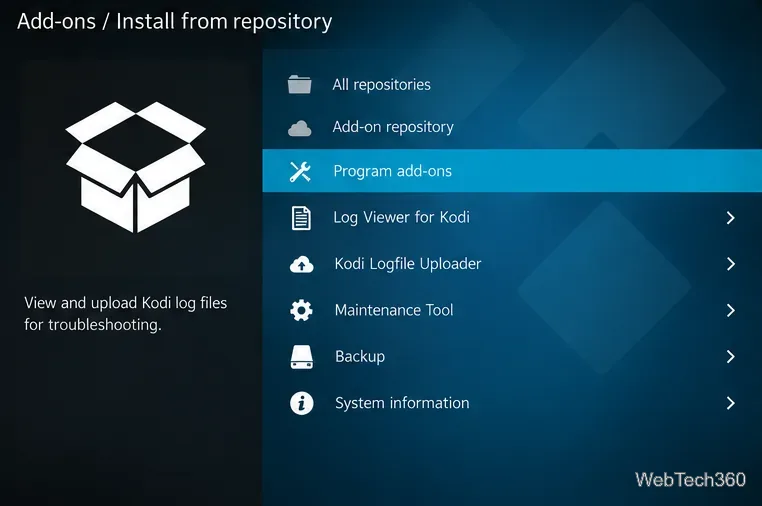
Install Log Viewer for Kodi from Settings > Add-ons > Install from repository > Program Add-ons, selecting the official Kodi repository when prompted. Open it from your program add-ons to inspect log messages on your television or computer. Its availability depends on your Kodi version and repository. See the official Log Viewer listing.
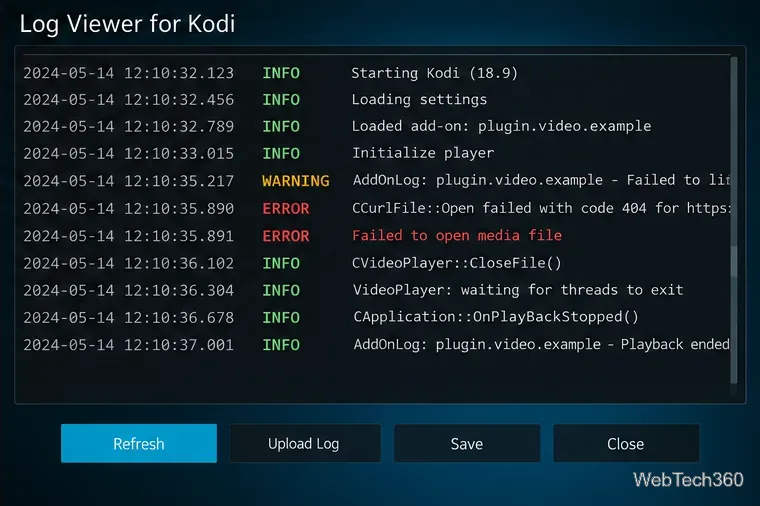
By default, this uploader handles the current log. If you restarted Kodi after the error, you may need its setting for the previous log instead.
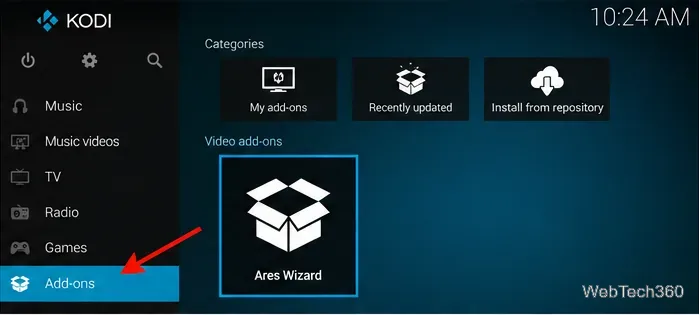
On a legacy installation, open Add-ons > Program Add-ons > Ares Wizard. The old interface may show tabs including Maintenance, Backup, Tweaks, and More. Menu placement and behavior can differ, and the upload feature may no longer connect to its original service.
You can open the log in a text editor or send a redacted copy to support. Common locations from Kodi’s log-file reference include:
| Platform | Log location |
|---|---|
| Windows desktop | %APPDATA%\Kodi\kodi.log |
| Windows Store | %LOCALAPPDATA%\Packages\XBMCFoundation.Kodi_4n2hpmxwrvr6p\LocalCache\Roaming\Kodi\kodi.log |
| macOS | ~/Library/Logs/kodi.log |
| Linux | ~/.kodi/temp/kodi.log |
| LibreELEC / CoreELEC | /storage/.kodi/temp/kodi.log |
| Android | /storage/emulated/0/Android/data/org.xbmc.kodi/files/.kodi/temp/kodi.log (device access varies) |
If the failure occurred before restarting, inspect kodi.old.log instead: Kodi rotates the prior session's file when it starts again. Android file managers may restrict access to application folders.
Search around the timestamp of the failed action, not just the first line containing ERROR. Avoid random cache cleaners or factory resets unless the evidence supports them. Before changing your setup extensively, use Kodi's documented backup approach.
Review it for usernames, local paths, IP addresses, server URLs, tokens, and passwords. Remove sensitive values while preserving the diagnostic context. For public support, Kodi requests full logs with only personal data redacted, submitted through its paste service rather than a file locker. Once finished, switch debug logging off.
Learn how to uninstall a Kodi repository safely, remove its saved source URL separately, and check which installed add-ons or dependencies you still need.
Find the safest way to watch live tennis with Kodi: learn what iPlayer WWW can stream, how to find licensed coverage, and which add-ons to avoid.
Learn how to watch movies on Kodi from your computer, USB drive, or NAS, add online video services, and fix missing titles with clear setup steps.
Set a Kodi Master Lock PIN, protect selected menus, and create a separate kids’ profile with media sources you choose.
Find the authorized stream for your country, check whether its provider supports Kodi, and watch a boxing PPV on your TV without relying on outdated add-ons.
Compare five Kodi skins in the official Omega catalog, then follow the current Settings path to install one, customize it, or switch back.
Looking for the 1Channel Kodi add-on? Learn why old PrimeWire installation guides are unreliable and how to install a supported video add-on safely.
Enable Kodi’s Chorus2 web interface, control your media from any browser, and learn how to connect remotely without exposing Kodi to the Internet.
Follow the original Nemesis Kodi installation process, learn what changed with Stream Army, and avoid outdated repository and PIN instructions.
Download Kodi safely on Windows using the official installer or Microsoft Store, then add your media library and set up trusted add-ons.








