How to Uninstall Kodi Repositories the Right Way

Learn how to uninstall a Kodi repository safely, remove its saved source URL separately, and check which installed add-ons or dependencies you still need.
Kodi itself does not provide adult streams. The safer way to watch adult content on Kodi is to play a lawful video file you control through Kodi’s built-in Videos and Files views, or to use a streaming provider’s own official app or website. Kodi is a media center, not a content service, and unofficial add-ons can introduce privacy, security, and copyright risks of their own.
Use adult material only where you are legally allowed to access it, and only material made and shared with the consent of the adults involved. The steps below keep Kodi focused on local playback and avoid the old third-party adult repositories circulated in outdated guides.
Install Kodi from the official Kodi download page or an official app store supported for your device. Avoid preconfigured “Kodi boxes,” repackaged builds, and installers that promise free premium streams. They can arrive with add-ons or repositories you did not choose. Kodi’s own explanation says the reference software ships without media and treats third-party add-ons as separate software maintained outside Team Kodi.
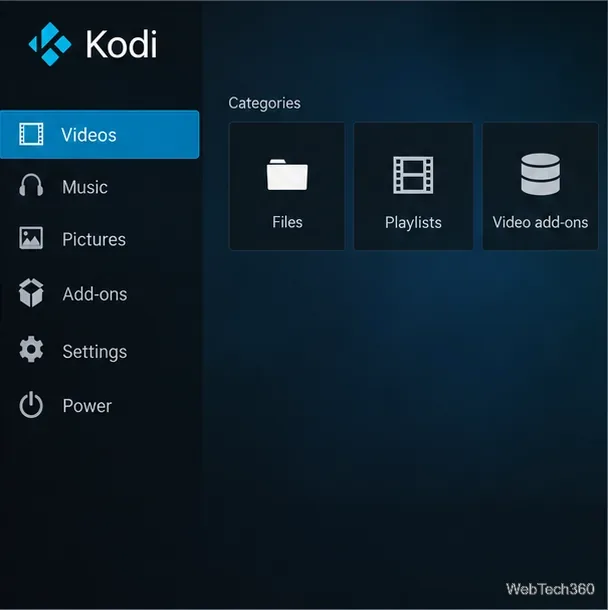
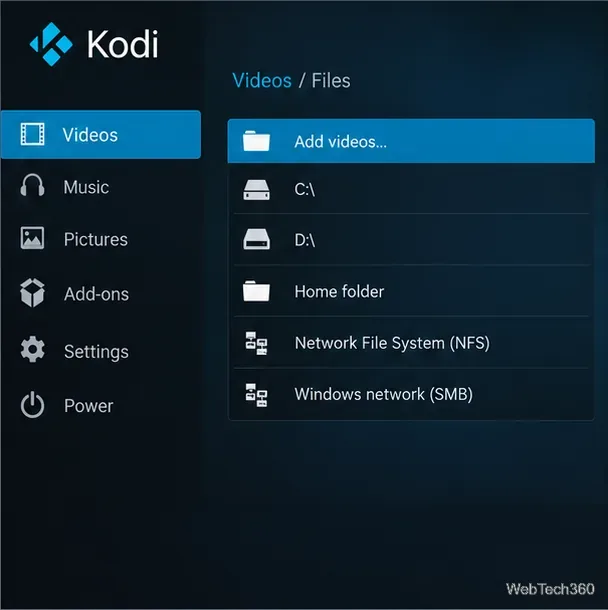
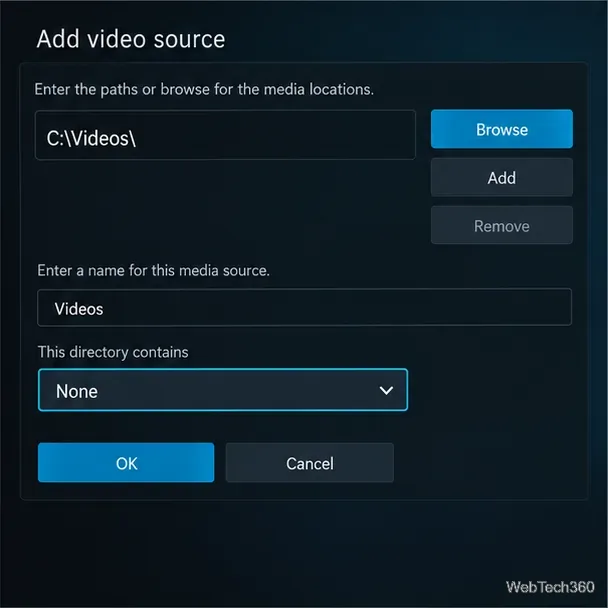
Use a provider’s supported website or app when possible. If the provider publishes a Kodi add-on, look for it inside Kodi’s built-in official add-on repository and confirm that the publisher and service match. Kodi’s official repository is enabled by default; Kodi’s settings documentation identifies it as the only trusted repository. That review is a useful filter, not a guarantee that every online service or stream is private or suitable for every user.
Do not follow old tutorials that direct you to download an adult repository ZIP or enable Unknown sources just to reach a catalog of streams. Kodi says that setting is required to install add-ons outside its repository, and its warning explains that add-ons may access personal data stored on the device. Kodi does not verify that old repository links still belong to their claimed developers, that an add-on still works, or that its streams are licensed. Avoid add-ons that promise paid content for free, ask for unrelated credentials, or require disabling device protections.
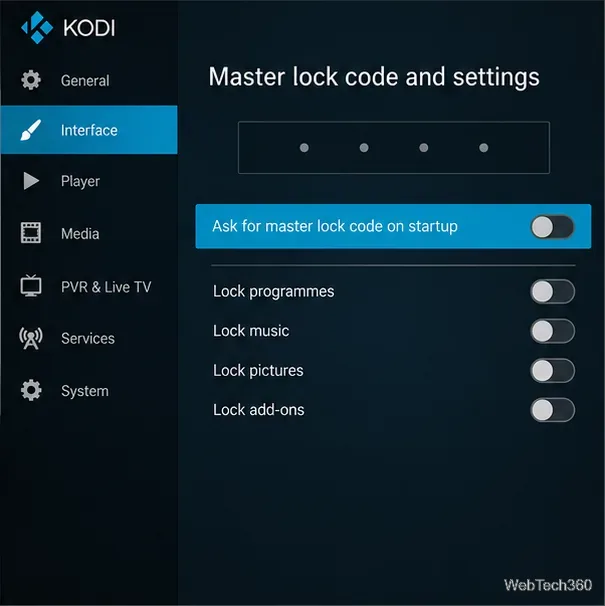
These steps reduce avoidable exposure, but they cannot guarantee complete privacy: the device, network, file source, and any streaming provider may each handle data differently. For the most predictable setup, keep Kodi on official software and use it to play authorized files stored in a private location.
Learn how to uninstall a Kodi repository safely, remove its saved source URL separately, and check which installed add-ons or dependencies you still need.
Find the safest way to watch live tennis with Kodi: learn what iPlayer WWW can stream, how to find licensed coverage, and which add-ons to avoid.
Learn how to watch movies on Kodi from your computer, USB drive, or NAS, add online video services, and fix missing titles with clear setup steps.
Set a Kodi Master Lock PIN, protect selected menus, and create a separate kids’ profile with media sources you choose.
Find the authorized stream for your country, check whether its provider supports Kodi, and watch a boxing PPV on your TV without relying on outdated add-ons.
Compare five Kodi skins in the official Omega catalog, then follow the current Settings path to install one, customize it, or switch back.
Looking for the 1Channel Kodi add-on? Learn why old PrimeWire installation guides are unreliable and how to install a supported video add-on safely.
Enable Kodi’s Chorus2 web interface, control your media from any browser, and learn how to connect remotely without exposing Kodi to the Internet.
Follow the original Nemesis Kodi installation process, learn what changed with Stream Army, and avoid outdated repository and PIN instructions.
Download Kodi safely on Windows using the official installer or Microsoft Store, then add your media library and set up trusted add-ons.








