How to Uninstall Kodi Repositories the Right Way

Learn how to uninstall a Kodi repository safely, remove its saved source URL separately, and check which installed add-ons or dependencies you still need.
The Internet Archive Game Launcher (IAGL) connects Kodi to game lists and launches titles with Kodi RetroPlayer or an optional external emulator such as RetroArch. Install it from the maintainer’s repository ZIP; the old Fusion method is no longer recommended. Current IAGL repository builds target Kodi 20 or newer, while game and player availability depends on your device.
These figures illustrate the workflow; Kodi menus vary by version and skin.
A game listing does not by itself grant permission to download or play it. Check the item’s rights information and local law. RetroArch says game and BIOS files must be obtained lawfully.
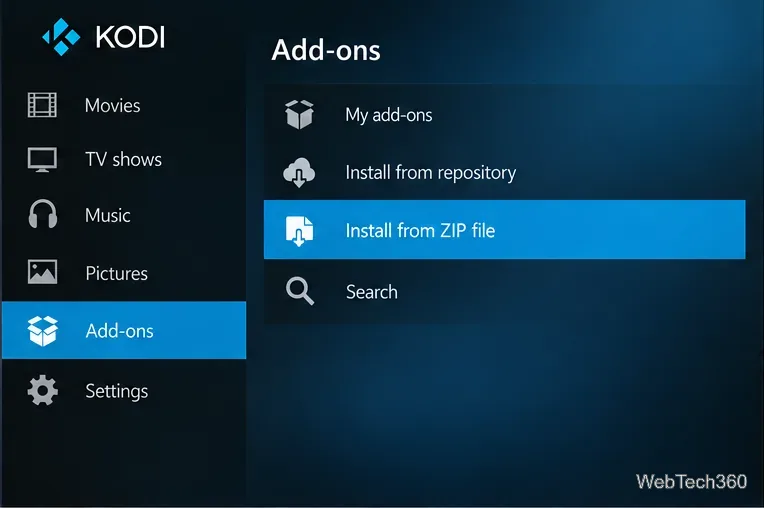
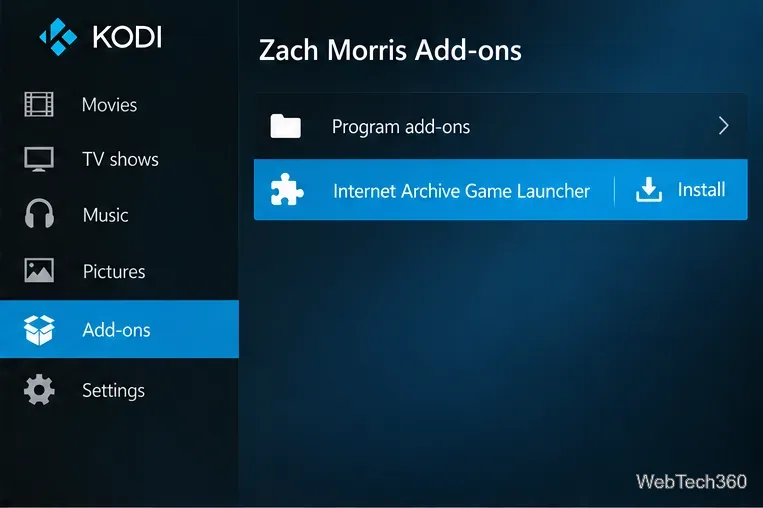
If the repository does not appear, confirm you installed the repository ZIP, not the separate IAGL add-on ZIP. Kodi’s Add-on Manager guide describes ZIP installation and repository menus; labels may differ slightly by Kodi version.
Open IAGL and follow its first-run wizard. Keep Kodi RetroPlayer for the simplest setup; it is the default for game lists. If a compatible player is missing, Kodi may offer to install its game add-on and dependencies. Availability varies by operating system, so a player listed for one device may be absent on another.
For external play, install RetroArch from its official site or your platform’s trusted app store. In RetroArch, open Main Menu → Online Updater → Core Downloader and install a core matching the game system. RetroArch alone is not an emulator; the core provides the emulator. If Core Downloader is hidden, enable it under Settings → User Interface → Menu Item Visibility.
Choose external launching in IAGL’s wizard, or highlight IAGL in Kodi, open its context menu, and select Settings → Launching. Confirm the RetroArch application and configuration-file paths; auto-detection can fail. RetroArch shows its configuration location under Settings → Directory → Configuration Files. On Android, app permissions may require manually setting the RetroArch version, core folder, and a shared download folder.
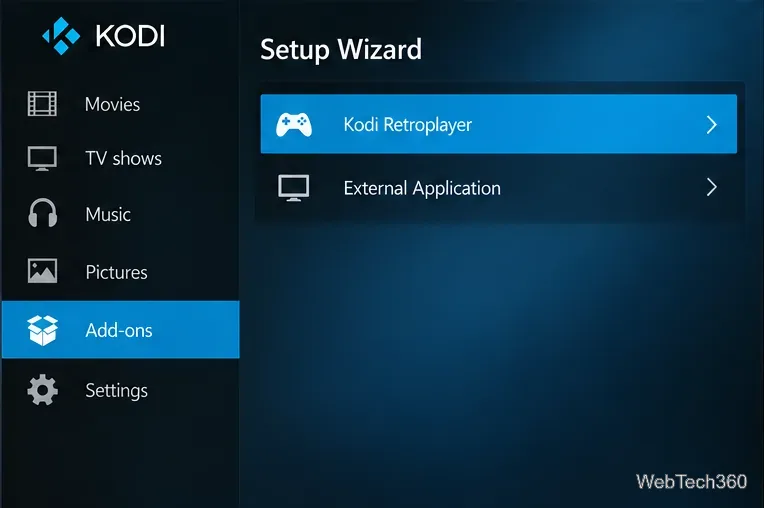
Some cores also need a BIOS file. Check the selected core’s requirements and use only BIOS files you are authorized to use. RetroArch’s getting-started guide covers core installation, controller setup, game loading, and BIOS requirements.
Return to IAGL, open a game list, select a title, and follow the download or launch prompts. IAGL may download the file to its configured folder before play begins. Kodi may ask you to choose a compatible game add-on; external launching sends the title to the selected emulator and core.
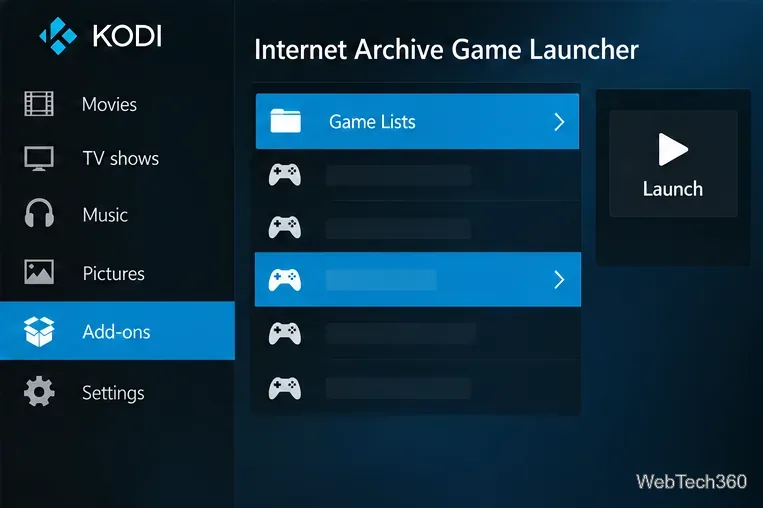
The Internet Archive software collection and IAGL’s lists can change. A listed title may still be restricted, unavailable, or incompatible with the selected player.
For current version and platform details, see the maintainer’s IAGL installation guide and setup guide.
Learn how to uninstall a Kodi repository safely, remove its saved source URL separately, and check which installed add-ons or dependencies you still need.
Find the safest way to watch live tennis with Kodi: learn what iPlayer WWW can stream, how to find licensed coverage, and which add-ons to avoid.
Learn how to watch movies on Kodi from your computer, USB drive, or NAS, add online video services, and fix missing titles with clear setup steps.
Set a Kodi Master Lock PIN, protect selected menus, and create a separate kids’ profile with media sources you choose.
Find the authorized stream for your country, check whether its provider supports Kodi, and watch a boxing PPV on your TV without relying on outdated add-ons.
Compare five Kodi skins in the official Omega catalog, then follow the current Settings path to install one, customize it, or switch back.
Looking for the 1Channel Kodi add-on? Learn why old PrimeWire installation guides are unreliable and how to install a supported video add-on safely.
Enable Kodi’s Chorus2 web interface, control your media from any browser, and learn how to connect remotely without exposing Kodi to the Internet.
Follow the original Nemesis Kodi installation process, learn what changed with Stream Army, and avoid outdated repository and PIN instructions.
Download Kodi safely on Windows using the official installer or Microsoft Store, then add your media library and set up trusted add-ons.








