How to Uninstall Kodi Repositories the Right Way

Learn how to uninstall a Kodi repository safely, remove its saved source URL separately, and check which installed add-ons or dependencies you still need.
Yes. Kodi is free to download and use, and Kodi Foundation does not charge a license fee for the software. Kodi is an open-source media center released under the GPL. The important qualification is that Kodi is a player and library manager, not a free bundle of movies, live TV, or paid streaming subscriptions. Your overall setup may still involve costs for a device, internet service, media, or a separate provider.
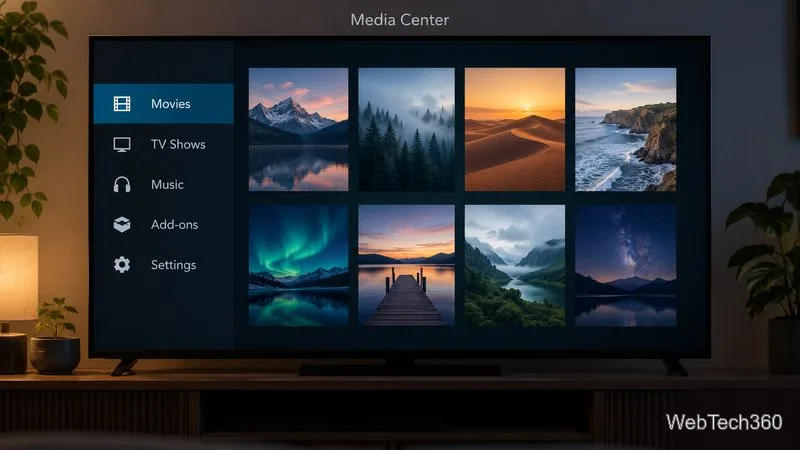
The Kodi application has no purchase price, recurring software subscription, or paid tier required to unlock its core media-center features. The Kodi Foundation describes it as free and open source, and says it does not charge licensing fees for use. Its source code is available for people to inspect, build on, and redistribute under the applicable license terms. “Open source” does not mean every use is unrestricted; anyone modifying or redistributing the code must follow the license.
You can get official builds from Kodi’s download page, which lists supported platforms and release options. Choose the stable release for your device unless you specifically want a development build, and check the platform notes before installing. The official software list explains that builds downloaded elsewhere may not be official Kodi releases and may not receive Team Kodi support.
No. A fresh official Kodi installation does not contain movies, television channels, or music. You can add your own files, browse media on local or network storage, or use add-ons to connect with online sources. Kodi’s official download notice says third-party plugins may provide access to content that is already freely available from an authorized provider; Kodi does not supply that content itself.
Kodi’s official add-on catalog offers free add-on software for functions such as browsing online video or music, changing the interface, and adding tools. But an add-on’s price and the content it connects to are separate questions. A provider may require you to sign in, maintain a paid subscription, or pay for a particular program. Check the provider’s own terms before assuming a stream is included at no charge.
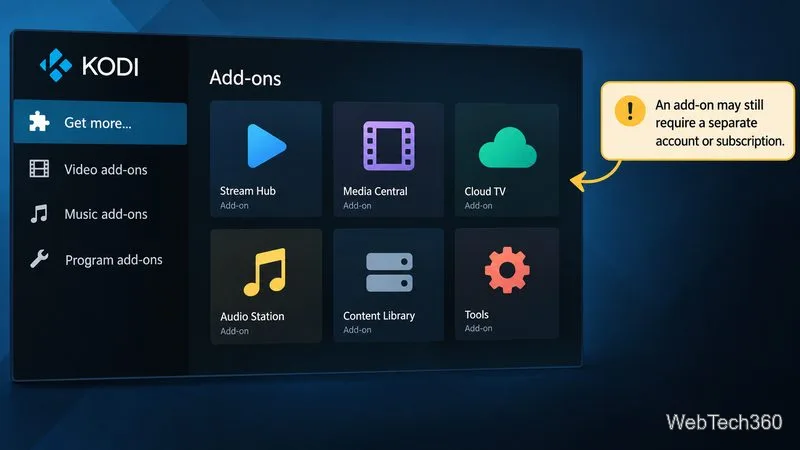
The Kodi application is legitimate software. What you watch or listen to is a separate matter: use media you own or sources that are authorized to provide it, and follow the copyright rules that apply where you live. Kodi says it does not endorse pirated content, and its guidance distinguishes the official project from third-party add-ons and repositories that it does not make, support, or approve. The presence of an add-on in a search result—or the fact that Kodi itself is free—does not establish that every stream it offers is authorized.
For a safer starting point, download Kodi from the official site and review add-ons in the official add-on catalog. Be cautious of sellers promising a “fully loaded” box with free access to premium channels or recent releases. Kodi Foundation says it does not sell Kodi boxes or sticks; hardware is sold by other manufacturers and retailers.
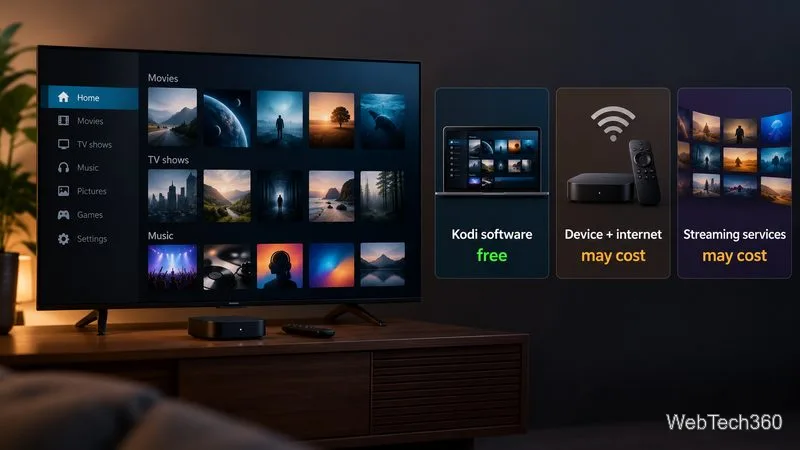
| Item | Can it cost money? |
|---|---|
| Kodi app and official Kodi remotes | No software fee from Kodi |
| Computer, TV box, storage, or other hardware | Yes, if you need to buy equipment |
| Internet service or network storage | May have separate charges |
| Movies, TV, music, or streaming services | Depends on your source and provider |
| Donations and Kodi merchandise | Optional ways to support the project |
If you already own a compatible device and have local media, you can use Kodi without paying Kodi or a streaming provider. If you want to watch subscription-only content, you still need the relevant provider’s plan. If you need a new TV-connected computer or box, that hardware is another cost—but it is not a fee for Kodi.
Support is voluntary. The Kodi community welcomes people who contribute code, build add-ons, help other users in its forums, test releases, translate the interface, or improve the project’s documentation and wiki. Donations and merchandise purchases are also optional; Kodi says donations help cover project expenses such as hardware, licenses, legal paperwork, and conferences. These contributions support the project, but none is required to install or use the application. See the official Kodi contribution guide for current ways to participate.
Kodi itself is completely free. What is not automatically free is the hardware, internet connection, media, or third-party service you choose to use with it. Download the official app, check each content provider’s terms, and treat requests to pay for “Kodi access” or a supposedly official preloaded box with care.
Learn how to uninstall a Kodi repository safely, remove its saved source URL separately, and check which installed add-ons or dependencies you still need.
Find the safest way to watch live tennis with Kodi: learn what iPlayer WWW can stream, how to find licensed coverage, and which add-ons to avoid.
Learn how to watch movies on Kodi from your computer, USB drive, or NAS, add online video services, and fix missing titles with clear setup steps.
Set a Kodi Master Lock PIN, protect selected menus, and create a separate kids’ profile with media sources you choose.
Find the authorized stream for your country, check whether its provider supports Kodi, and watch a boxing PPV on your TV without relying on outdated add-ons.
Compare five Kodi skins in the official Omega catalog, then follow the current Settings path to install one, customize it, or switch back.
Looking for the 1Channel Kodi add-on? Learn why old PrimeWire installation guides are unreliable and how to install a supported video add-on safely.
Enable Kodi’s Chorus2 web interface, control your media from any browser, and learn how to connect remotely without exposing Kodi to the Internet.
Follow the original Nemesis Kodi installation process, learn what changed with Stream Army, and avoid outdated repository and PIN instructions.
Download Kodi safely on Windows using the official installer or Microsoft Store, then add your media library and set up trusted add-ons.








